Device42 Appliance Manager Login
The Device42 Appliance Manager is a web interface for backing up data, updating the Main Appliance, generating log bundles for the Device42 Support Portal, restarting the application, and configuring System and Global Settings. This page covers how to access the Appliance Manager, log in, and change your password.
Access the Appliance Manager
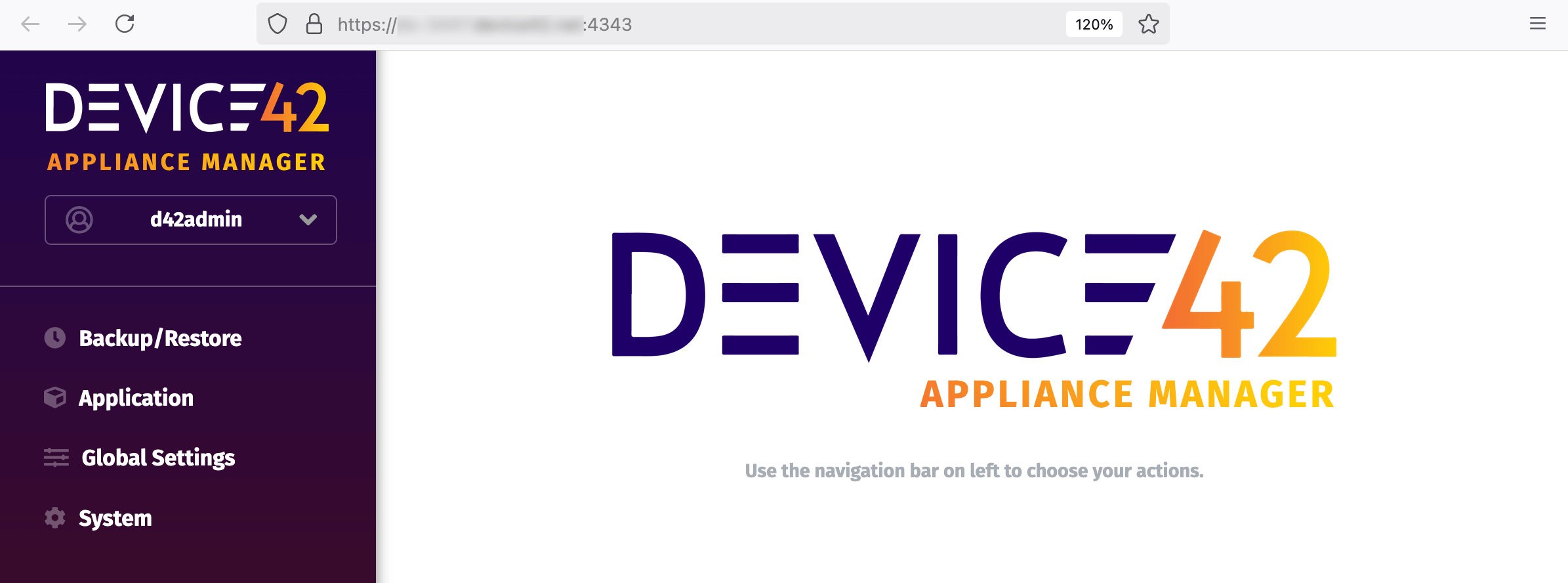
Access the Appliance Manager at one of the following URLs:
- HTTP on port 4242:
http://<your-ip-or-FQDN>:4242 - HTTPS on port 4343:
https://<your-ip-or-FQDN>:4343
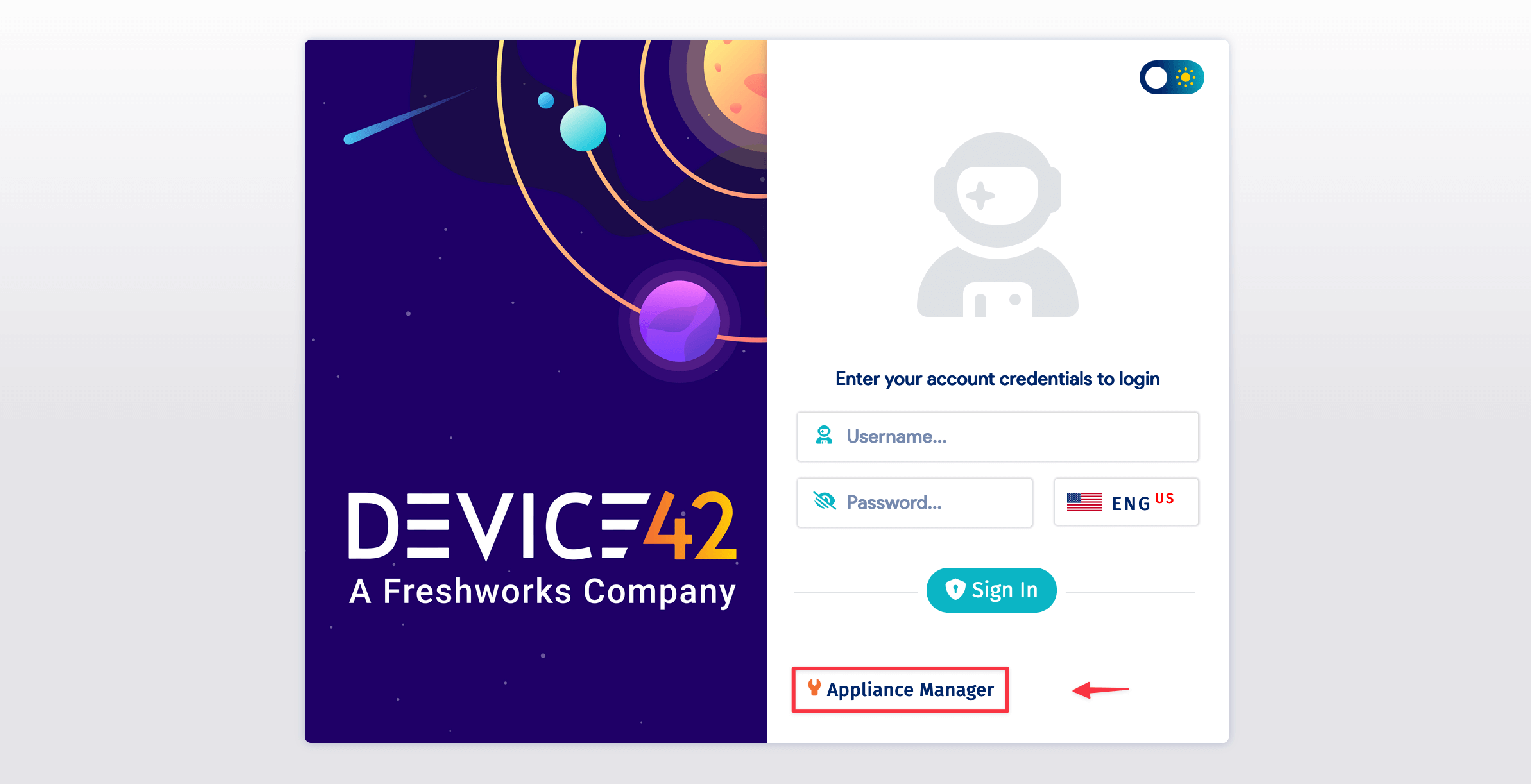
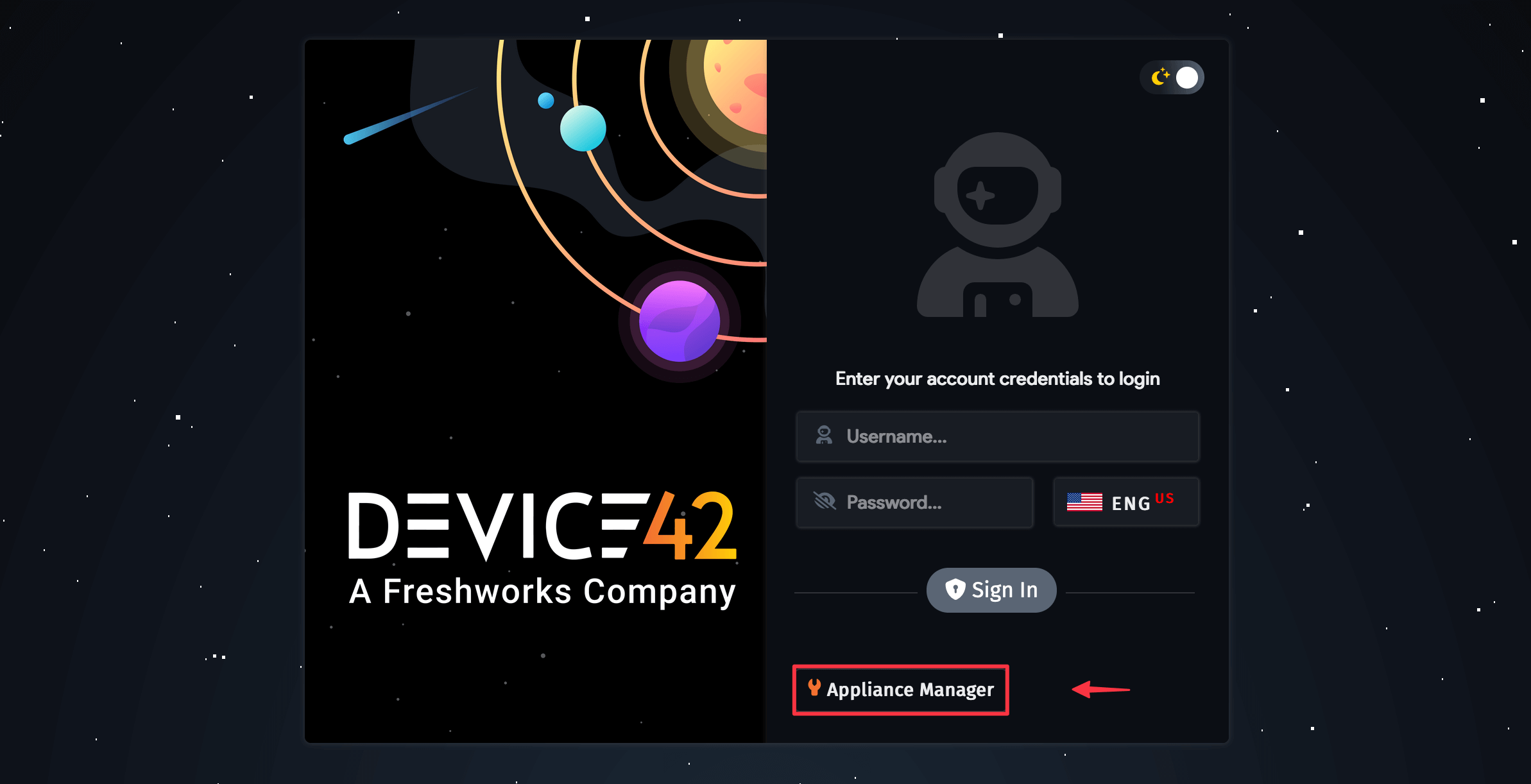
Alternatively, go to your Main Appliance login page and click the Appliance Manager link.
Login Credentials
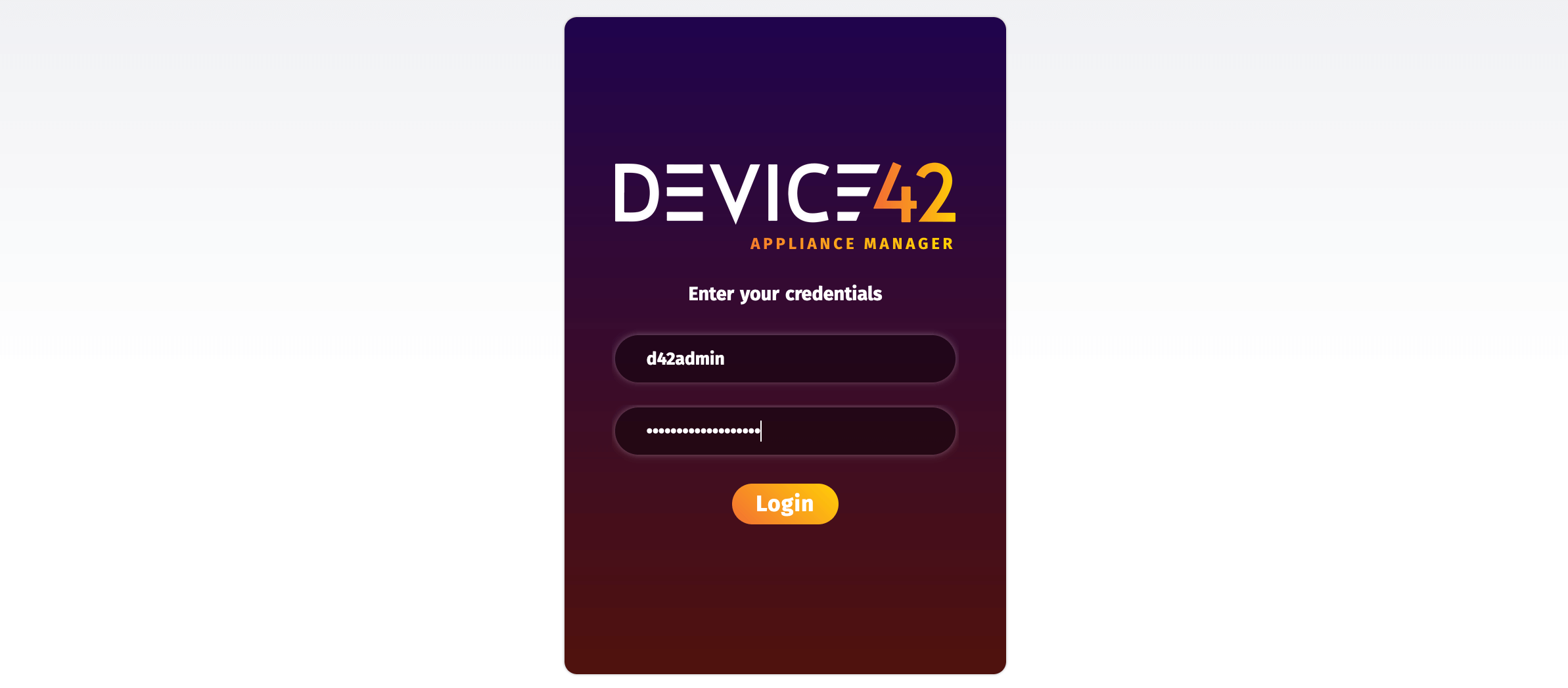
The default username and password are d42admin and default. Change the password as soon as you log in.
Change Your Password
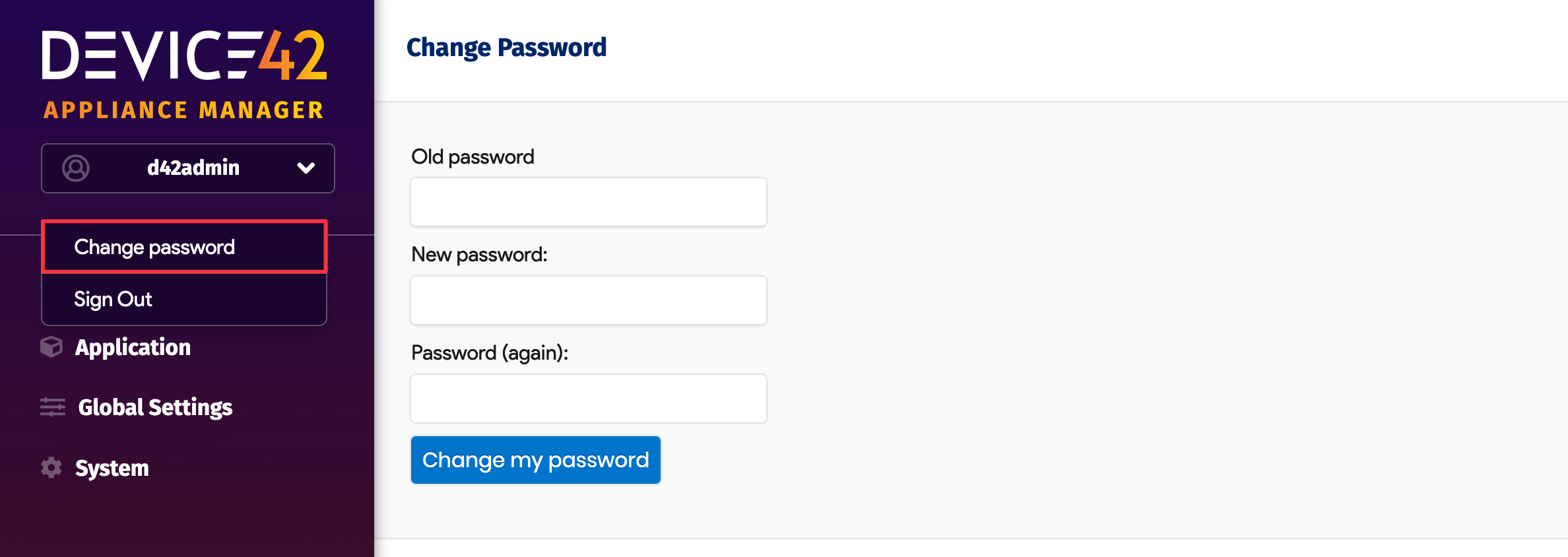
Click your username at the top of the left sidebar and select Change password.
AWS Login
For marketplace AWS installations, use d42admin as the username and your AWS Instance ID as the default password. See the AWS installation instructions for details.
For manual AWS installations using a downloaded image, log in with the default Device42 username d42admin and password default.