Multi-domain Active Directory and OpenLDAP Support
Device42 can be configured to work with multiple Active Directory (AD) servers. AD servers can be used for both Active Directory-based logins and AD synchronization.
AD settings can be found and configured under Tools > Settings > Active Directory Settings and are only accessible to Device42 superusers. Multiple Active Directory settings and up to one OpenLDAP server setting can be configured at a time to properly describe your environment. Each Active Directory setting can also specify multiple domains.
Add New Active Directory or OpenLDAP Settings
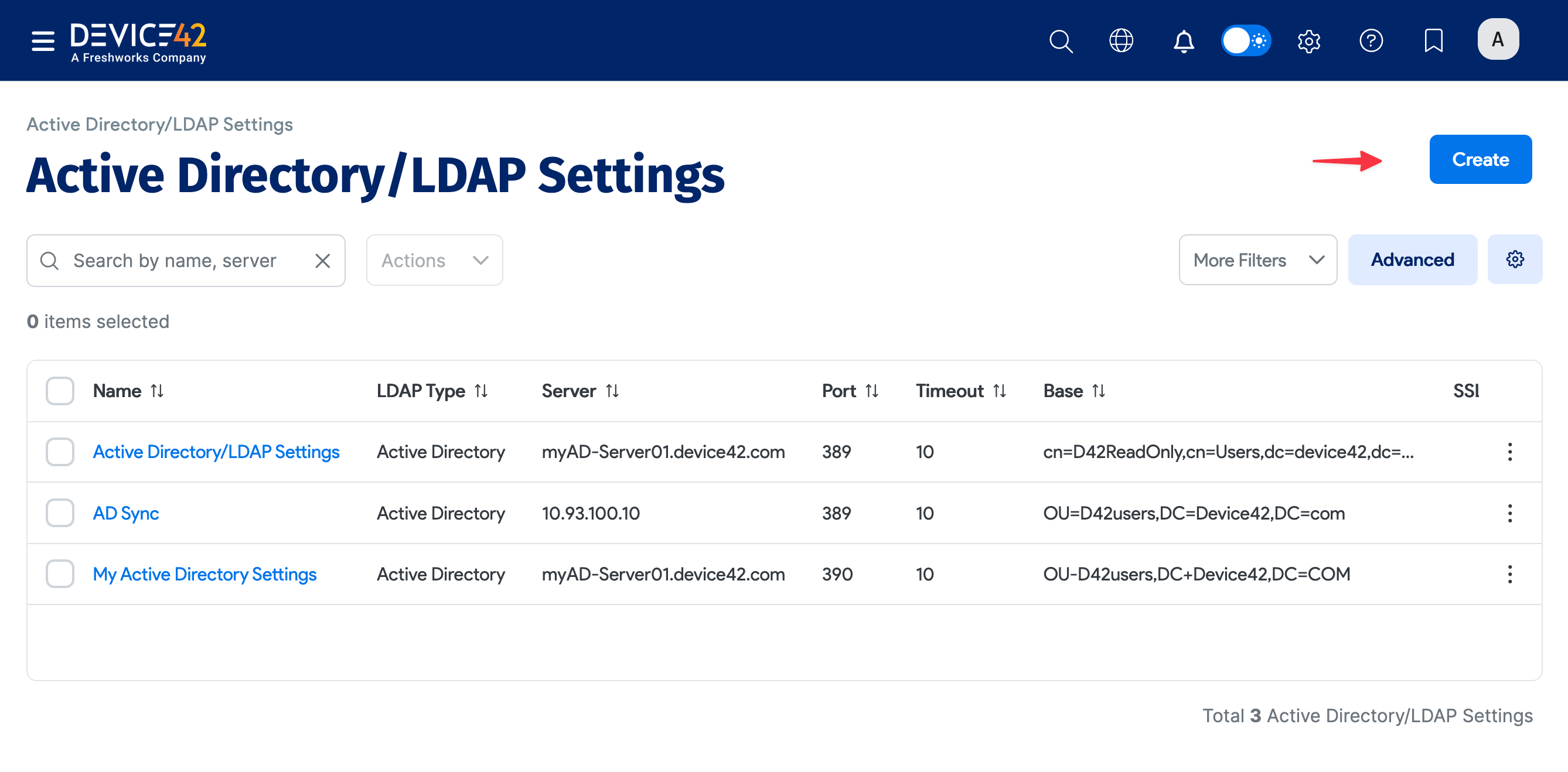
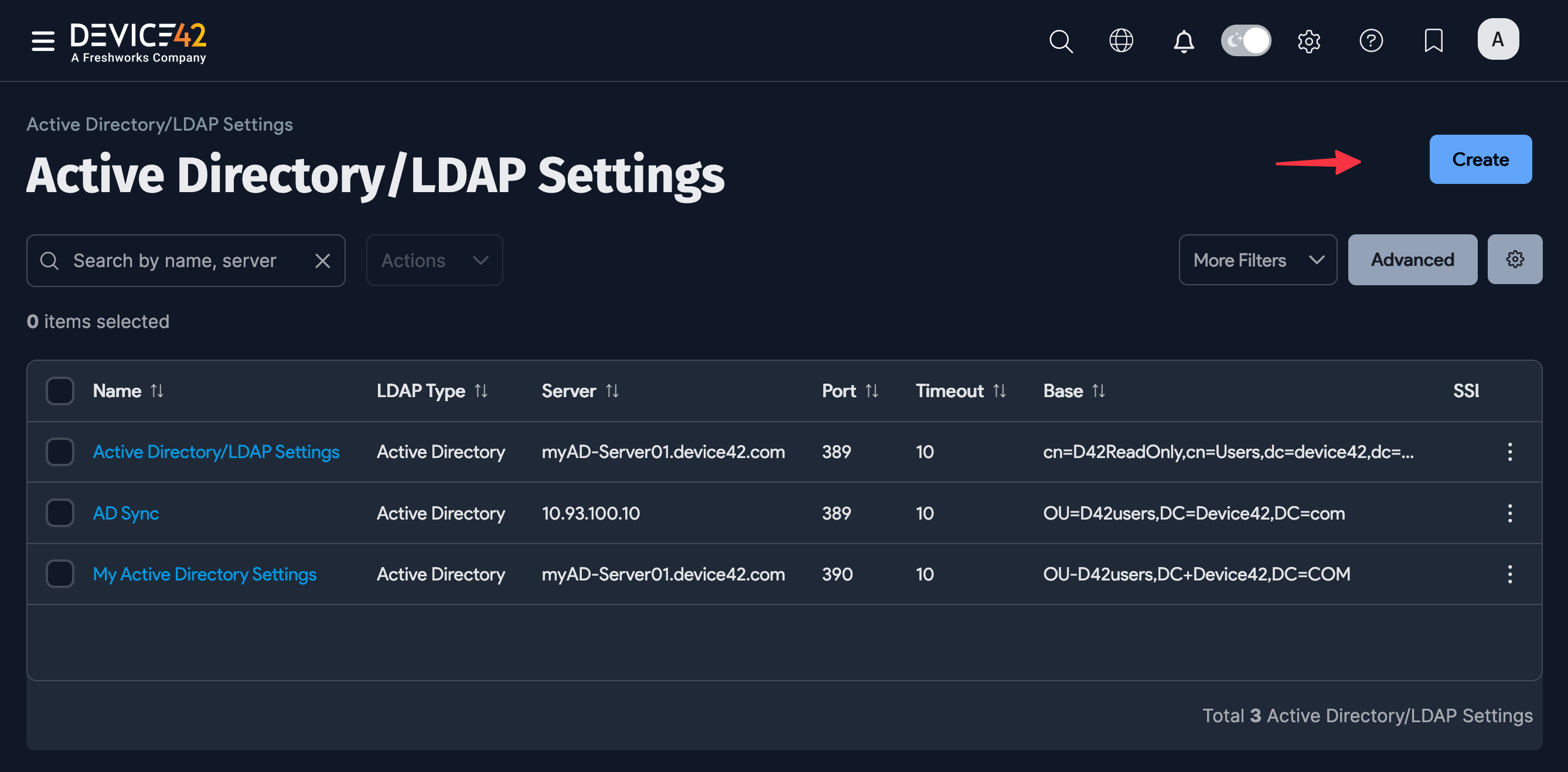
From the Active Directory/LDAP Settings list page, click Create.
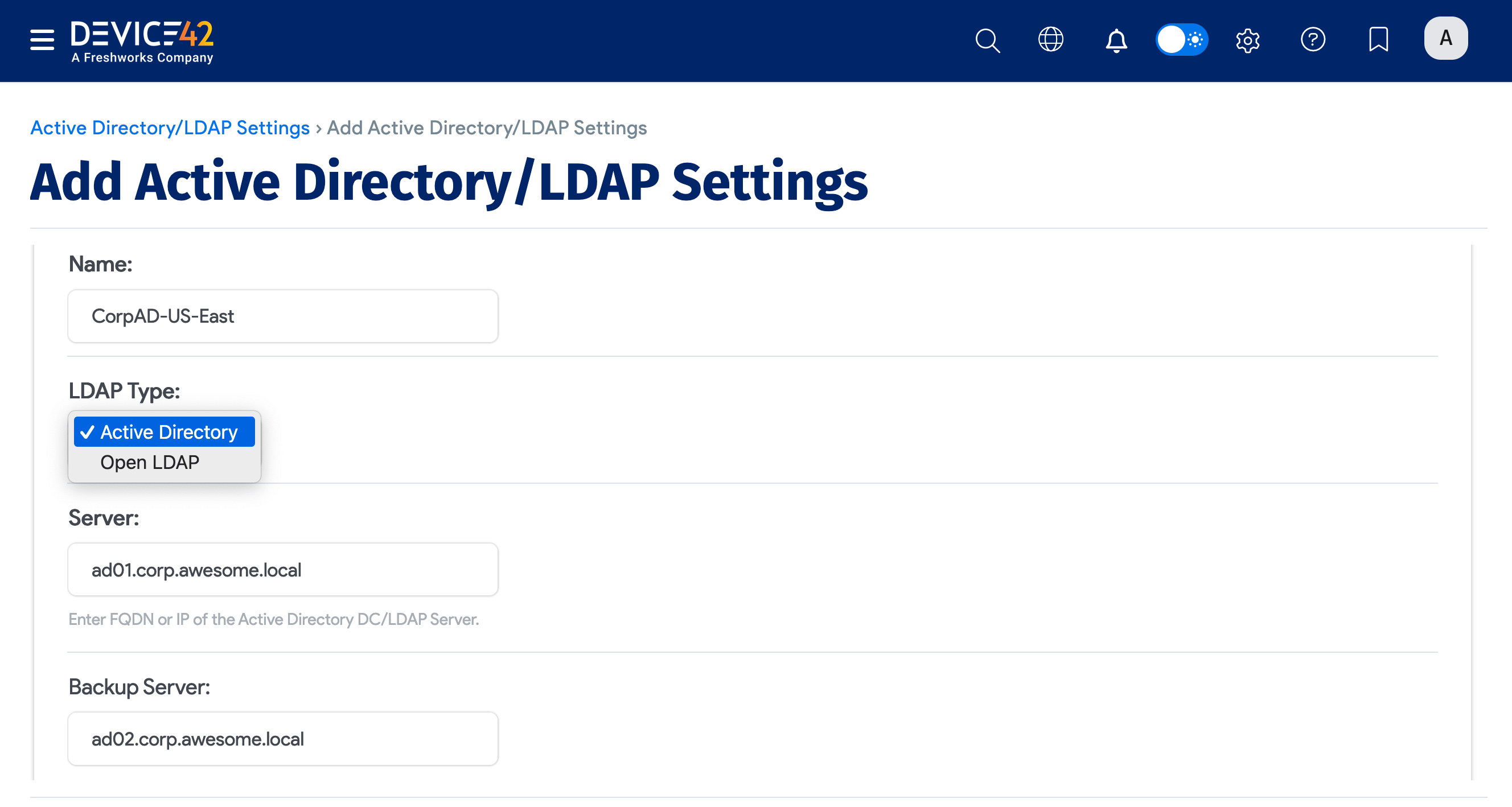
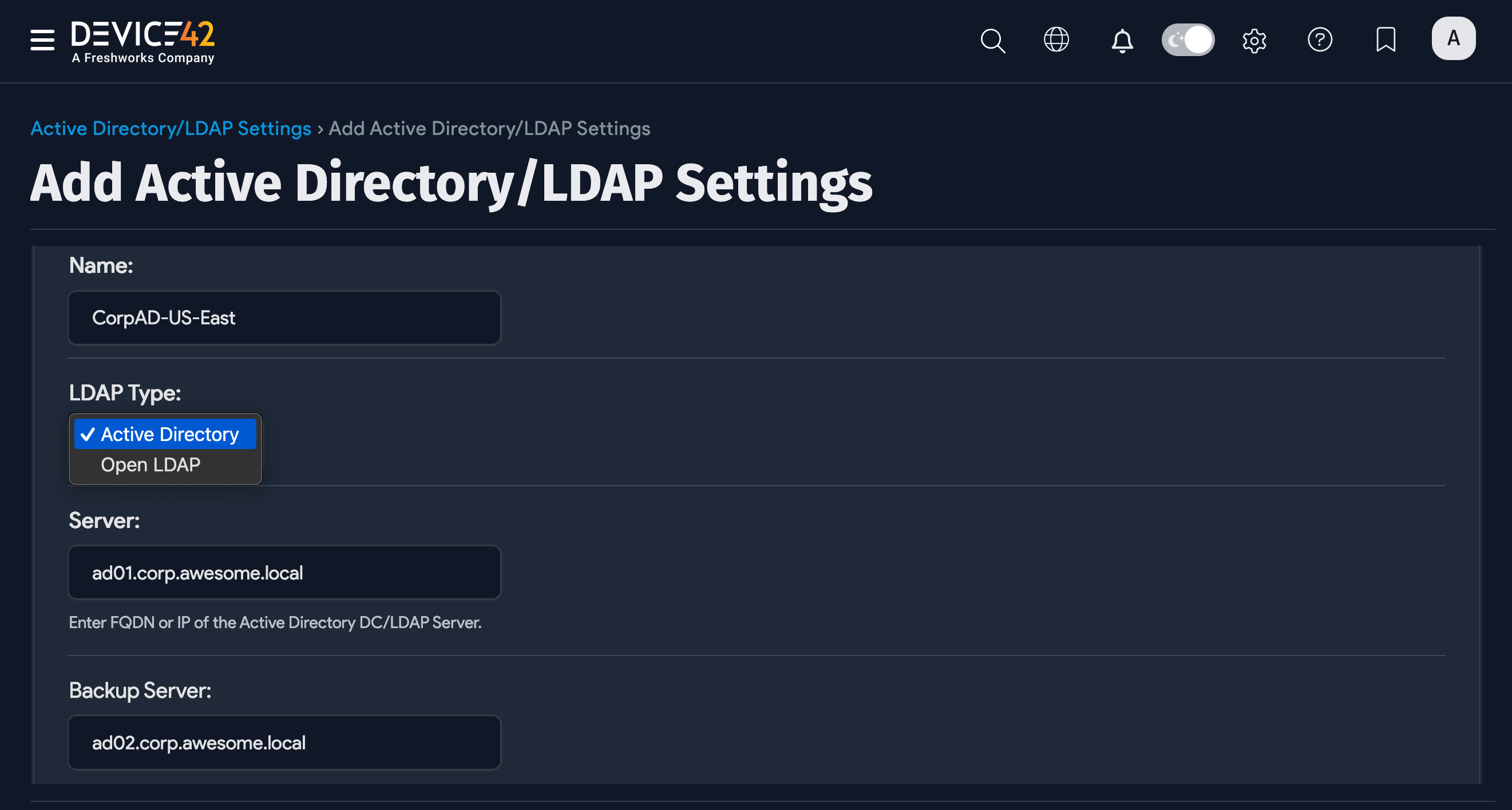
Under LDAP Type, choose Active Directory or OpenLDAP.
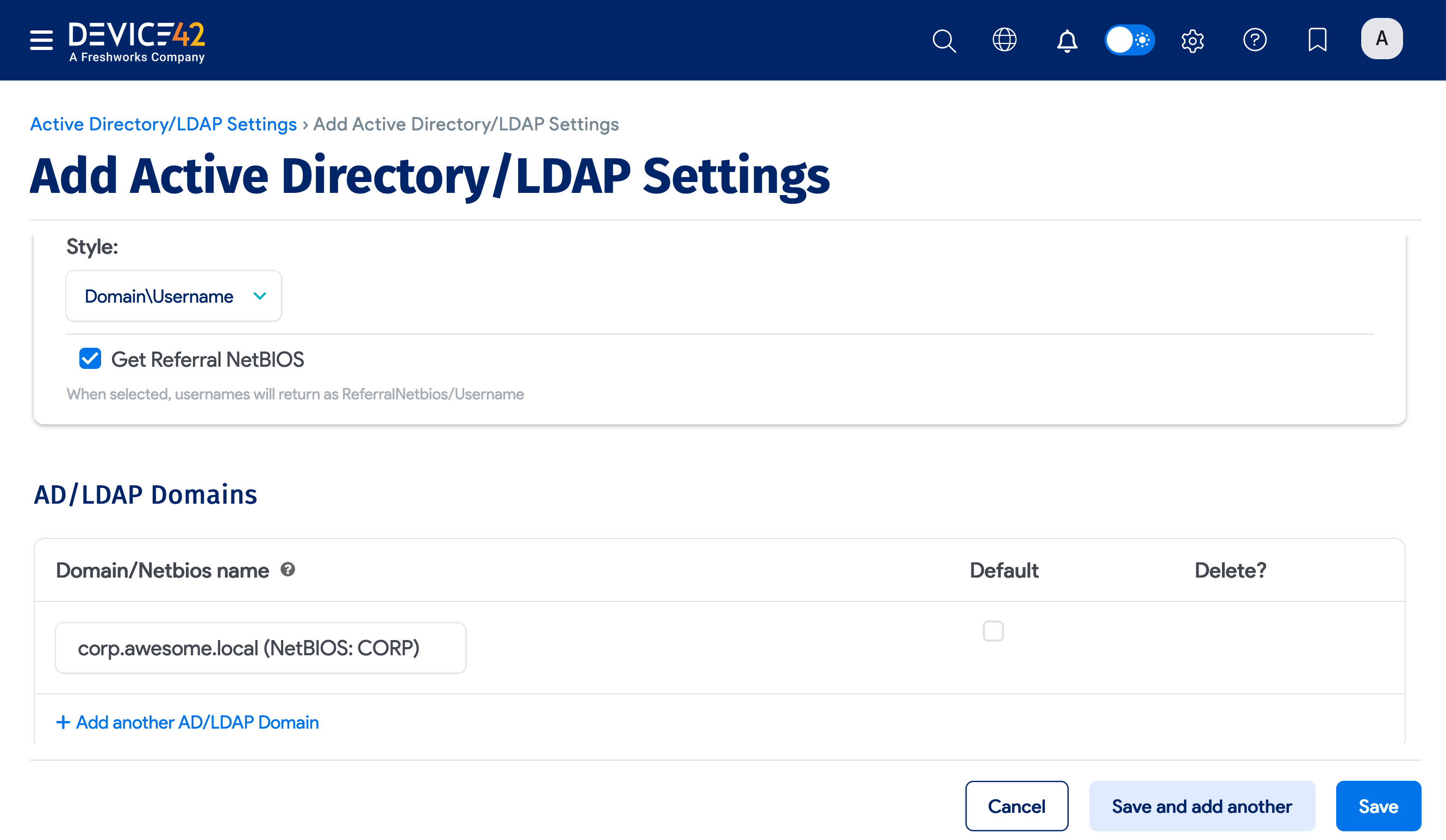
For the Active Directory type, choosing Domain\Username as your Username login Style reveals the Get Referral NetBIOS option, which returns usernames in the format ReferralNetbios/Username.
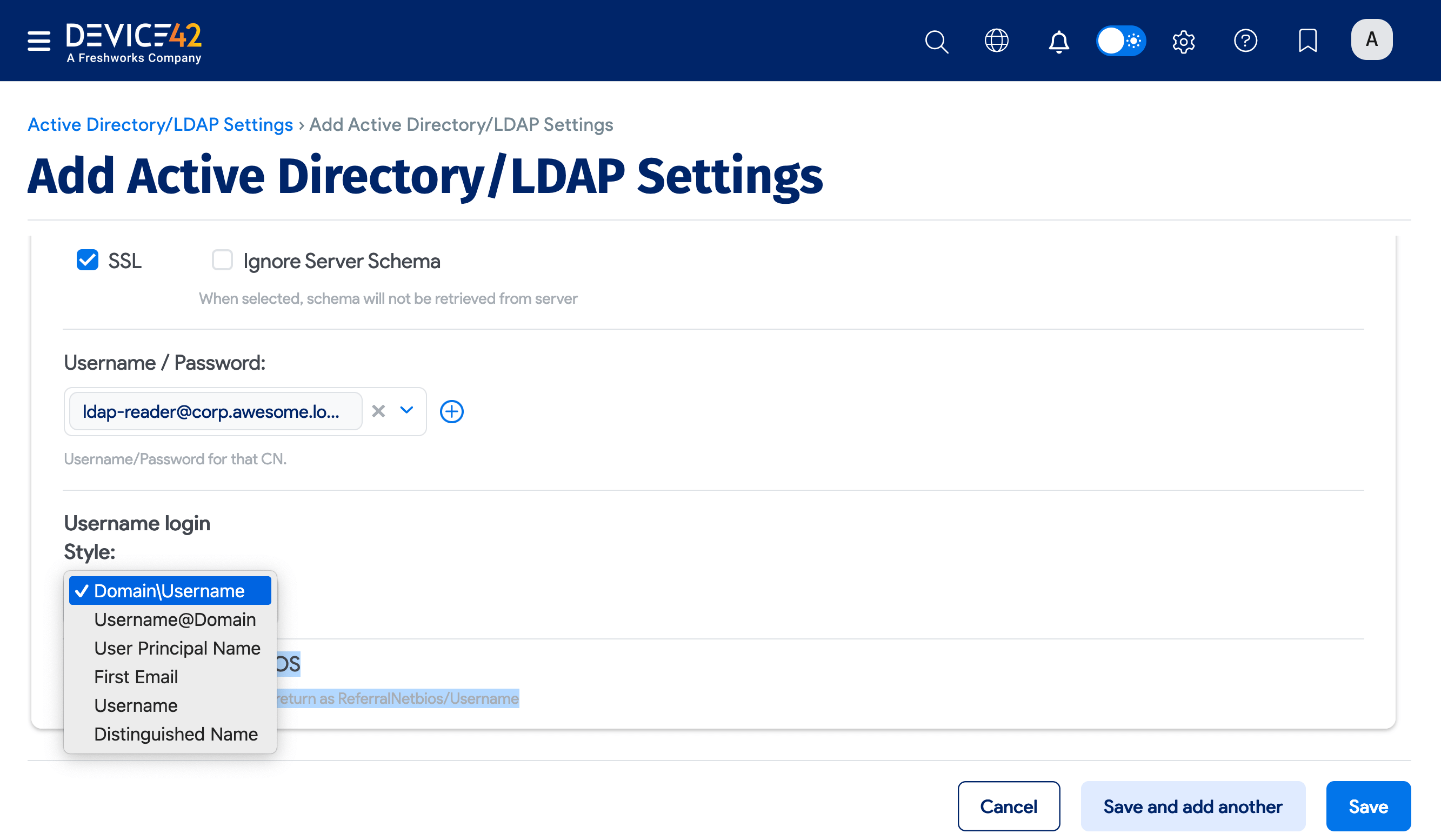
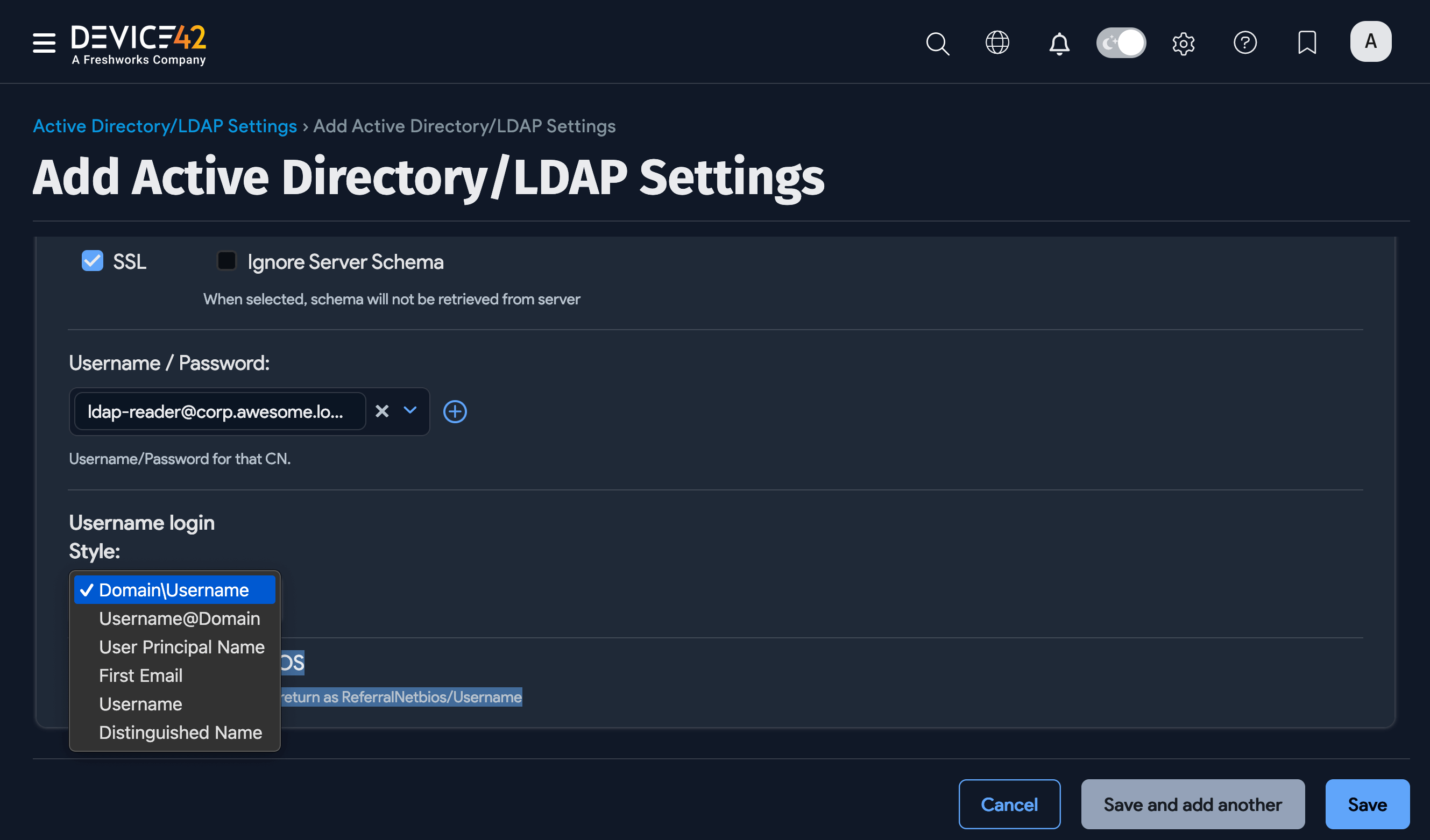
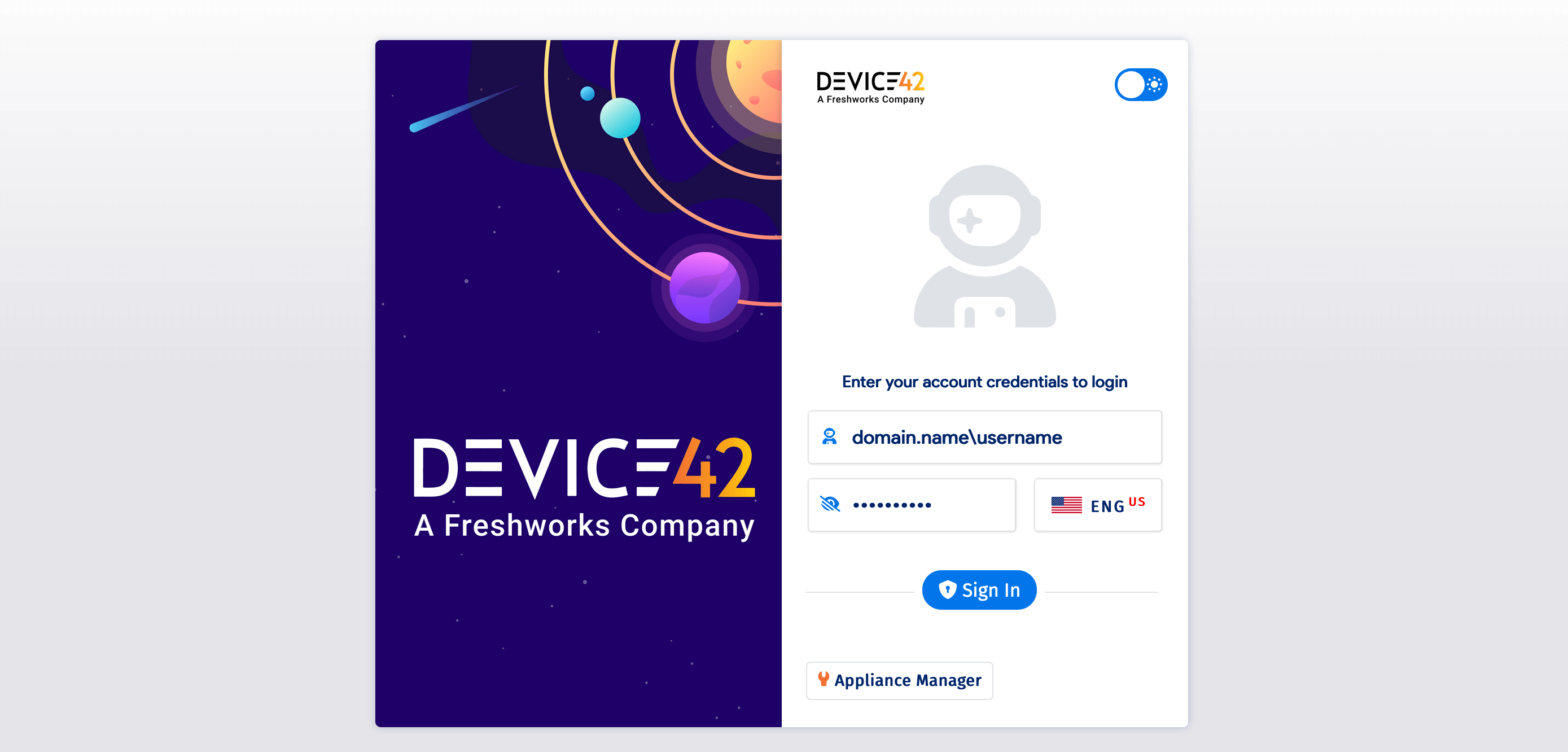
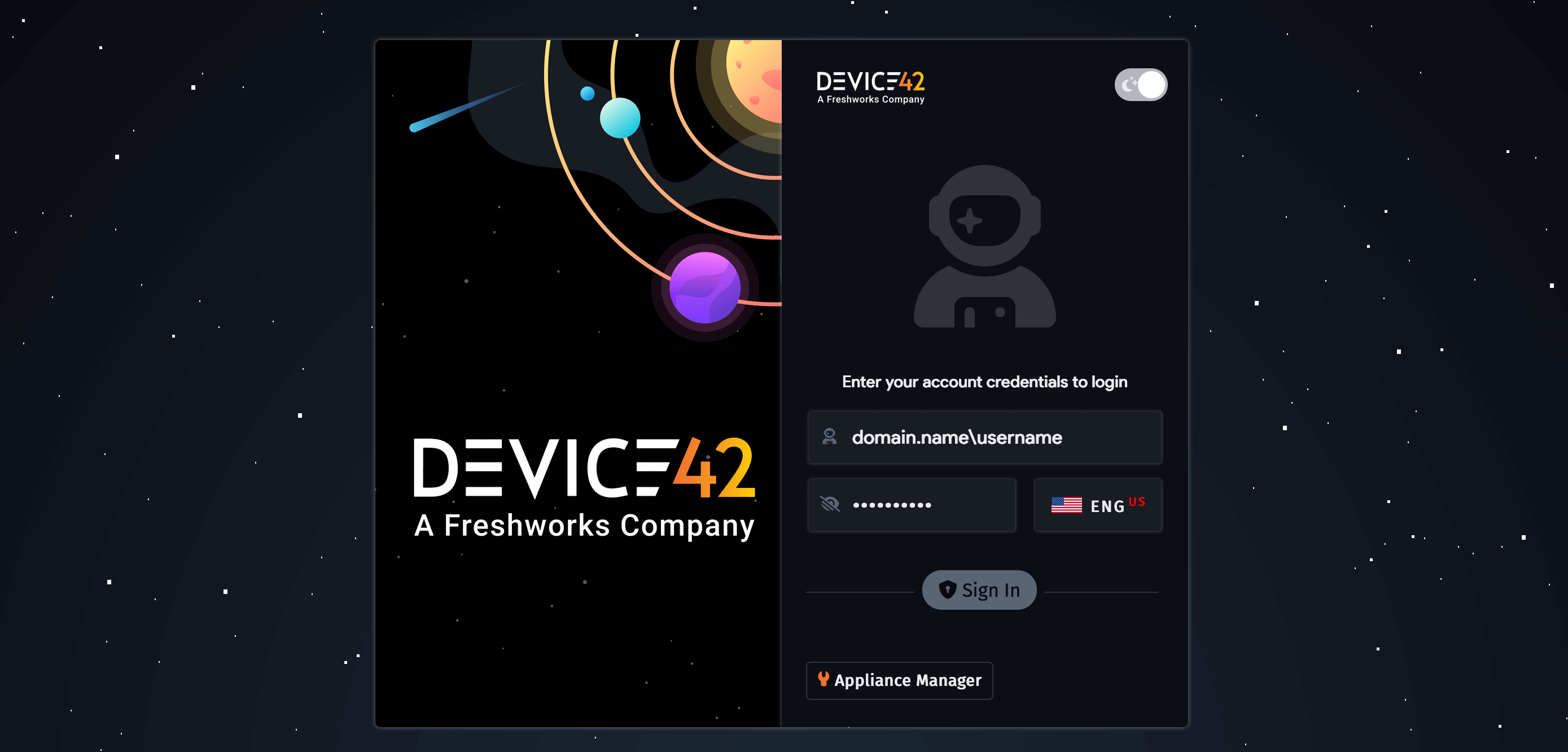
If you select Domain\Username as your Username login Style, users will be required to enter both their domain and username to log in to Device42.
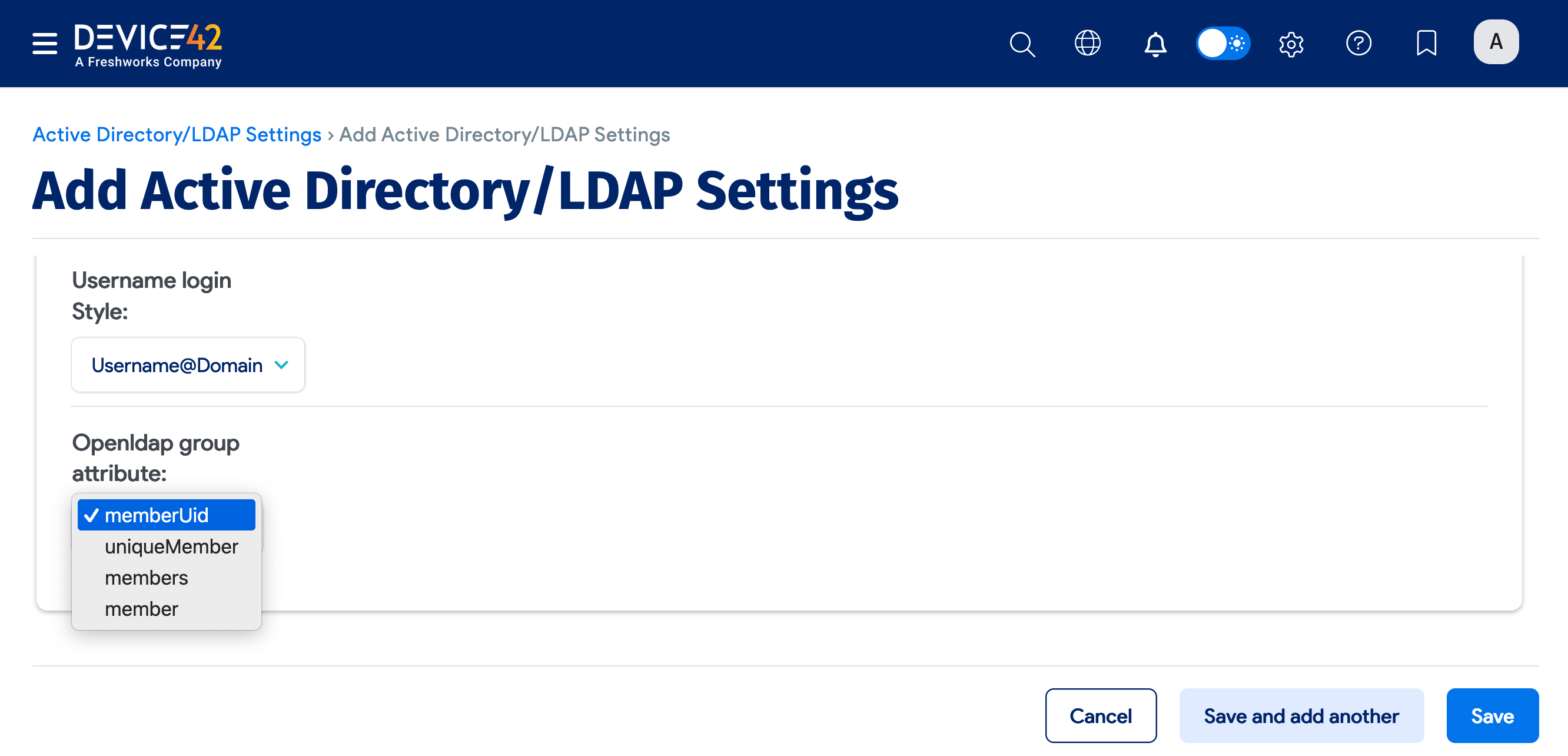
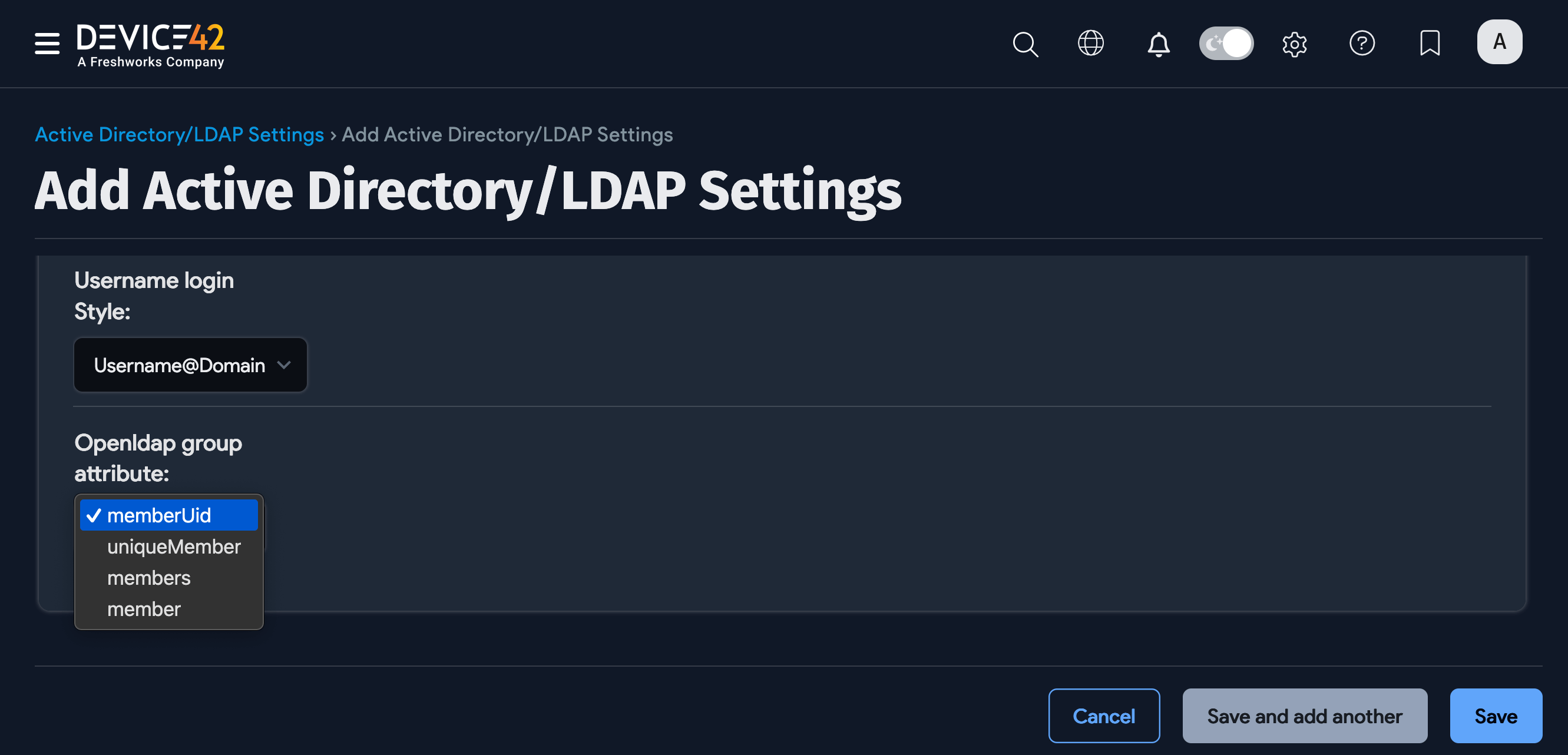
For the OpenLDAP type, you can choose an OpenLDAP group attribute to identify group members. The available options are memberUid, uniqueMember, members, and member.
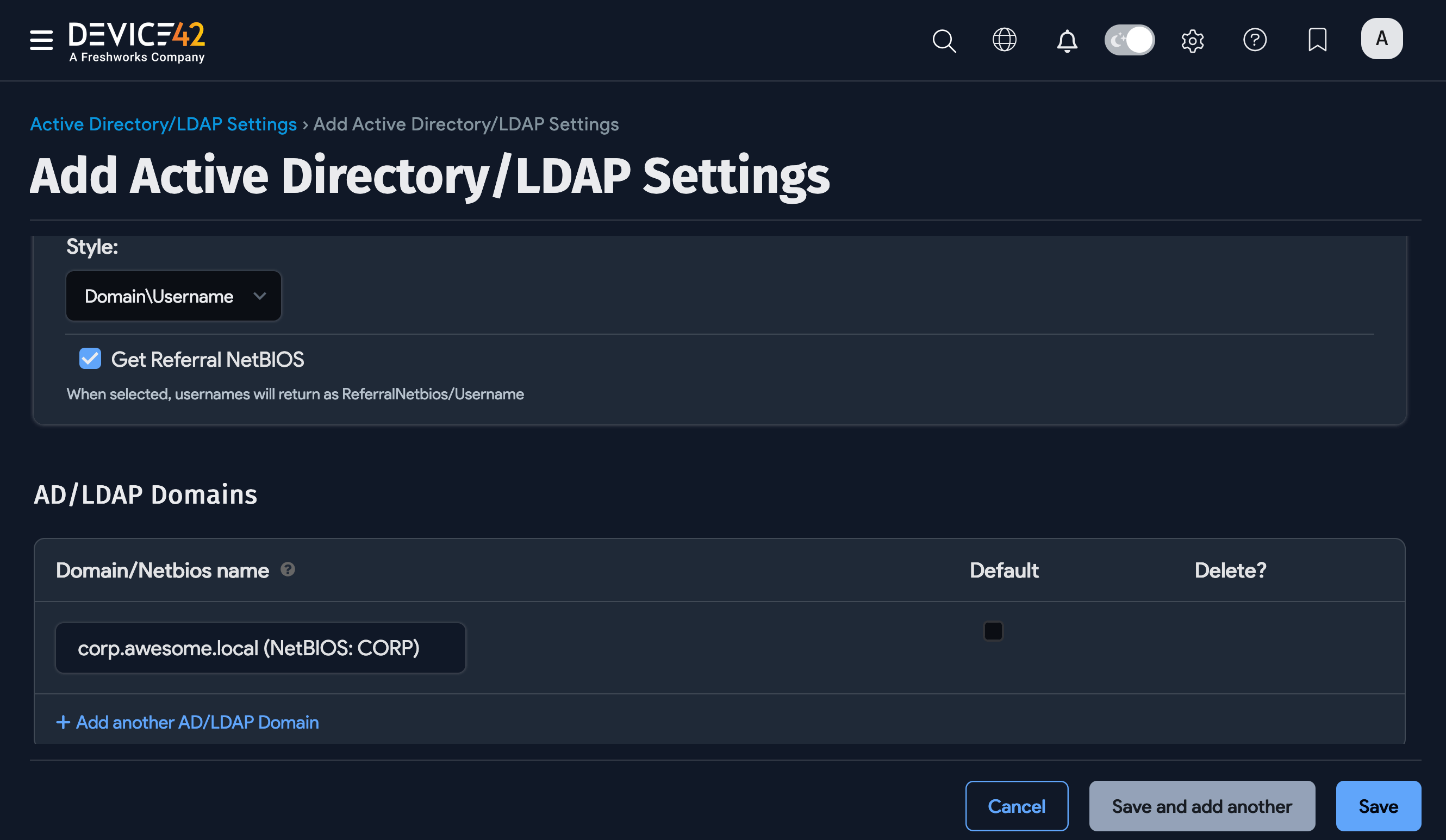
You can add multiple AD/LDAP Domains and mark them as Default.
Test a Connection
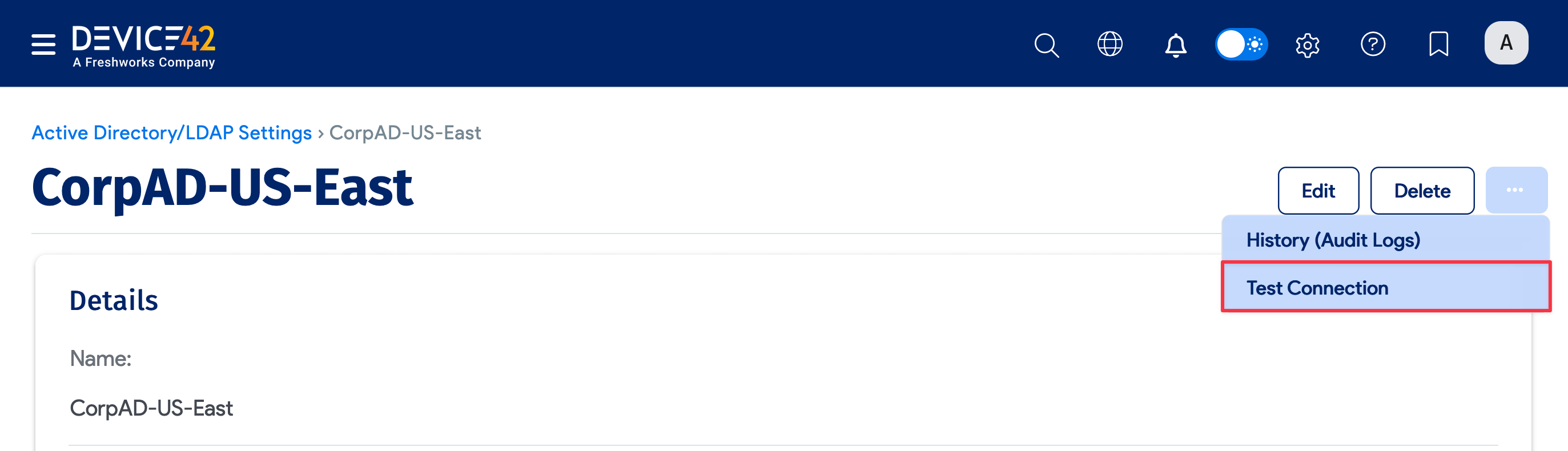
To verify that a user account has permission to query AD, test the connection from the settings details page.
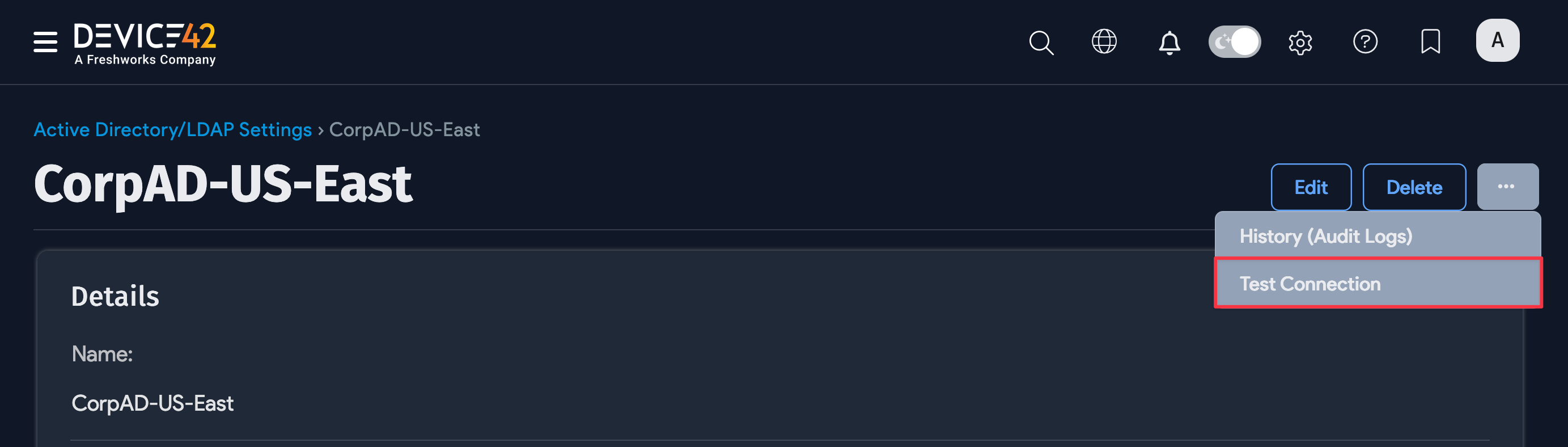
- Save your settings to display the settings details page, then open the ellipsis (...) menu and select Test Connection.
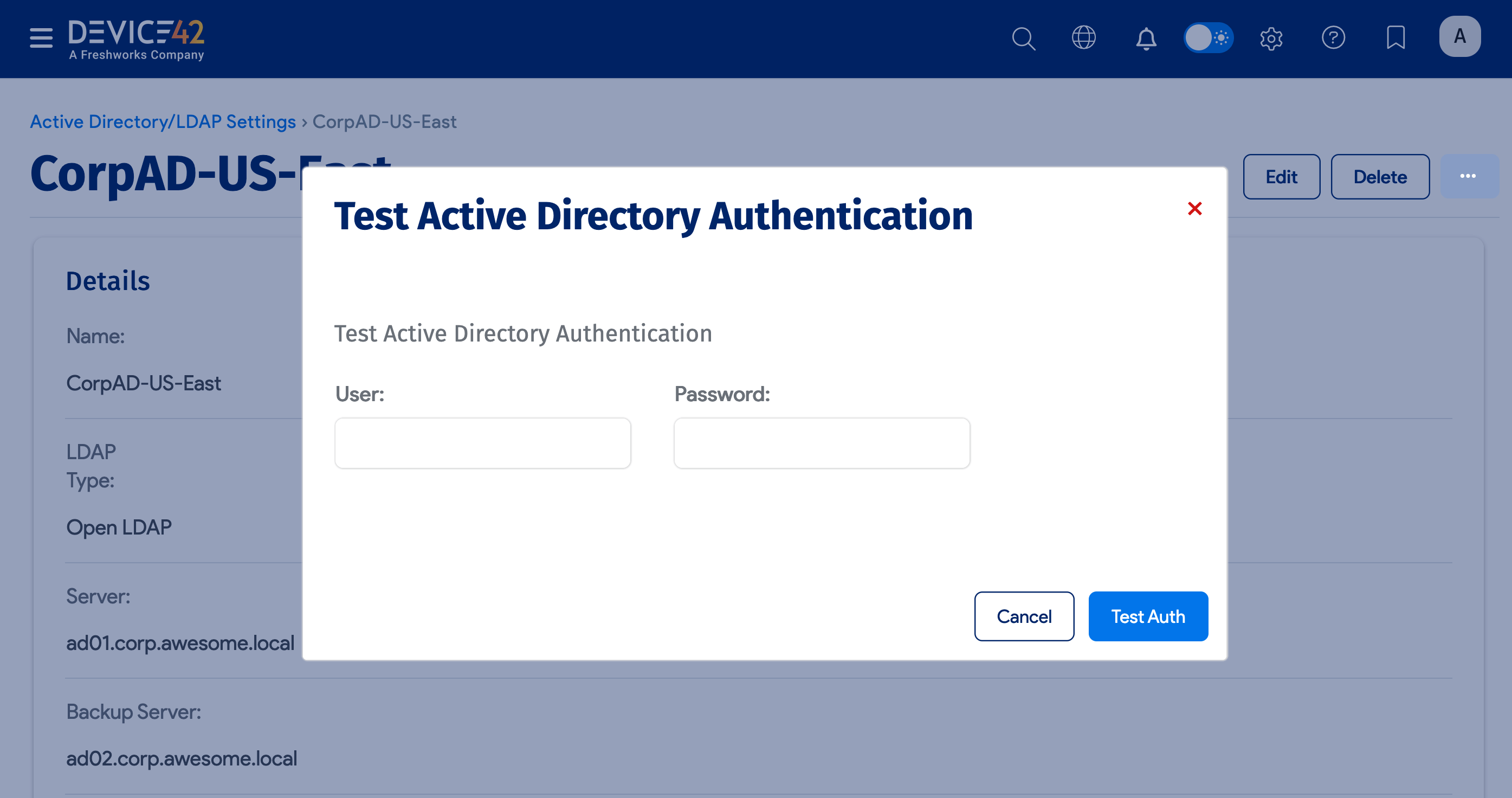
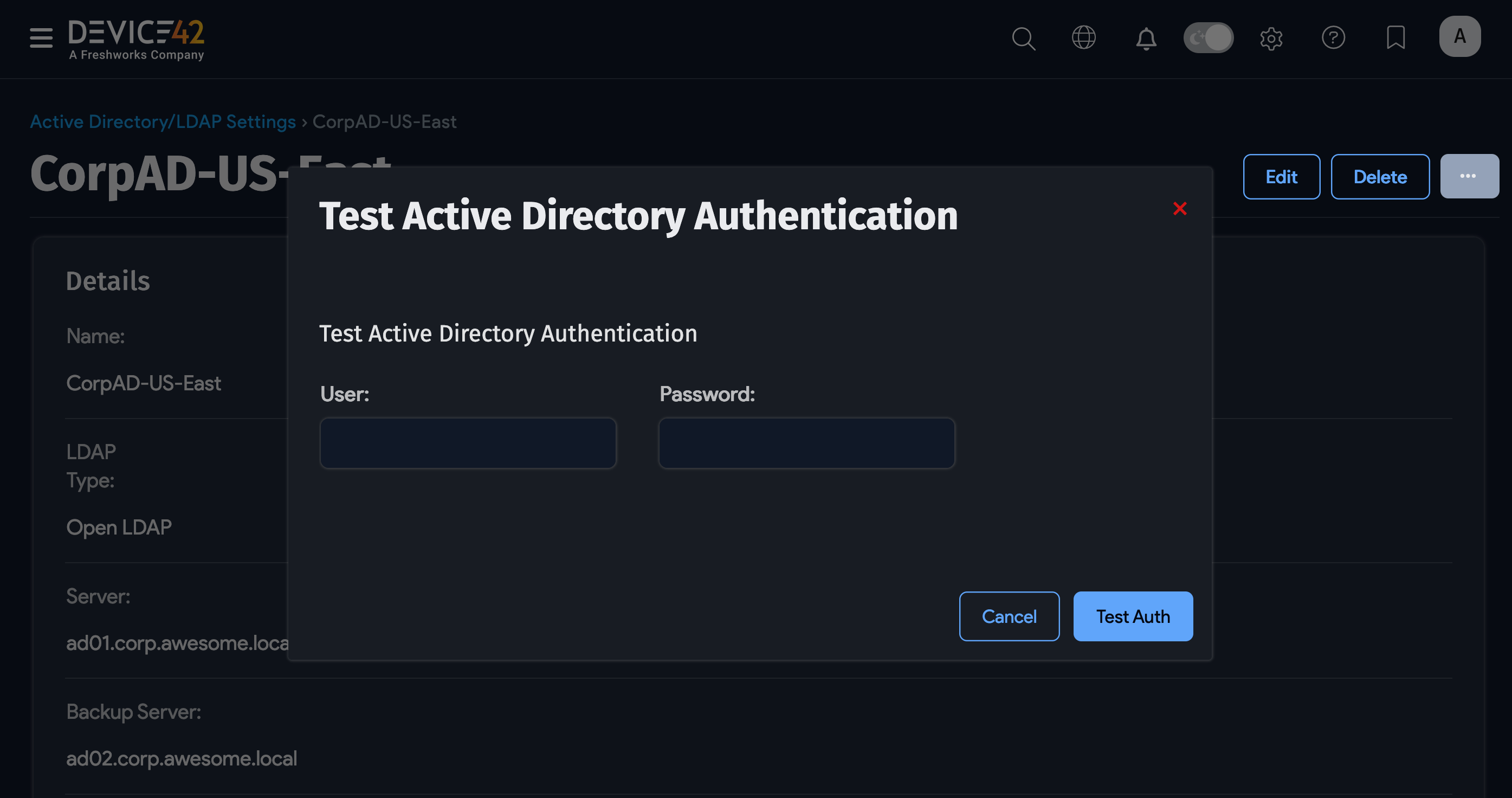
- You will be prompted to provide credentials for initiating the test. Leave the credentials blank to use the currently selected username and password.
Configure an Active Directory User Sync or Discovery Job
You can configure an AD sync job to pull AD users in bulk and keep them synced. See the Active Directory Discovery Job page for details on the AD discovery process.