Bulk Add Active Directory Group Members as Device42 Users
Administrators can bulk import Microsoft Active Directory (AD) or LDAP group members as users in Device42 and assign permissions in bulk using local Device42 groups. This page covers adding AD or LDAP settings, importing a group's members, and assigning them to Device42 permission groups.
All Device42 users are considered administrators — there are no end users of Device42. The only "end users" defined in Device42 are users (or owners) of assets inventoried in Device42.
Add AD/LDAP Settings
To begin, configure your Active Directory Domain or LDAP settings.
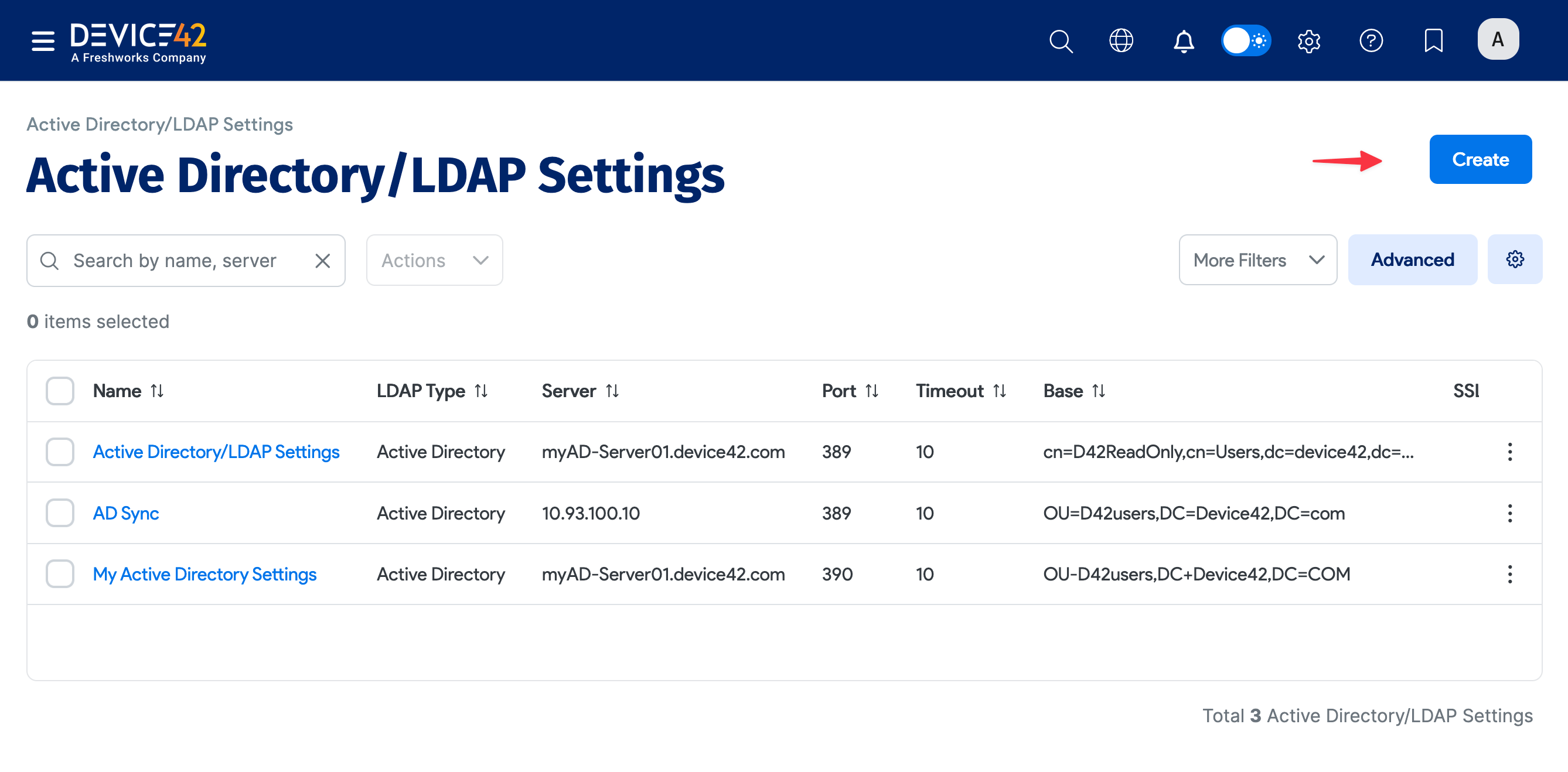
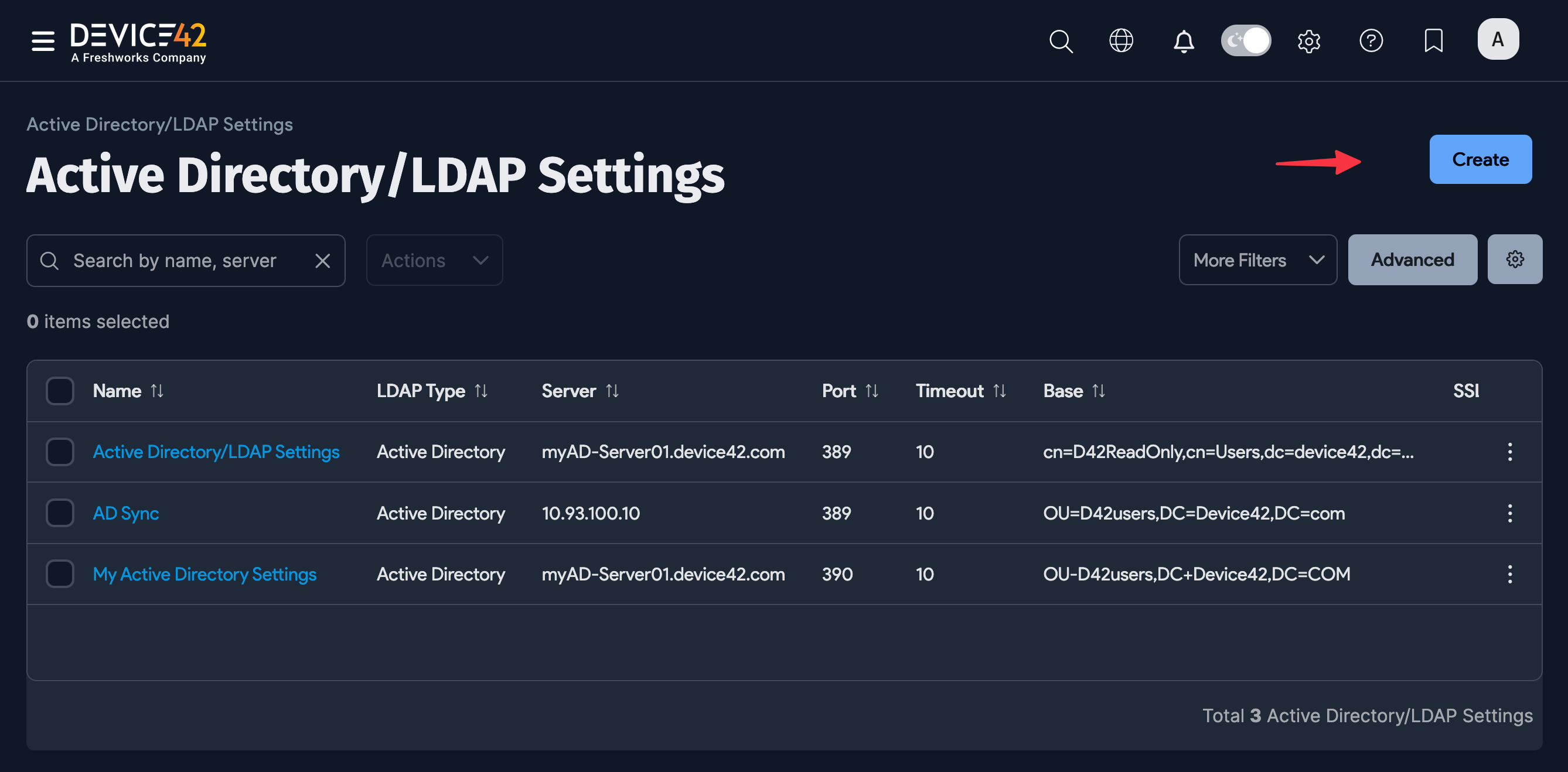
Go to Tools > Settings > Active Directory Settings and click Create.
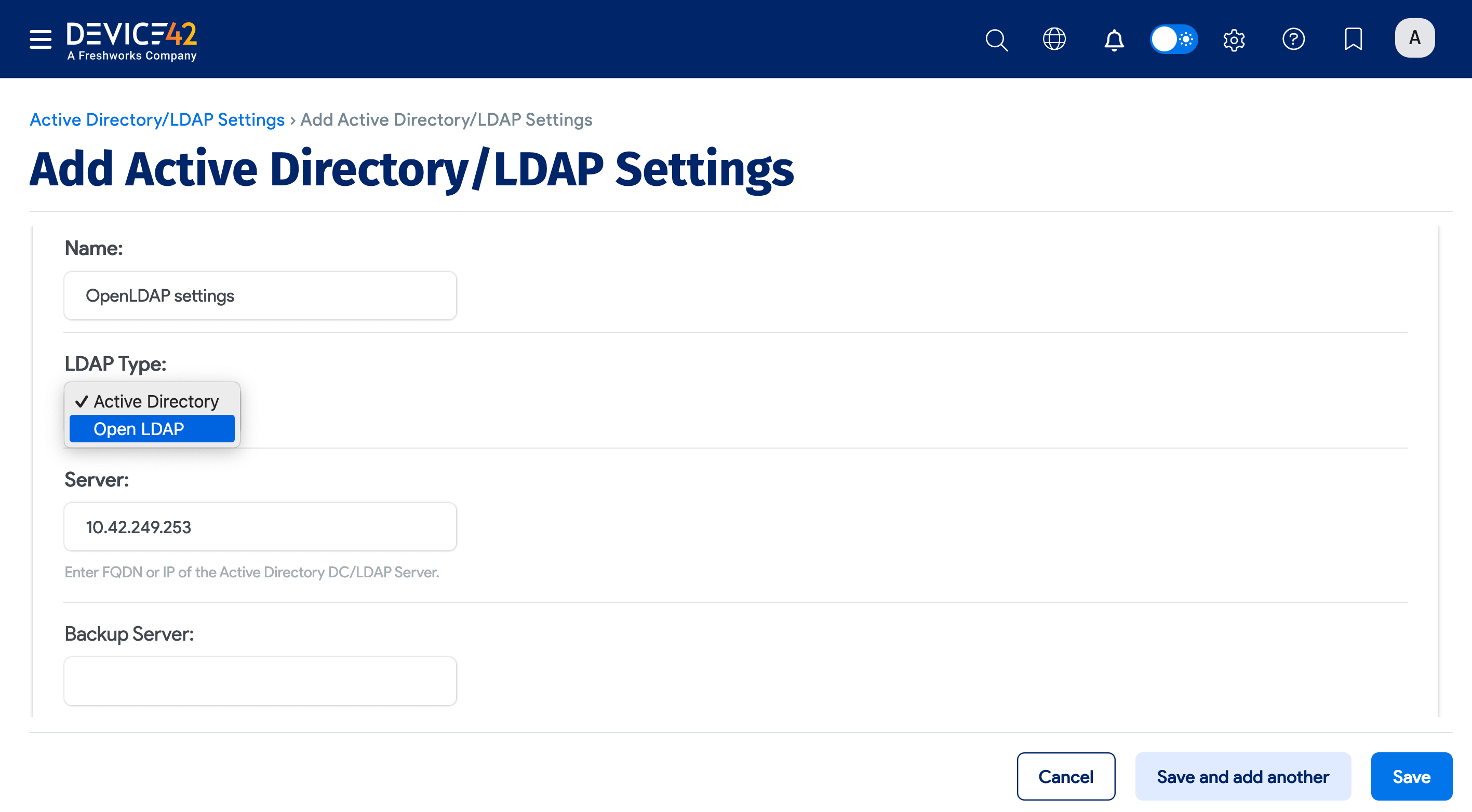
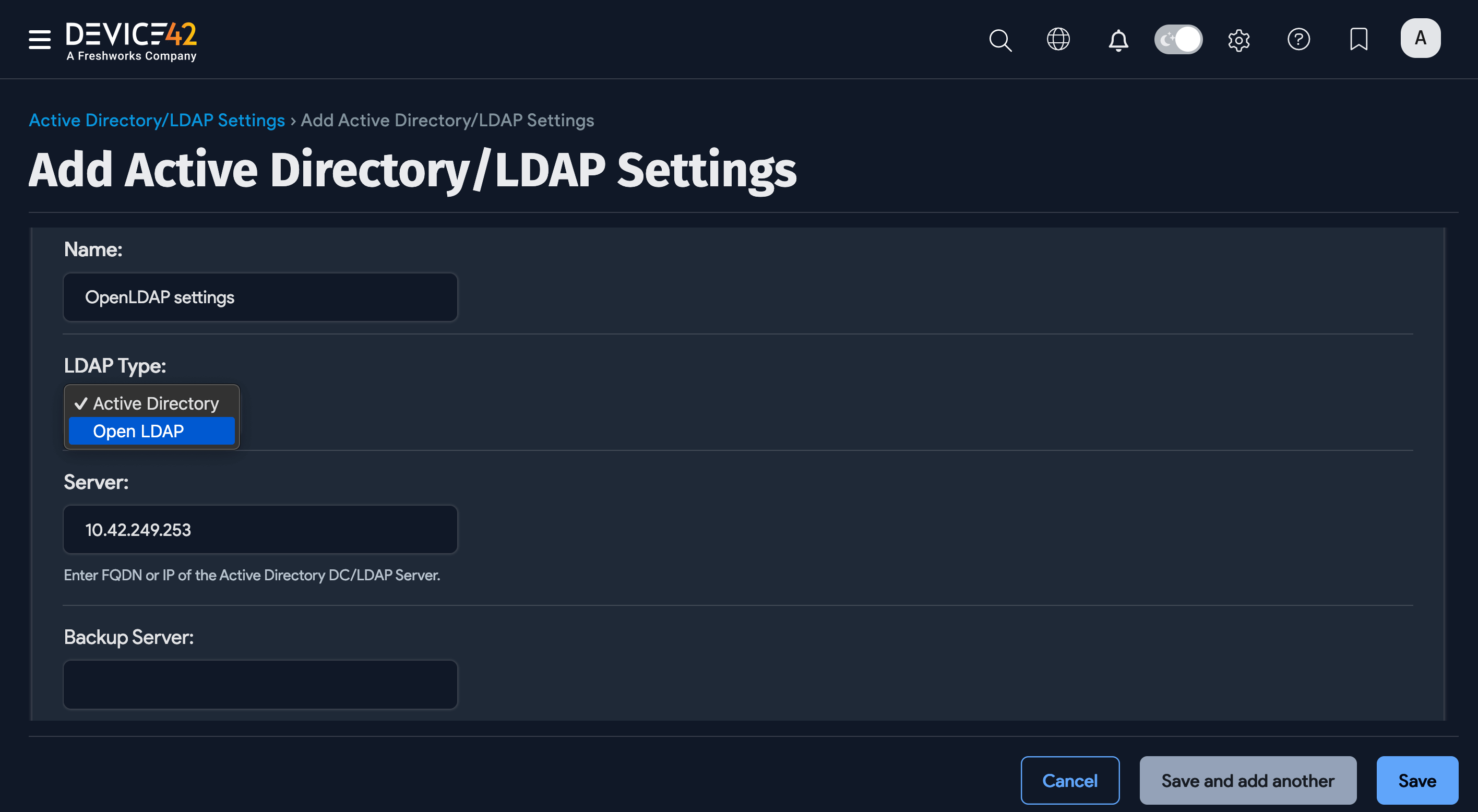
Fill out the settings for your AD or LDAP server. See the Active Directory and OpenLDAP Support page for details.
Add a User or Group Member List via AD
After you have created Active Directory Settings in Device42, you can use the distinguishedName (DN) for the group (and a valid login) to get the list of all members in that group.
Navigate to Tools > Admins & Permissions > Administrators and click Create Active Directory Admin.
Currently, the sync only works for members in the AD group itself. Group members that require recursive traversal of subgroups are not synced.
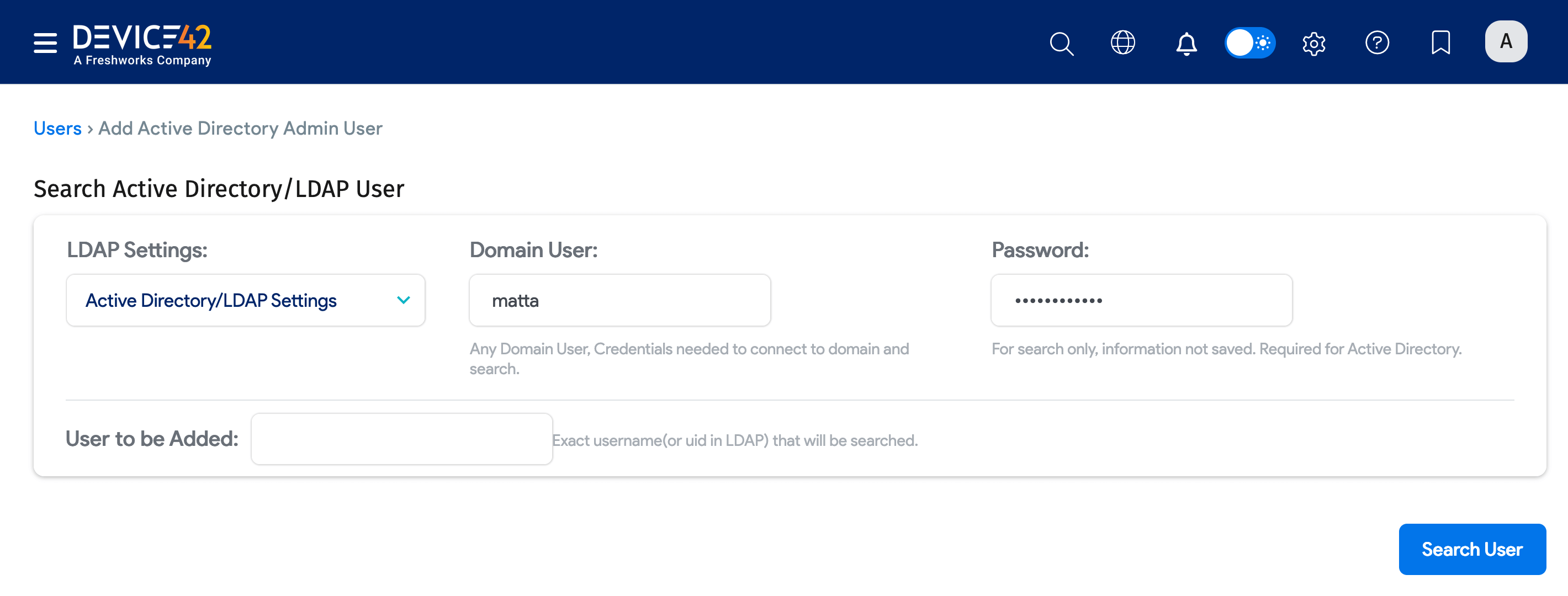
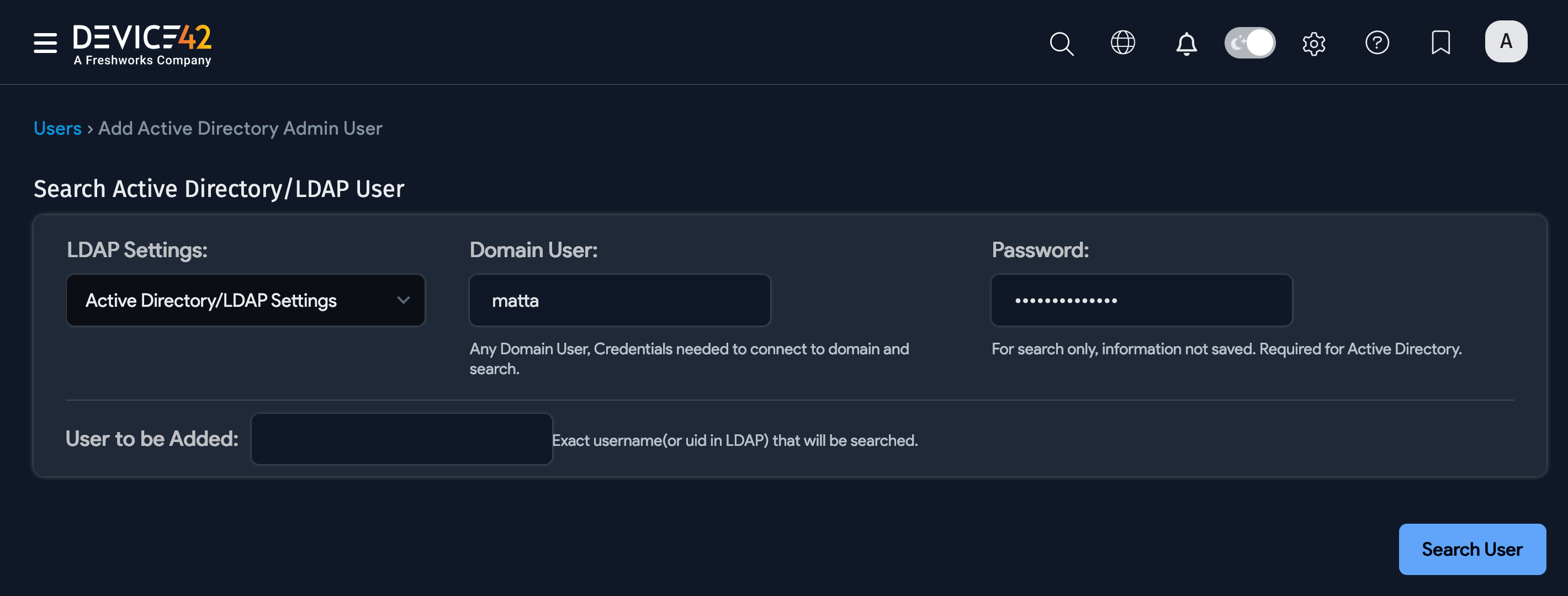
You can save group DN properties to make it easier to add new users to that AD group later. Choose the saved DN group as described below and add new users.
Choose Members and Groups for Permissions
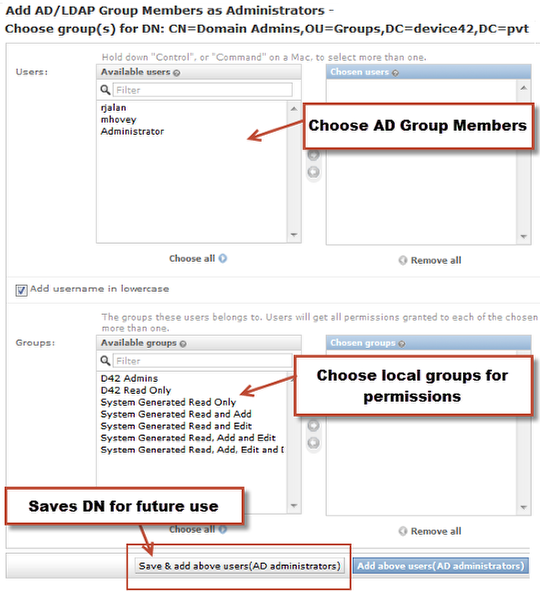
The Users listed are AD users that were displayed as a result of the choices on the prior screen. Note that the Groups are not AD groups — they are Device42 Groups.
- In the Users box, select the users that you want to add as Device42 administrators and move them to the right side of the Users dialog.
- In the Groups box, select one or more Device42 groups for these users and move them to the right side of the Groups dialog.
- Click Add above users. The selected users will become Device42 administrators and receive the permissions of the selected groups.
Example: Find Your Group DN in Active Directory
The following example demonstrates finding a group in Active Directory. The group DN is:
cn=D42ReadOnly,cn=Users,dc=device42,dc=pvt
In this example, the group name D42ReadOnly is in the container named Users.
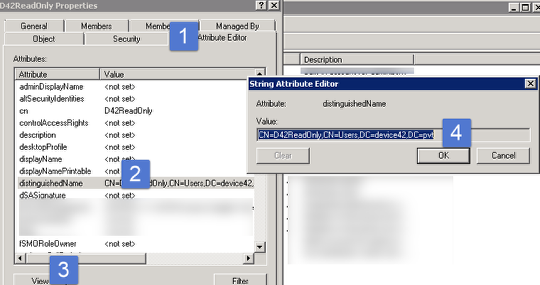
Under the group properties with advanced features enabled in Active Directory Users and Computers, go to the attribute editor and copy the distinguishedName as shown in the image above.