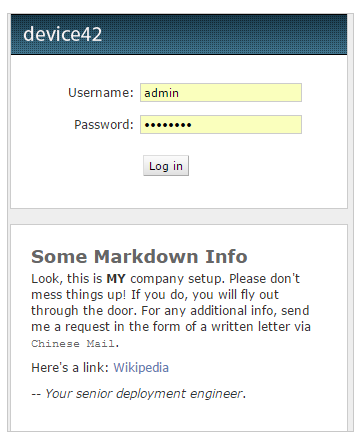
Customizing Device42
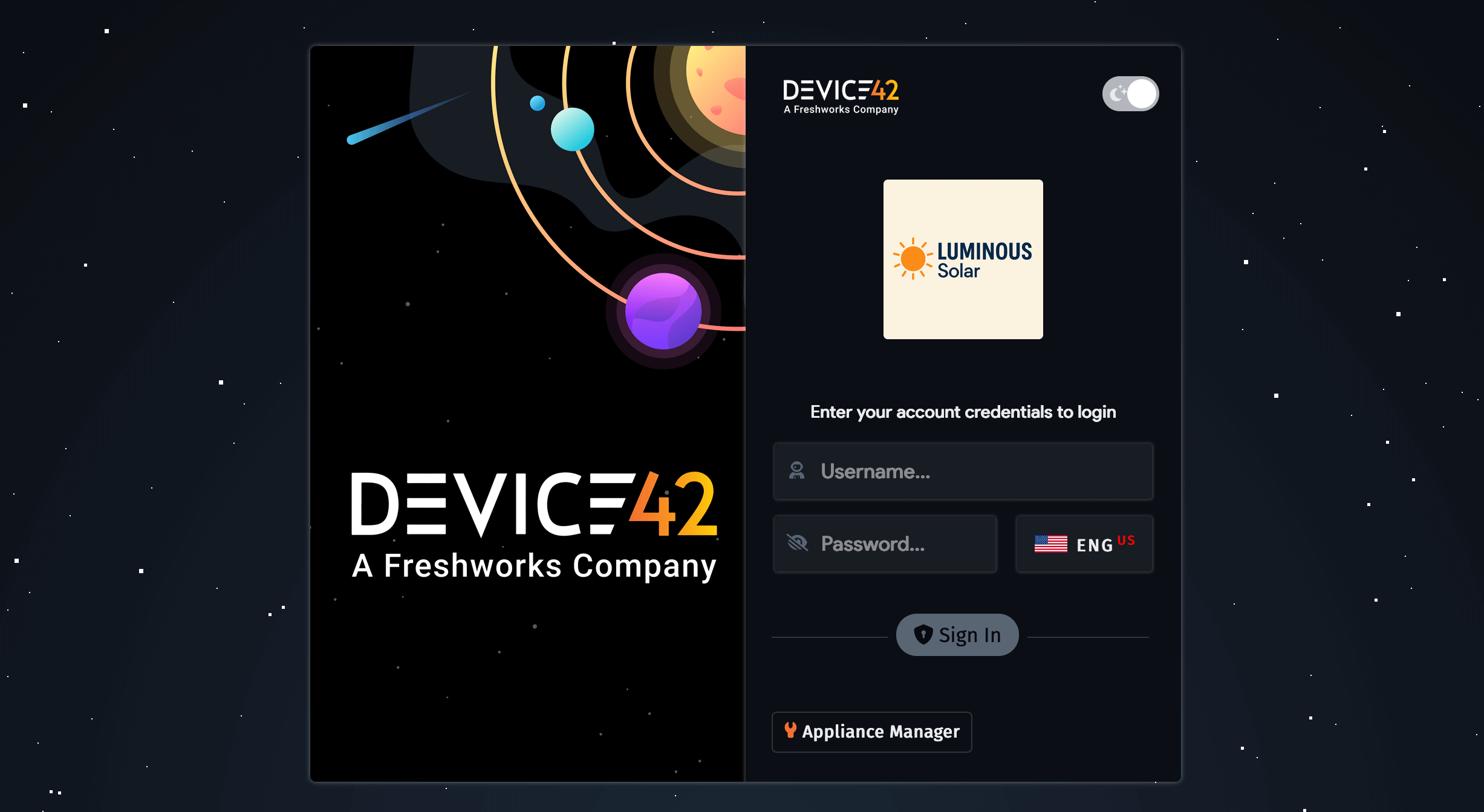
Device42 lets you personalize the login screen with your company logo and a custom message for users. This page covers how to upload a logo and add user instructions via Global Settings.
Customize the Login Screen
Navigate to Tools > Settings > Global Settings and scroll down to the Login screen section.
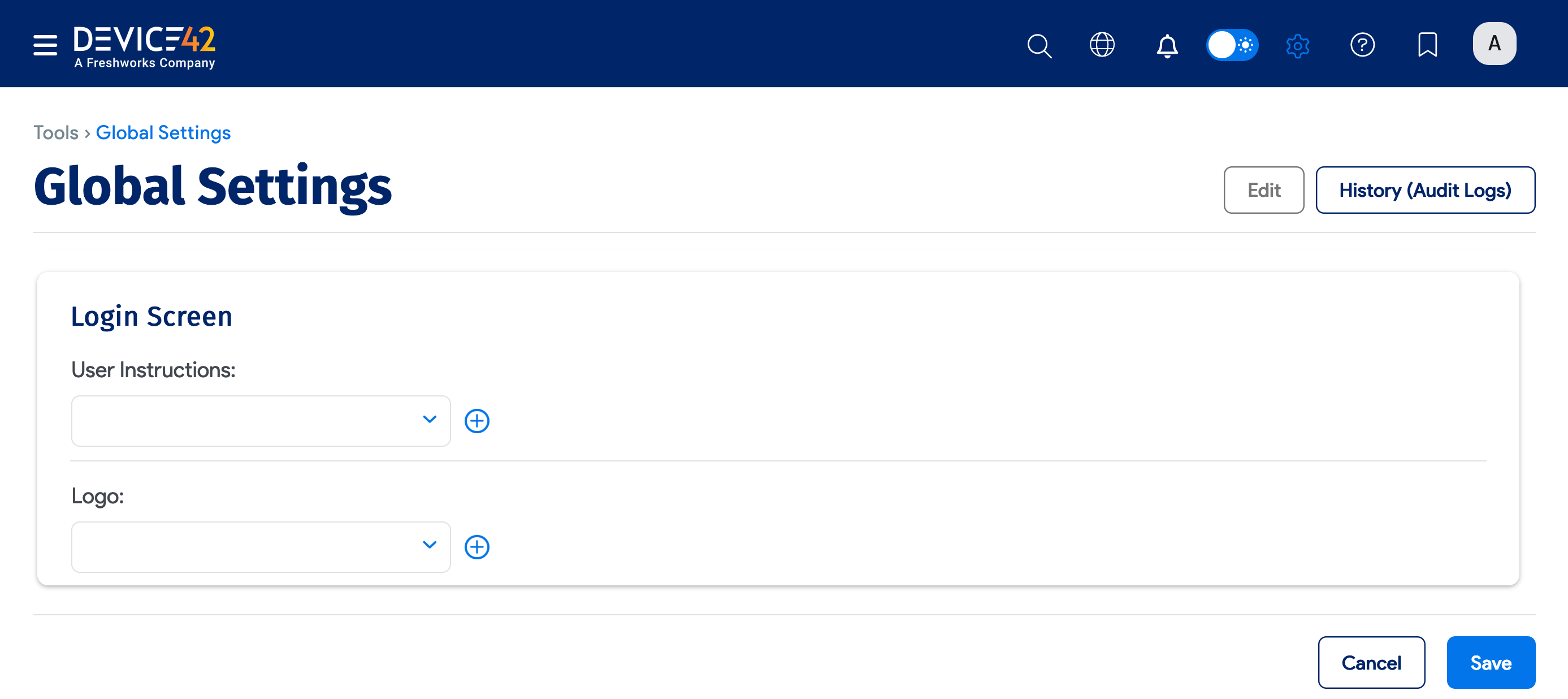
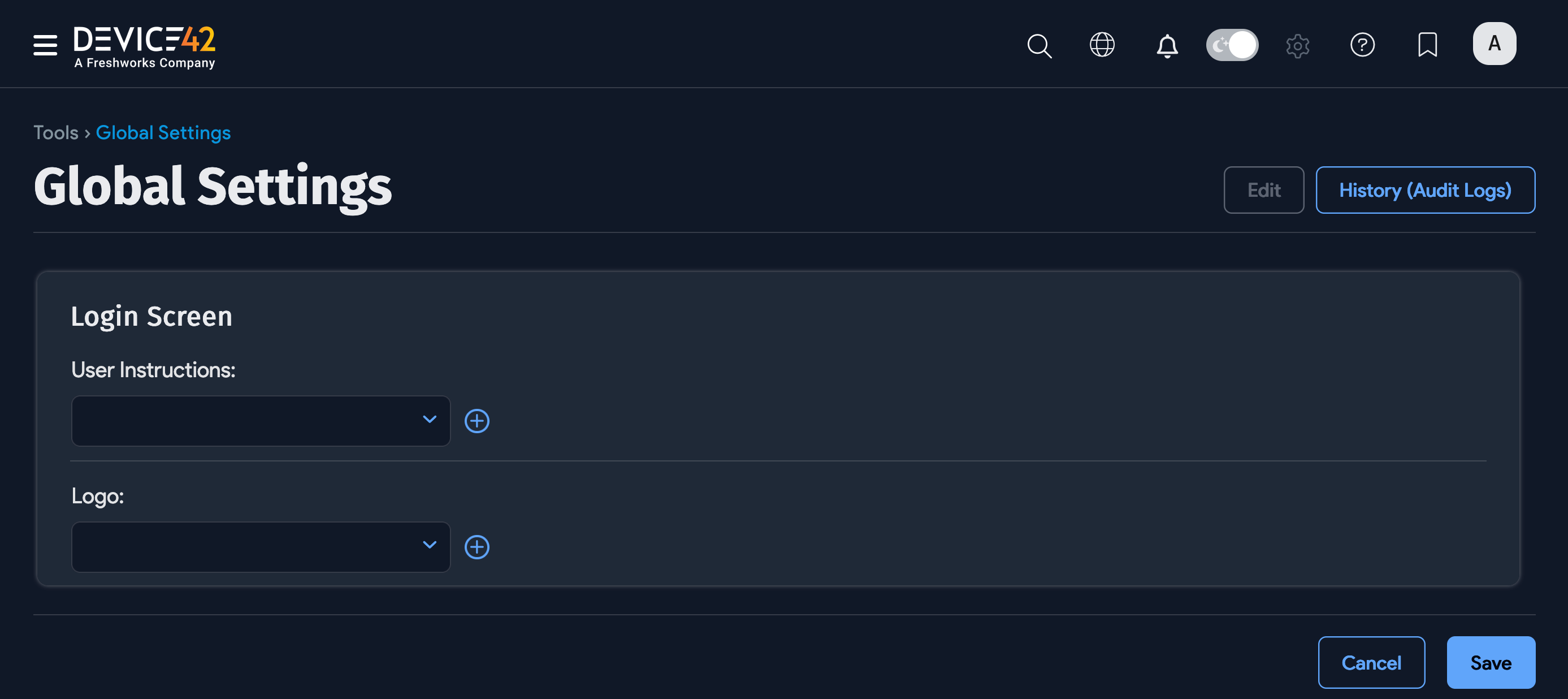
Add Your Company Logo to Device42
Upload a logo to replace the default Device42 logo on the login screen.
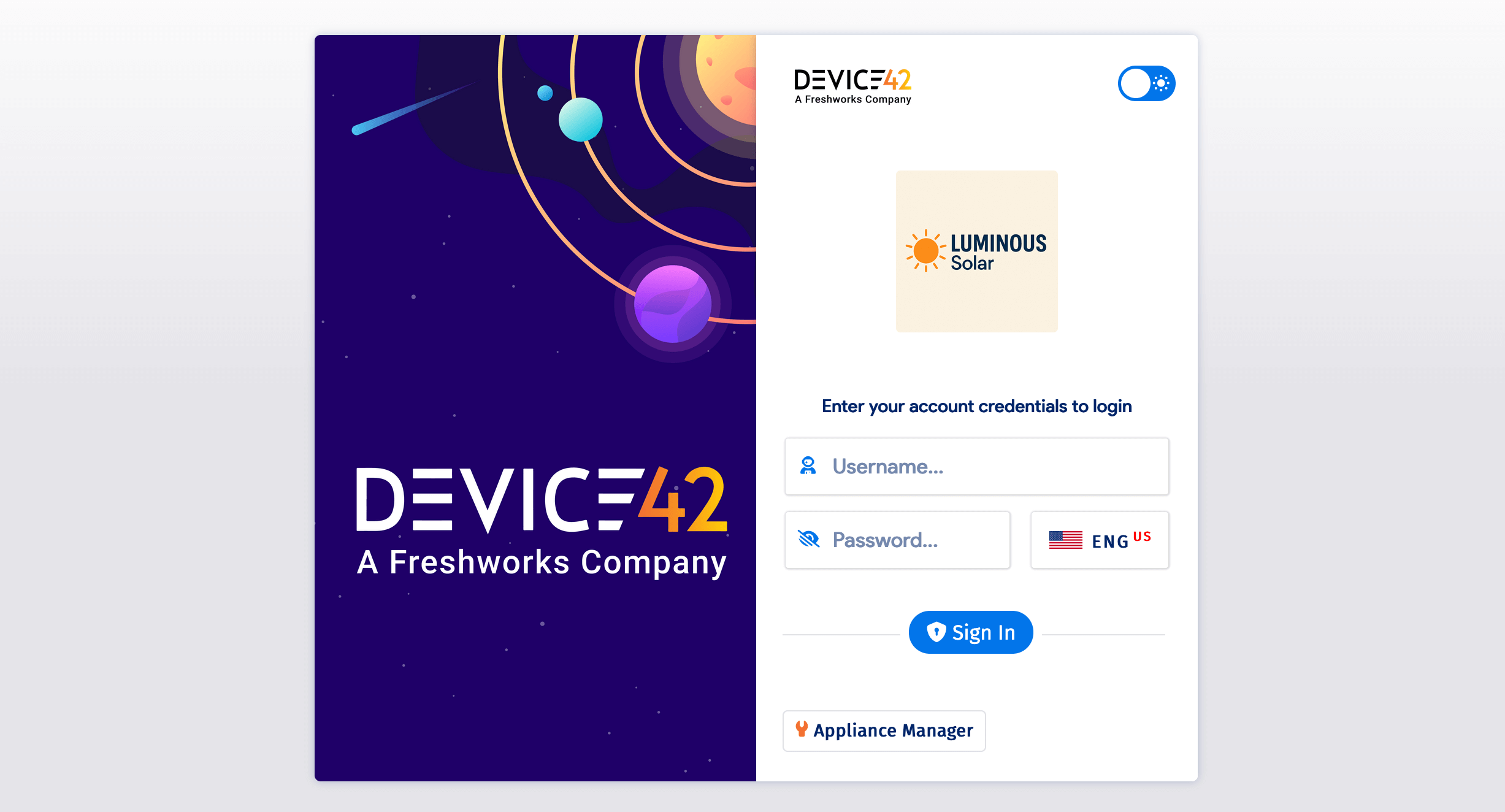
Add User Instructions to the Login Screen
Upload user instructions to display a custom message on the login screen, such as access policies or contact information for support.