Set Time Zone and NTP
Configuring the correct time zone and NTP source in Device42 ensures that discovery scheduling and log history work correctly. The virtual appliance takes its clock from the virtual host, so make sure the time is correct on the host before proceeding.
This page covers how to set the time zone via the Device42 UI and how to configure OS-level time and NTP settings via the console.
Set the Time Zone
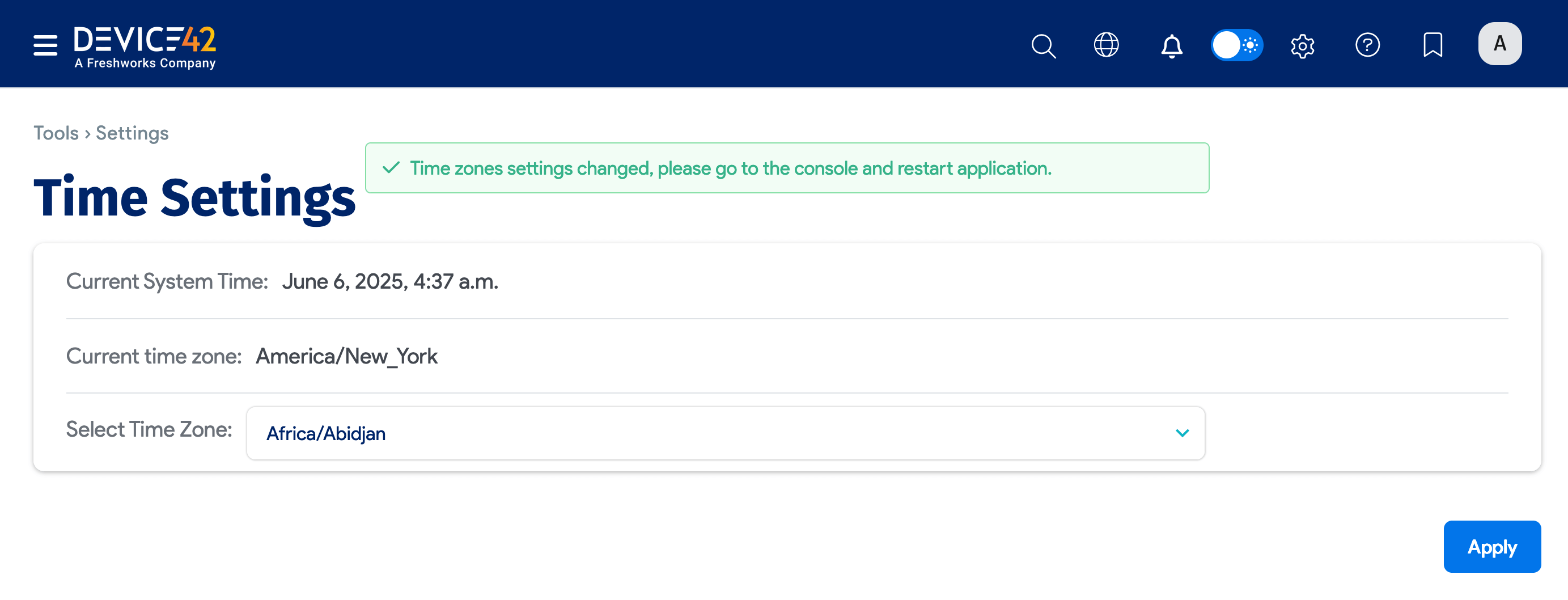
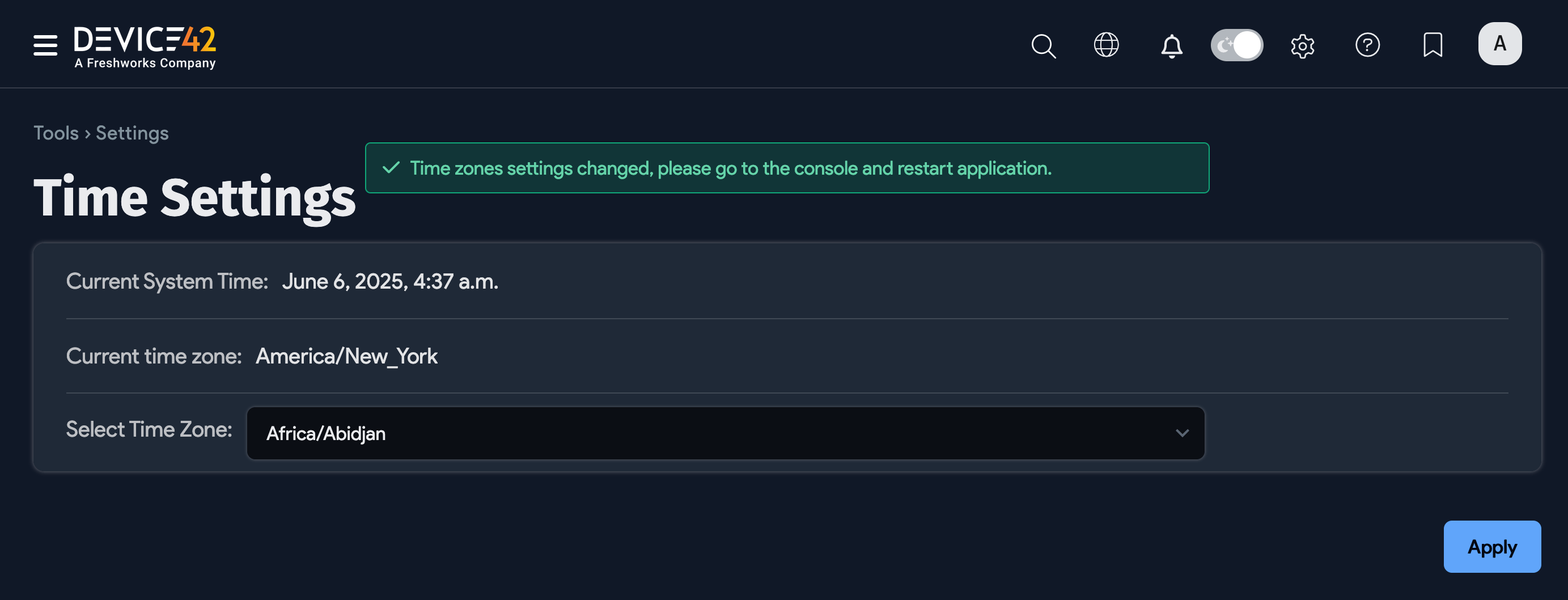
In the Device42 main menu, go to Tools > Settings > Time Settings. Select the correct time zone for your location and click Apply.
Configure OS-Level Time Settings
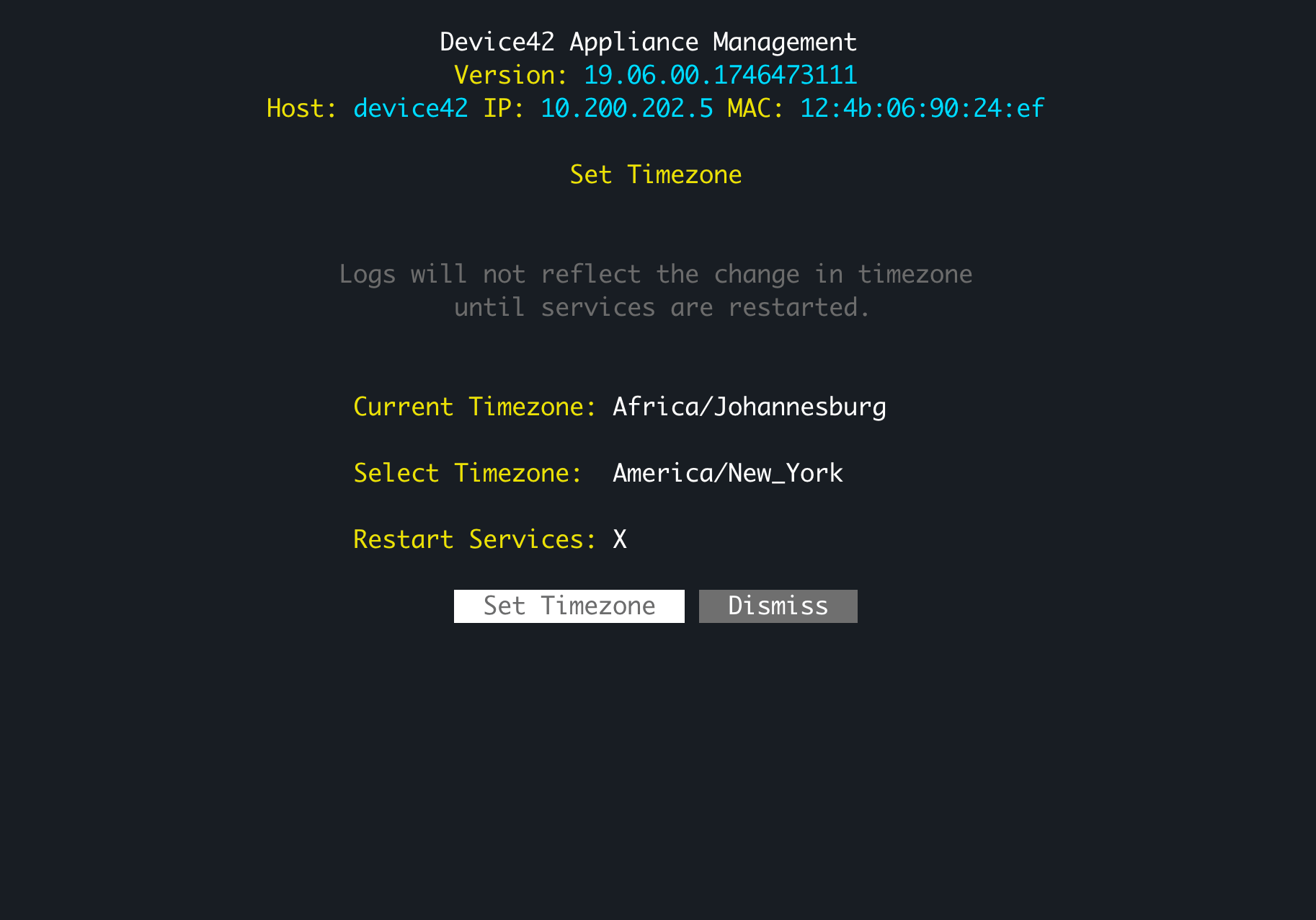
After selecting the new time zone and receiving confirmation that it has been applied, go to the Device42 console and select Restart Services. When the services restart, the console menu will show the new time zone.
Use the VM console menu options NTP Settings and Set Timezone to set the time at the OS level.
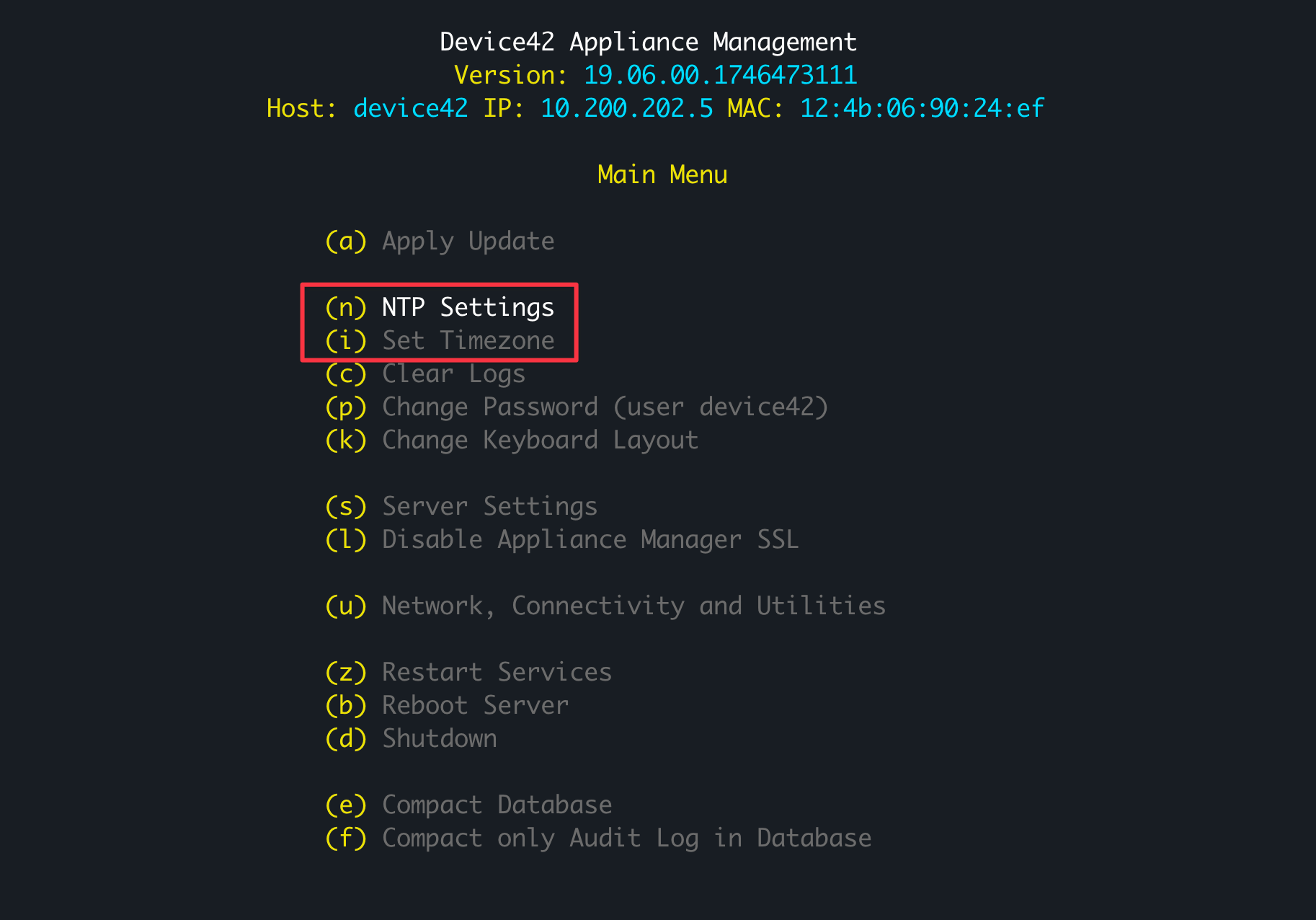
Select NTP Settings from the main menu and enter the IP address or FQDN of the NTP server. Enable the Daily sync option to add the NTP server to the daily scheduled jobs.
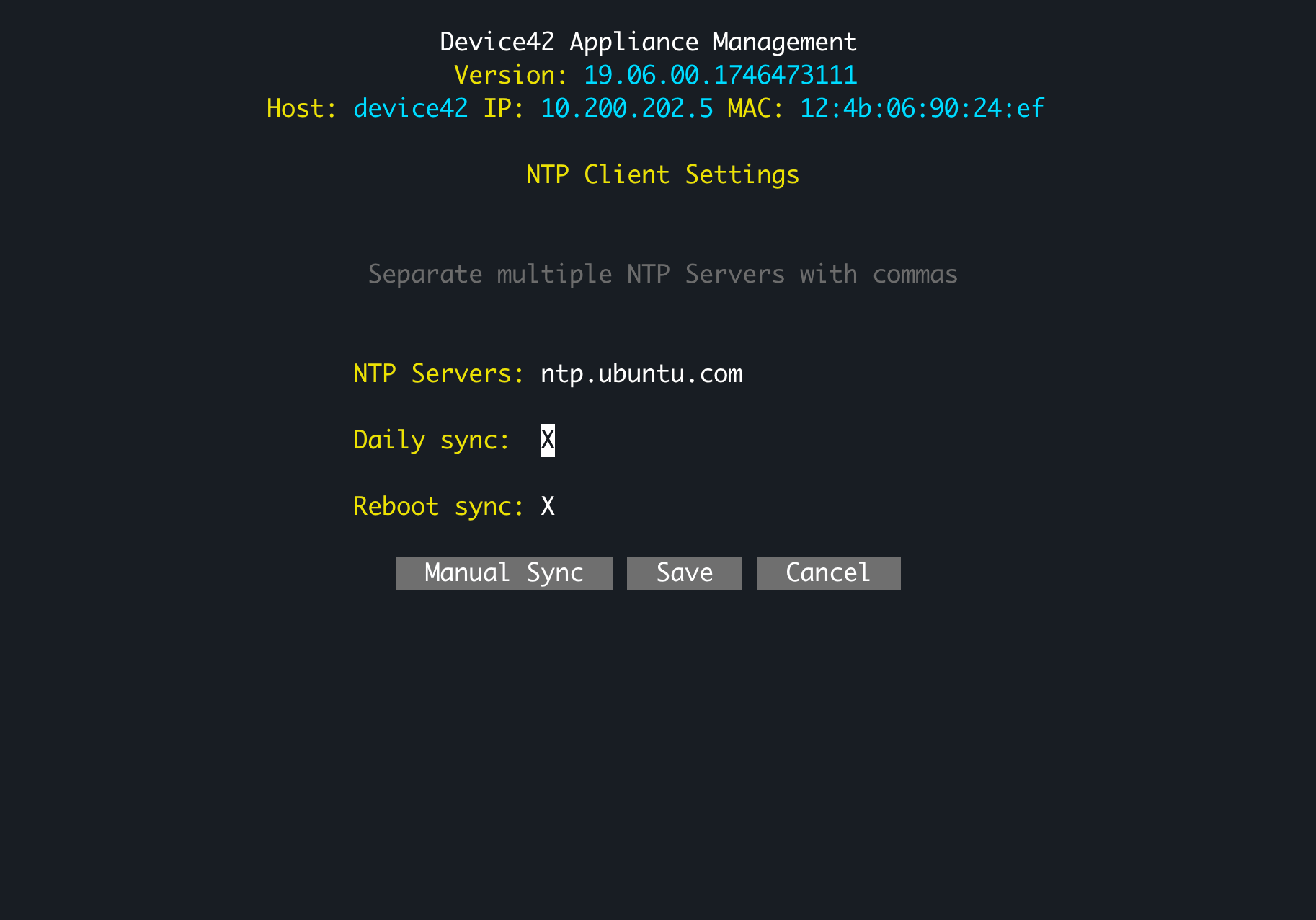
Return to the main menu and select Set Timezone to set the time zone at the OS level. If your exact location is not listed, choose the nearest location.
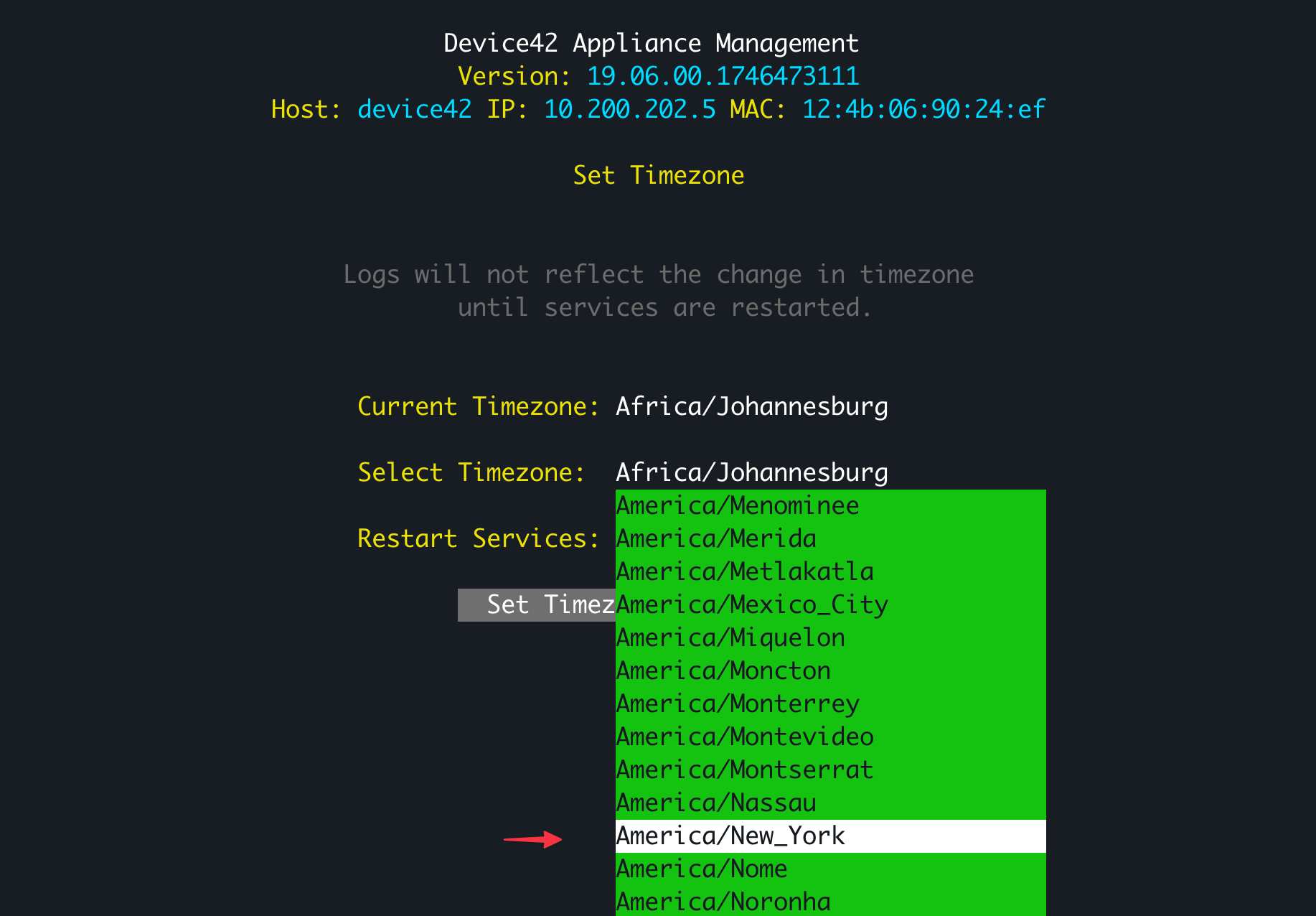
Select Restart Services for the new time zone settings to take effect immediately.