Auto Clean Feature
Auto Clean rules help you automatically manage old or stale data in Device42. If an object (like a device or an IP address) isn't found by a subsequent discovery job or updated manually, it may be out of service — this is especially common for servers and other objects in public clouds, but can also apply to objects behind a corporate firewall.
This page covers the CI types that Auto Clean rules can target, how to view existing rules, and how to create new ones. Device42 includes several system-defined disabled Auto Clean rules (related to ADM data) that you can enable or use as templates for your own rules.
Auto Clean Supported CIs
Auto Clean rules can target a wide variety of Configuration Items (CIs), from Assets to Users to VLANs, and everything in between.
You can select the following object types as Auto Clean rule targets:
- Administrators
- Assets
- Certificate Instances
- Certificates
- Device Hardware Model
- Devices
- End Users
- IP Addresses
- IP NAT/Map
- Operating Systems
- Parts
- Ports
- Power Units
- Resources
- Scheduled Tasks
- Service Communications
- Service Instances
- Service Listener Ports
- Software Components
- Software In Use
- Subnets
- VLANs
View Auto Clean Rules
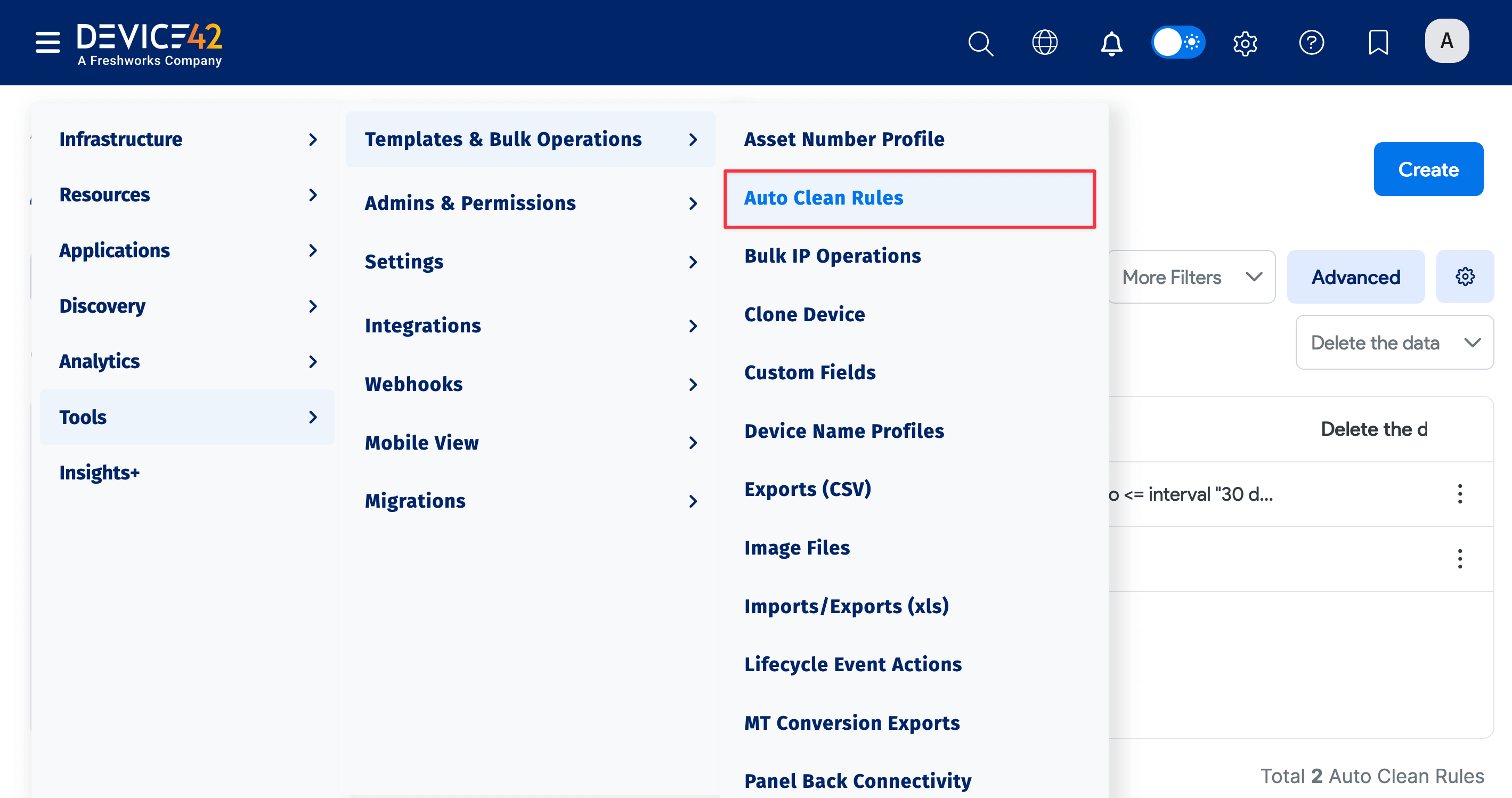
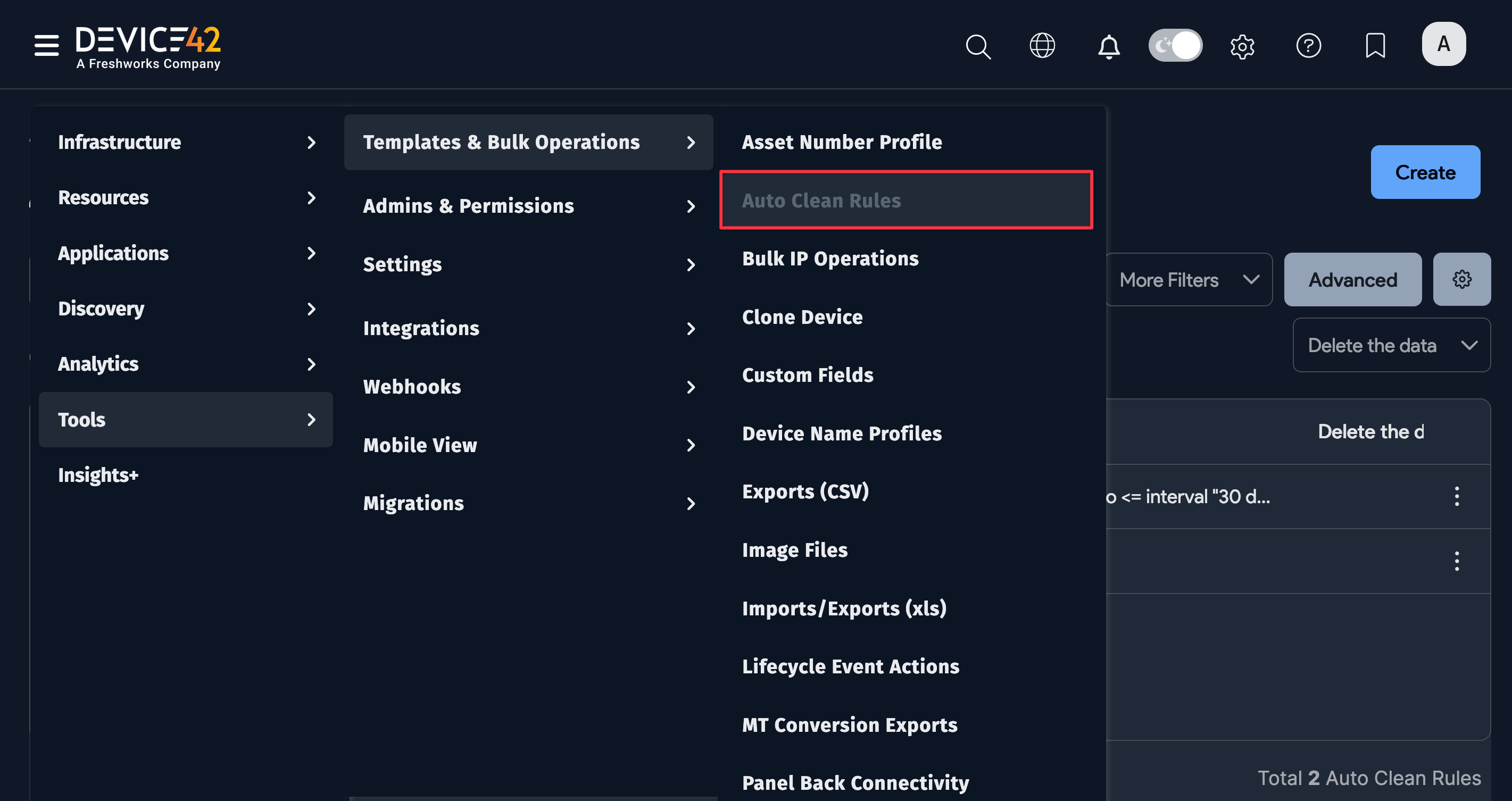
Navigate to the Auto Clean Rules list page under Tools > Templates & Bulk Operations > Auto Clean Rules.
Note that the system rule, Shared IPs maintenance, uses a Number of Days option instead of the Modify Search option.
Create New Auto Clean Rules
Navigate to Tools > Templates & Bulk Operations > Auto Clean Rules and then click Create.
The combination of object types and search criteria you select defines the Auto Clean rule. As you build your search criteria, the Preview list shows the objects that the rule will be applied to.
-
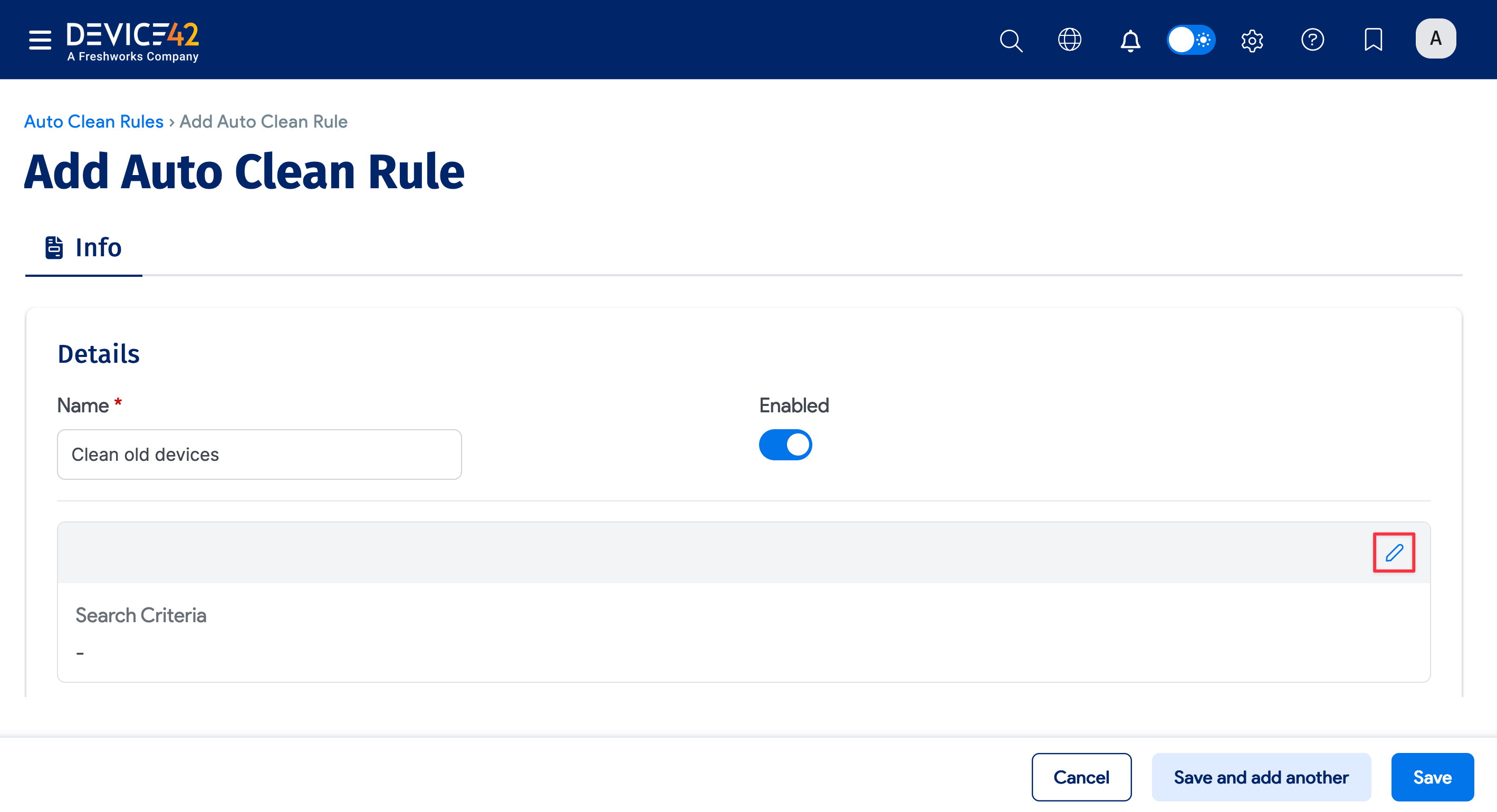
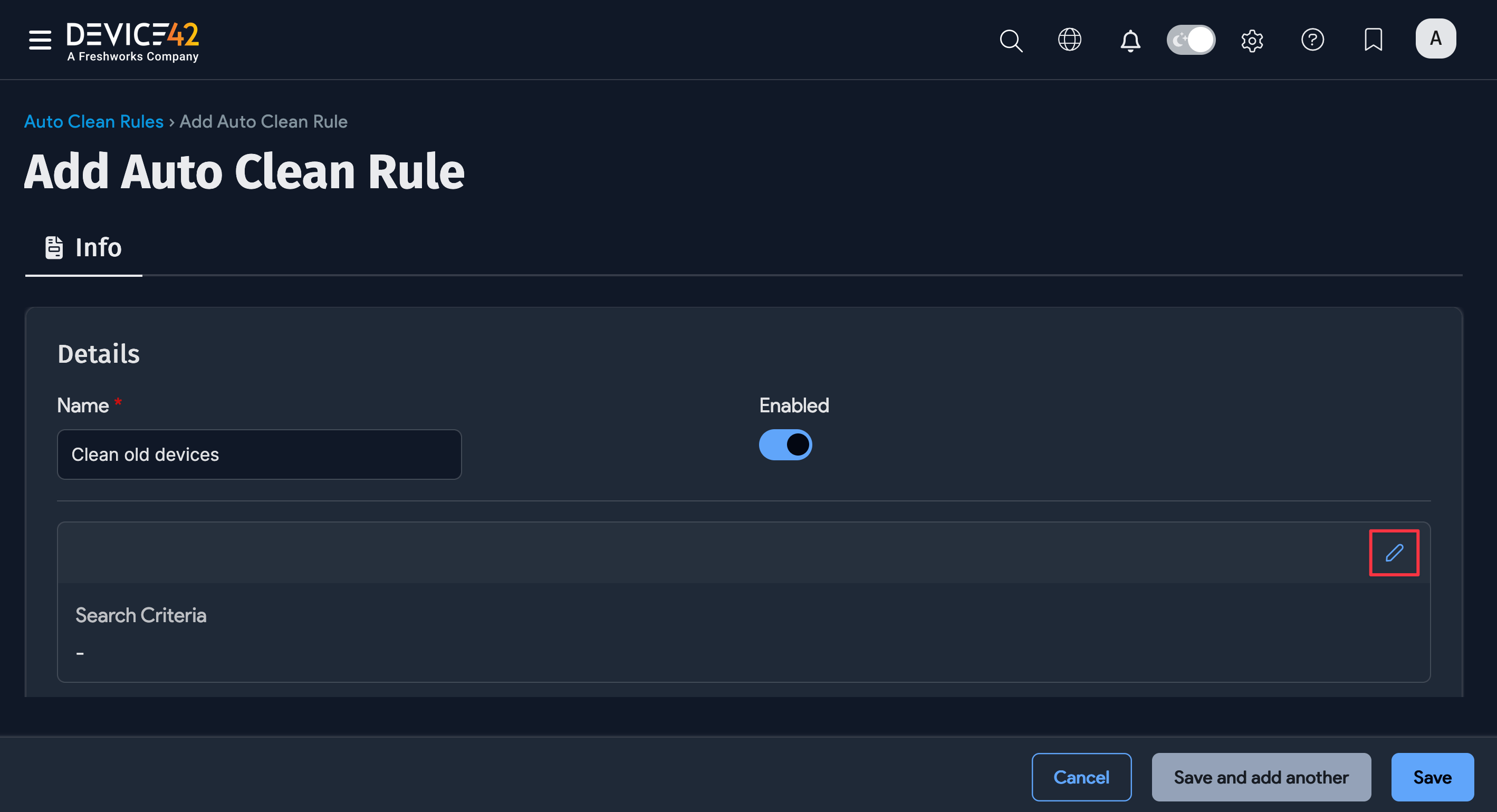
Name the rule and click the pencil icon.
-
Select an Object Type for the rule to target (for example, Devices).
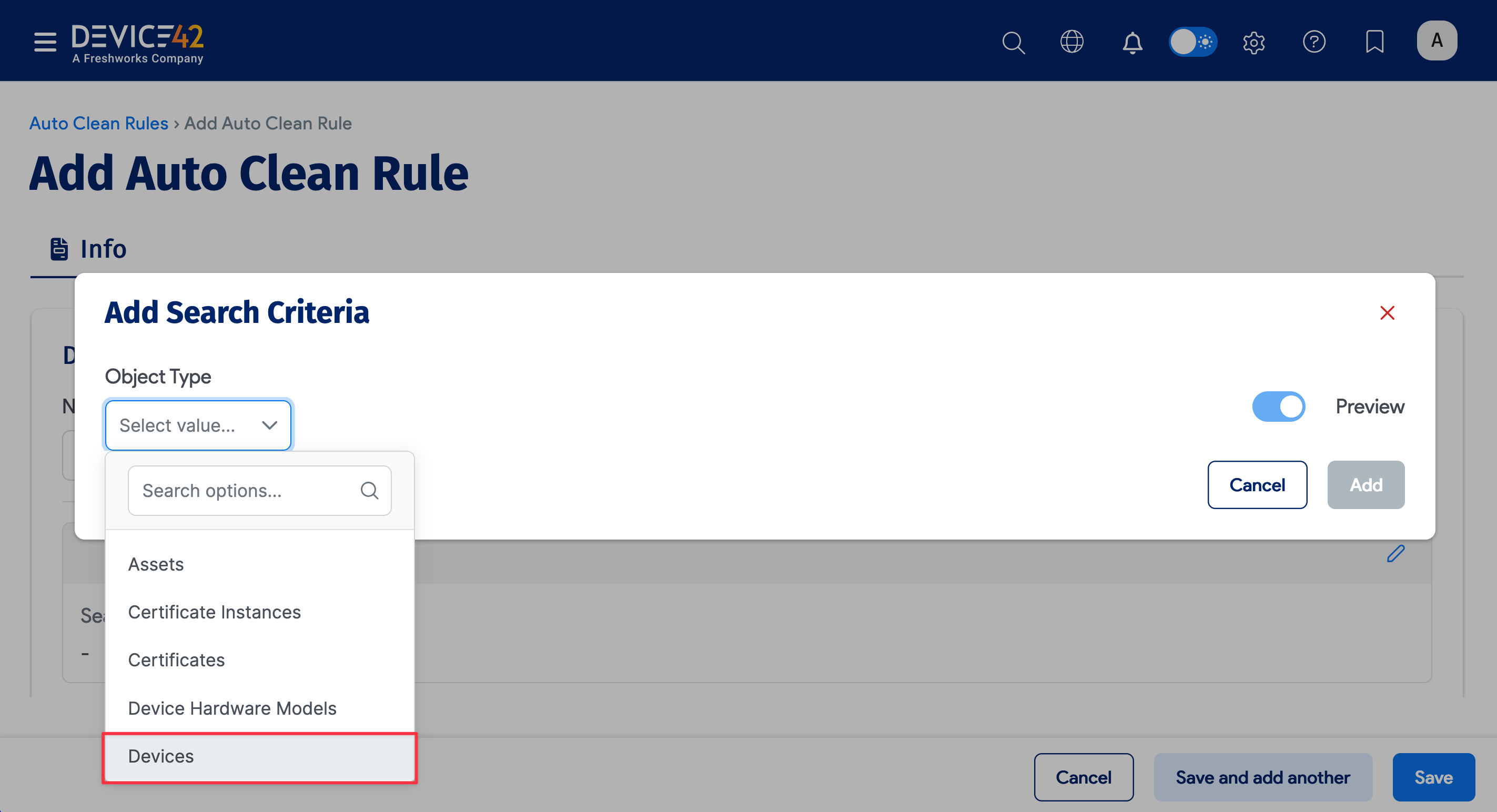
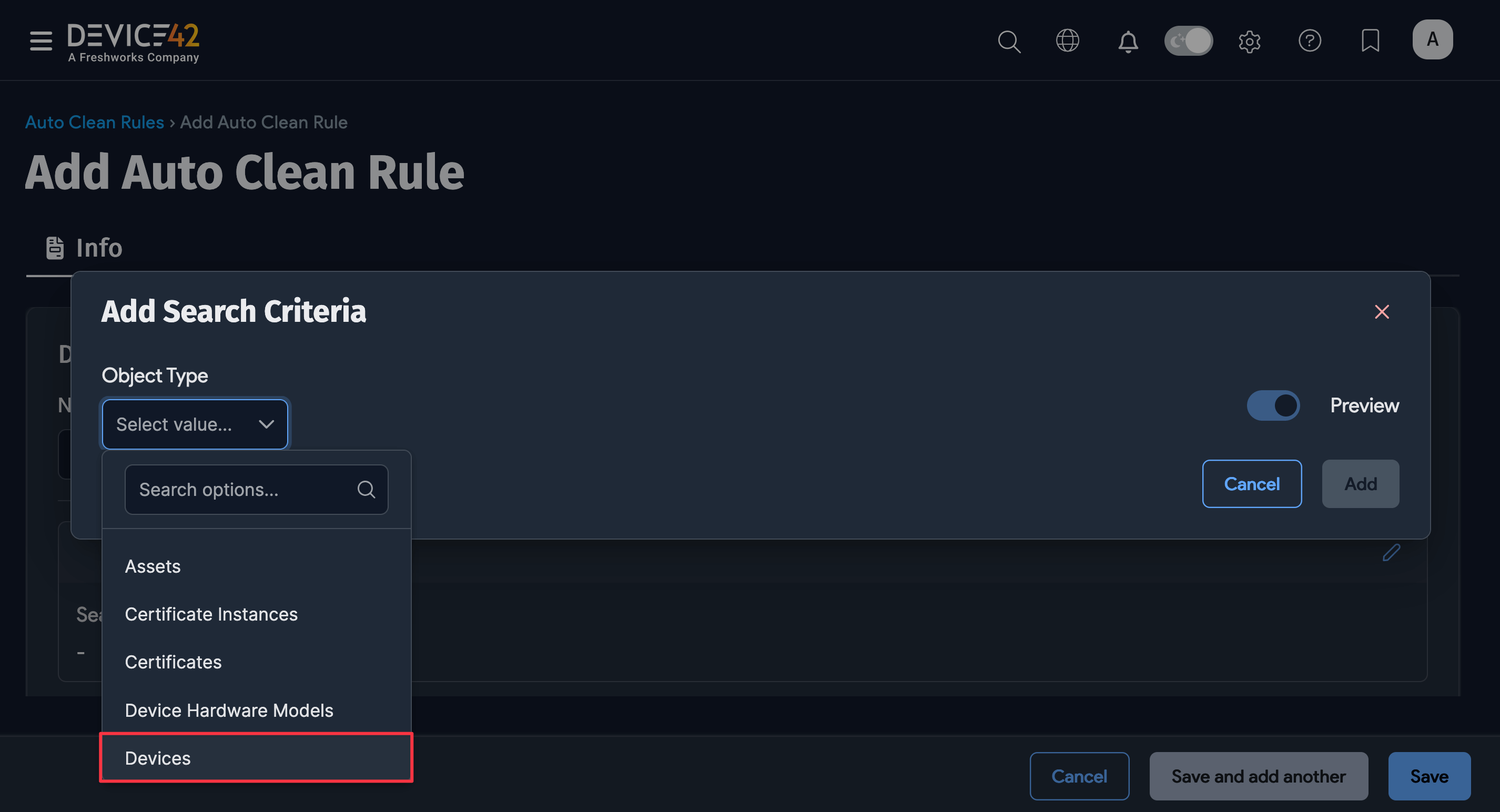
Build search criteria for the selected object type using the basic dropdown filters and the advanced search option.
-
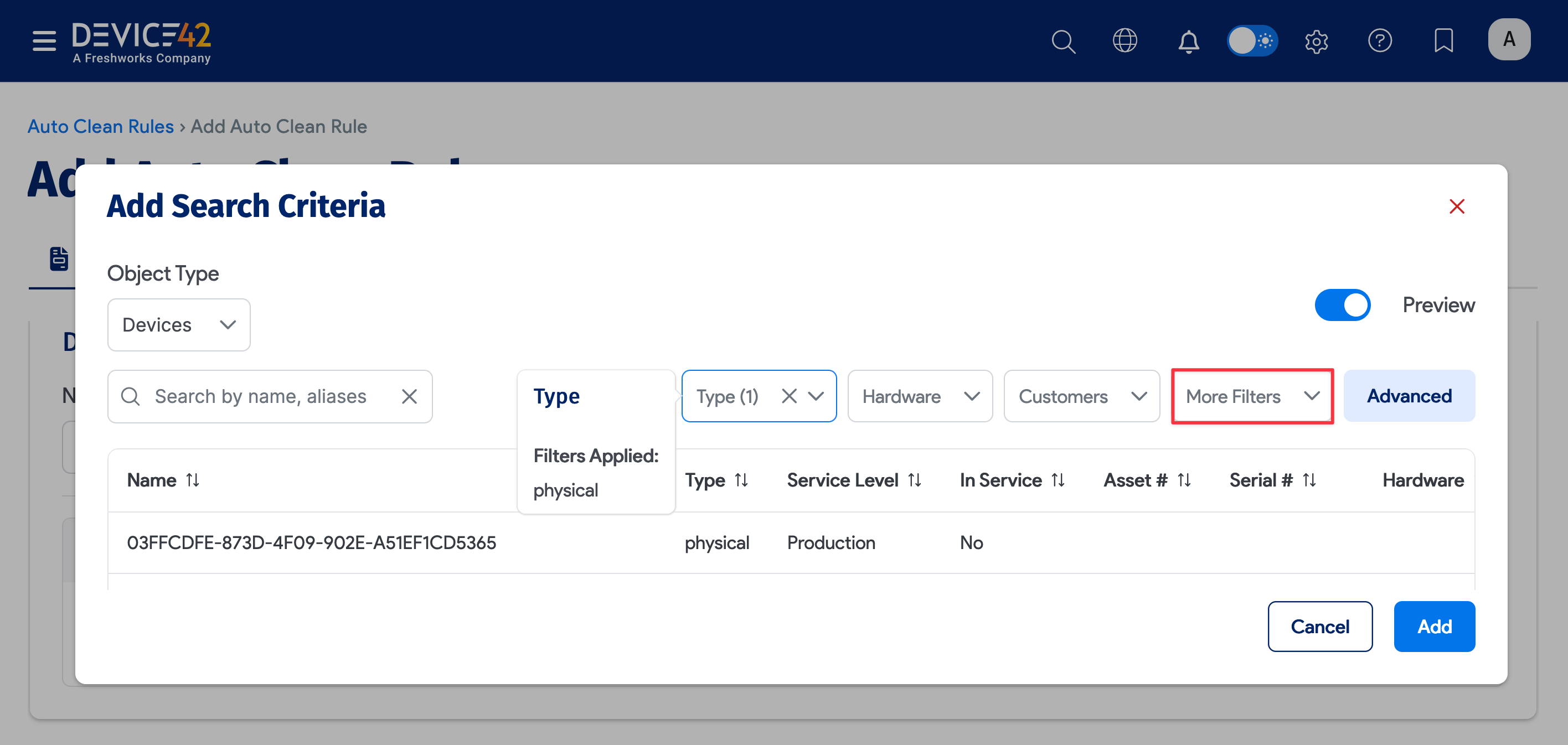
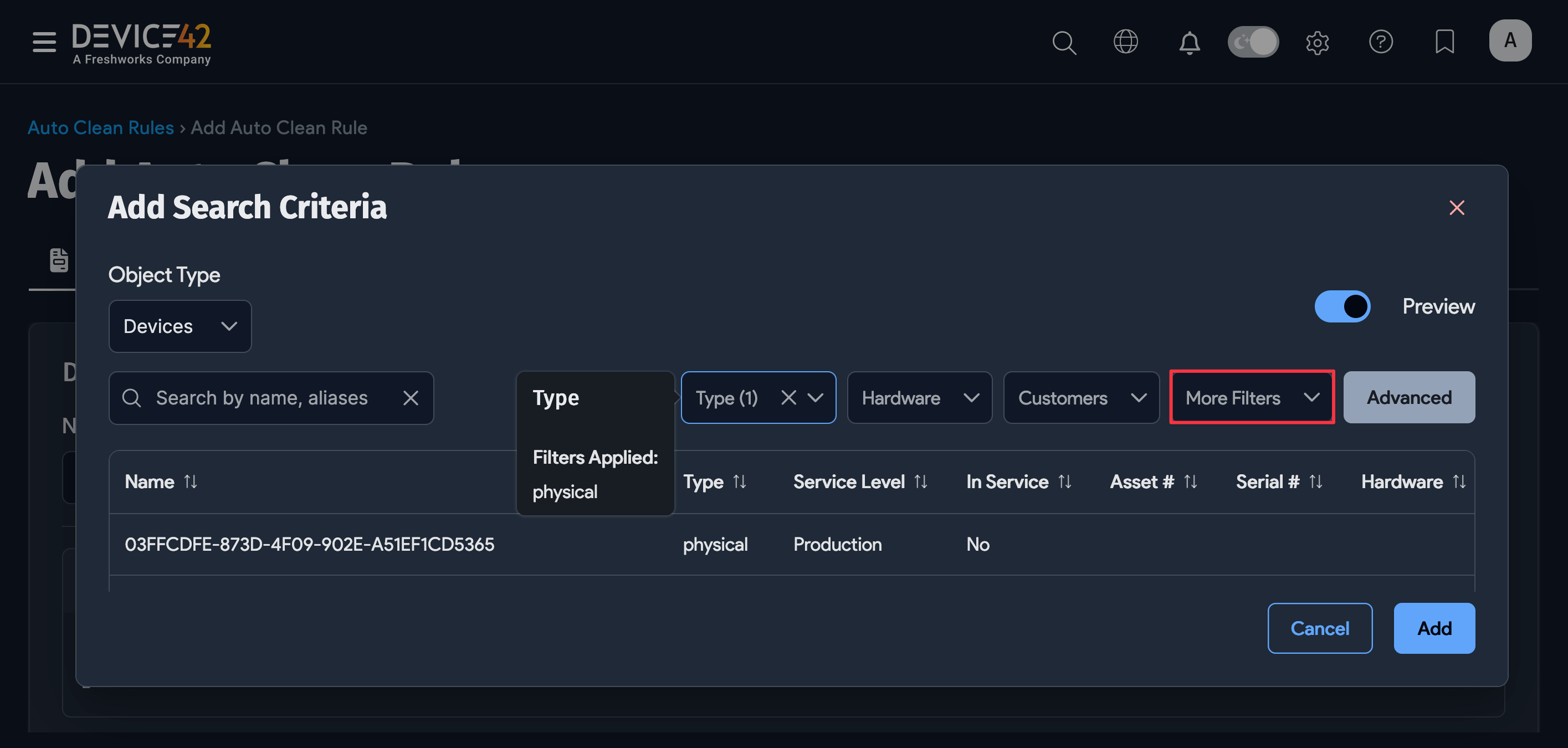
For the Devices object type, for example, you could select physical under the Type dropdown. Click More Filters to display more basic dropdown filters to select values from.
-
You can also use the Advanced Search feature to include search criteria.
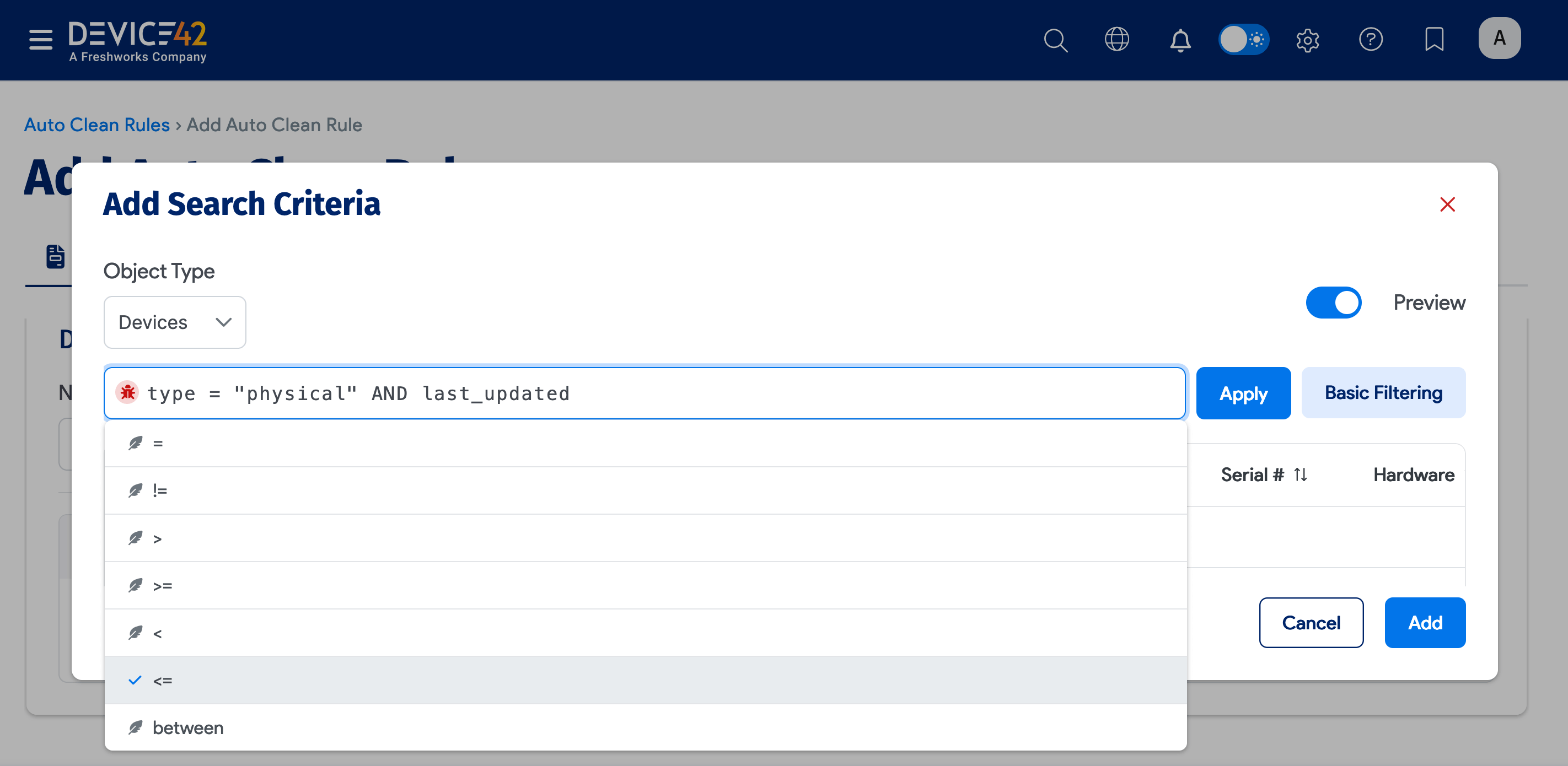
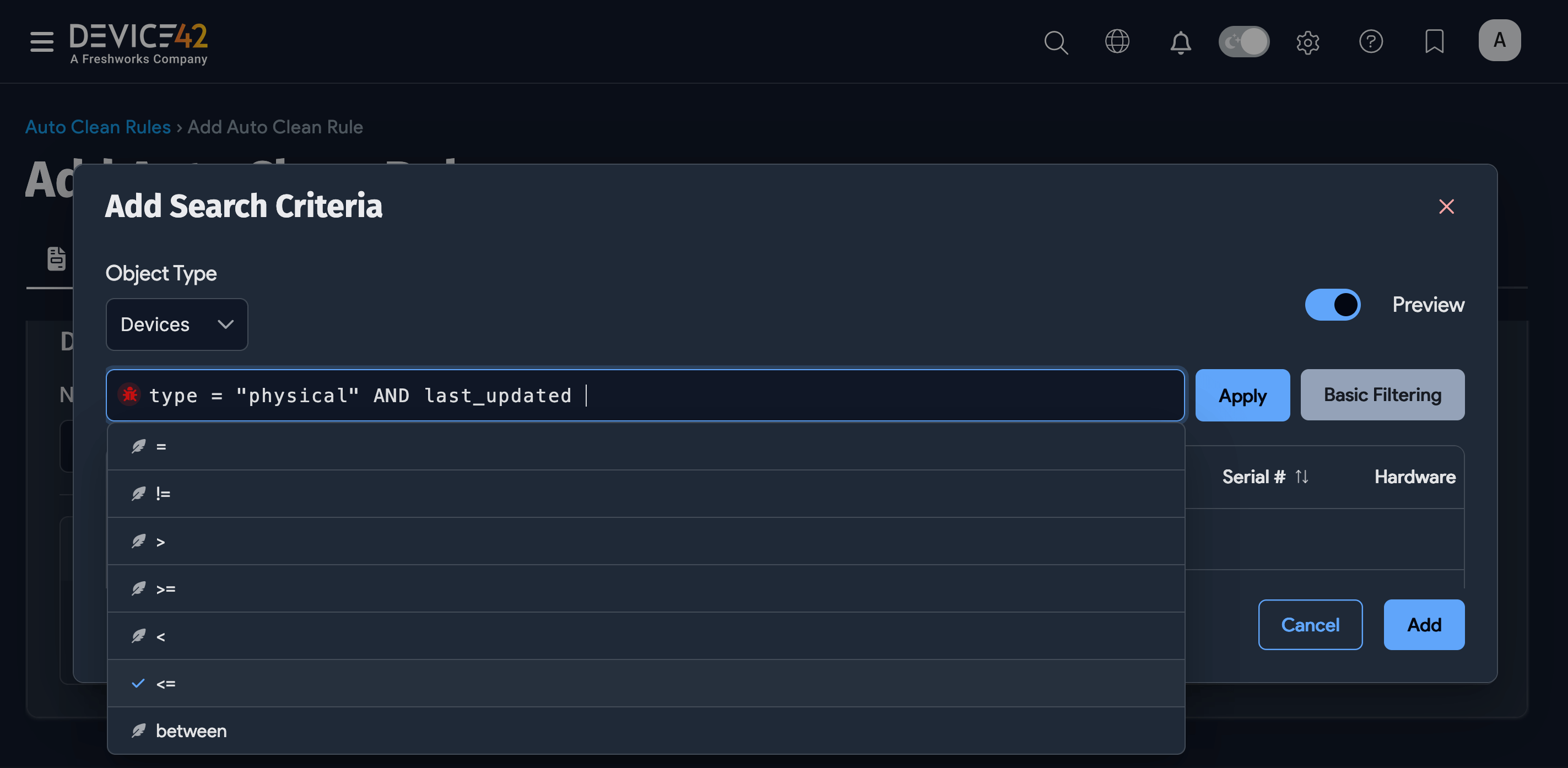
-
Click Add to apply the search for the object type. Click the pencil icon again to add another device and define search criteria for it.
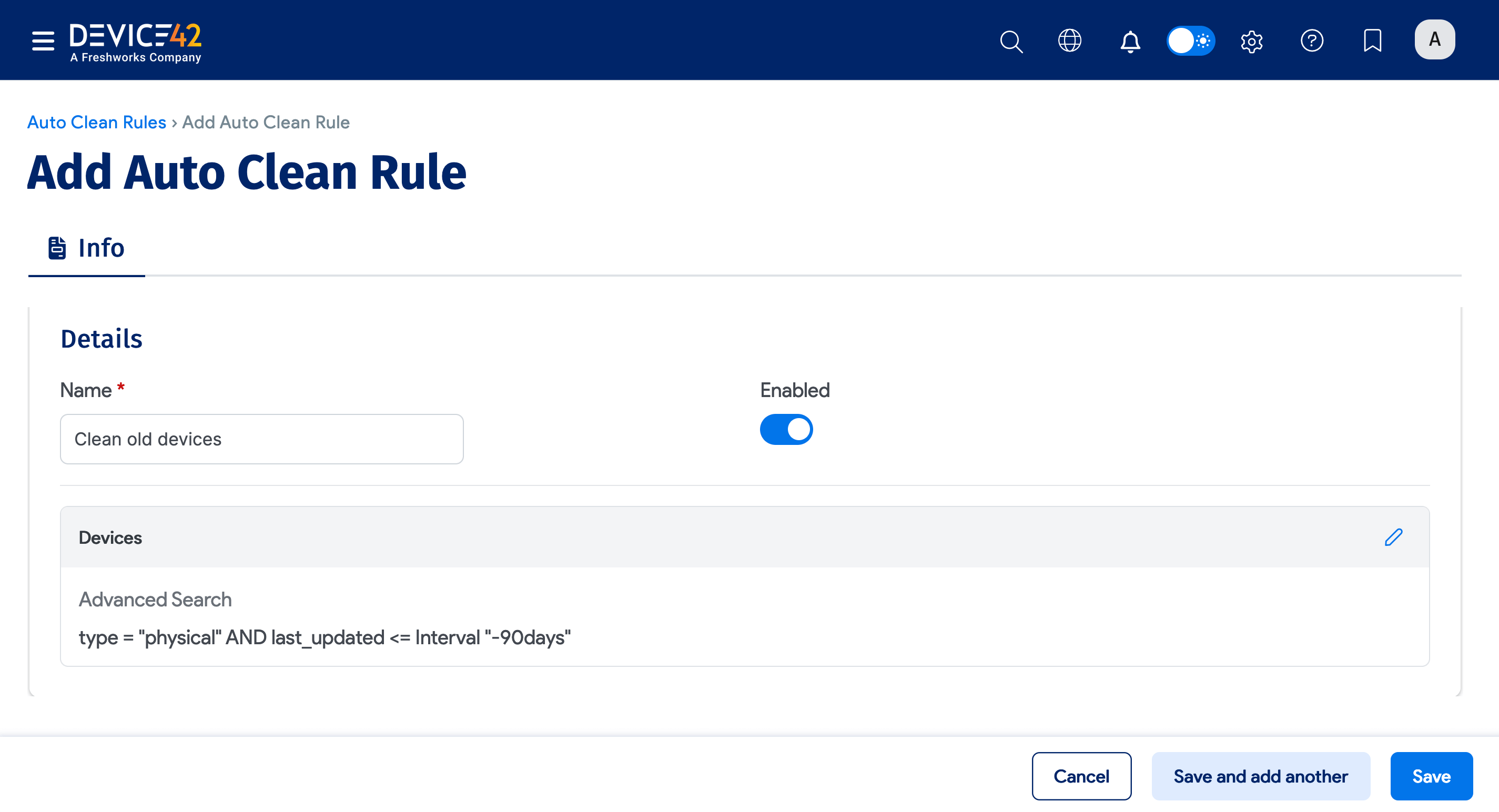
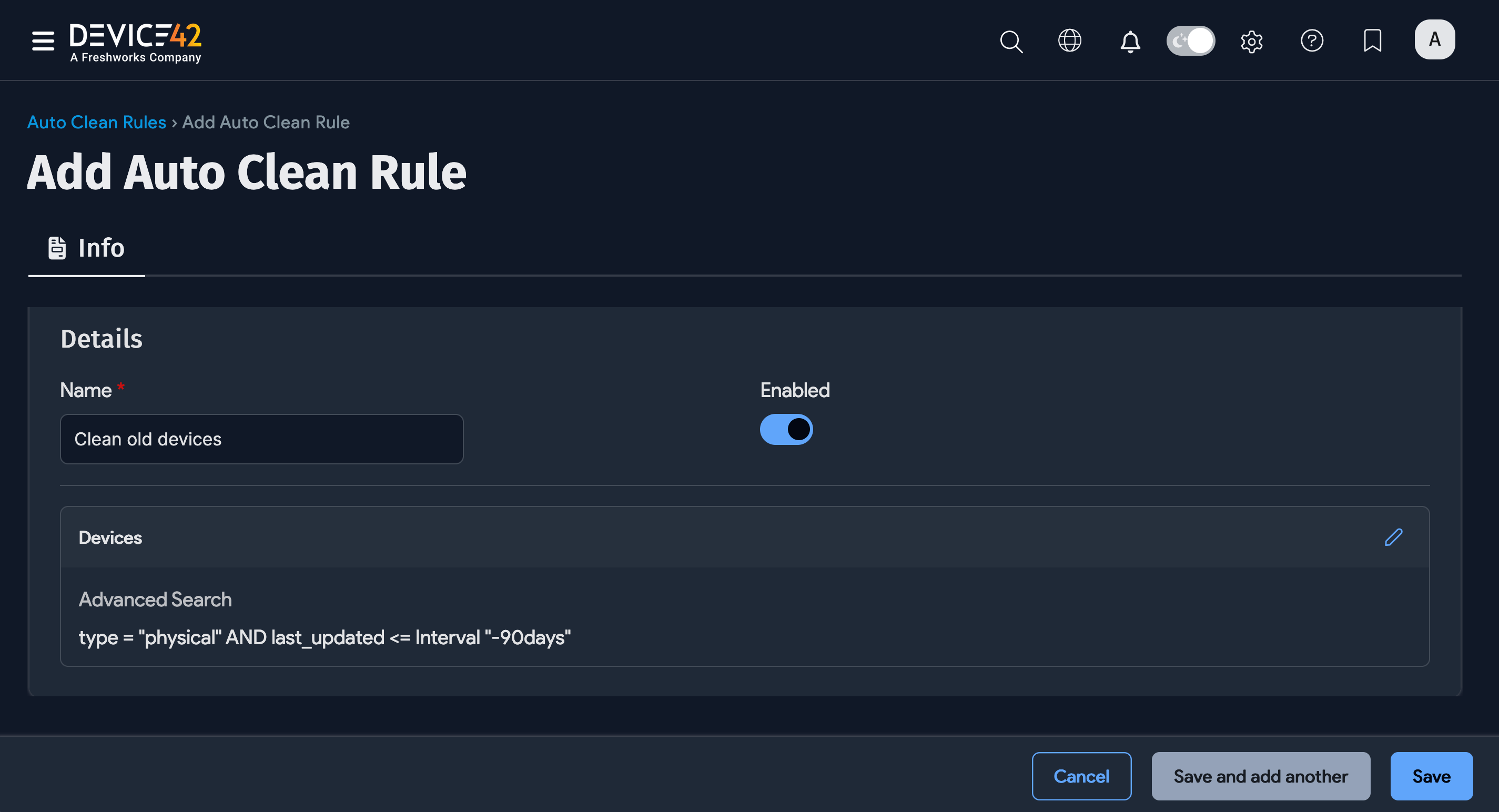
Auto Clean Rule Options
Select the actions to perform on CIs matching the added object types and their criteria. The available Action options vary depending on which Object type you select for the rule. The example below shows the action options for Device objects.
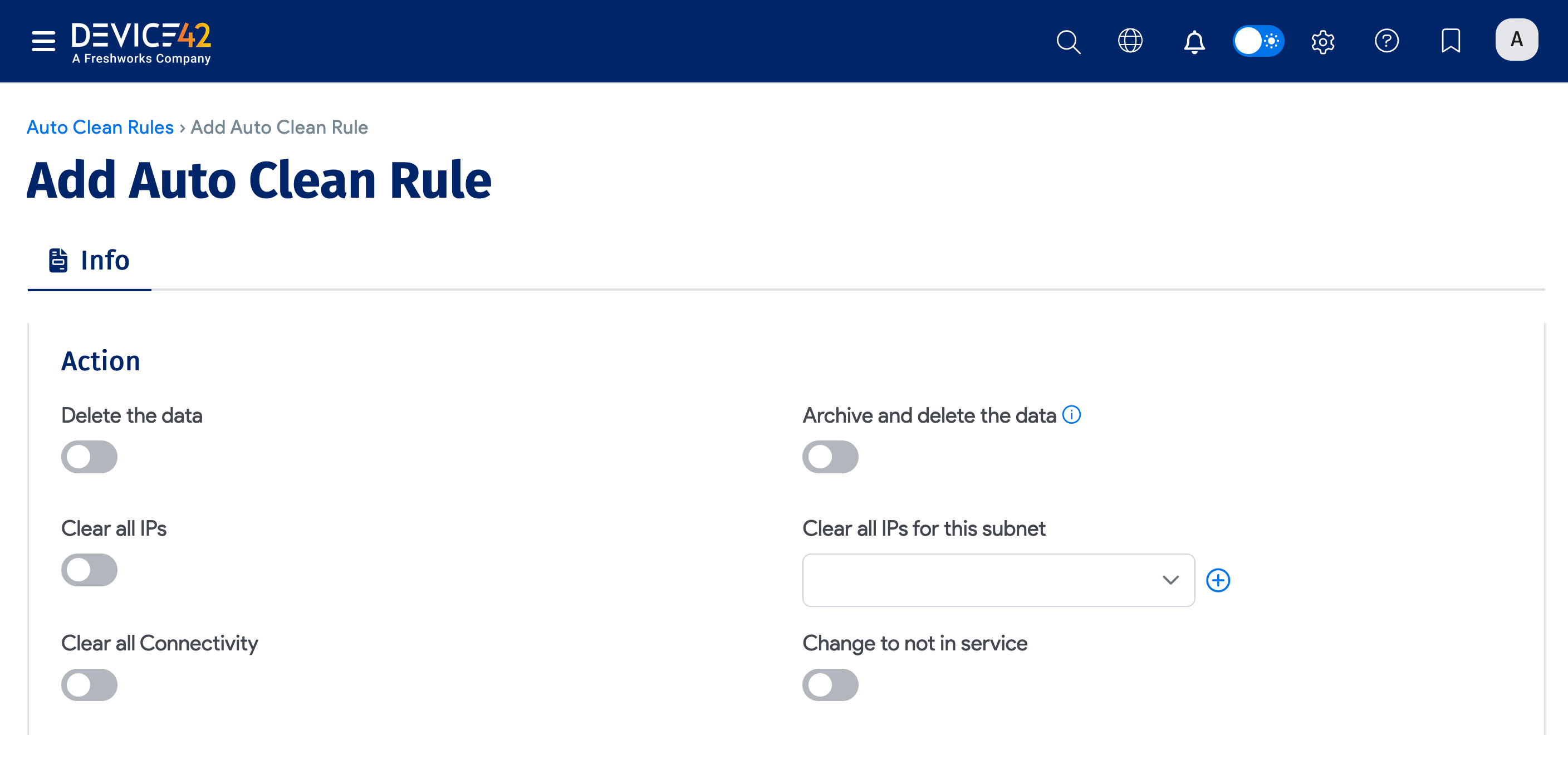
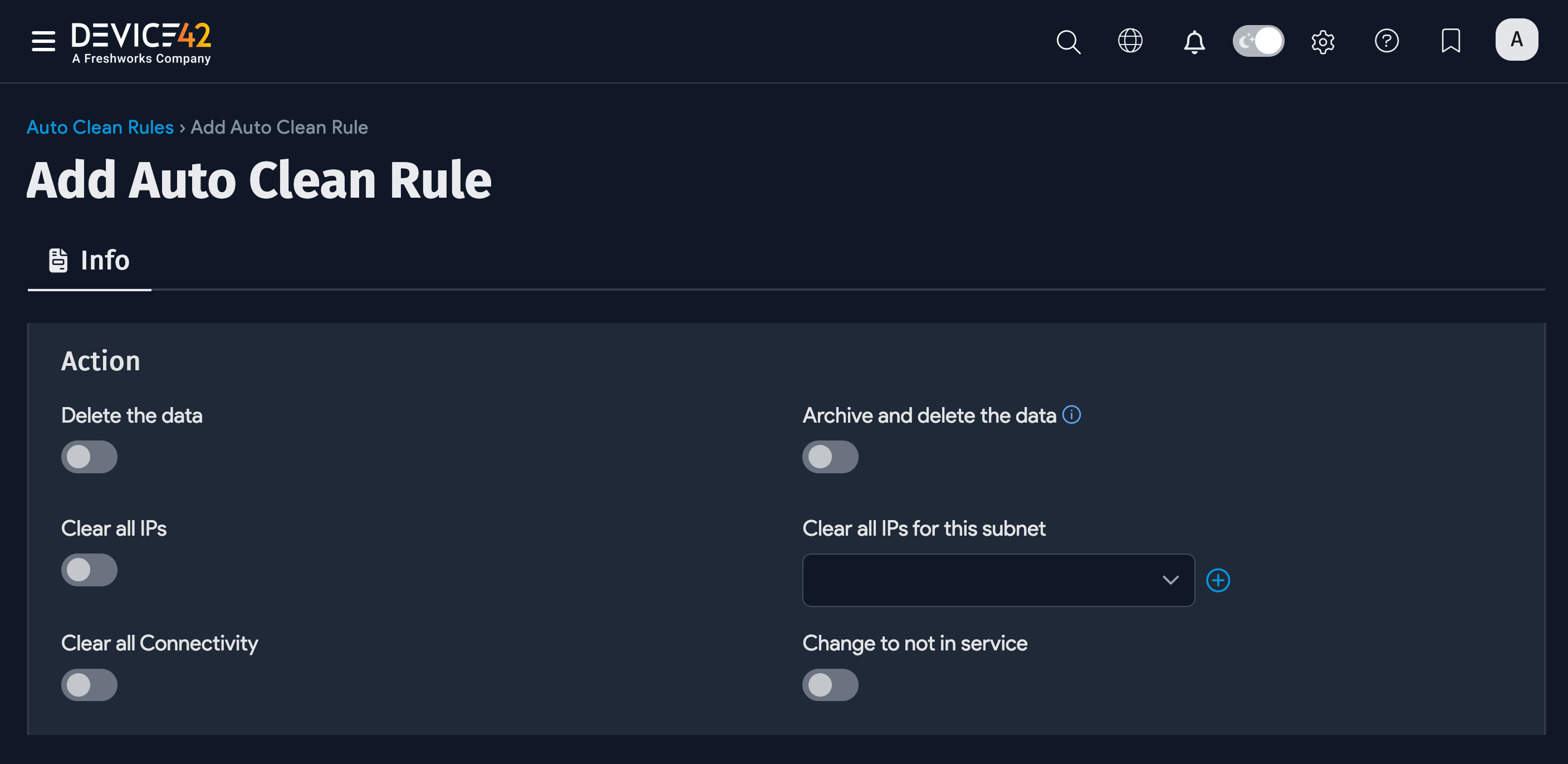
- Delete the data: Delete the object.
- Archive and delete the data: Create an archive record for the object and delete the object. You can find archived records under Analytics > Archived Objects.
- Clear all IPs: Remove IPs from the device.
- Clear all IPs for this subnet: Clear all device IPs from the entered or selected subnet.
- Clear all Connectivity: Clear all connectivity to the device.
- Change to not in service: Set the device status to not in service.
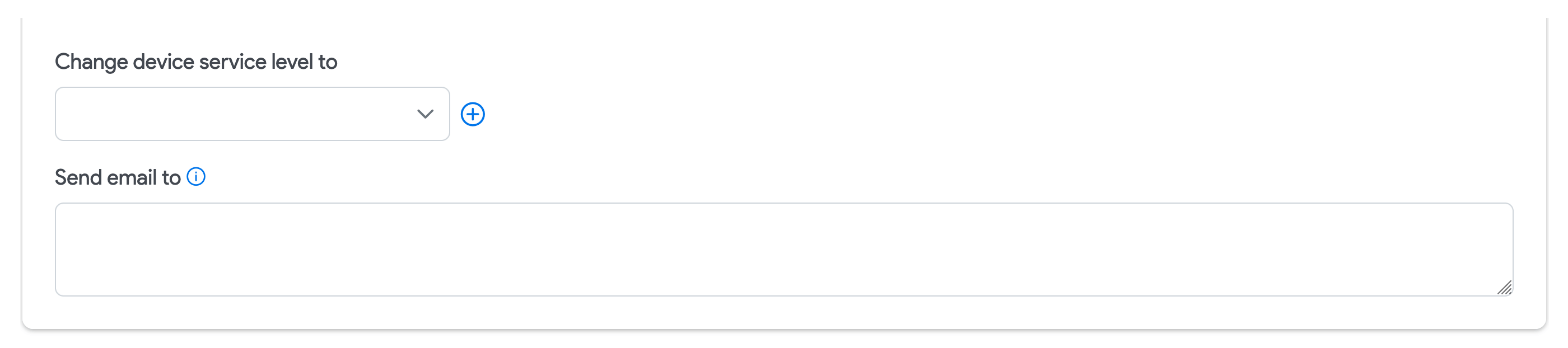
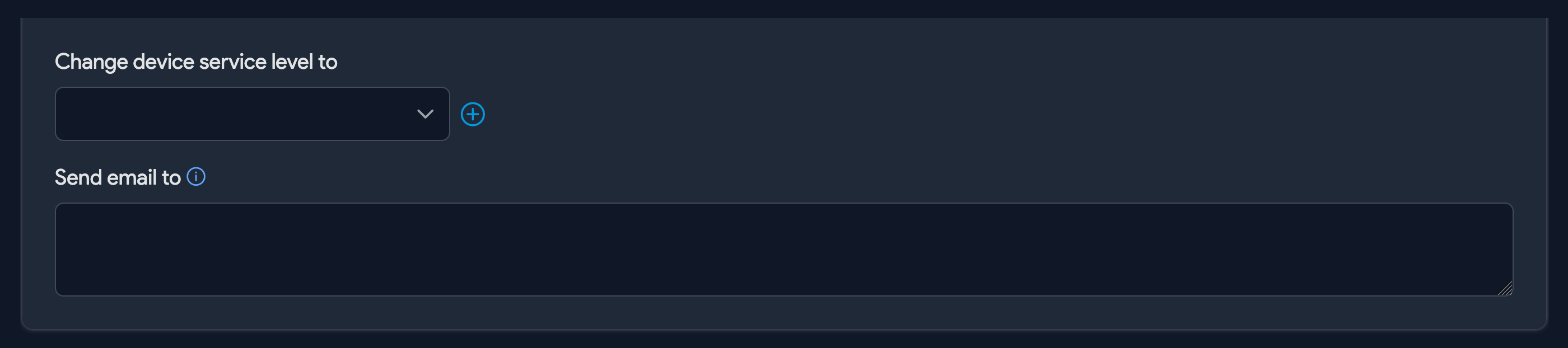
- Change device service level to: Choose the service level to assign when the rule is triggered.
- Send email to: Send a notification when the rule is triggered.
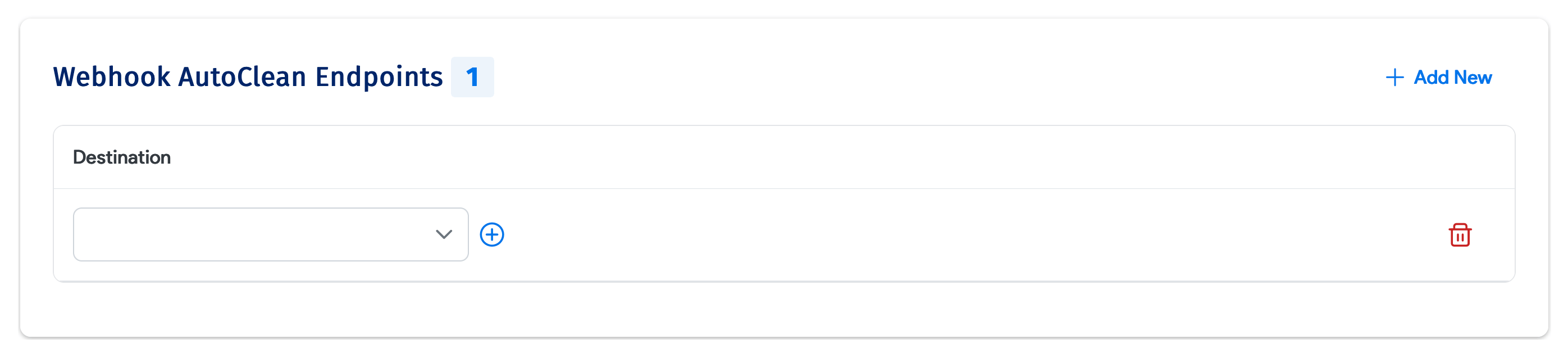
- Webhook AutoClean Endpoints: Add or delete webhooks that will be sent when the rule is triggered.
Auto Clean rules run once per day. If only an email or webhook is sent but no action is taken, the email or webhook will repeat each day until an action is taken that deletes or changes the object record.