Tags
Tags let you filter and group objects in Device42 — for example, you can define a "Project X" tag and associate it with all the devices, IP addresses, and other items related to that project. This page covers how to create, edit, merge, and remove tags.
Main objects in Device42 can be tagged, such as Software Components, Assets, and Devices, but not lower-order related objects like Vendor or User.
Navigate to the Tags list page under Infrastructure > Organization > Tags to view, edit, and create tags.
Create Tags
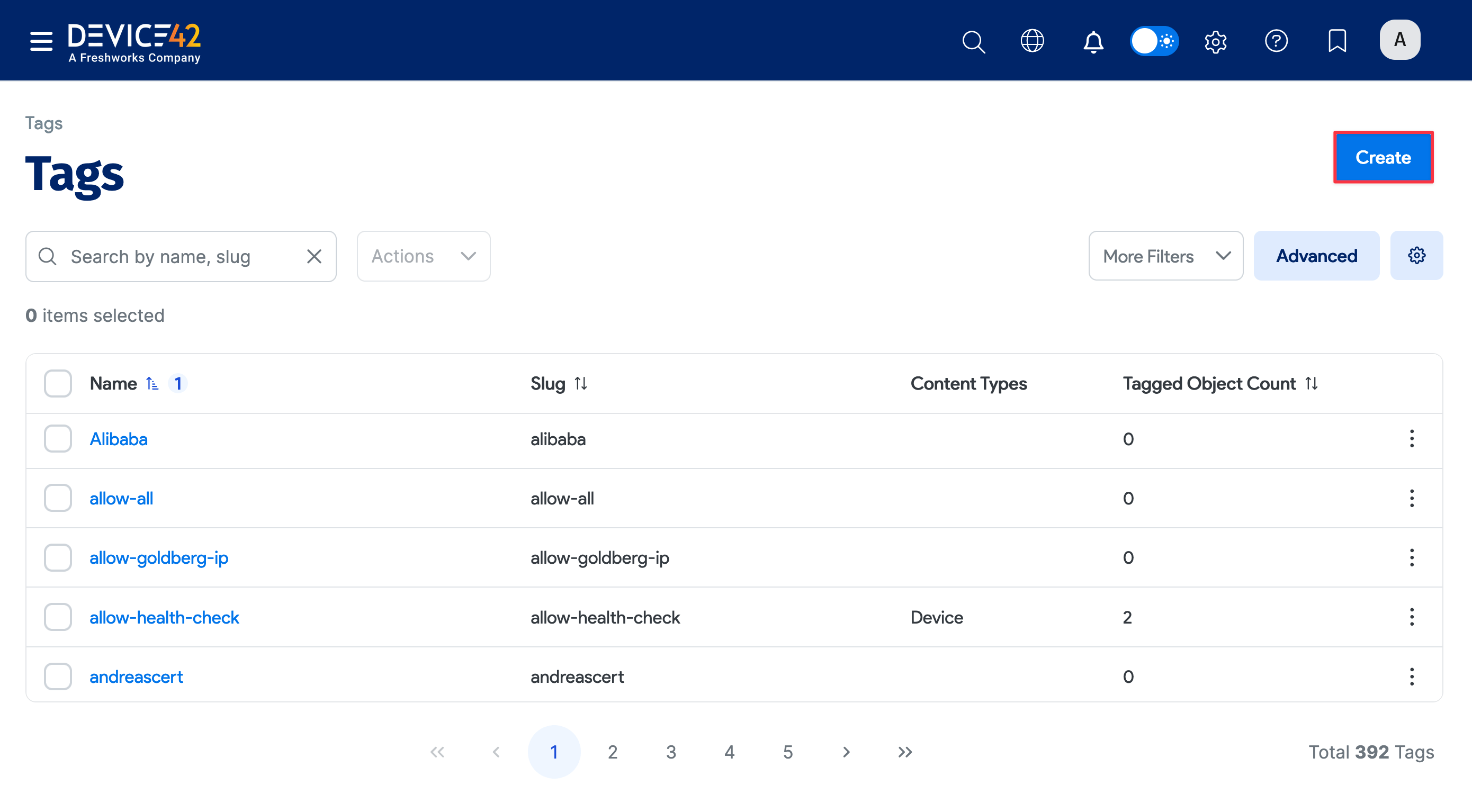
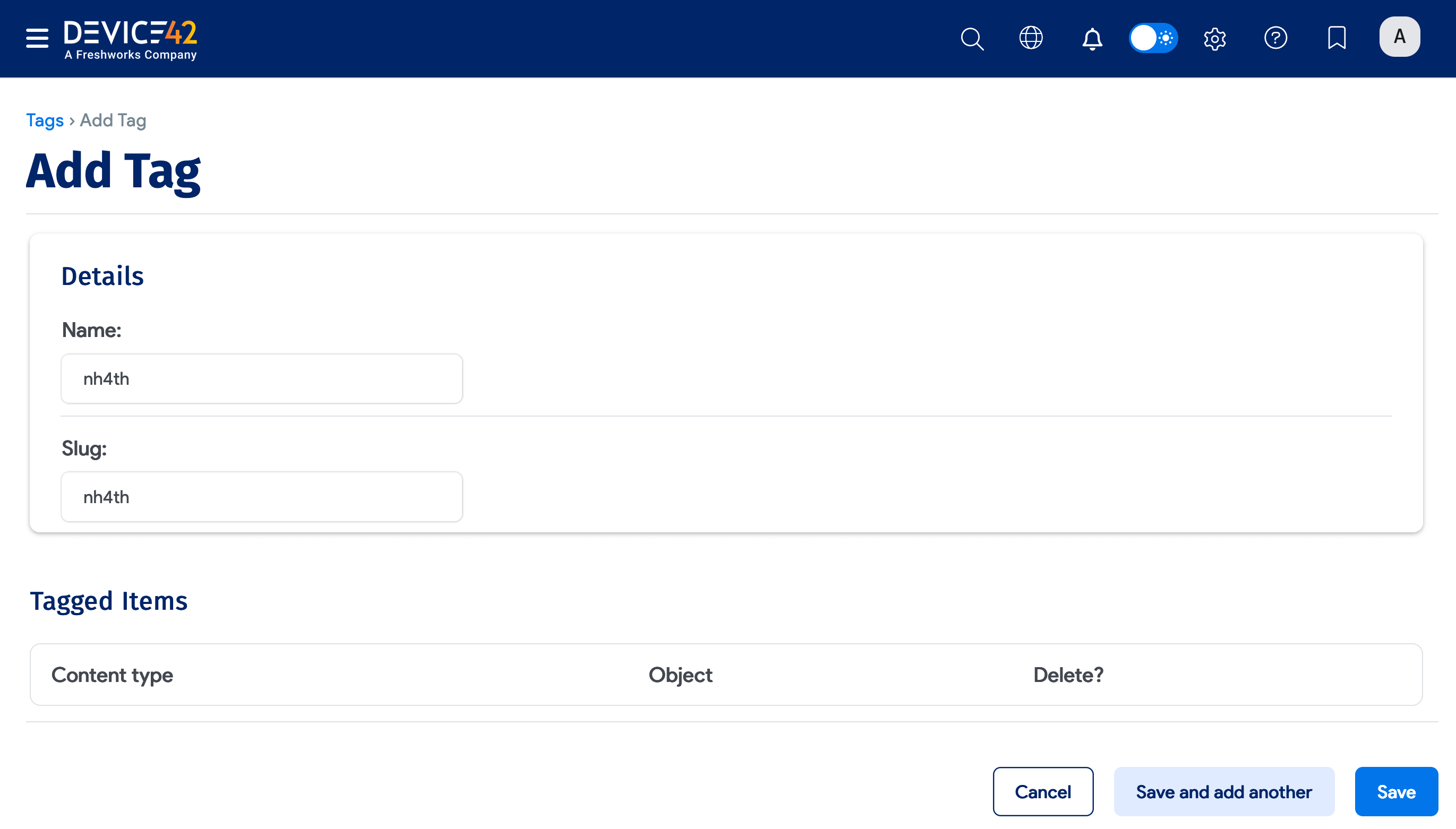
Click the Create button on the Tags list page. You can also create tags directly from an object or a discovery job configuration page using the Tags field.
Tag names can contain spaces. The Slug is a unique resource identifier for each tag and is filled in automatically.
View and Edit Tags
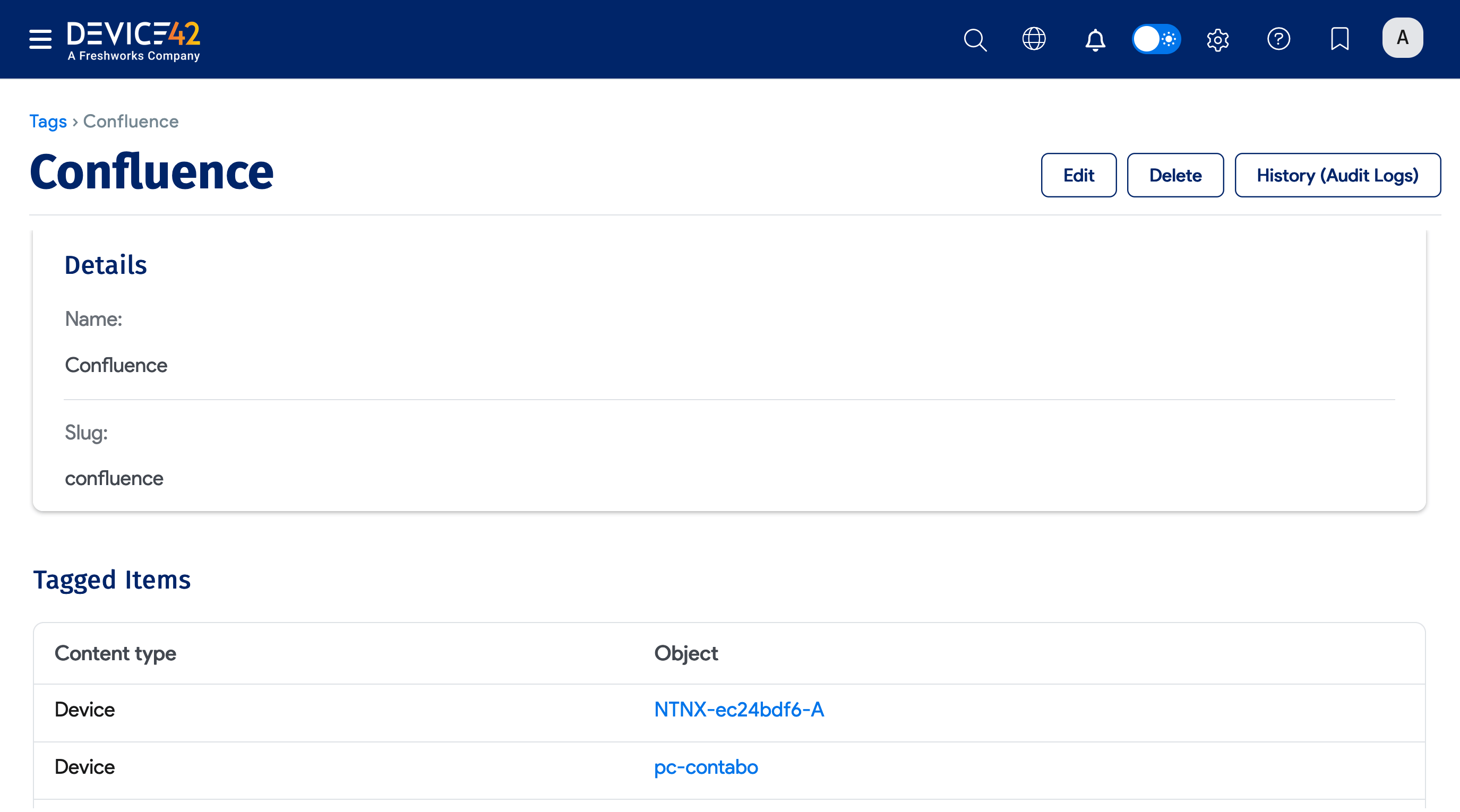
On the Tags list page, click a tag name to view the objects associated with that tag. To remove an association, click Edit, check the Delete? checkbox, and click Save.
Tag Objects
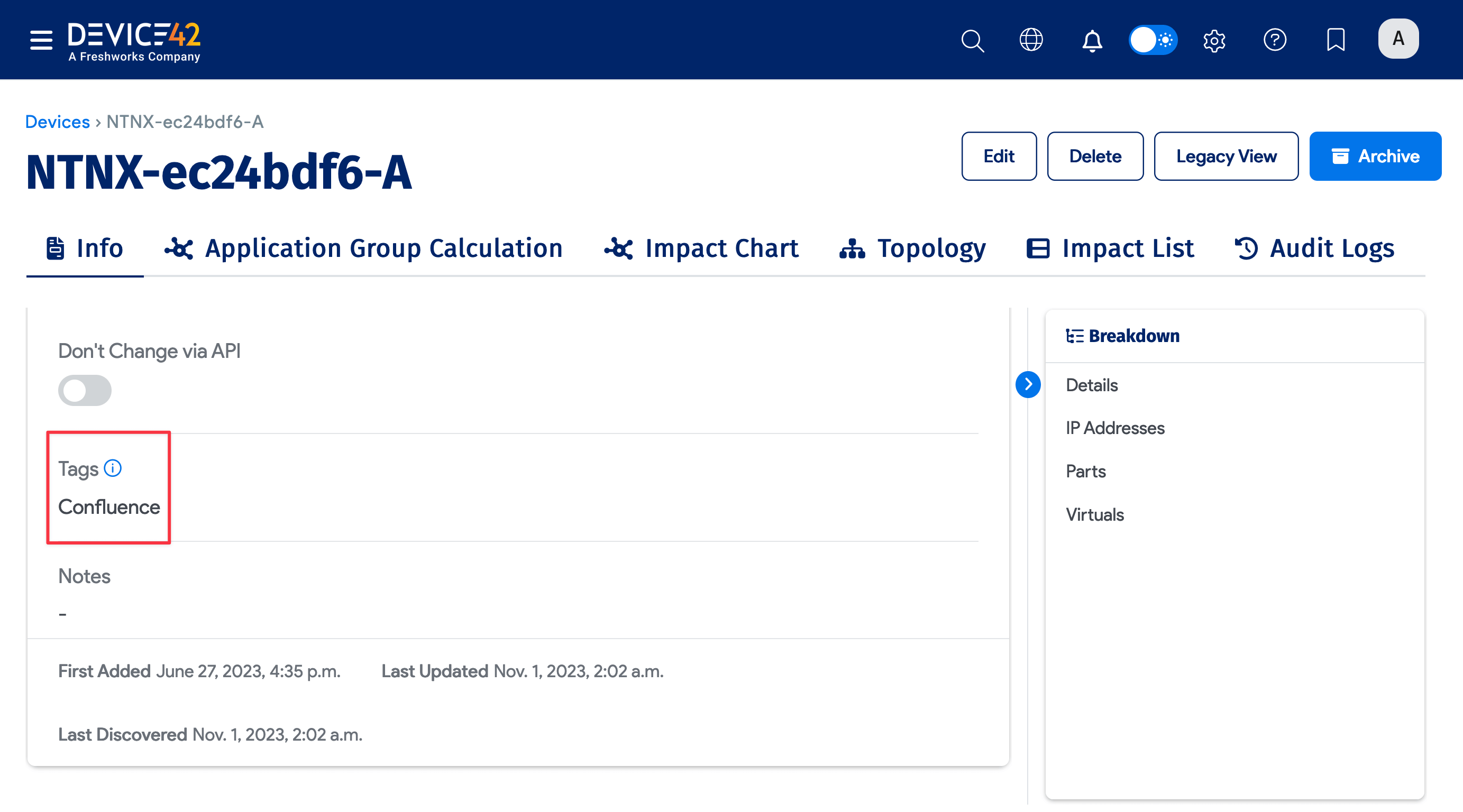
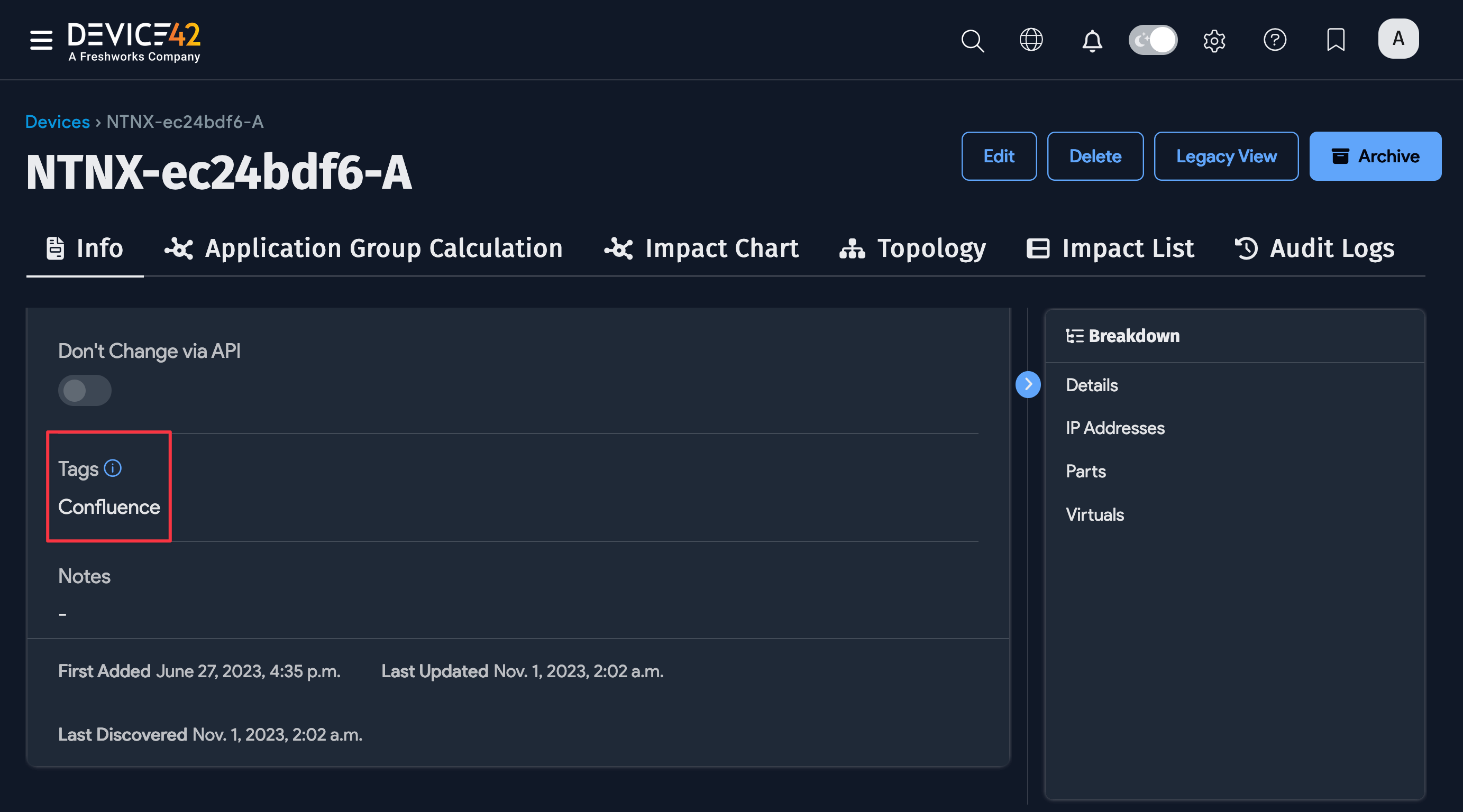
Add a tag to a device by filling in the Tag field when creating or editing a device. When configuring a discovery job, you can specify tags for discovered objects.
Merge Tags
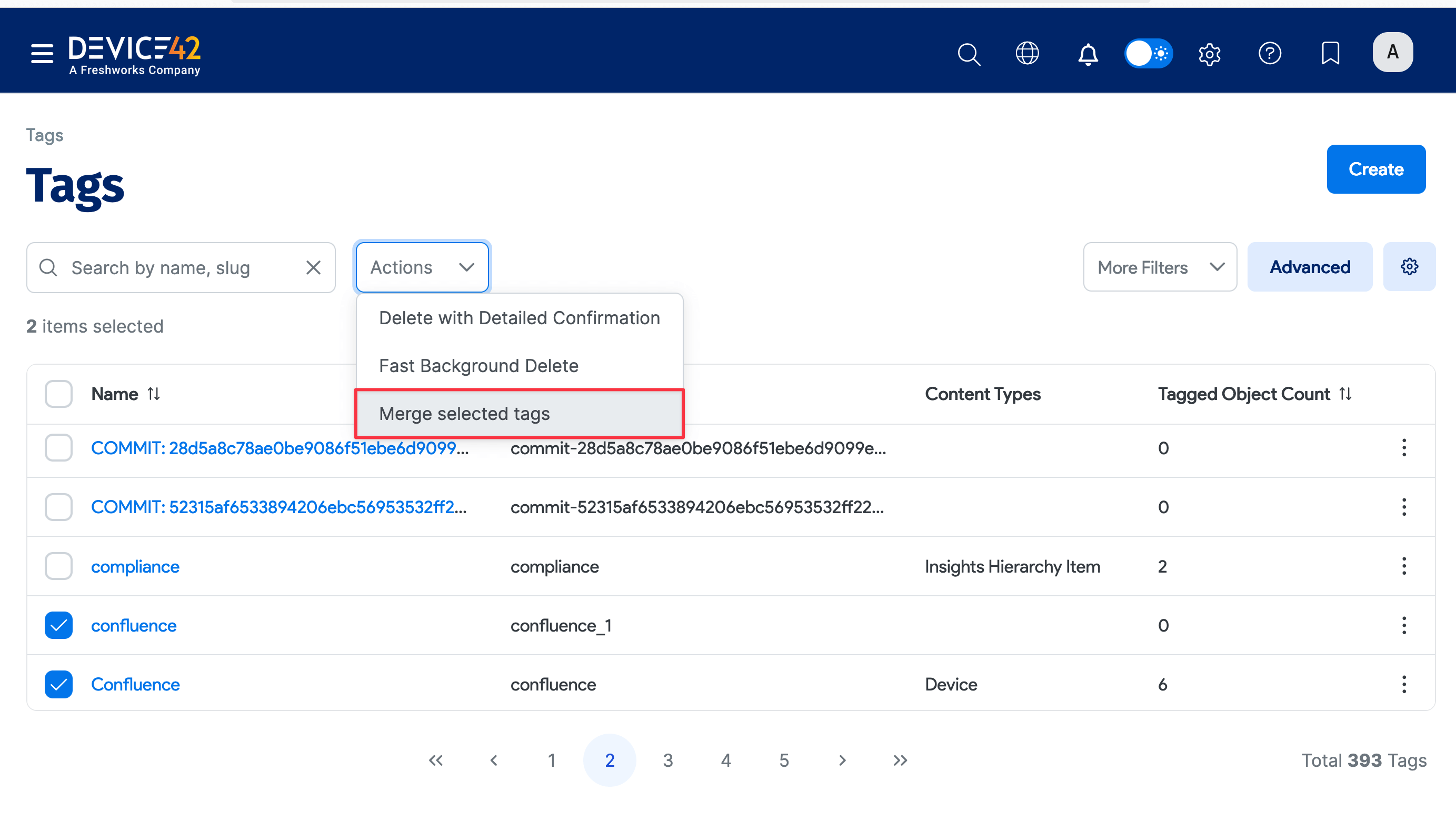
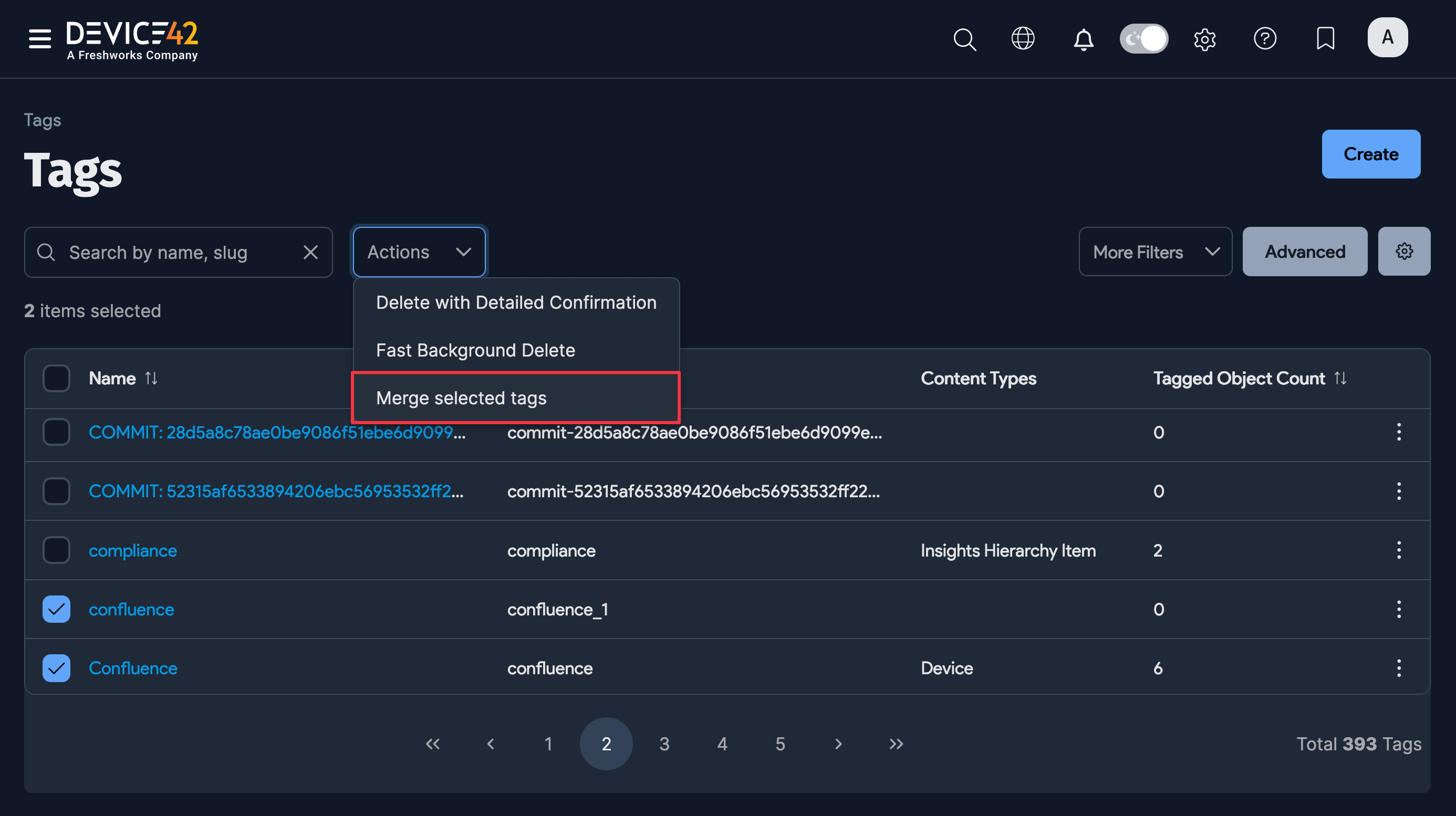
Due to misspellings or duplication, you may end up with multiple similar tags. To merge them, select two or more tags from the Tags list page and choose Merge selected tags from the Actions dropdown.
Remove Unused Tags
You can find and remove tags that are not associated with any objects. There are several ways to find tags with no associations:
-
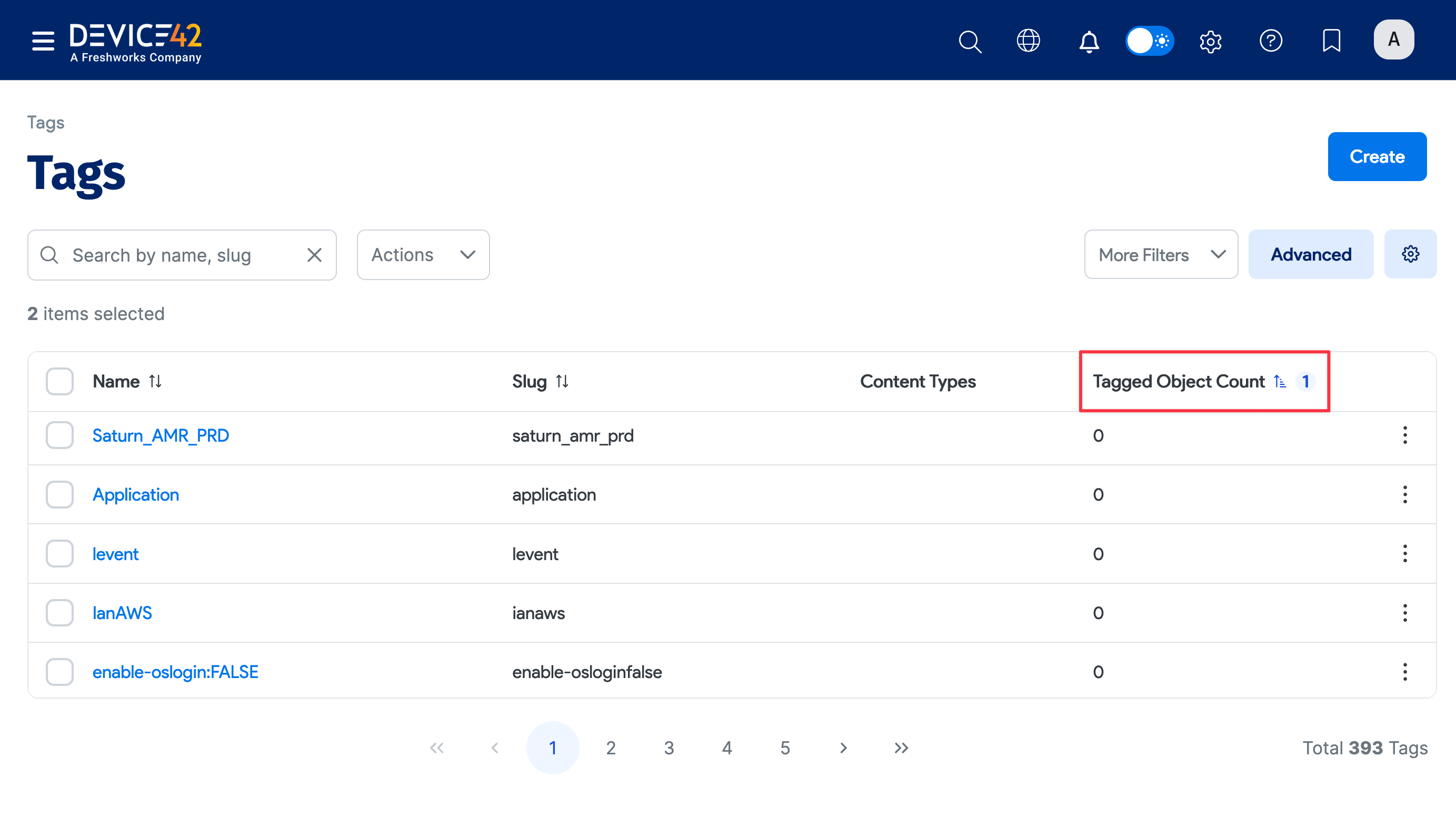
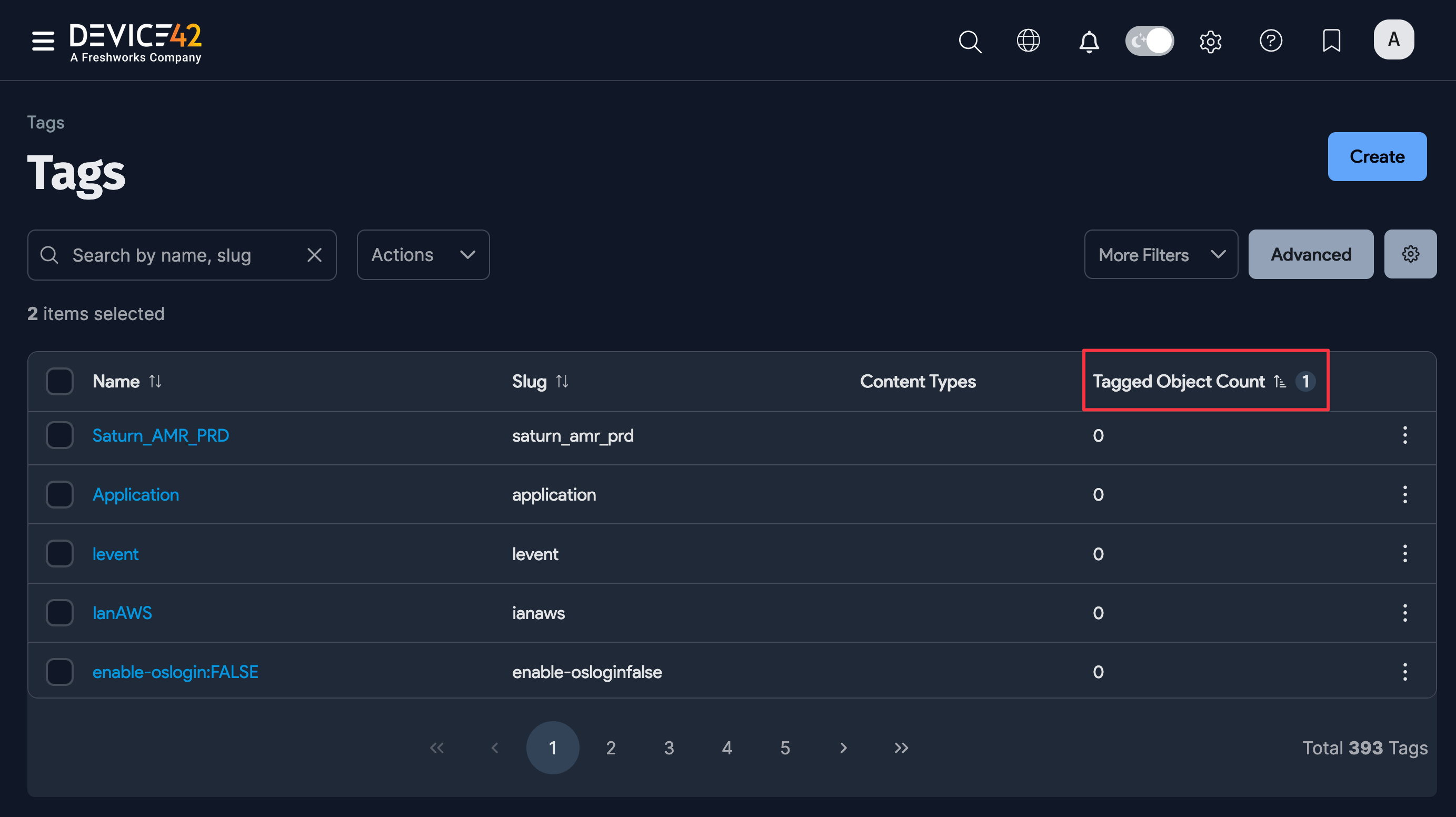
Sort by count: Click the Tagged Object Count column heading to sort the list and display tags with a zero count at the top.
-
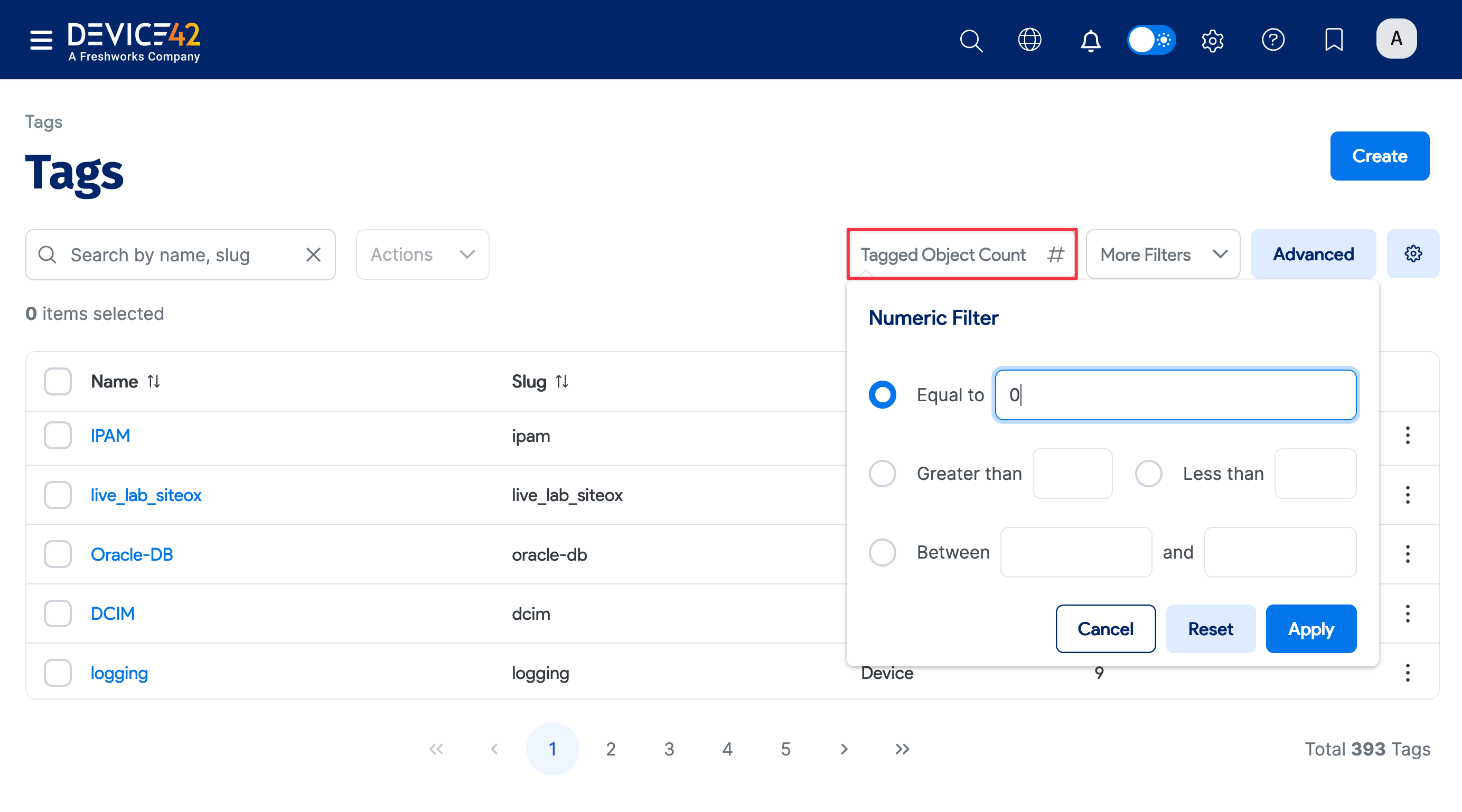
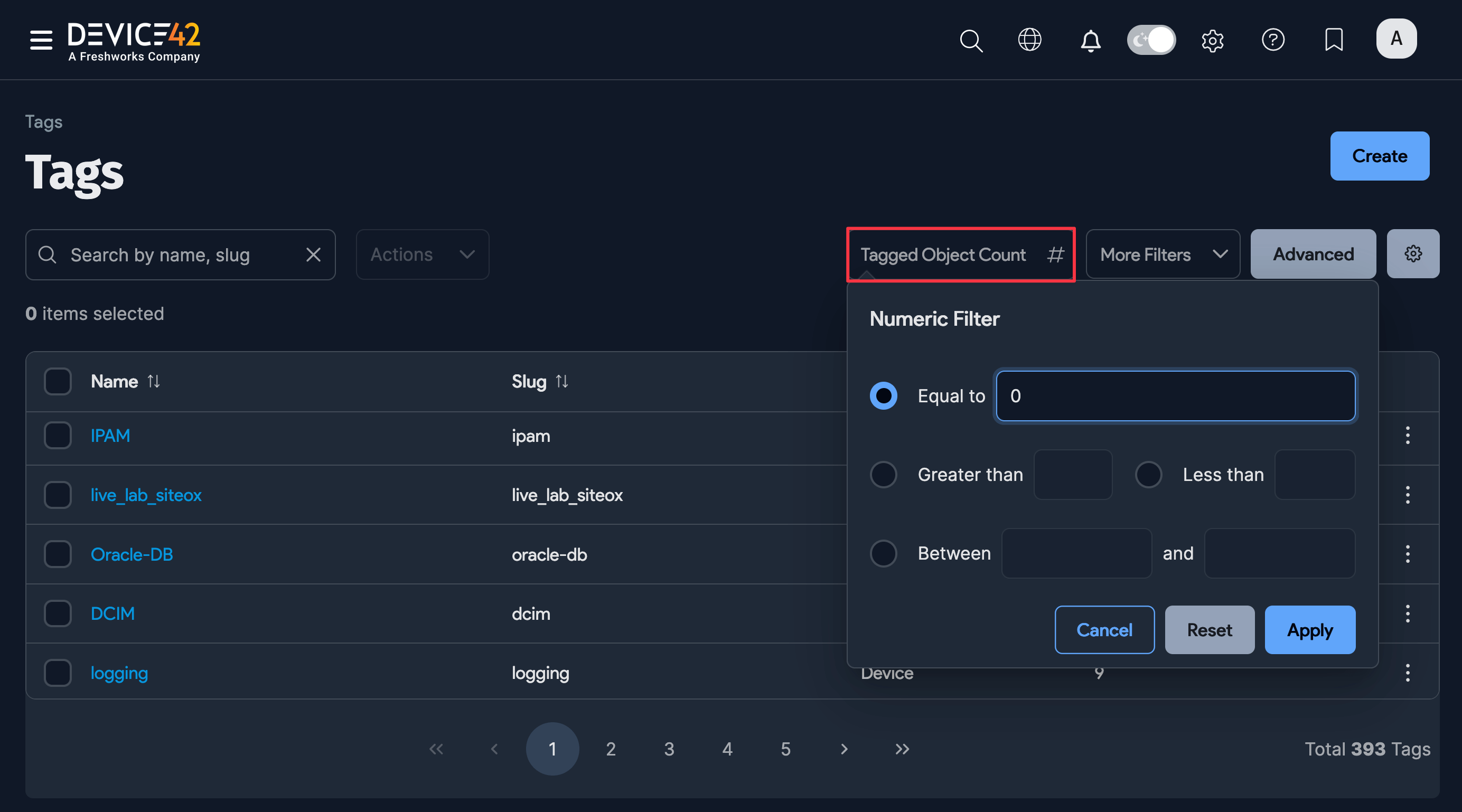
Basic filter: Use the Tagged Object Count # filter and set it to Equal to
0.
-
Advanced filter: Use the Advanced query filter to find tags with a
tagged_object_countof0.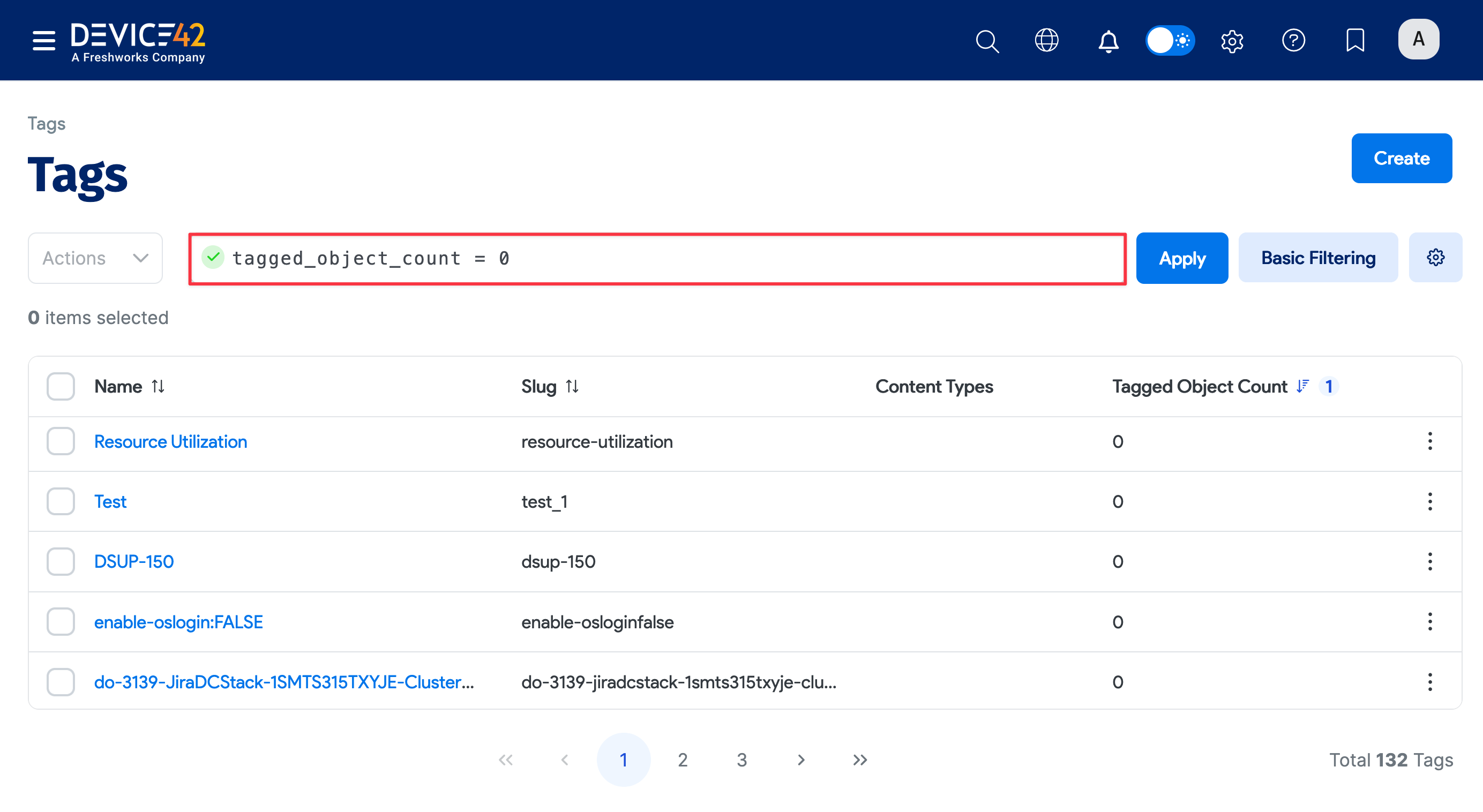
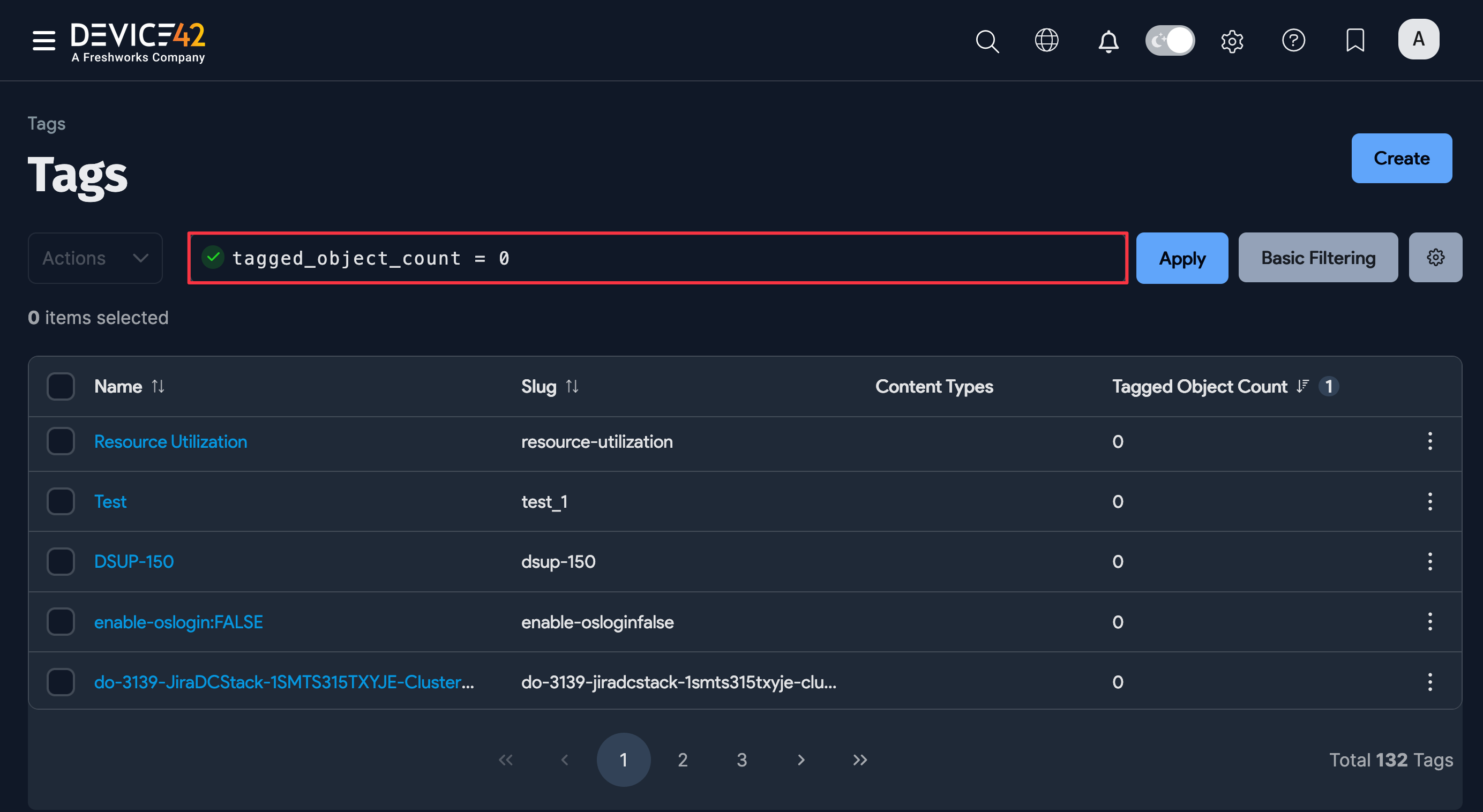
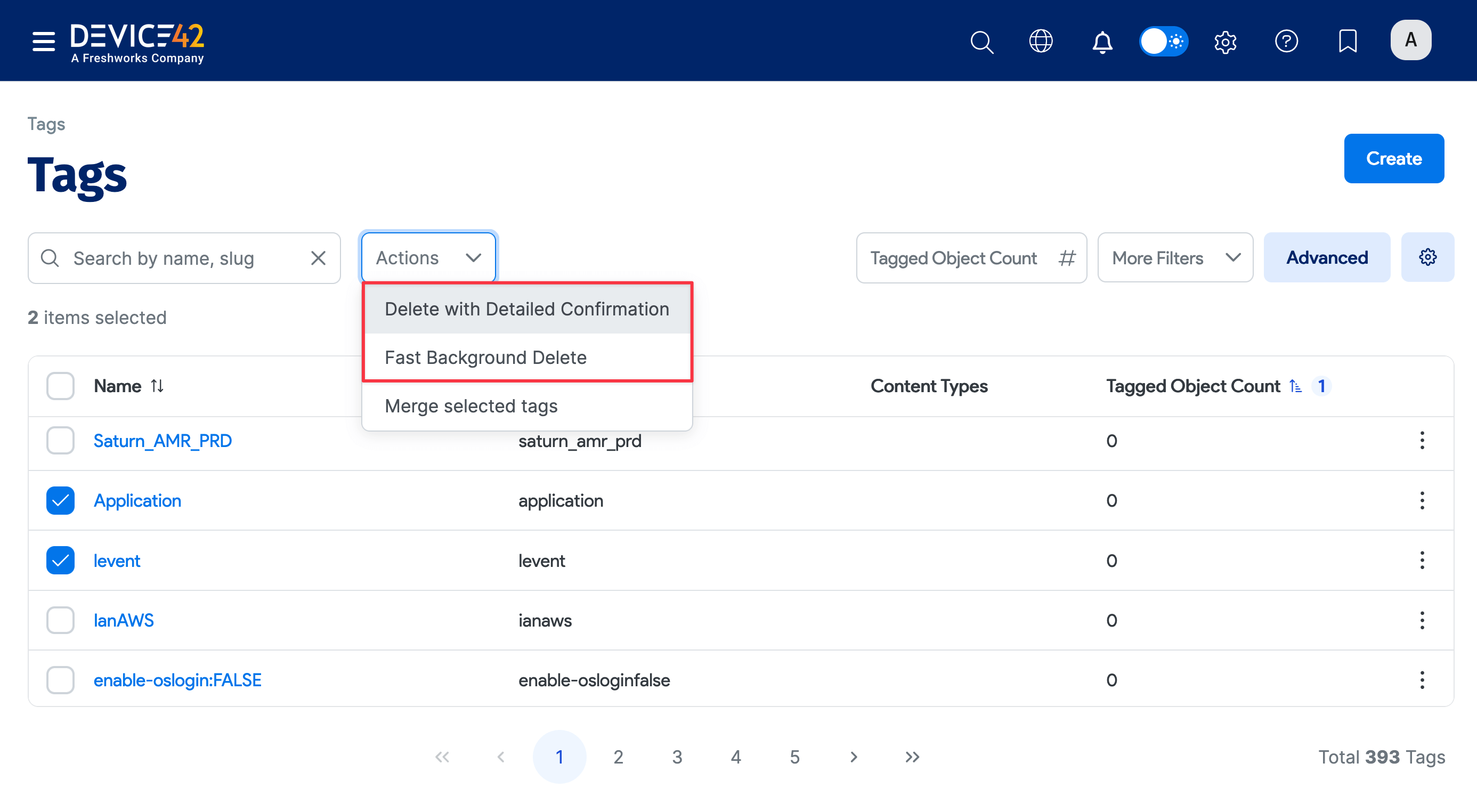
Select the tags with a count of 0 and choose Delete with Detailed Confirmation or Fast Background Delete from the Action dropdown.