Set Up HTTPS Certificate
You can upload your own HTTPS certificate and key in Apache-style cert files to enable a secure web console for Device42 and the Remote Collectors. This page covers how to upload the certificate, concatenate the certificate chain, and restart the application.
You can generate a self-signed certificate with a CA using OpenSSL or Microsoft Certificate Server and upload it, or use a certificate issued by a trusted certificate authority.
Upload the Cert and Key Files
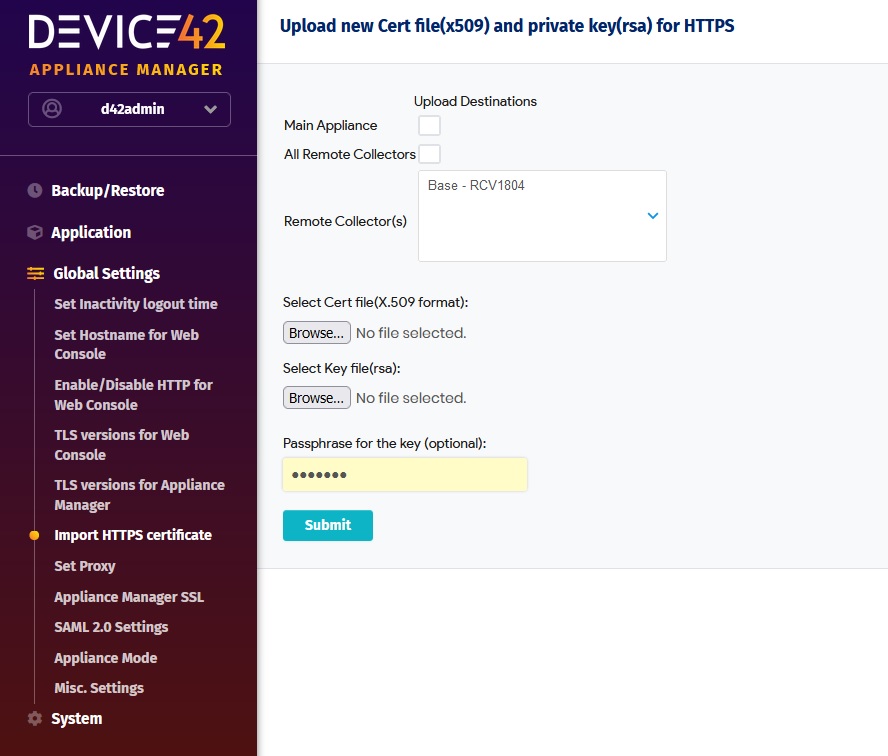
Upload both the certificate and key files. The software validates the certificates before applying them.
Add the Intermediate and CA Root Certificates
Concatenate all the certificates, starting with the server certificate and working through the chain to the intermediate and CA root certificates. Run the following on the command line, or use copy-paste in a text editor:
cat chain.crt >> mysite.com.crt
Restart the Application
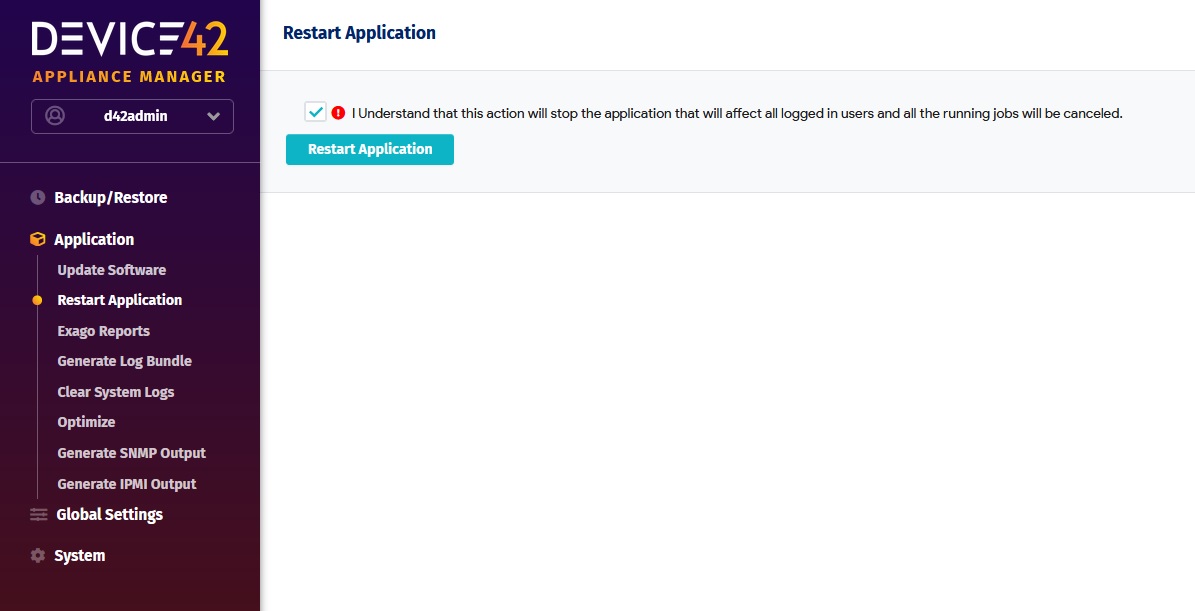
Restart the application for the new certificate to take effect.
Create Your Own Cert
If you create your own certificates, upload them via the Appliance Manager. Device42 is unable to assist with the creation and signing of certificates — use a CA such as Thawte for creation and signing.