Device42 Restore
The Device42 restore process replaces the current appliance data with data from a backup file. This page covers Active Directory considerations, the restore steps for Main Appliance and Remote Collector backups, and recommended test restore options.
Note the following before starting the restore:
- The Device42 versions of the backup and the appliance must be identical for the backup-restore scenario to be supported.
- The restore process deletes all current data in the appliance. Run a test restore first to verify that it works as expected.
Active Directory Settings
Active Directory settings are critical for logging back in. If you have only Active Directory users (no local Device42 users), manually add the Active Directory settings before the restore.
If you have local accounts, you can use them to log in after the restore and add Active Directory settings later.
Restore the MA and RC Backup Files
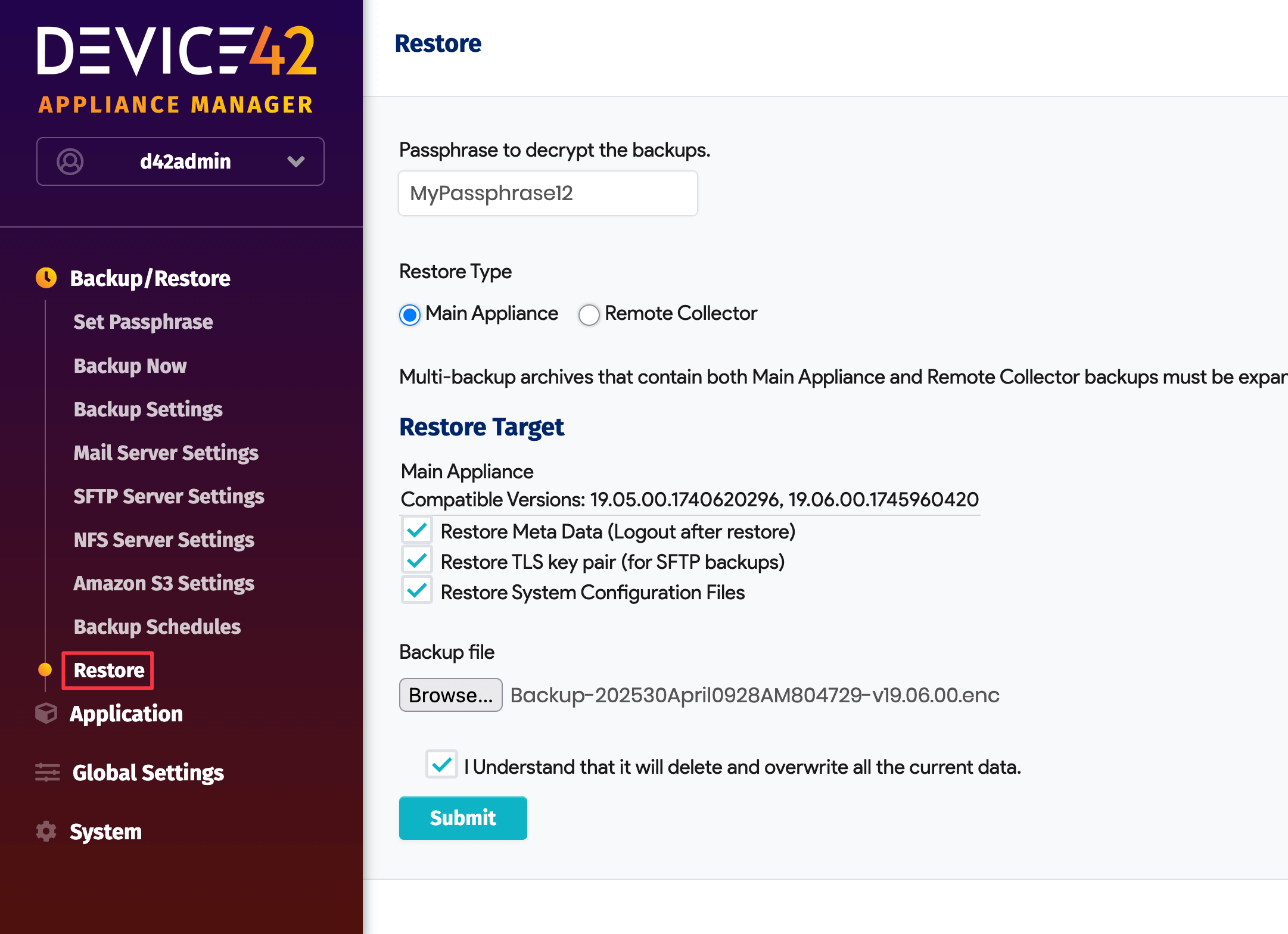
From the Appliance Manager, navigate to Backup/Restore > Restore.
Select Main Appliance or Remote Collector. You need separate backup .enc files for the MA and RC.
To restore the MA or RC, enter the passphrase you used for the backup. If you have forgotten the encryption passphrase, create a new backup:
- Click Set Passphrase in the left menu panel, click Clear Passphrase, enter a new passphrase, and create a new backup.
Select the Restore Meta Data option. If you did not select Backup Meta Data when creating the backup, re-enter the following settings after restoring the appliance:
- Passphrases for backups and password encryption
- Language
- Time
- SSL/HTTPS
- Host and hostname information
- All Appliance Manager settings (including backup schedules)
- All certificates
Click Browse to select the backup .enc file you want to restore.
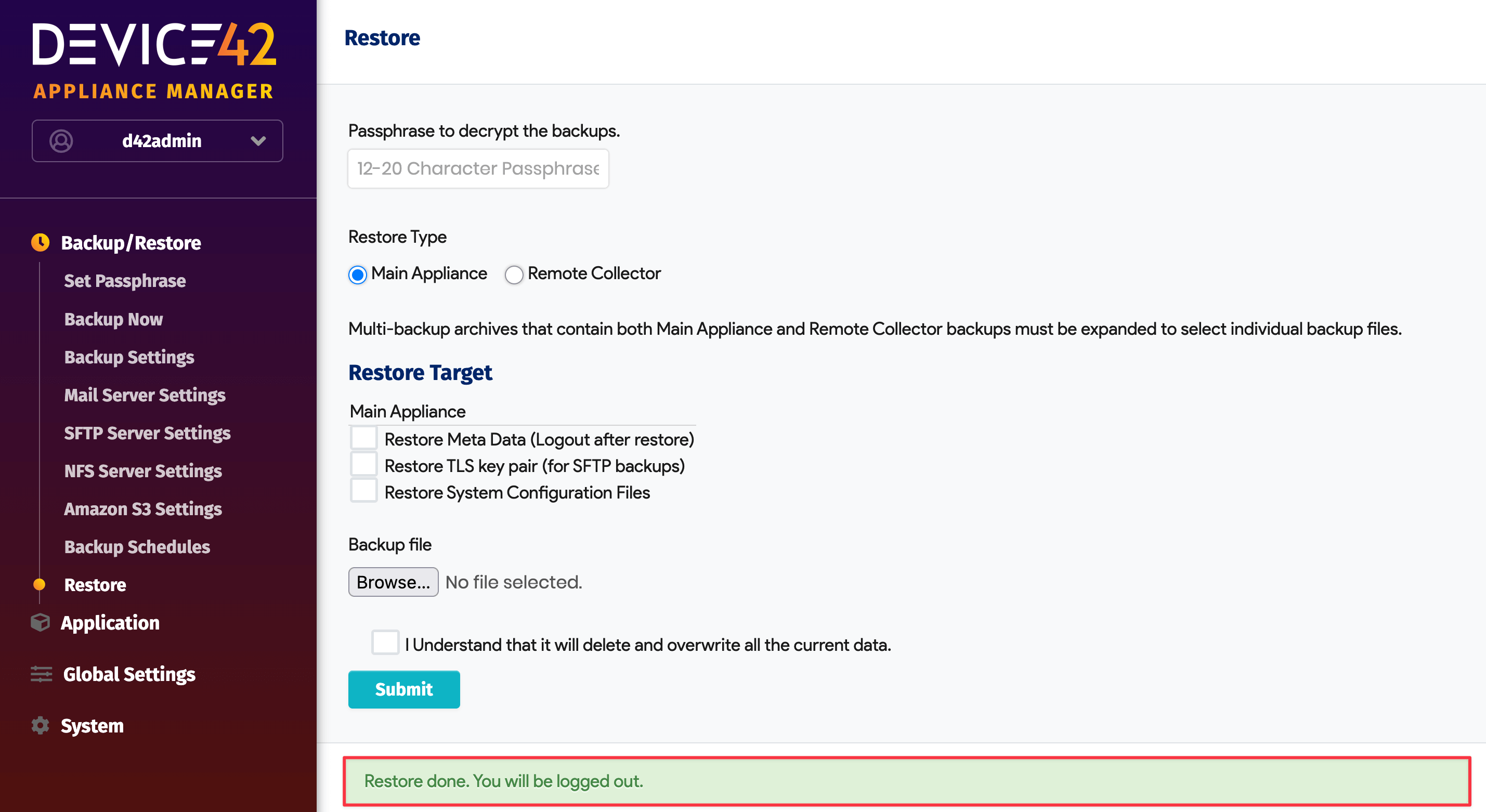
A success message appears at the bottom of the screen. Contact the support team if you encounter any issues.
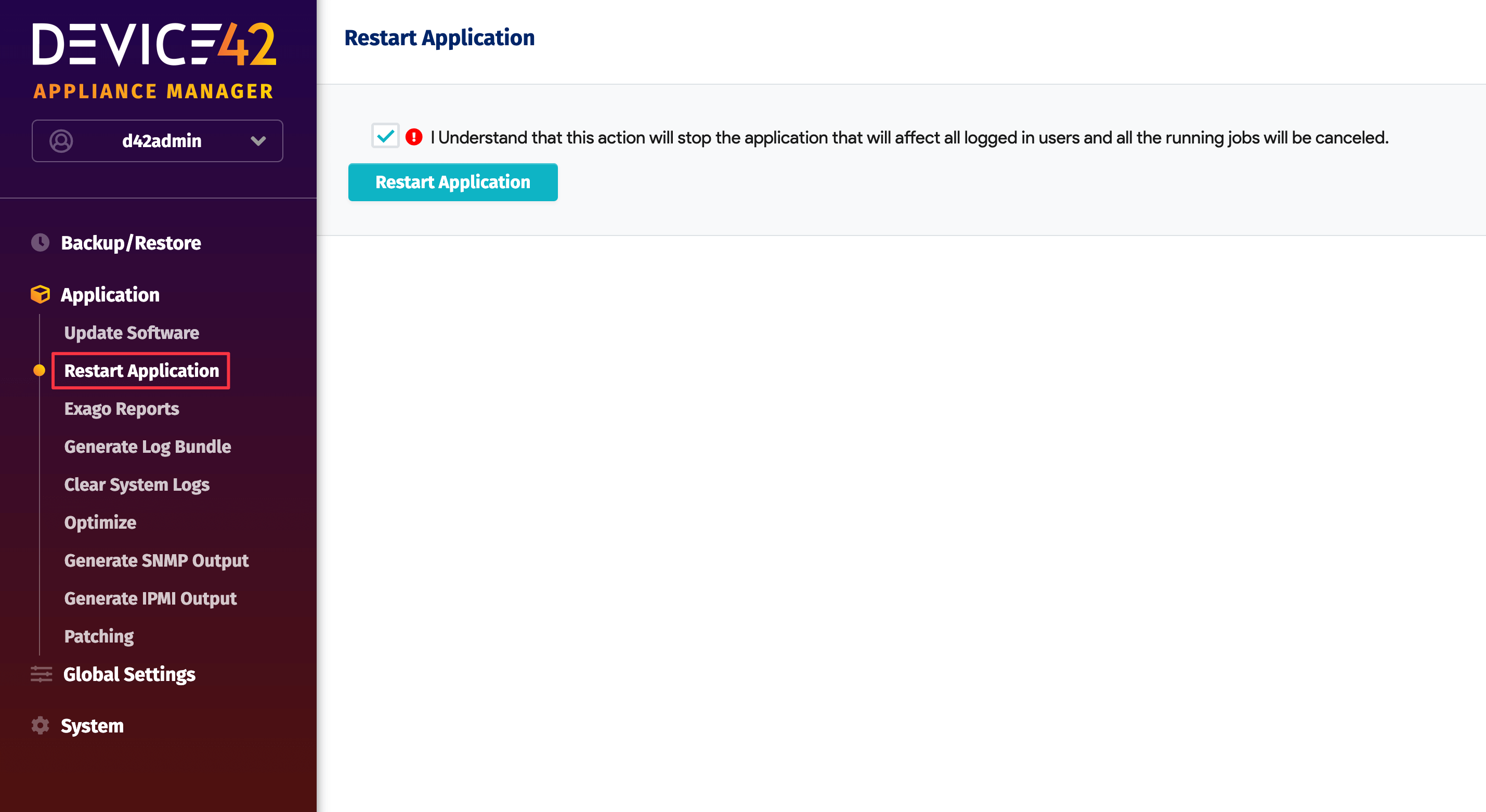
Restart the application once the restore is complete by navigating to Application > Restart Application.
Test Restore Options
For a test restore, use one of these two approaches:
- Spin up a new Device42 virtual appliance and restore your backup there. Having a second instance is useful for disaster recovery or business continuity, as described in the Warm HA Configuration page. Your license allows one production and one backup instance.
- Take a VM snapshot first, then run a test restore.