Enabling SSL in Appliance Manager
Device42 supports HTTPS in the Appliance Manager in addition to the Main Appliance. This page covers how to enable SSL for the Appliance Manager.
Enable HTTPS in the Appliance Manager
Log in to the Device42 Appliance Manager. The default username and password are d42admin and default — see Appliance Manager Login for the URL and password change instructions.
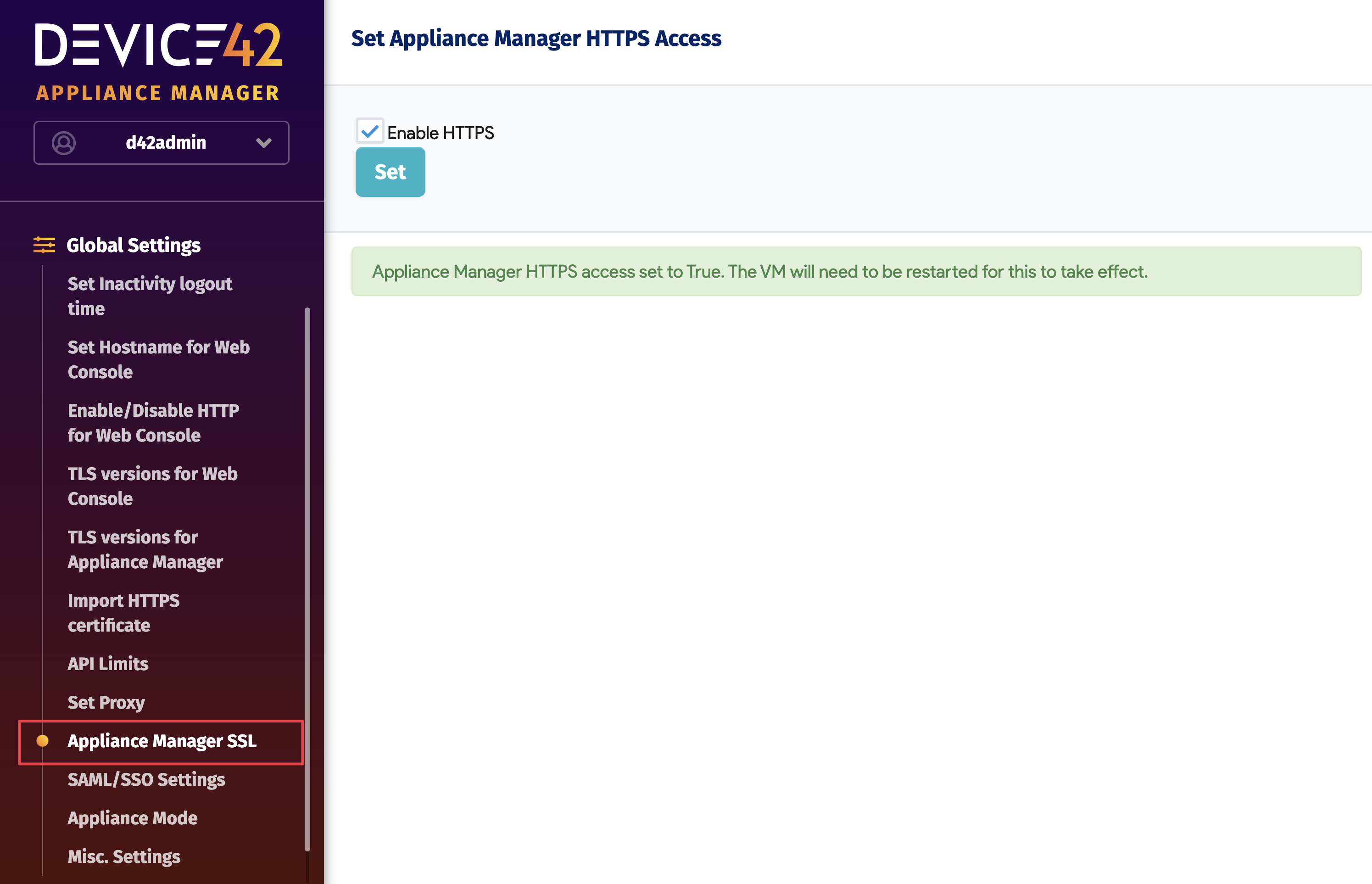
From the main menu in the left panel, select Appliance Manager SSL.
Check Enable HTTPS and click Set. A success message will prompt you to restart the appliance from the VM console.
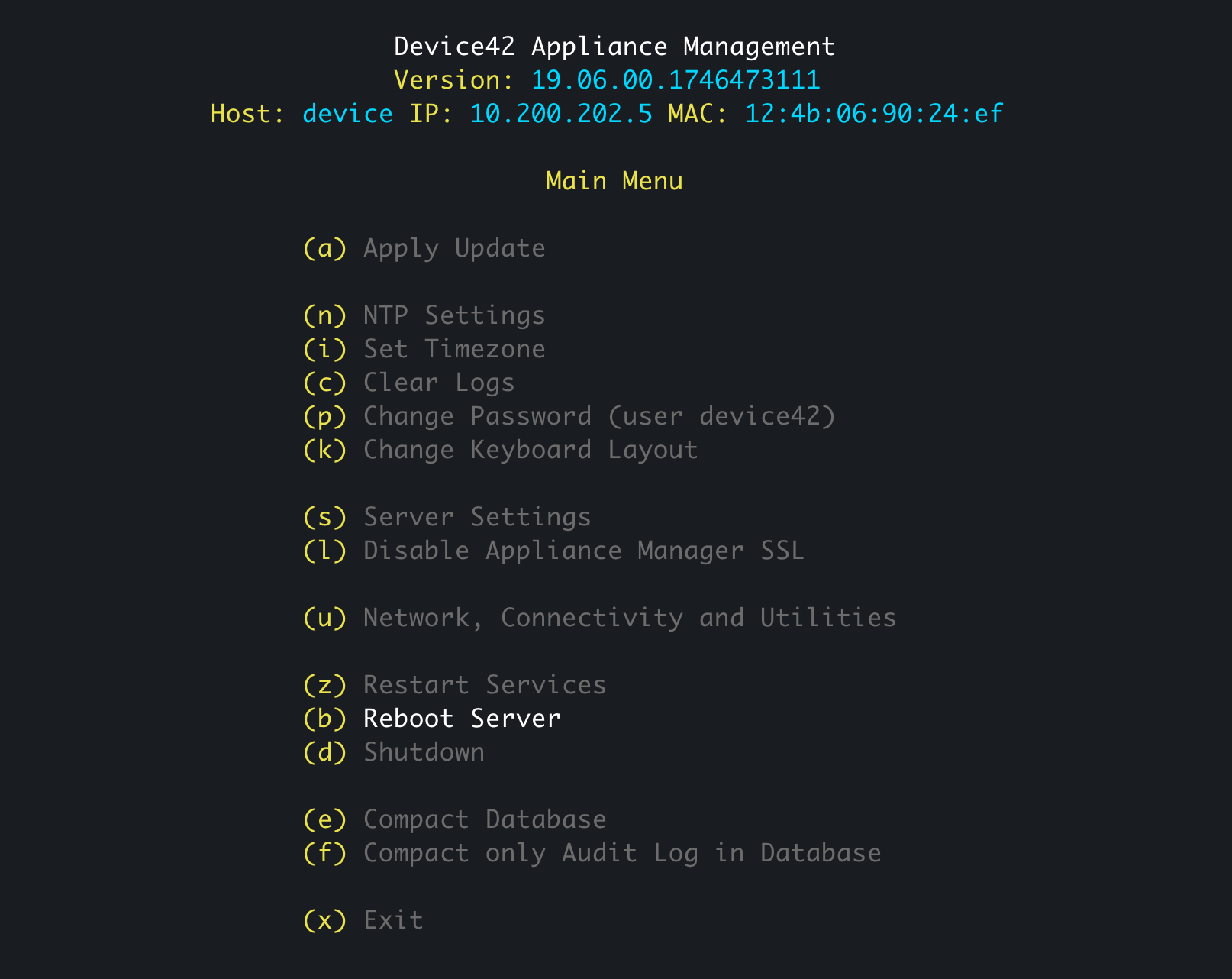
Log in to the VM console and select Reboot Server.