Generate Log Bundle
When you encounter issues with discovery or other Device42 functionality, you can generate a log bundle and send it to support for analysis. This page covers how to generate the Main Appliance log bundle and the Remote Collector log bundle.
Generate the Main Appliance Log Bundle
-
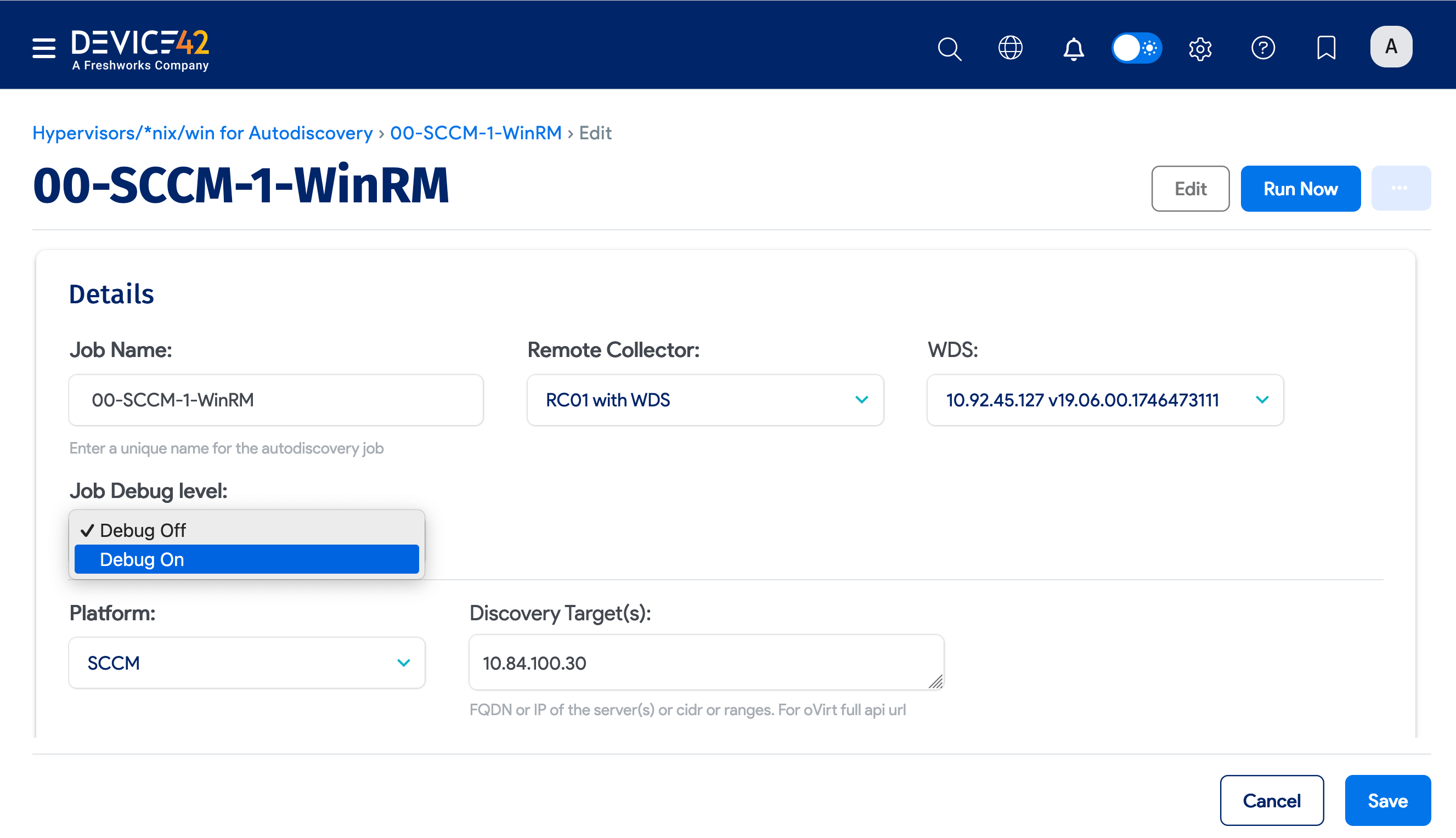
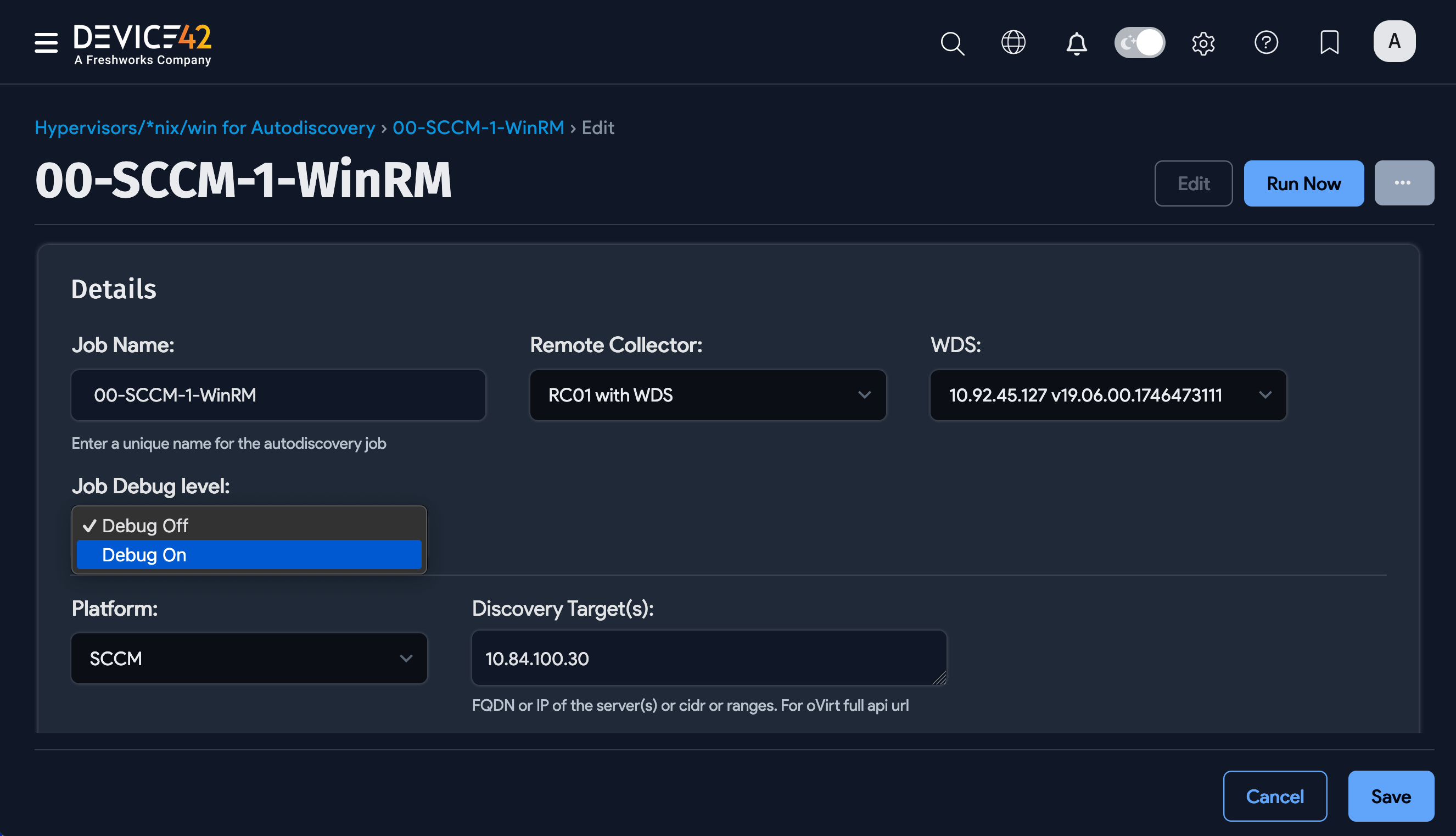
Edit the discovery job and set the debug mode to Debug On. For issues unrelated to discovery, leave debug mode off and skip to step 3.
-
If the issue is discovery-related, rerun the failing discovery job with the debug flag enabled.
-
Log in to the Appliance Manager via Tools > Appliance Manager in the main menu, or follow the Device42 Appliance Manager Login directions.
-
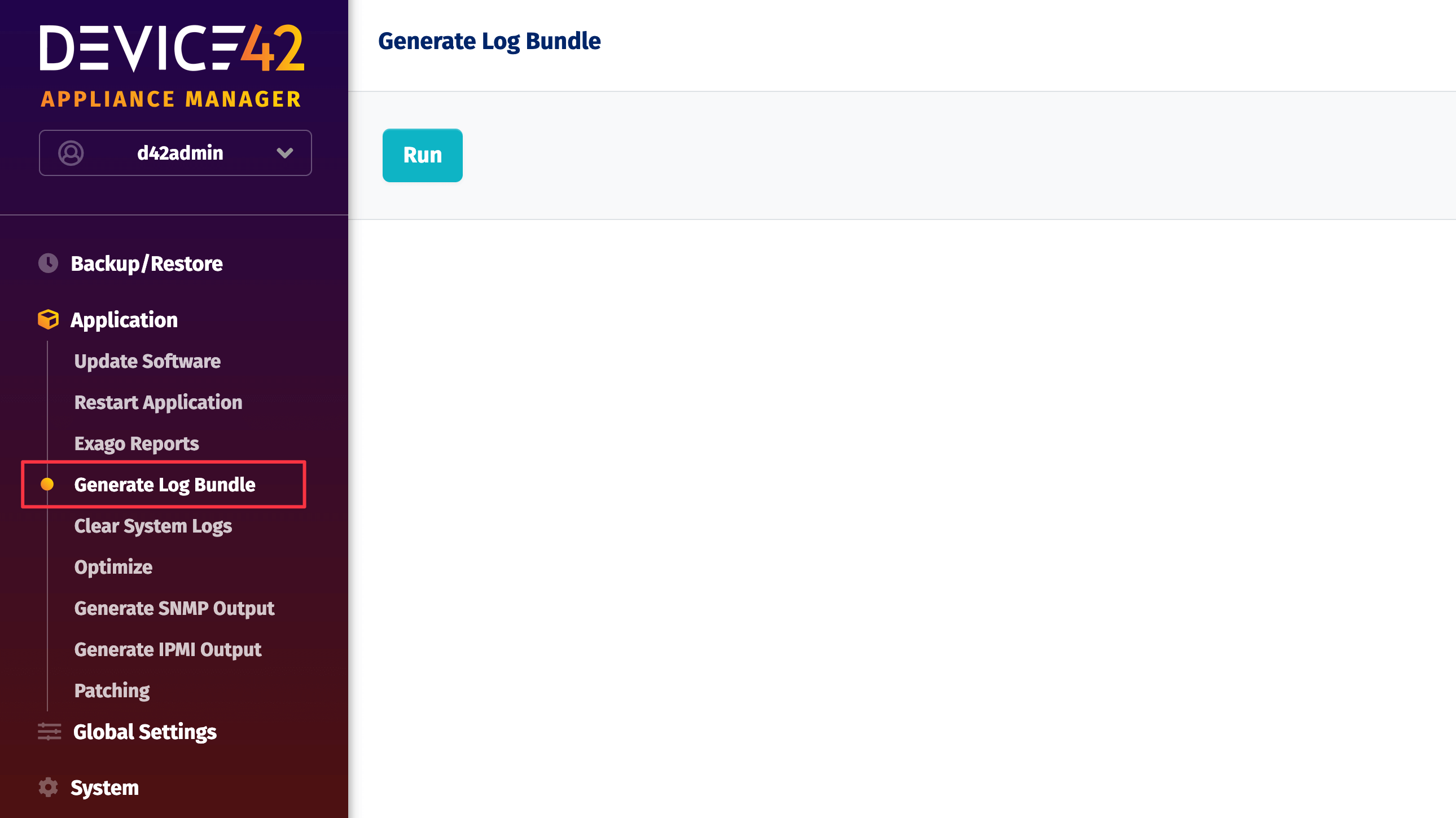
In the Appliance Manager, navigate to Application > Generate Log Bundle and click Run.
-
Upload the generated log file at upload.device42.com.
Remote Collector Log Bundle
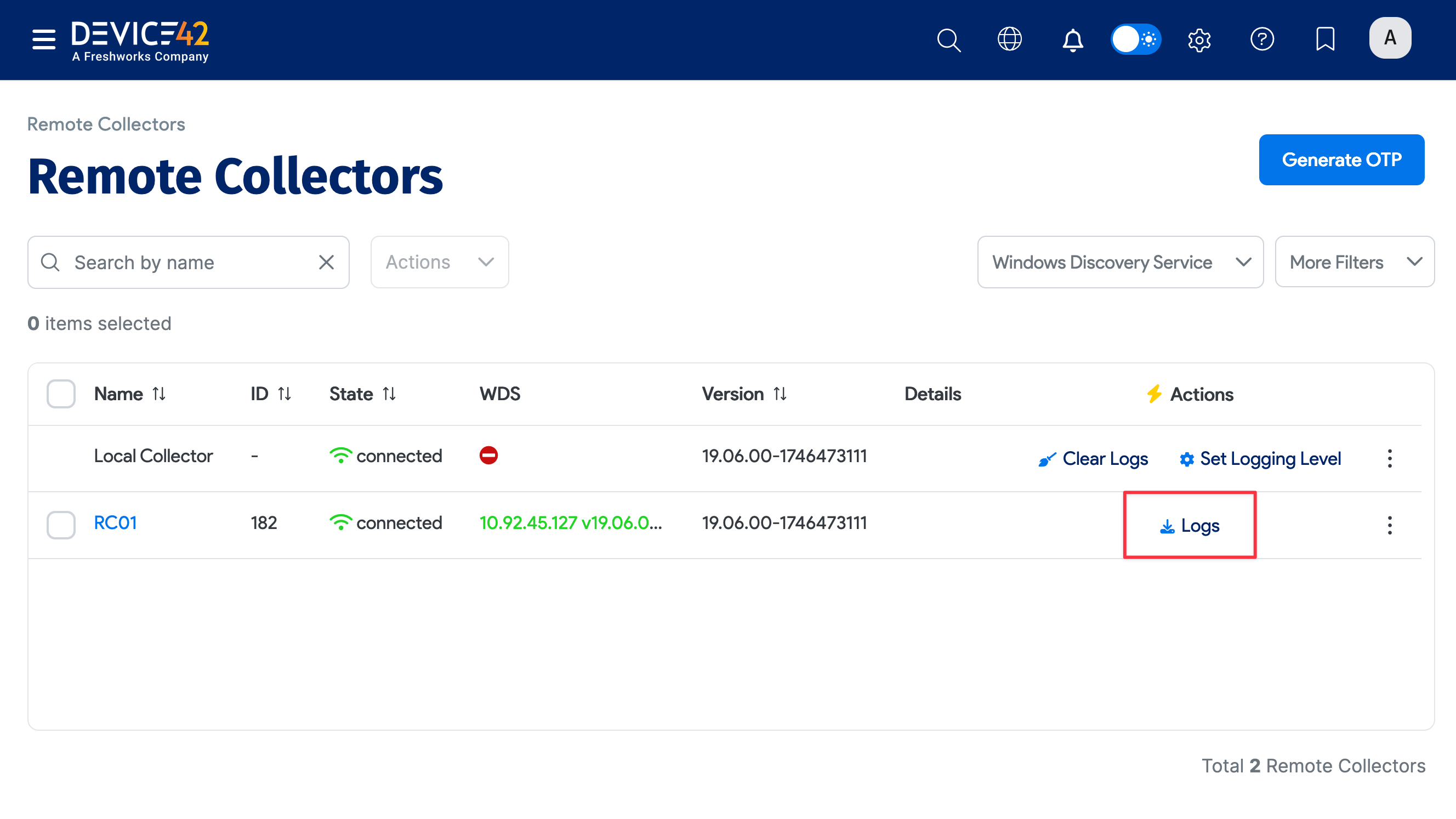
If you were also using a Remote Collector (RC) for the job, upload the RC logs at the same upload link.
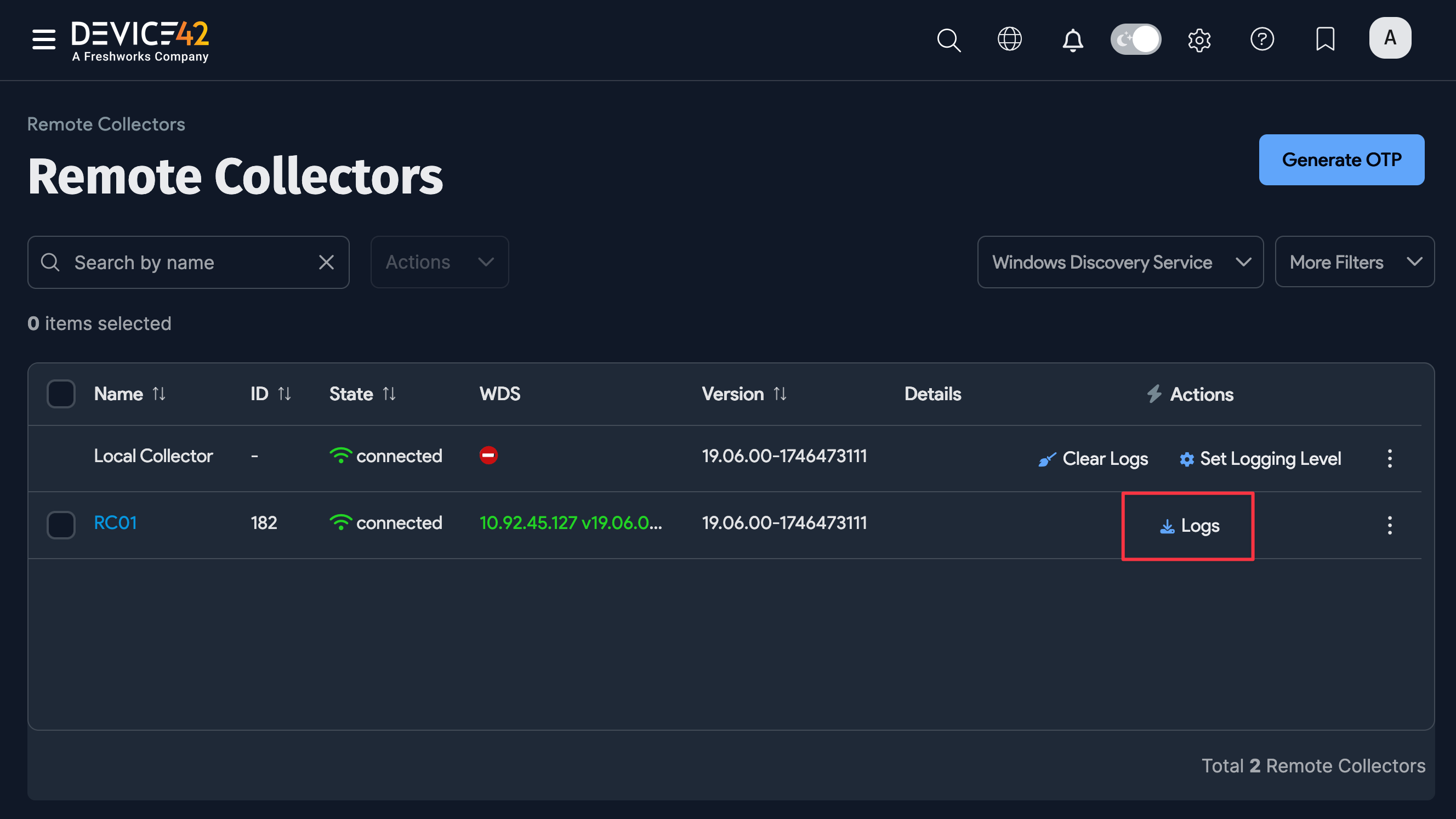
Navigate to Discovery > Remote Collectors and click the Logs link for the corresponding RC in the Actions column. Notify support once the file has been uploaded so they can continue investigating the issue.