Collecting SNMP Walk Output
You can collect SNMP walk output for a network device or PDU directly from the Appliance Manager and send the output to support for troubleshooting. This page covers the simple walk and MIB browser-based walk options, plus how to generate SNMP output from the terminal.
From the Appliance Manager, go to Application > Generate SNMP Output.
Simple SNMP Walk Output
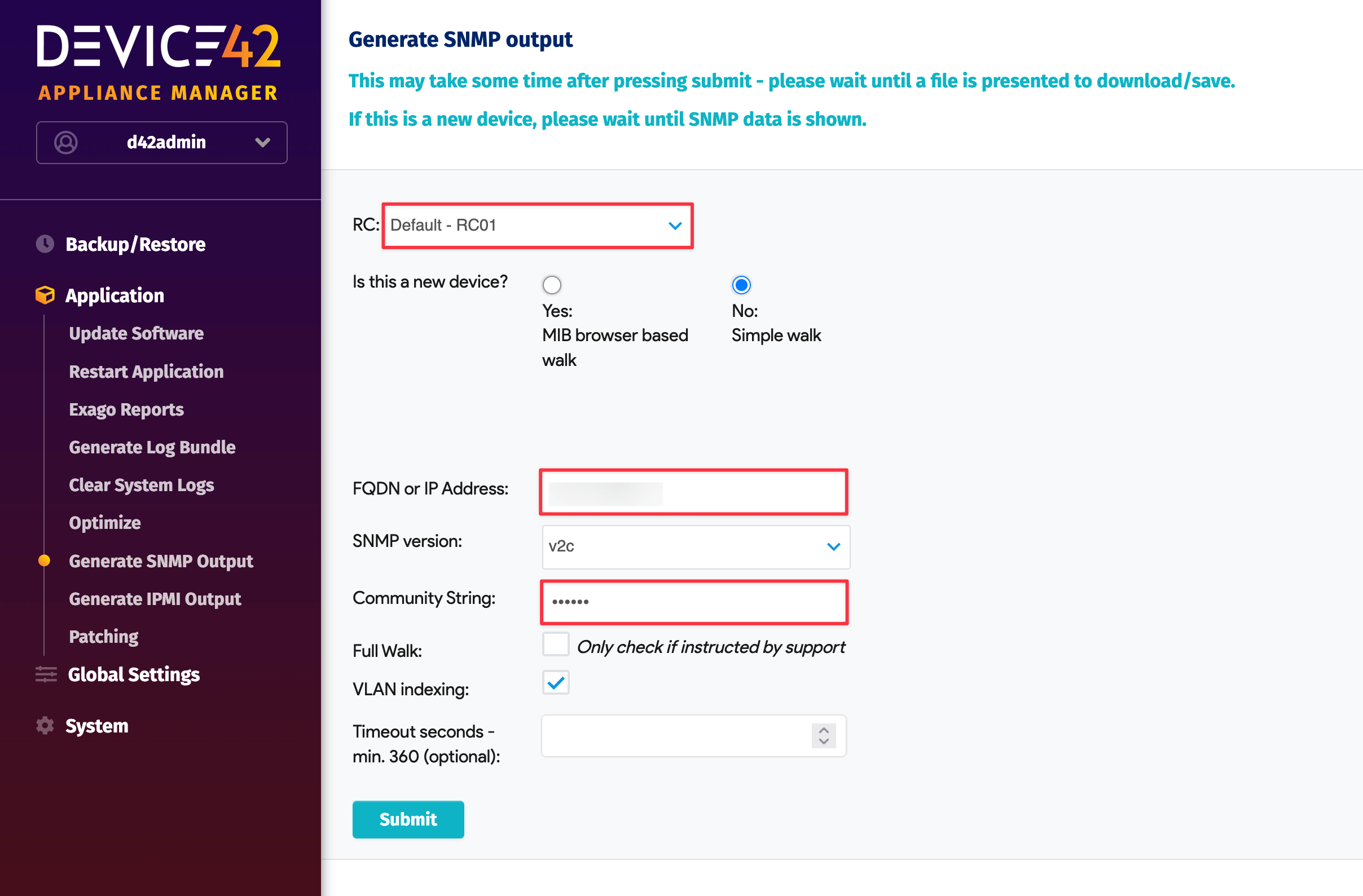
If the target is not a new device, select No: Simple walk.
Enter the target switch or SNMP device details, click Submit, and wait — generation may take a few minutes. Download the generated file and send it to support.
MIB Browser-Based Walk
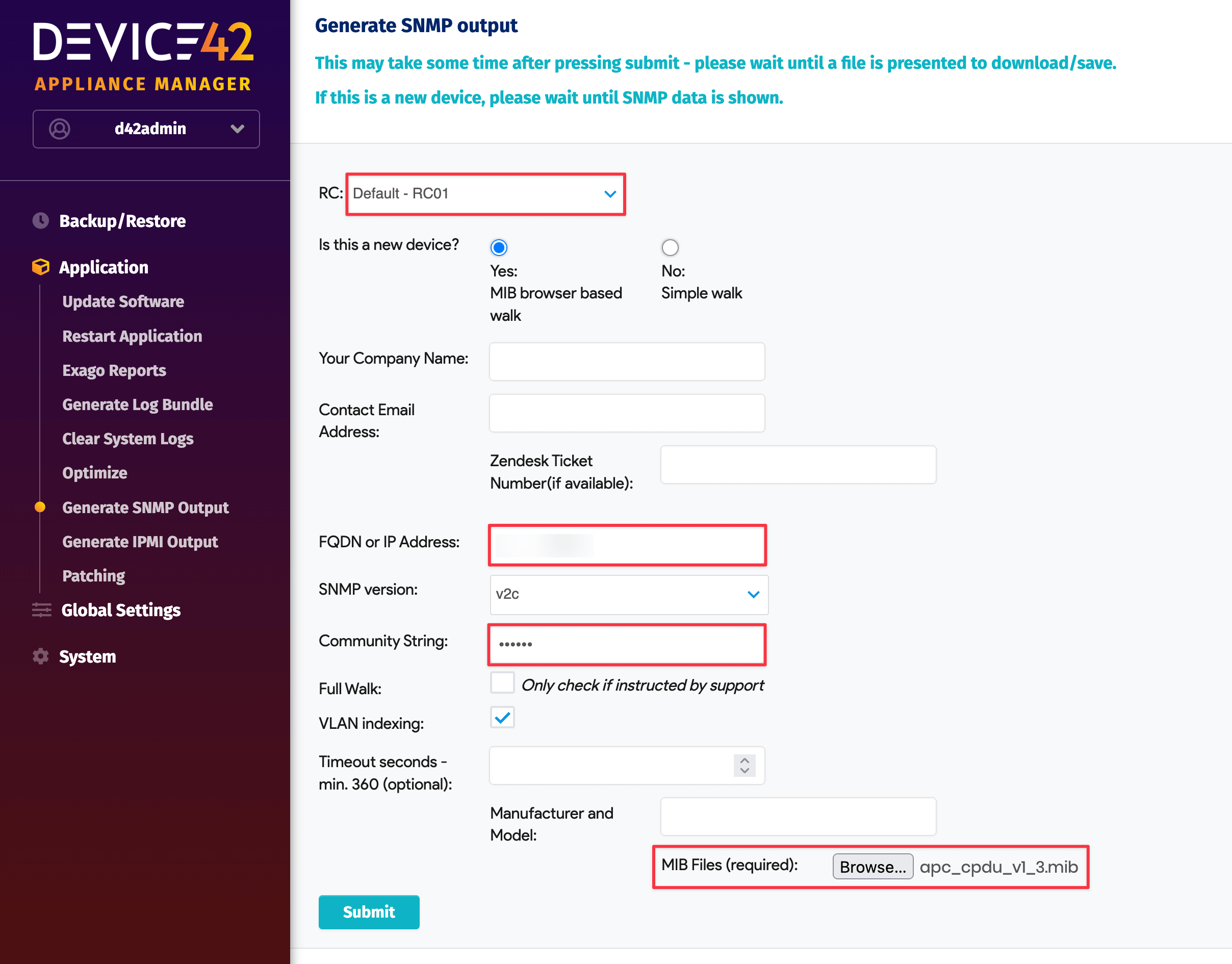
For new devices, select Yes: MIB browser based walk.
Select your RC and enter the required fields: FQDN or IP Address, Community String, and MIB file upload.
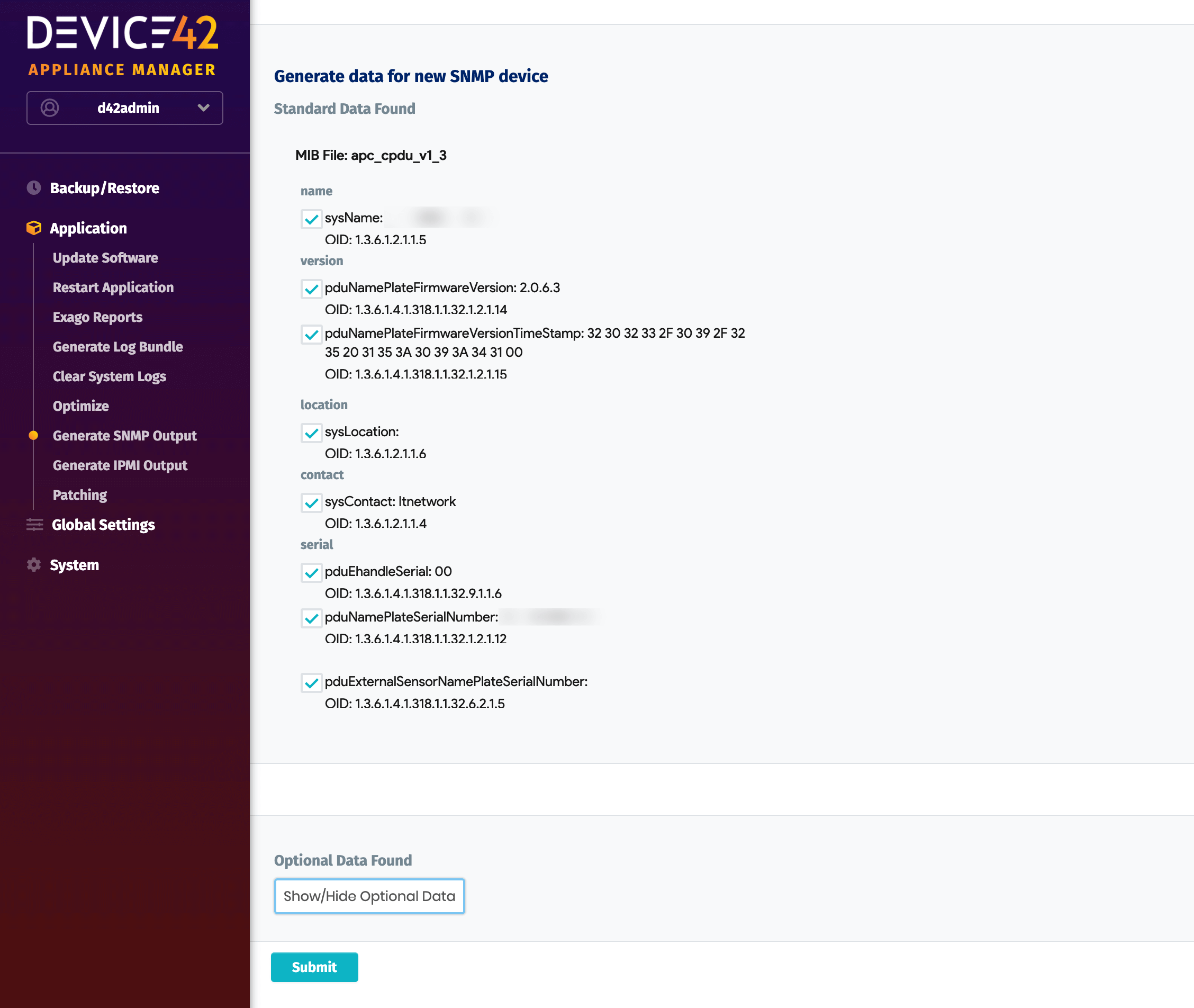
Select the data to generate for the new device and click Submit.
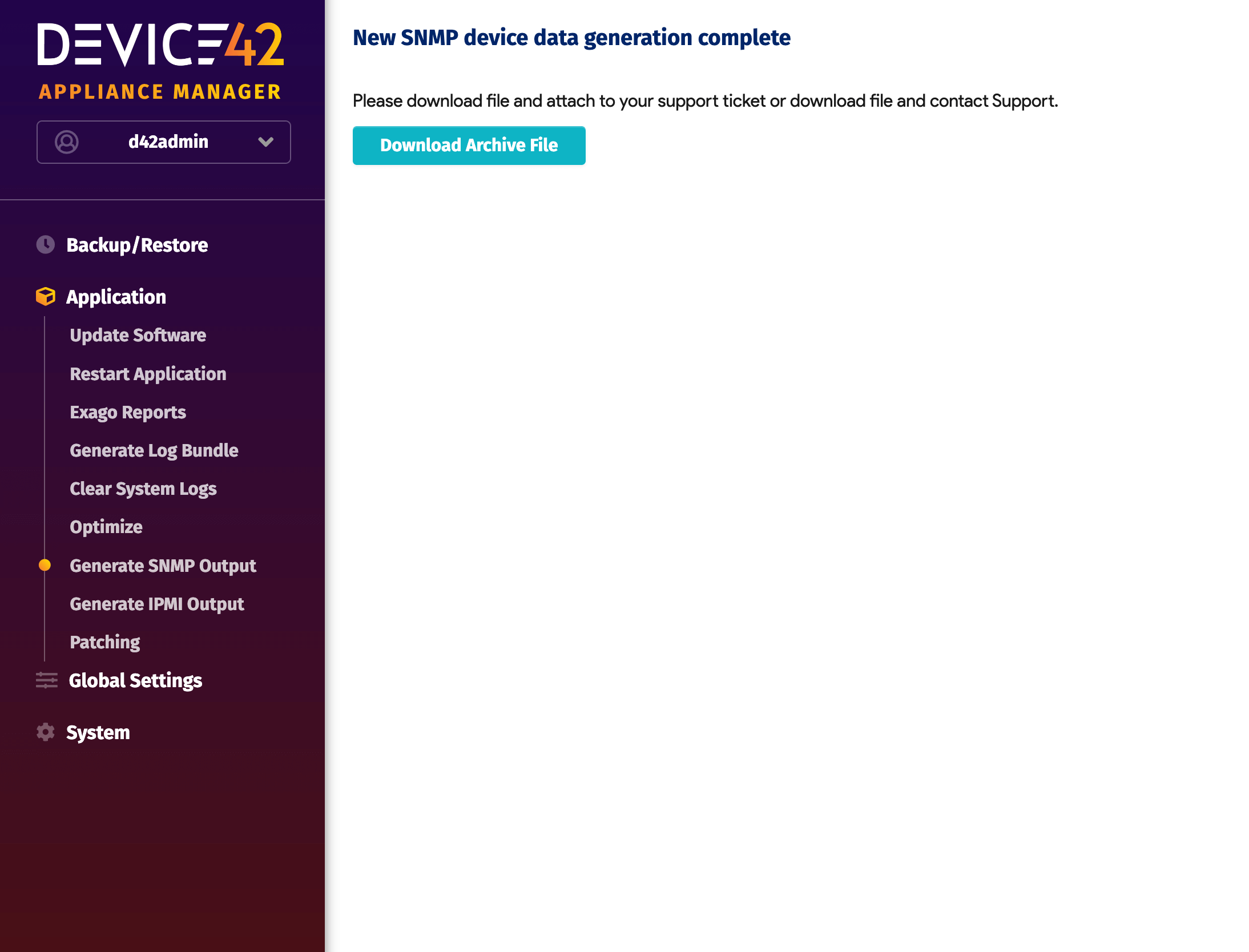
Click Download Archive File and save the file to attach to an existing support ticket. If needed, create a new ticket or email support.
Alternative SNMP Walk Generation
If the network is not reachable from the Appliance Manager or you prefer the terminal, run the following from any machine with snmpwalk installed.
For SNMP v2:
snmpbulkwalk -Cc -ObentU -v2c -c COMMUNITY DEVICE > output_file_name
snmpbulkwalk -ObentU -v 2c -c COMMUNITY DEVICE .1.3.6.1.4.1 >> output_file_name
For SNMP v3:
snmpbulkwalk -Cc -ObentU -v 3 -u user_name -l authNoPriv -a MD5 -A auth_pass DEVICE > output_file_name
snmpbulkwalk -Cc -ObentU -v 3 -u user_name -l authNoPriv -a MD5 -A auth_pass DEVICE .1.3.6.1.4.1 >> output_file_name