Installing VMware or XenServer Tools
You can install VMware or XenServer tools in the Device42 appliance to enable better integration with the host hypervisor. This page covers how to attach the tools ISO and install it from the Device42 VM console.
Download the Tools ISO
Download the VMware Tools ISO from the VMware website. See the VMware documentation for details.
For XenServer, download the VM Tools from the XenServer Downloads page.
Install the Tools
-
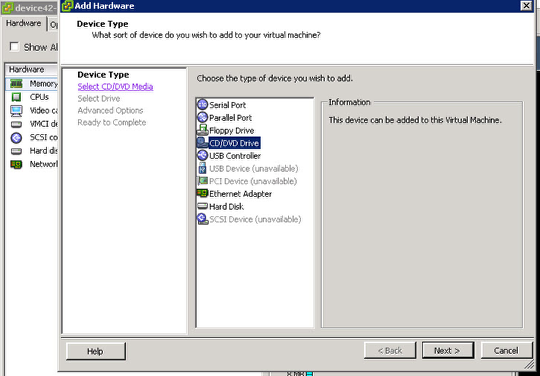
Add a CD/DVD Drive as additional hardware — the default shipped VM does not include one.
-
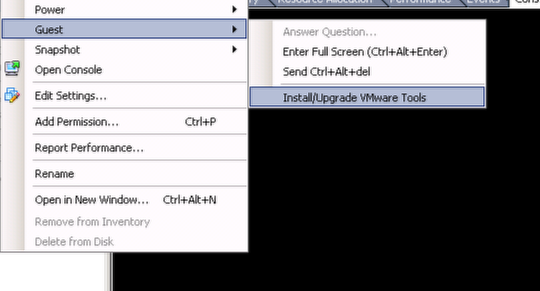
Choose the option to install the tools. The screenshot below is an example from the VMware ESX server.
-
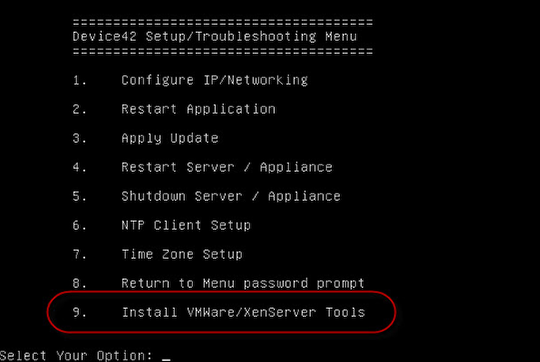
Log in to the Device42 VM console and select option
9to install the update. If the CD/DVD is not recognized, reboot the VM and repeat steps 2 and 3.