Updating Device42
You can update the Device42 Main Appliance from the Appliance Manager using either a download URL or a manually uploaded upgrade package. This page covers both methods and how to apply the update from the VM console.
Download the Update
Log in to the Appliance Manager and go to Application > Update Software. You will see two methods for updating — only one is required.
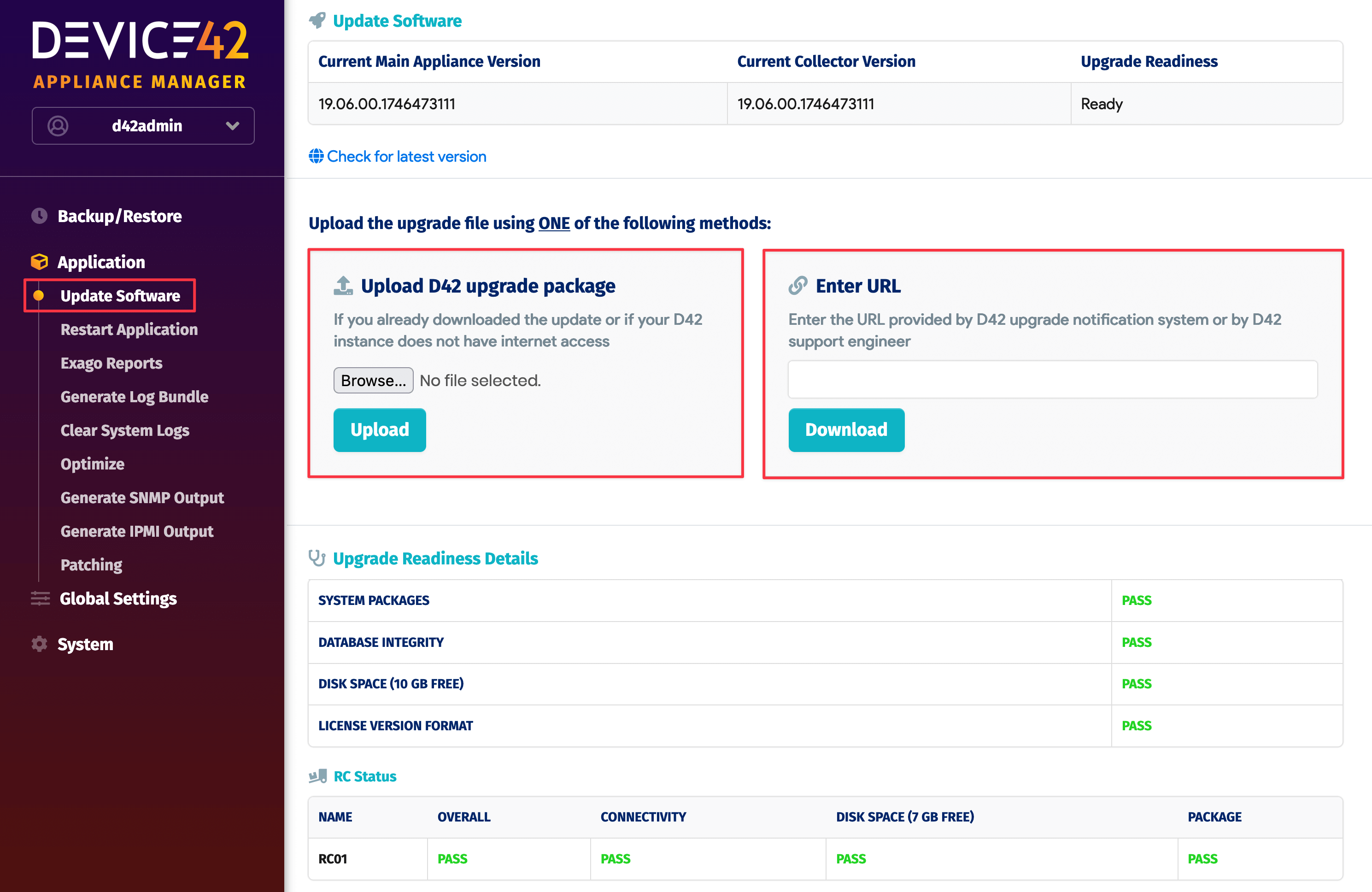
- Enter URL: Enter the URL from the update notification and click Download.
- Upload D42 upgrade package:
- Click the Check for latest version link or visit the Device42 update page and enter your details.
- Download the update package using the "Device42 MA Update File" link emailed to you.
- Return to the Appliance Manager, click Browse, and select the downloaded package file.
- Click Upload and wait for the progress bar to complete.
The URL option automates downloading and uploading the upgrade package. The manual upload option is intended for cases where you have already downloaded the package or your instance has no internet access.
In both cases, a green status message will appear instructing you to complete the upgrade from the VM console.
Apply the Update
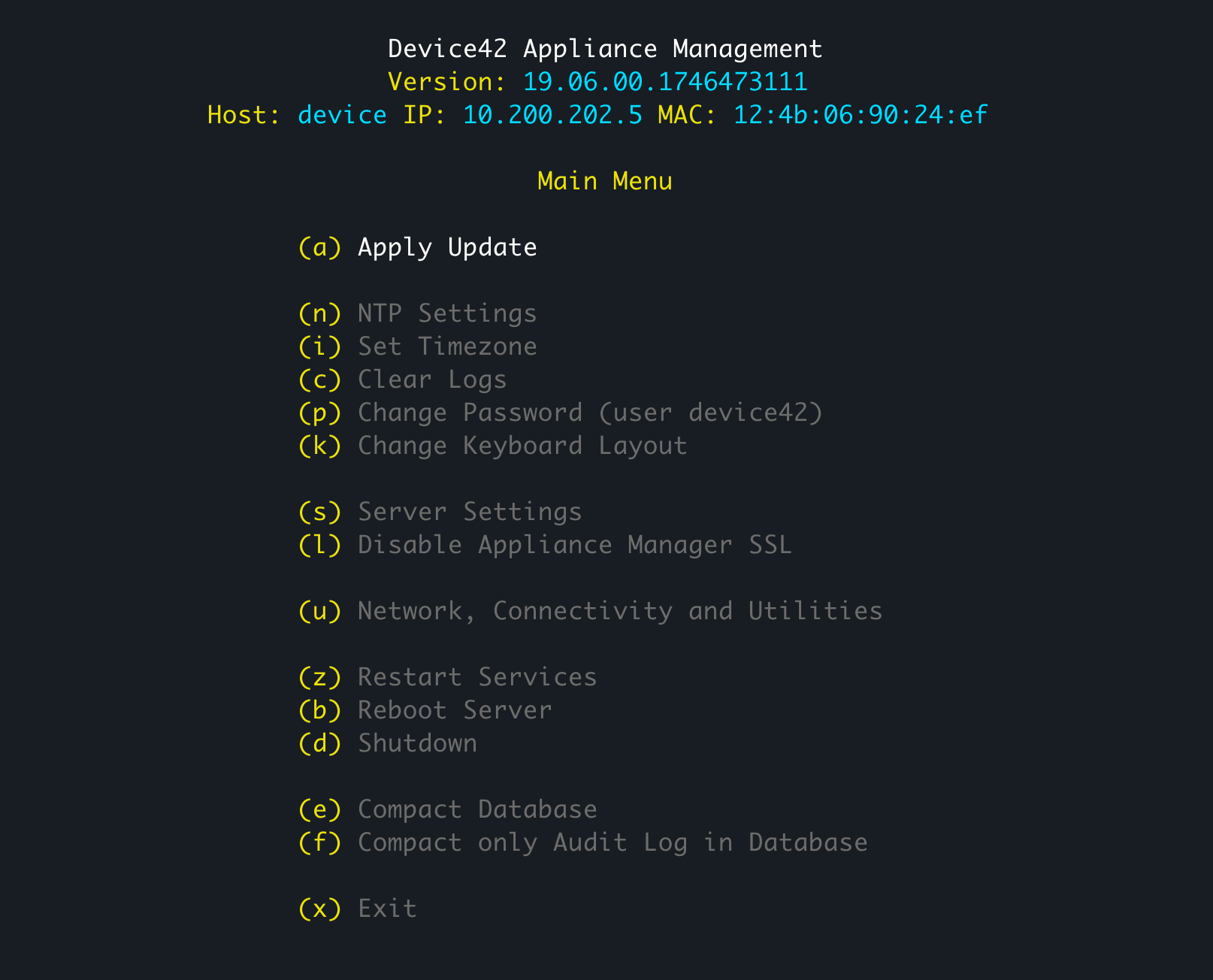
From the VM console, select option (a) Apply Update.
- Click Yes to confirm the upgrade.
- Wait for the process to complete.
- Once the update is applied, log in to the Device42 Main Appliance and go to Tools > Settings > Update to verify the new version number.