Set Up Backup via the Appliance Manager
The Device42 Appliance Manager lets you create one-time and scheduled backups of the Main Appliance and Remote Collectors, with destinations including SFTP, NFS, and Amazon S3. This page covers how to set the backup passphrase, configure backup options, schedule backups, and limit backup retention.
For login instructions, see Device42 Appliance Manager Login.
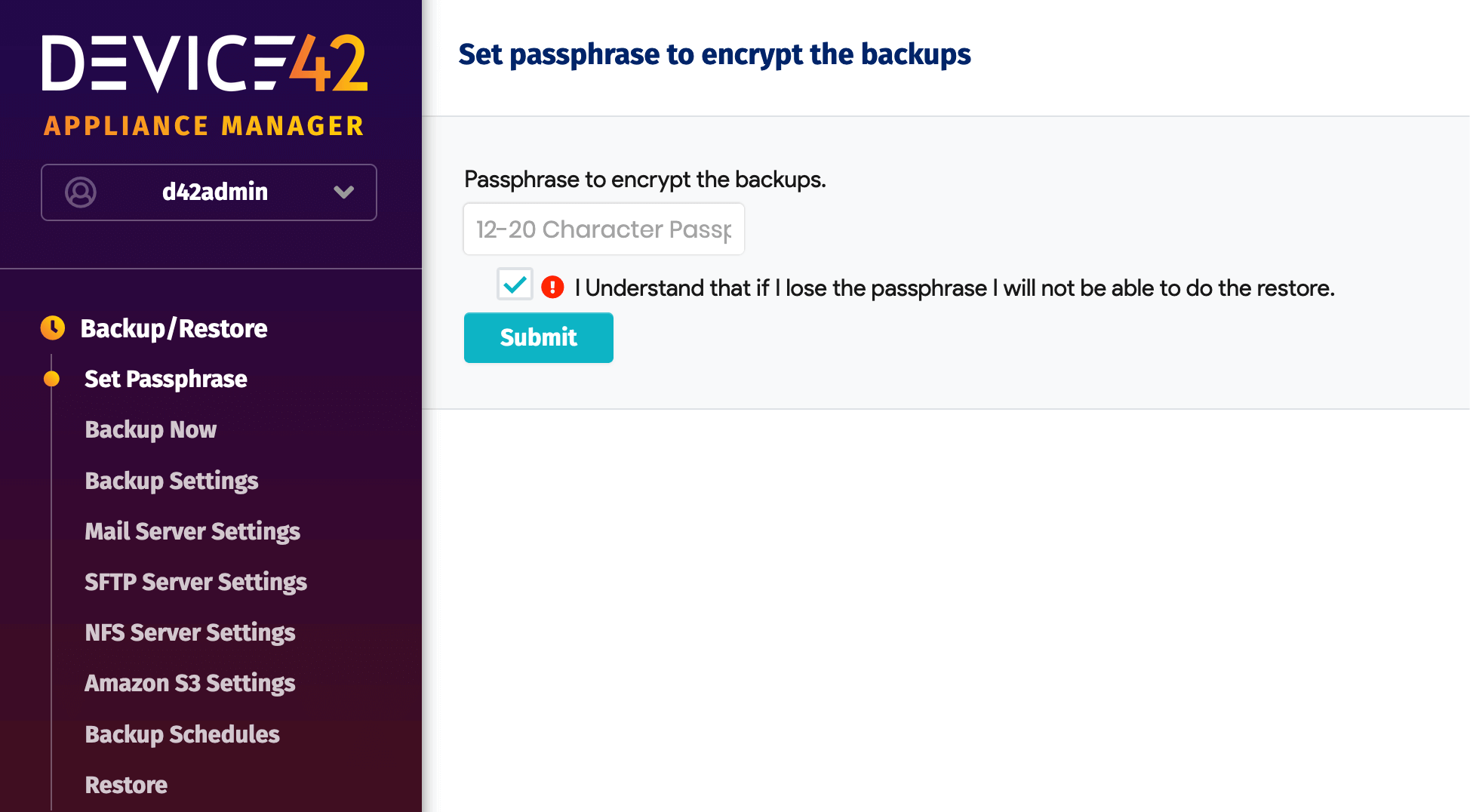
Set the Passphrase
Choose a 12 to 20 character passphrase to encrypt the backup file. You will need this passphrase to restore the backup, so save it in a secure location. This is a required step — you cannot create a backup until a passphrase has been set.
Run Backup Now
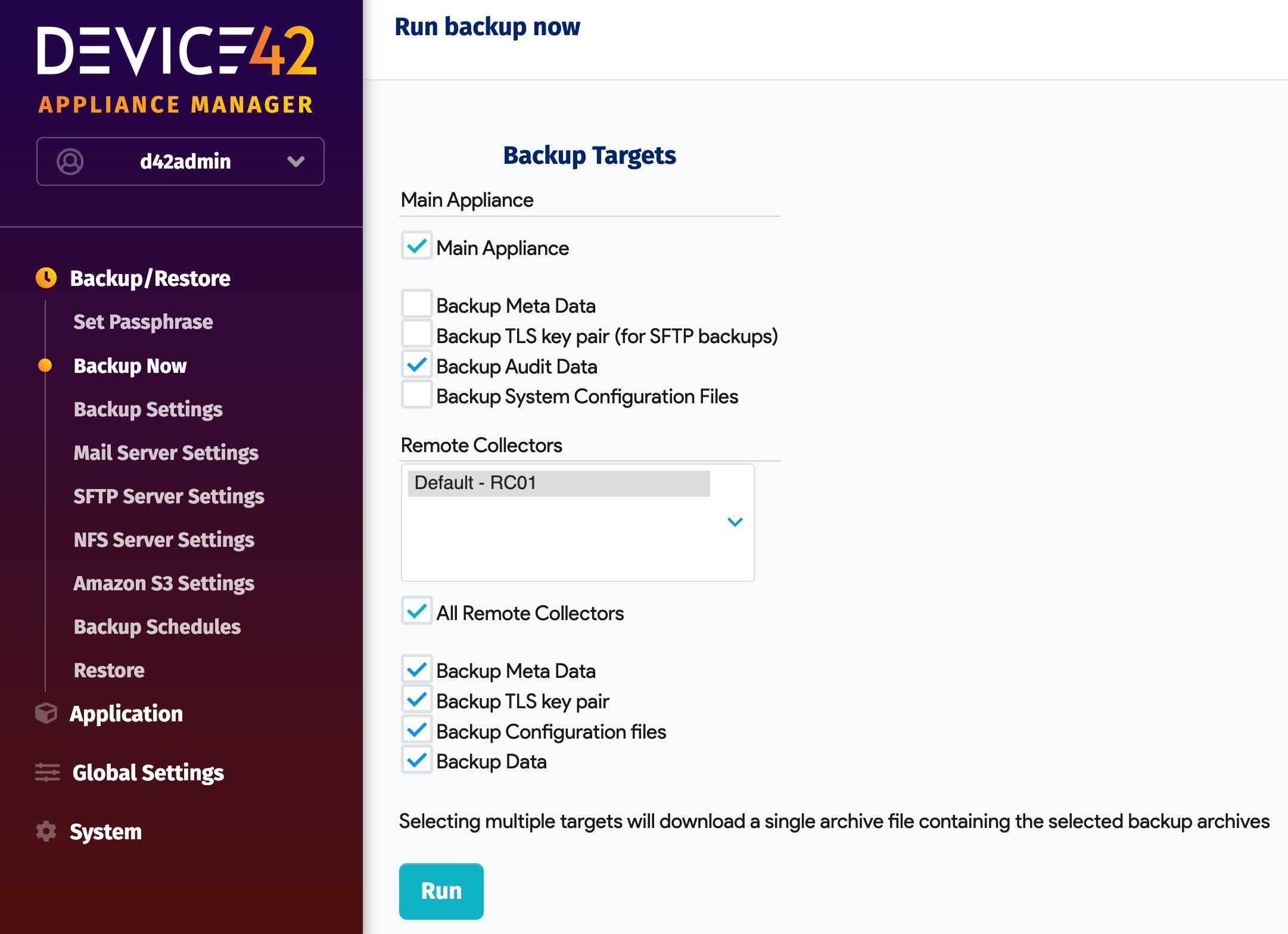
Configure the backup options for the Main Appliance and Remote Collectors (RCs).
Main Appliance Options
-
Backup Meta Data: Includes the password passphrase, backup passphrase, Active Directory settings, and the following settings in the backup. Backing up the Meta Data is recommended so you don't have to manually re-enter the following settings:
- Passphrases for backups and password encryption
- Language
- Time
- SSL/HTTPS
- Host and hostname information
- All Appliance Manager settings (including backup schedules)
- All certificates
-
Backup SSH key pair: For SFTP backups, backs up the key used to set up the SFTP server.
-
Backup Audit Data: Backs up the audit logs table. If disabled, Device42 backs up the database without that table.
-
Backup System Configuration Files: Backs up the
/data/pgsql/data/postgresql.override.confand/etc/systemctl.conffiles to preserve any manual configuration optimizations.
For Standby Instances
Select Backup Meta Data when creating a Device42 instance for recovery or failover. The metadata option copies all system identifiers, passphrases, certificates, and configuration settings, preparing the standby instance to fully replace your production instance when needed.
The standby instance will share system identifiers with the production instance and will connect as the primary. For this reason, only one instance with the identifier data should be active at a time. See the Warm HA Setup documentation for failover procedures.
For Test Instances
Do not select Backup Meta Data when creating test or development environments. Backing up and restoring without metadata is useful when you want to recover data only, rather than replacing your production instance. Without the metadata option, GUIDs are not copied, so the machine cannot connect to external services or replace the production instance.
Remote Collector Options
The following table summarizes the backup settings for the selected RCs:
| Setting | Description | Artifacts Backed Up |
|---|---|---|
| Backup Meta Data | Backs up various settings and registration data. |
|
| Backup TLS Key Pair | Backs up the TLS certificate and key. |
|
| Backup Configuration files | Backs up the microservice configuration files. | Configuration files consumed by individual RC microservices (see the /opt/rc/configs directory) |
| Backup Data | Backs up data files. |
|
Back Up to an SFTP Server
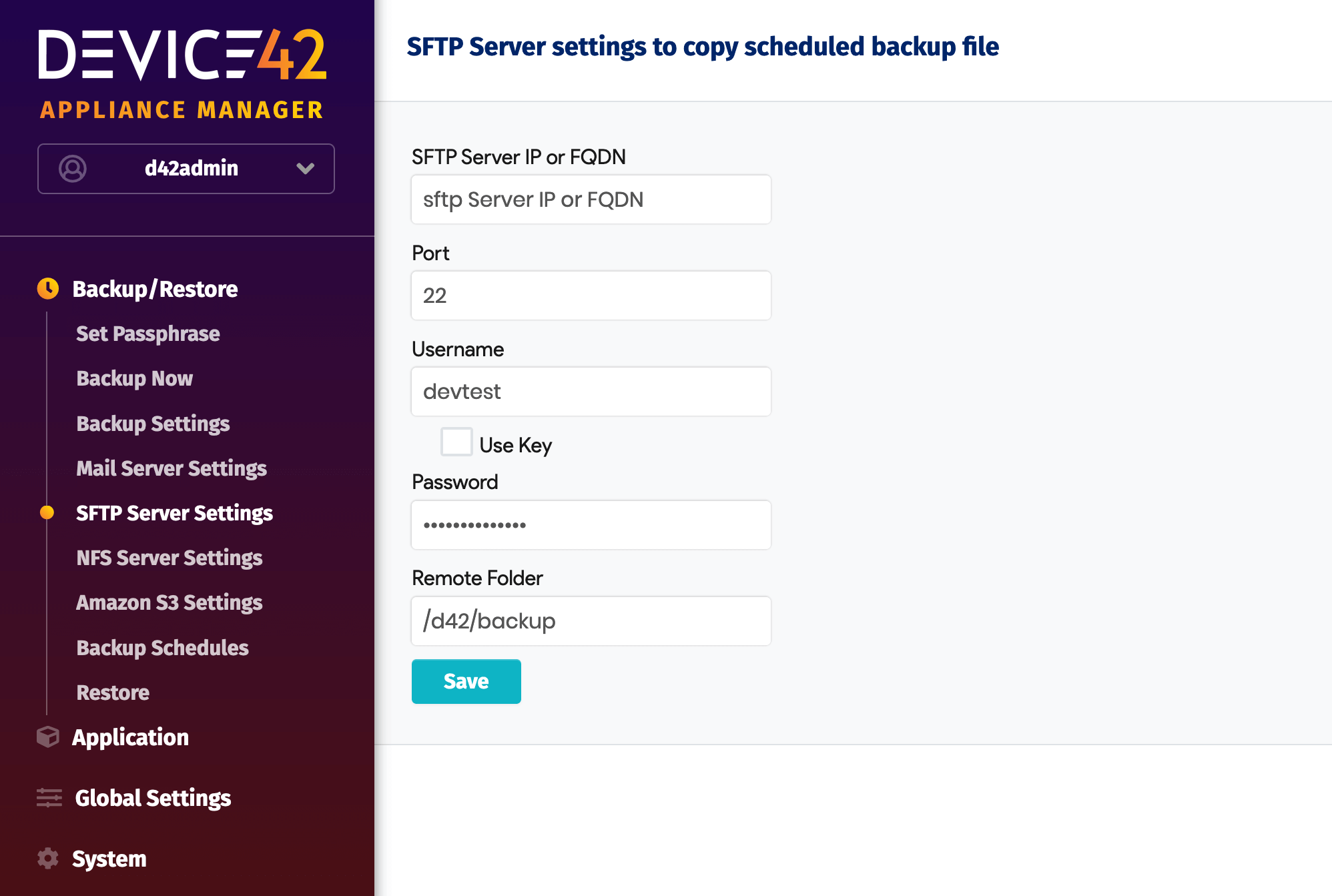
You can schedule the backup file to be sent to an SFTP server. All fields are required.
Back Up to an NFS Server
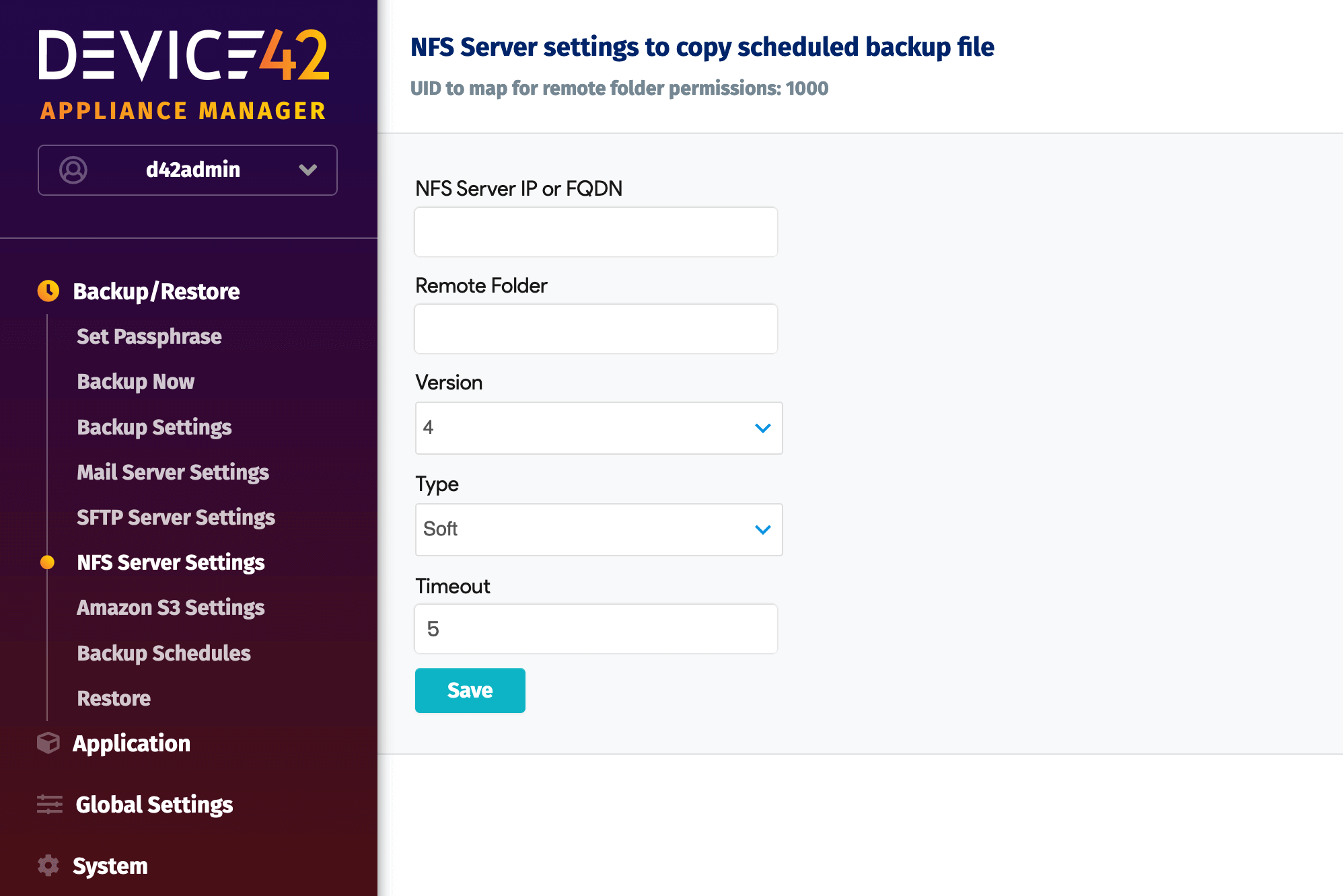
You can schedule the backup file to be sent to an NFS server. All fields are required. The IP address should be that of the target NFS server, and the folder path should point to the directory where backups will be stored. This folder must be writable by a user with uid=1000.
Back Up Using Amazon S3
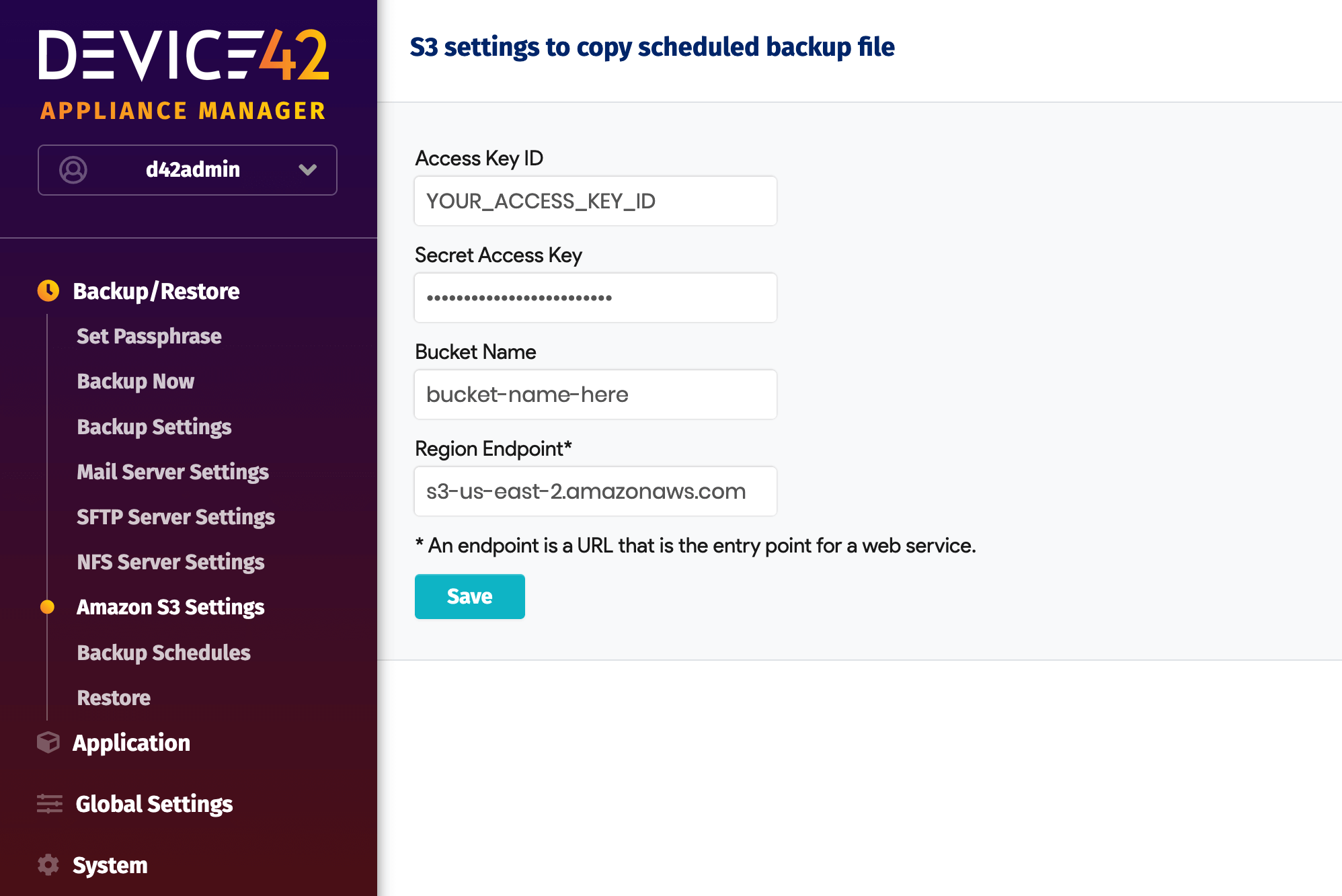
You can schedule the backup file to be sent to Amazon S3. All fields are required.
The Region Endpoint field is not simply the endpoint name — each region has multiple endpoints. Look up unknown endpoint URLs in the AWS Regions and Endpoints documentation.
Schedule the Backup
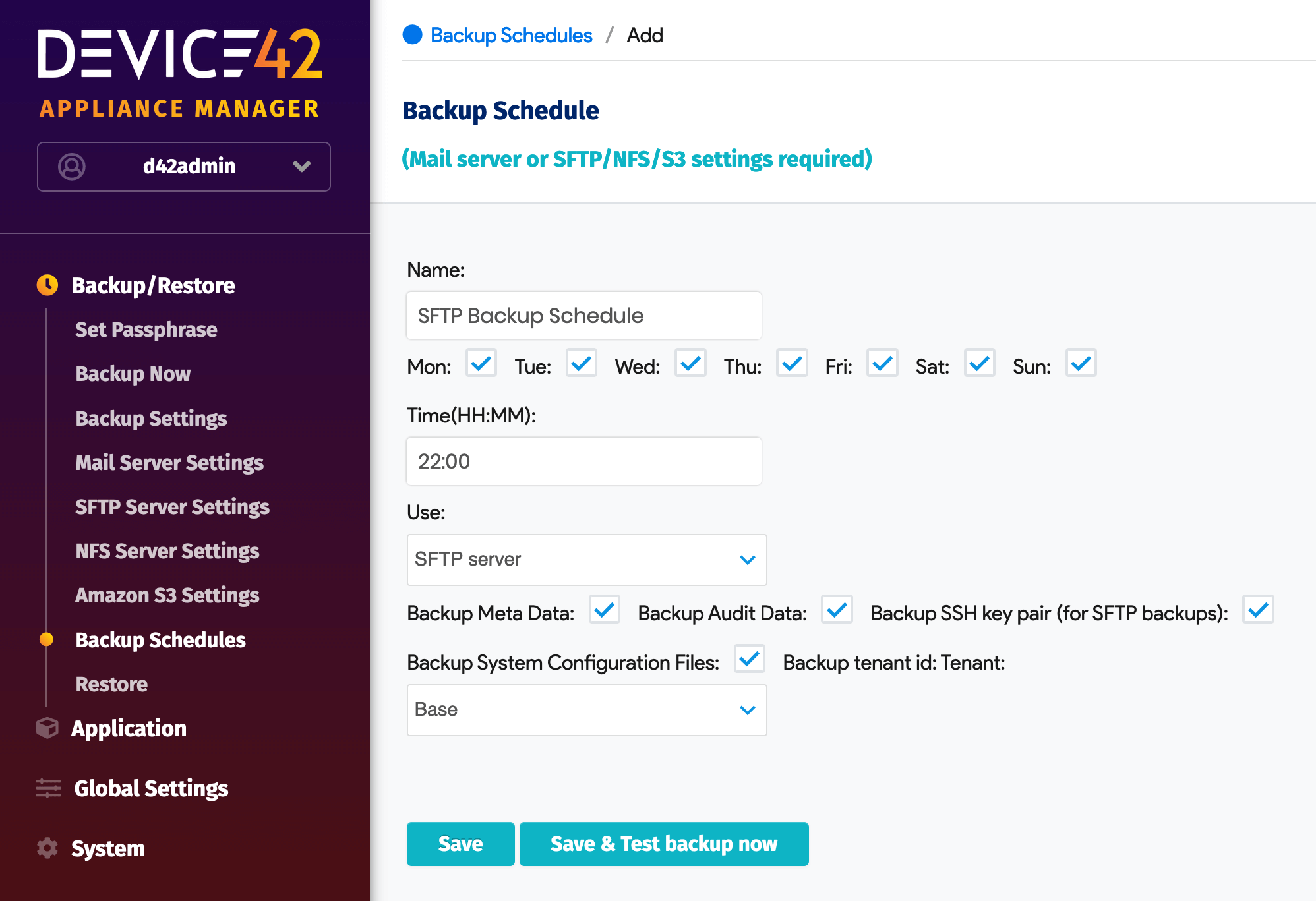
You can create multiple backup schedules to automate the backup process. All fields are required.
Choose the time and days of the week you want the backup to run. Indicate whether you want to use Mail Server, SFTP, Amazon S3, or NFS as the destination for the backup.
Test the backup by clicking the Save and Test backup now button.
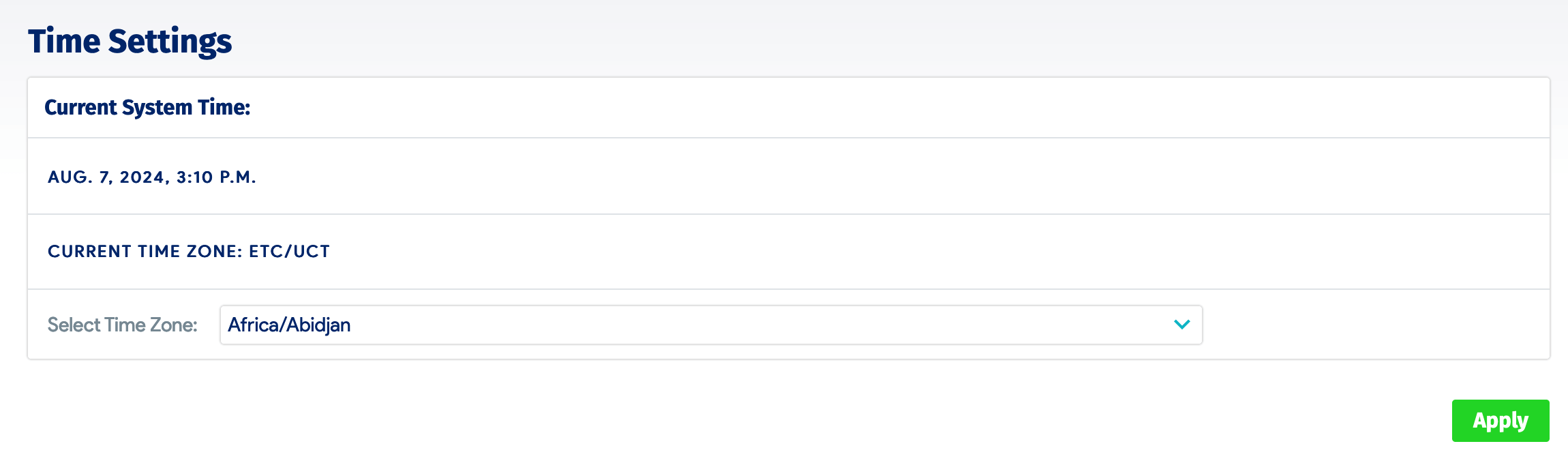
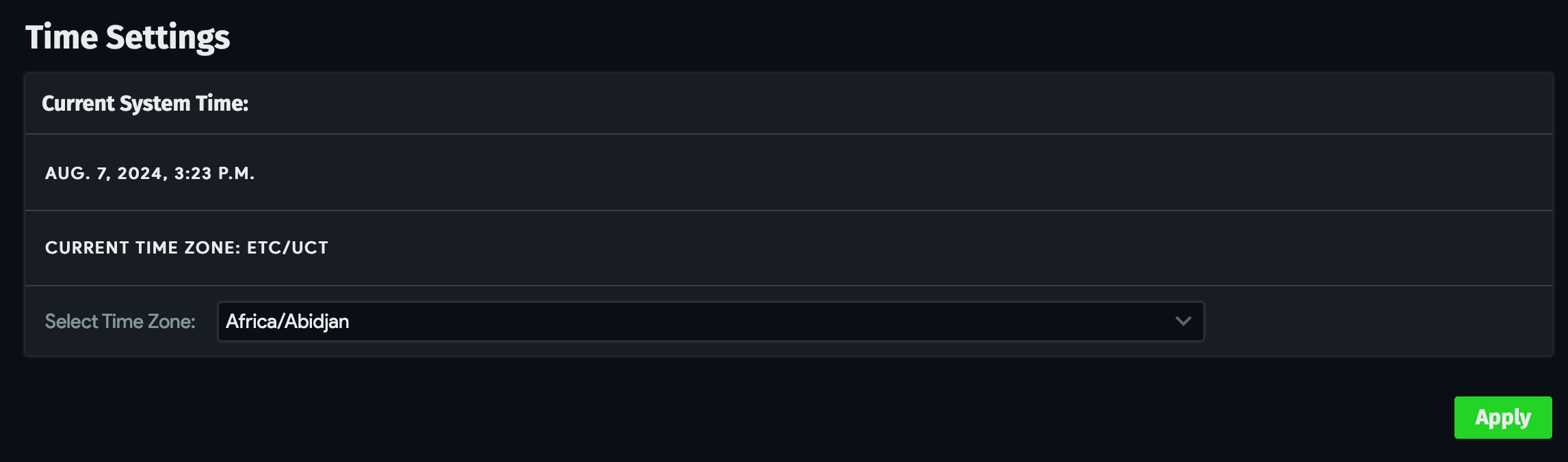
Check your time settings to avoid potential issues with AWS services. From the Device42 Main Appliance, navigate to Tools > Settings > Time Settings. If your Current System Time is incorrect, change it in the VM system configuration console.
Important Note for Scheduled Backups
If you intend to use a backup schedule for auto-restore to a standby appliance, as described in the Warm HA Configuration documentation, you must select Backup Meta Data for the backup schedule.
Without the metadata, the restore and passphrase settings are not included in the backup archive, and the appliance will have no reference for how to use the data on restore.
A backup file without metadata can still be used for an on-demand restore.
Limit Backup Retention
You may want to limit how long backups are retained.
On a Linux server, the simplest solution is to create a cron job that automatically deletes backup files older than a specified age. The following command deletes files in the specified directory with a modified timestamp older than seven days:
find /device42/backup/directory -type f -mtime +7 -delete
For Windows servers, use the following PowerShell script to delete files older than seven days from the target directory:
Click to expand the code block
# Delete all files in C:\device42\backups older than 7 days

$Path = "C:\device42\backups"
$Daysback = "-7"
$CurrentDate = Get-Date
$DatetoDelete = $CurrentDate.AddDays($Daysback)
Get-ChildItem $Path | Where-Object { $_.LastWriteTime -lt $DatetoDelete } | Remove-Item
Restore the Backup
See Device42 Restore.