Global and Password Manager Session Timeout
Device42 has two separate inactivity timeouts: a global session timeout for the Main Appliance and Appliance Manager, and a shorter inactivity timer for pages containing Secrets and credentials. This page covers how to configure both.
The default global session timeout is 30 minutes. Pages containing Secrets and credentials have an additional 500-second (8-minute) inactivity timer for enhanced security.
Global Session Timeout
You can set timeout values for the Main Appliance and Appliance Manager:
Log in to the Main Appliance and navigate to Global Settings > Set Inactivity logout time.
Set a new value, in minutes, for the session timeout.
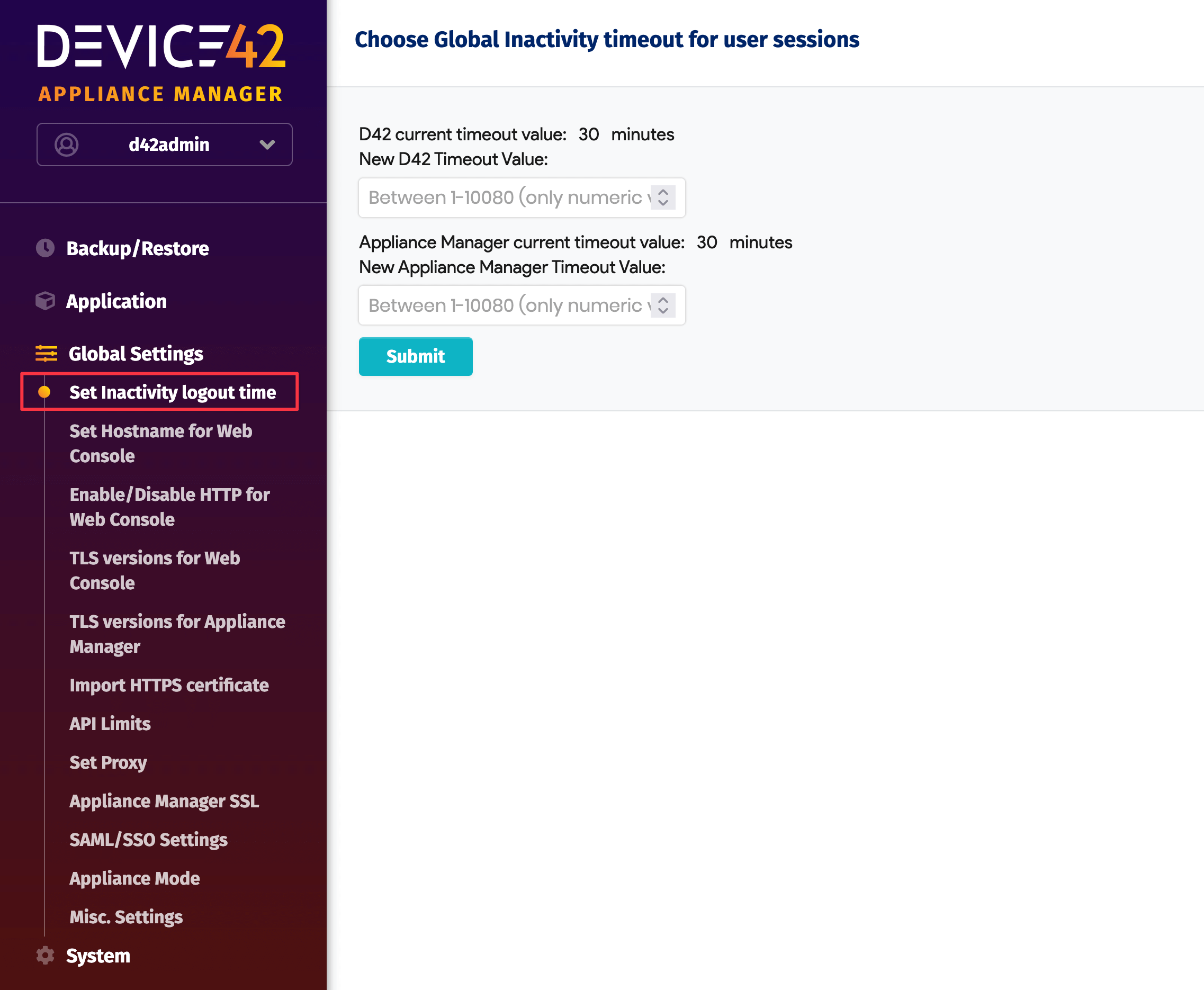
After saving the new value, restart the application to apply the new session timeout.
Password Pages Inactivity Timer
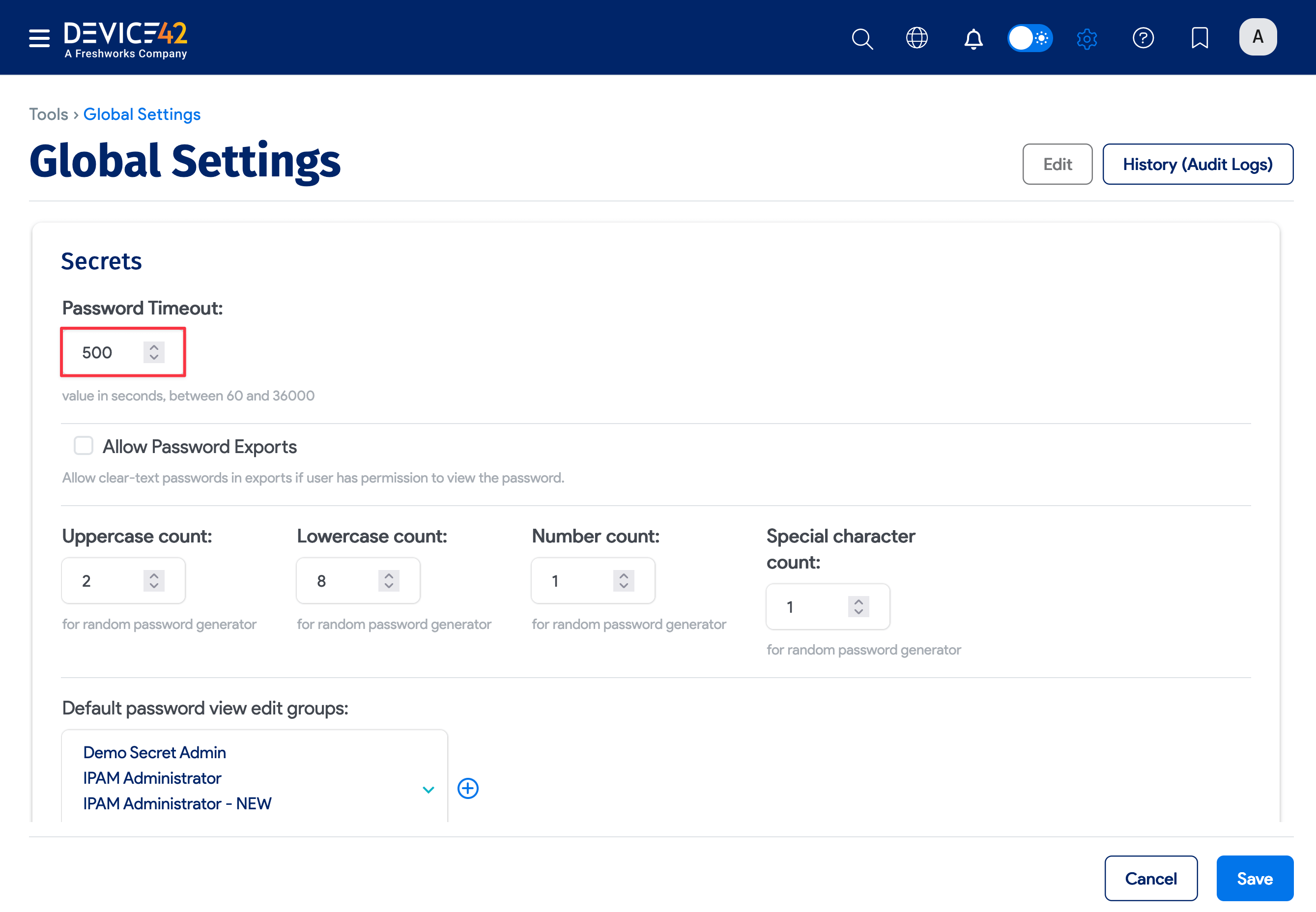
All password pages (list, view, and edit pages) have an inactivity timer. If there is no mouse or keyboard activity for 500 seconds (8 minutes), the user is logged out.
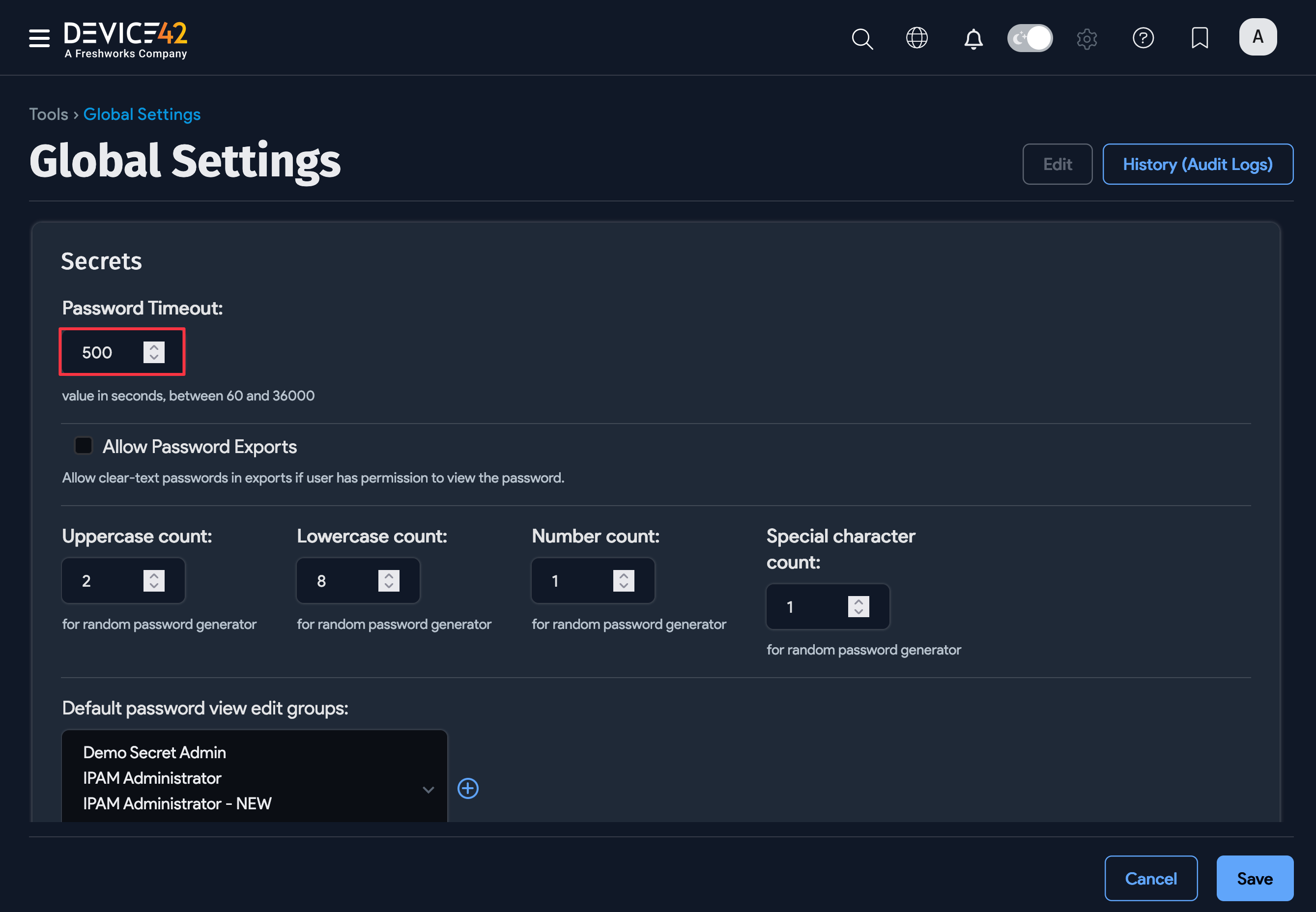
To change the password page inactivity timer, go to the Main Appliance under Tools > Settings > Global Settings, and set a new Password Timeout value, in seconds, in the Secrets section.
The global session timeout and the password page inactivity timer are separate settings and must be configured independently.