Webhooks - Generic Integration
This page is for administrators who want Device42 to notify another system when something changes in their infrastructure. By the end, a Device42 event such as a new, changed, or deleted device automatically sends a webhook to the endpoint you choose.
Webhooks initiate an external action in another part of your IT environment when an event, based on rules you define, occurs. Also known as HTTP callbacks, webhooks are sent to HTTP endpoints (URLs) when configured Webhook Action criteria are met. Within Device42, anything that produces an audit-log entry can trigger a webhook.
For example, you can configure webhooks to trigger when a Device42 discovery job finds a new device, when details about an existing device change, or when a device is deleted. An IT administrator might configure a webhook to deliver a message to one or more IT employees via a webhook-compatible endpoint such as Slack or Zapier.
Prerequisites
Before creating a webhook, make sure you have:
- Access to Device42 to configure Tools > Webhooks
- An HTTP endpoint URL to receive the webhook, such as a Slack, Zapier, or custom endpoint
- Any header names and tokens your endpoint requires for authentication
Create a Webhook Action in Device42
Configuring Device42 to send a webhook requires two things: a Webhook Endpoint and a Webhook Action.
Add a Webhook Endpoint
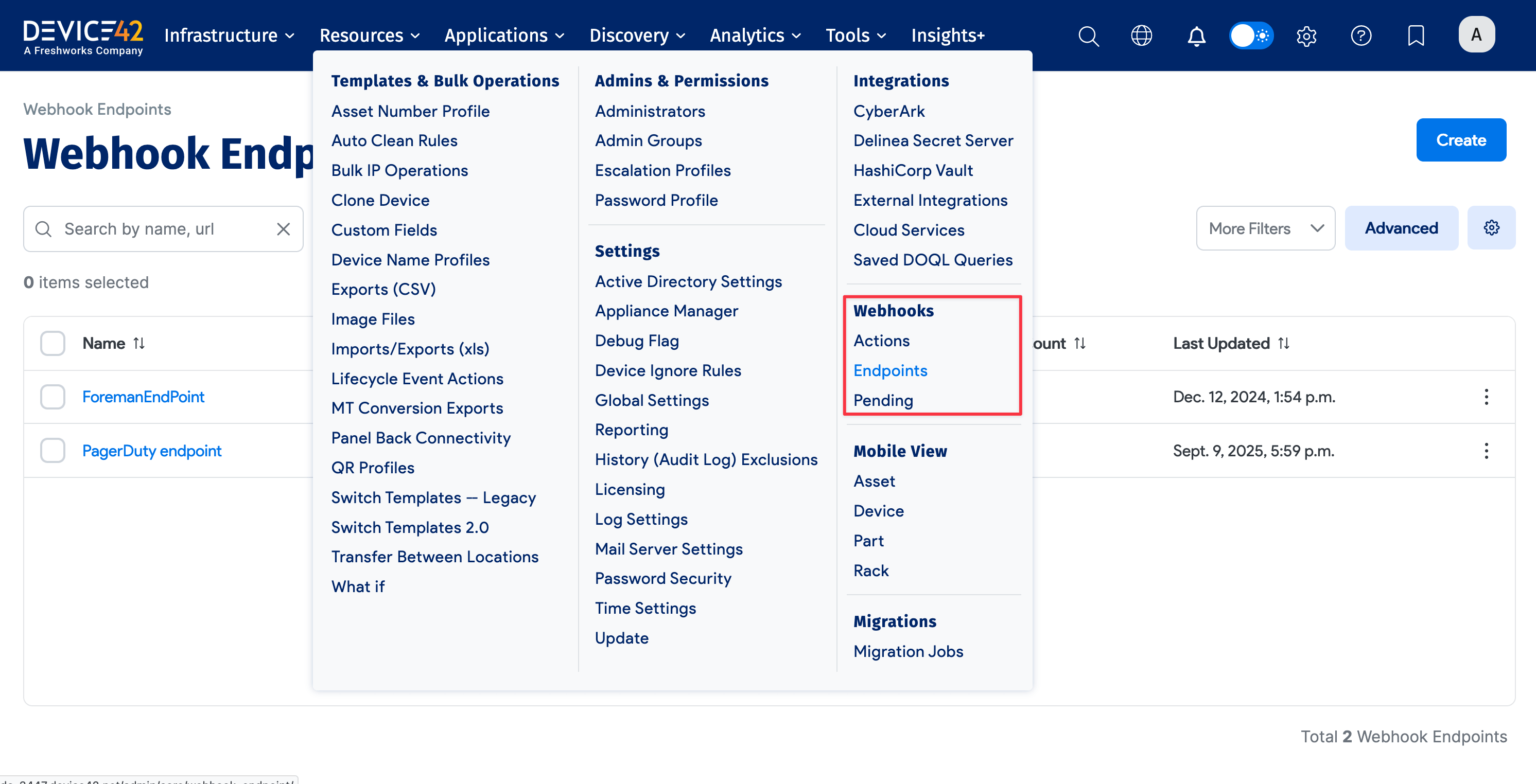
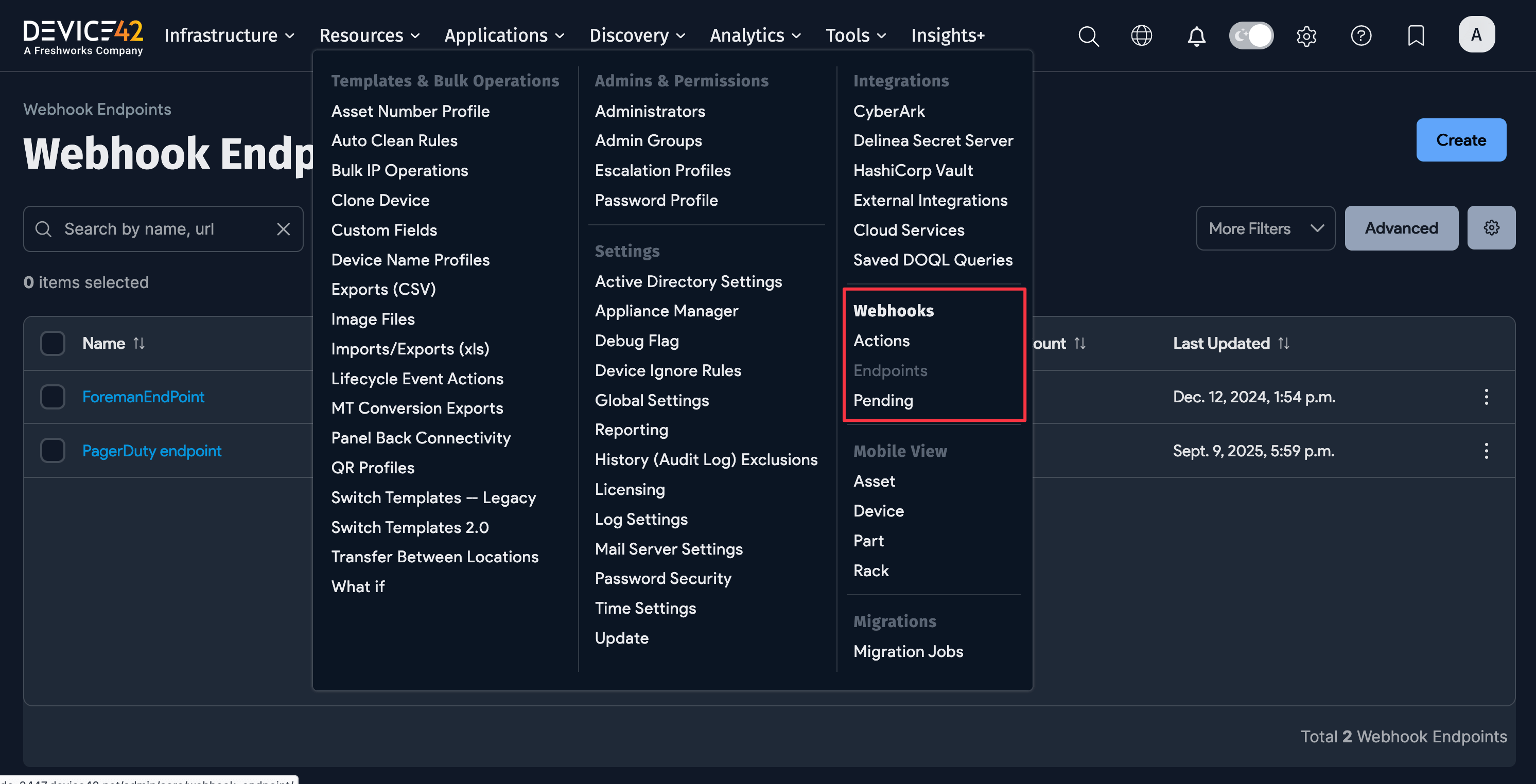
A webhook endpoint is the HTTP URL that Device42 sends webhook events to. Navigate to Tools > Webhooks > Endpoints > Add Webhook Endpoint.
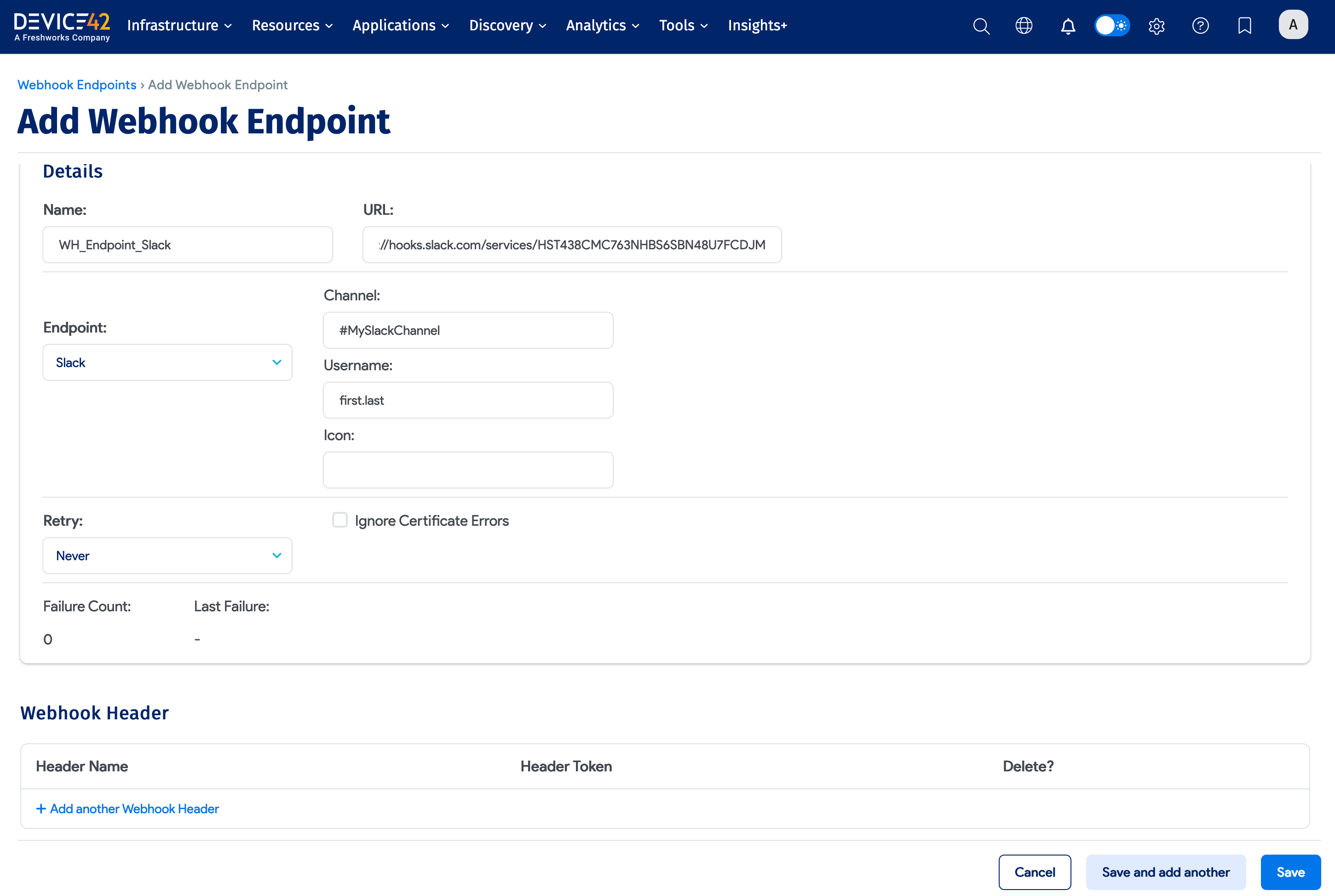
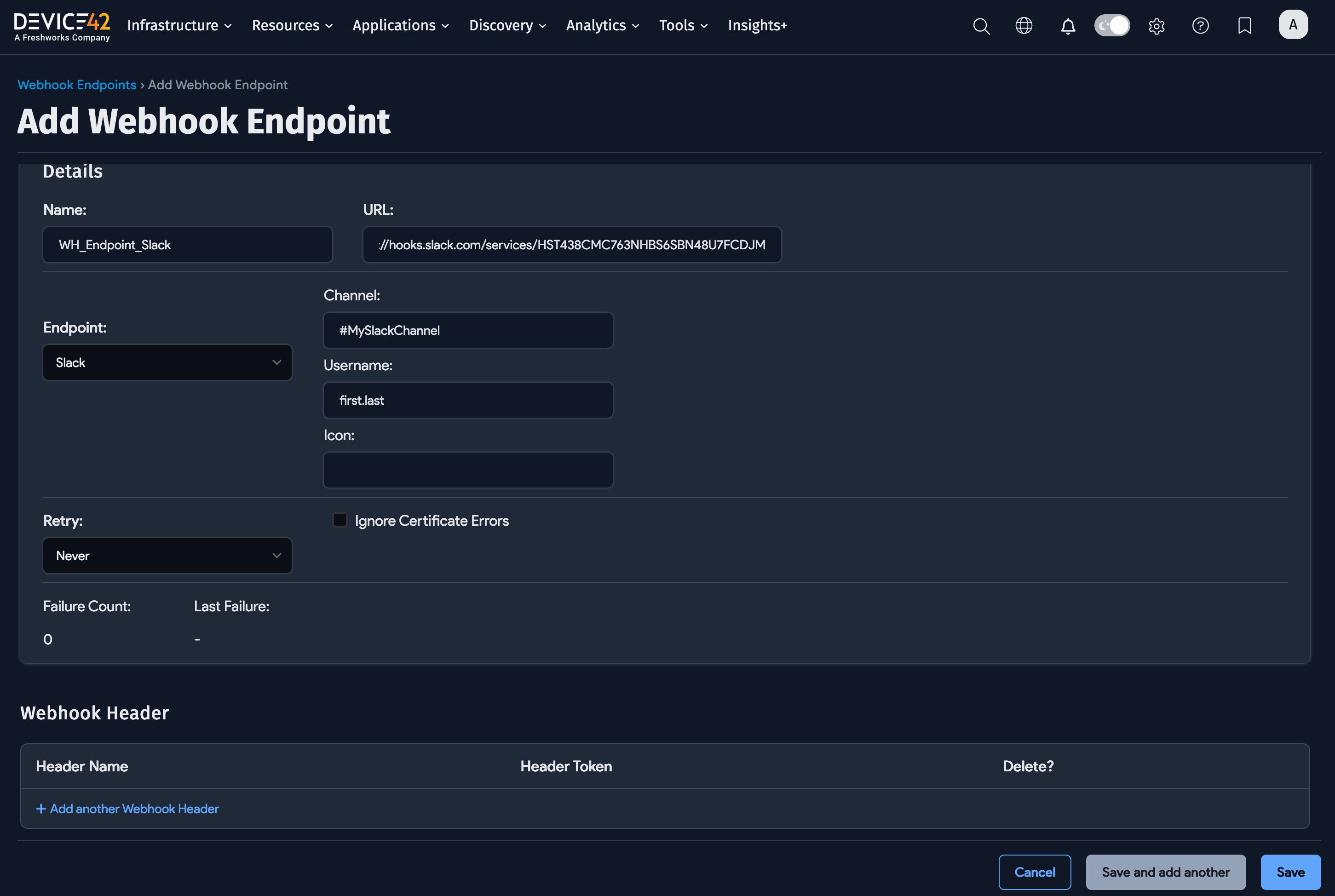
- Name: A name to identify this endpoint.
- URL: The URL that Device42 will send webhook events to.
- Endpoint: Select Slack or Zapier to see fields specific to that service, or Custom for any other endpoint.
- Channel: Slack only. The Slack channel to post the message to.
- Username: Slack only. The name the message will appear to come from.
- Icon: Slack only. A custom icon for the message sender.
- Webhook Header: Optional headers to include with the request. Each header has a Name and a Token field.
Add a Webhook Action
A webhook action defines which Device42 events trigger the webhook and which endpoints receive it. Navigate to Tools > Webhooks > Actions > Add Webhook Action.
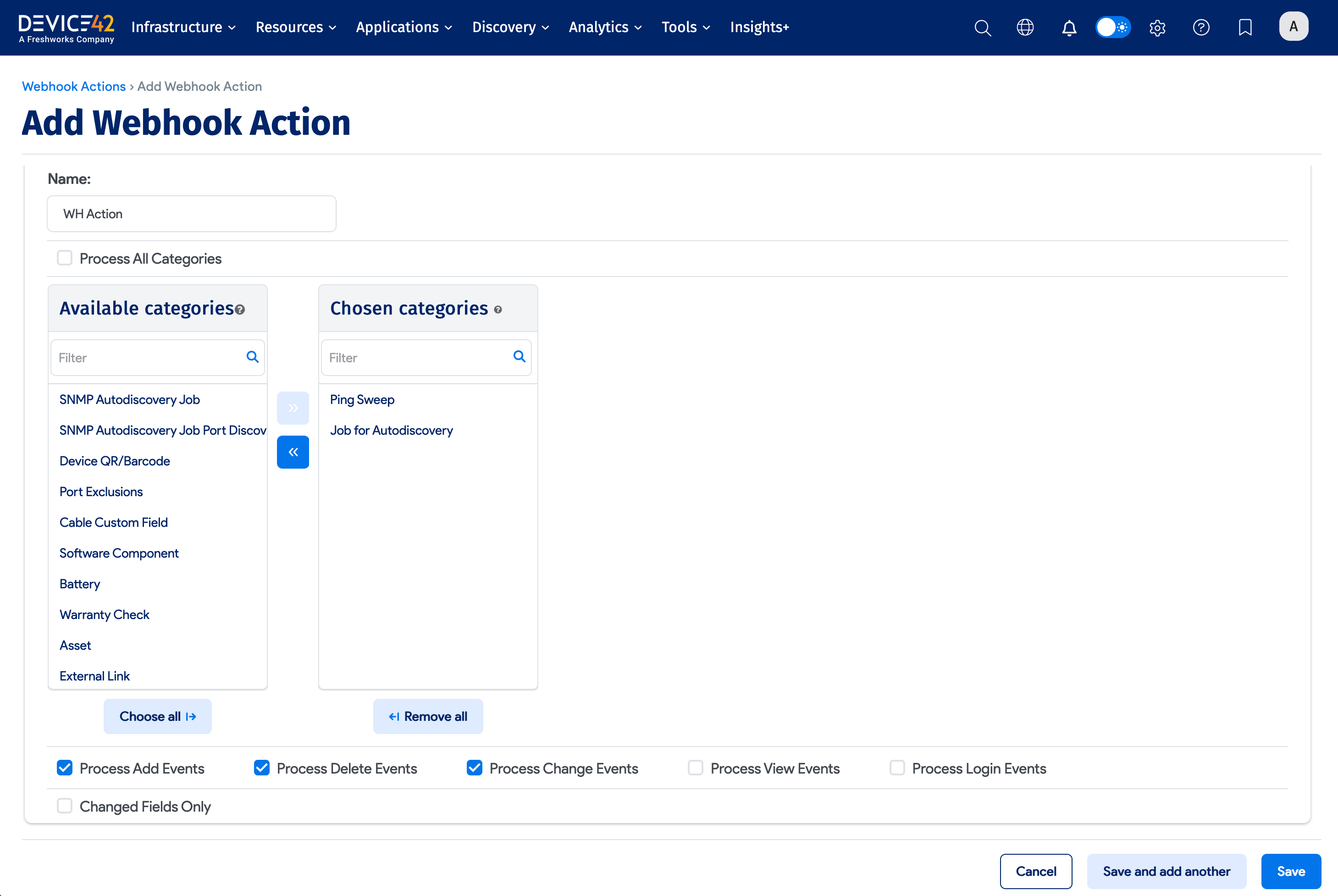
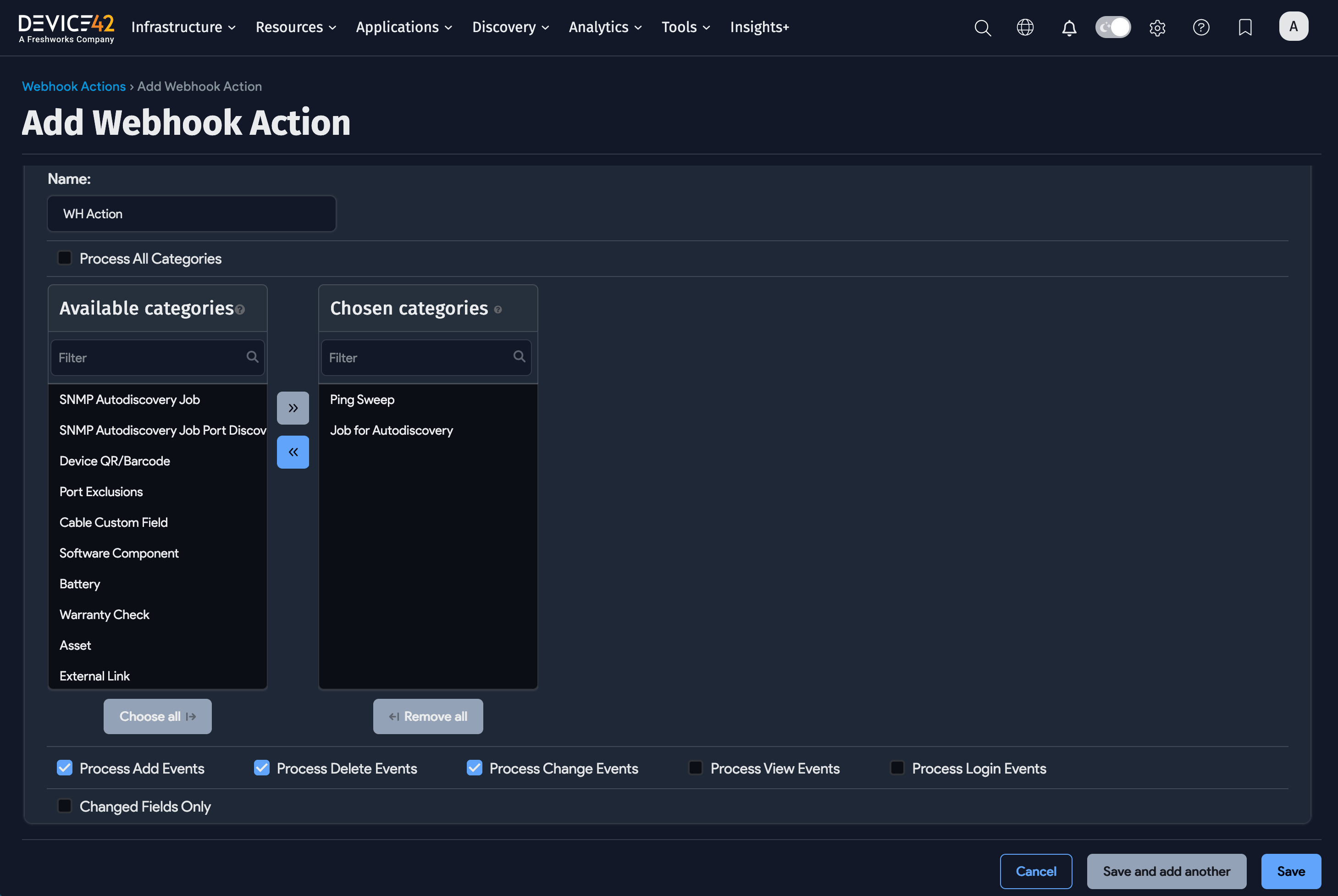
- Name: A name to identify this action.
- Process All Categories: When checked, webhooks fire for changes across all CI categories, hiding the category picker.
- Available Categories: The specific CI categories to monitor for changes.
- Process Add Events: Fire the webhook when a new CI is added.
- Process Delete Events: Fire the webhook when a CI is deleted.
- Process Change Events: Fire the webhook when a CI is updated.
- Process View Events: Fire the webhook when a CI in a chosen category is viewed.
- Process Login Events: Fire the webhook when a login event is recorded on a CI in a chosen category.
- Destination: The endpoint or endpoints that should receive the webhook.