JDBC Driver Integration
The Device42 Java Database Connectivity (JDBC) driver lets you connect to Device42 and pull data externally as a JDBC data source. The driver works on any platform that supports Java and is compatible with any JDBC-compatible client.
Download the Device42 JDBC driver, which works with any JDBC-compatible client, from the Device42 Miscellaneous Tools download page.
JDBC System Requirements
The following are required to connect to Device42 via JDBC:
- A current Device42 installation that is properly configured, licensed, running, and accessible.
- A host system for the Device42 JDBC driver running a platform that supports Java.
- A JDBC-compatible client to connect to the Device42 JDBC data source.
Connect SQL Workbench to the Device42 JDBC Data Source
These steps are for SQL Workbench; other JDBC-compatible clients will have similar steps.
- Install SQL Workbench/J.
- Run SQL Workbench/J.
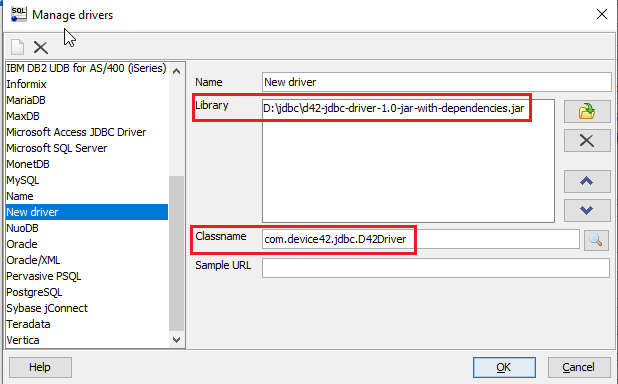
- Click File > Connect Window > Manage Drivers.
- Create a new driver using the path to the downloaded JDBC driver JAR file and the classname
com.device42.jdbc.D42Driver.
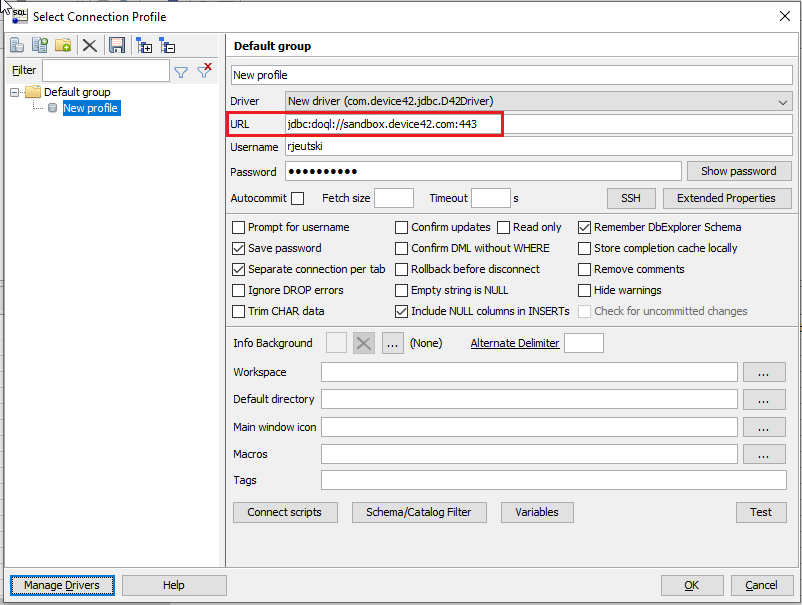
- Create a new profile using the driver you created. Use a URL such as
jdbc:doql://sandbox.device42.com:443, which uses port 443, along with your Device42 credentials. Replacesandbox.device42.comwith your own Device42 instance.
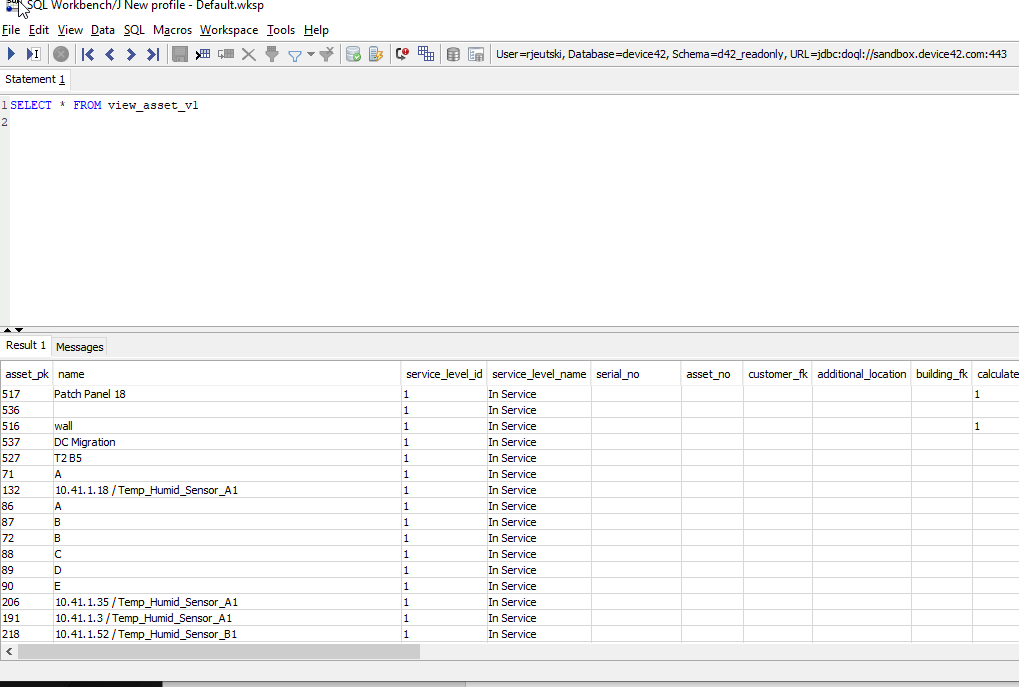
- Test a query.