Aperture VISTA to Device42 Migration
This page is for administrators who are moving from Aperture VISTA to Device42. By the end, your Aperture VISTA data is imported into Device42, which creates the building, data center, and rack configurations for your rack-mounted devices.
The Aperture VISTA to Device42 migration exports data from Aperture VISTA by creating Device42 custom views in the Aperture SQL Server database. These views are exported from Aperture VISTA and saved as .csv or Excel files, which are then imported and mapped into Device42's data architecture.
Device42 then automatically creates building, data center, and rack configurations for all rack-mounted devices. With the import completed, Device42's agentless discovery tool automatically identifies and maps remaining IP-based network devices and intelligent power equipment for ongoing monitoring and management.
Prerequisites
Before starting the migration, make sure you have:
- Access to the Aperture SQL Server database, with permission to create and run views
- The Aperture VISTA views downloaded
- A tool that can save query results as
.csvor Excel files, such as SQL Server Management Studio - The Device42 Bulk Import Tool downloaded
Download the Aperture VISTA views.
Import View
A long list of SQL views lets you select the information you want to migrate from Aperture VISTA to Device42.
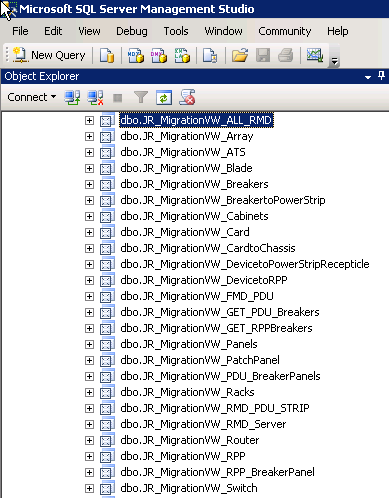
Run View
Run the views to export data from your Aperture VISTA instance.

Save Data to CSV or Excel
Right-click anywhere on the data and select Save Results As....

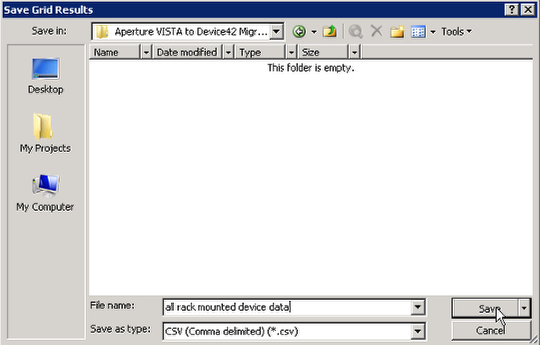
Save Your File
Give the file a name and save the data locally.
Download the Bulk Import Tool
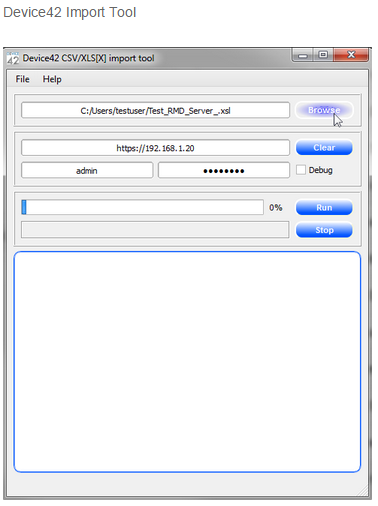
Download the bulk import tool and use it to map your Aperture VISTA fields to Device42. For detailed instructions, see the bulk import tool documentation.
Contact support at support@device42.com with any questions.