HP Service Manager Integration
The Device42 HP Service Manager (HPSM) Connector syncs asset and CMDB data from Device42 to your HPSM instance, enhancing your ITSM processes, change management workflows, and other operations with Device42's comprehensive discovery data.
With the connector you can use Device42 Continuous Discovery data in HPSM, link service requests to the relevant configuration item (CI), search for issues using CI attributes, and view CI details in HPSM.
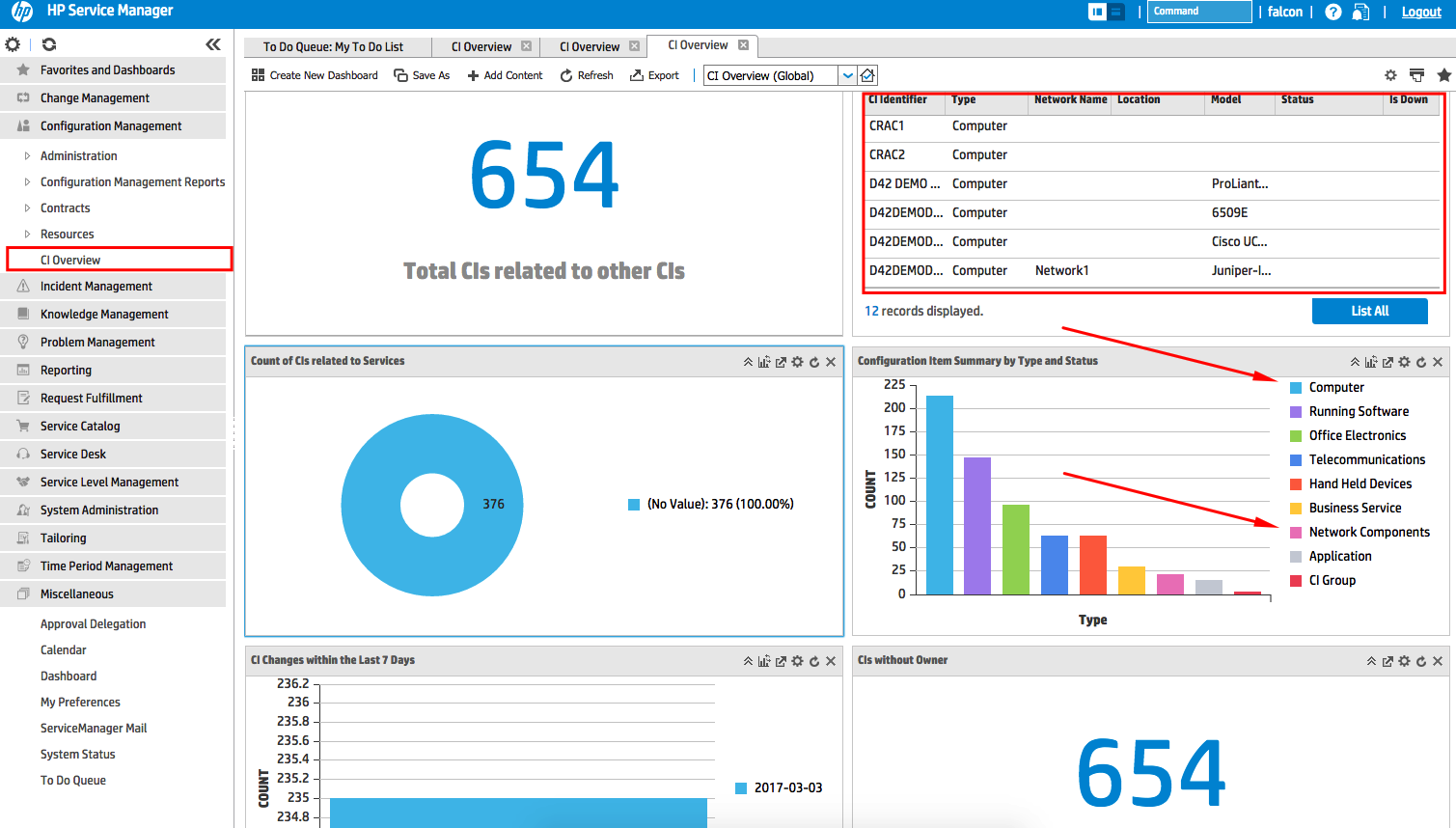
Using the Device42-HPSM integration connector, you can synchronize Device42 asset management and tracking data to the IP-enabled configuration items (CIs) held in the HPSM Configuration Management Database (CMDB). You can refresh this synchronization manually at any time, or schedule it to refresh automatically at intervals you define.
Once Device42 CI data is synced to HP Service Manager, you can see Device42 CI details for those CIs in HPSM, such as asset tag, assignment, description, IP, and MAC address. CI data is also visible for HPSM-only CIs, and you can view any service requests associated with a CI.
Assumptions and Requirements
Prerequisites
Before you configure the integration, make sure you have:
- Working Device42 and HPSM instances
- Python 2. The script is not compatible with Python 3.
Device42 tested the script with HPSM 9.40 and Device42 12.0.0.
Integration Steps, Configuration, and Usage
Integrate Device42 data into HPSM using the Device42-HPSM sync script.
-
Create a working directory and copy the contents of the Device42
Device42_HPSM_Syncrepository into it. -
Copy or rename the settings file
conf.sampletoconf. -
Edit the
conffile to contain the host, user, and password for your Device42 and HPSM instances: -
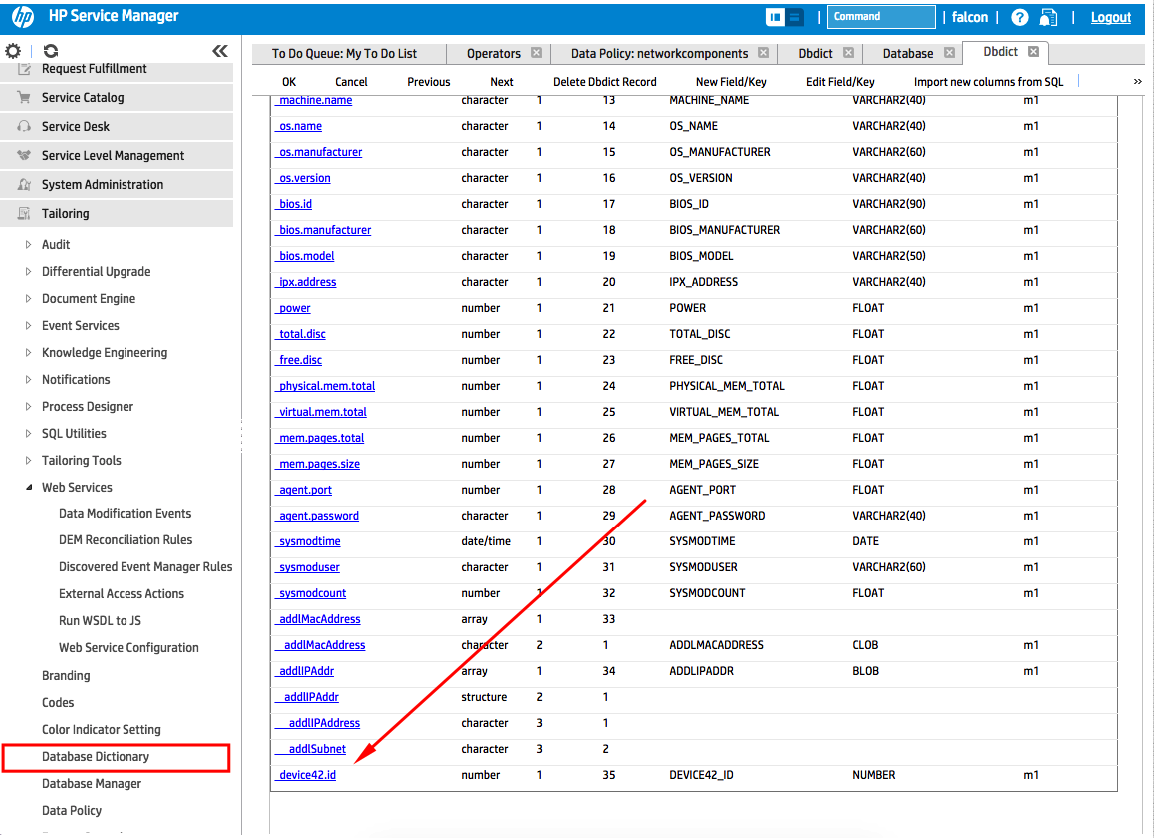
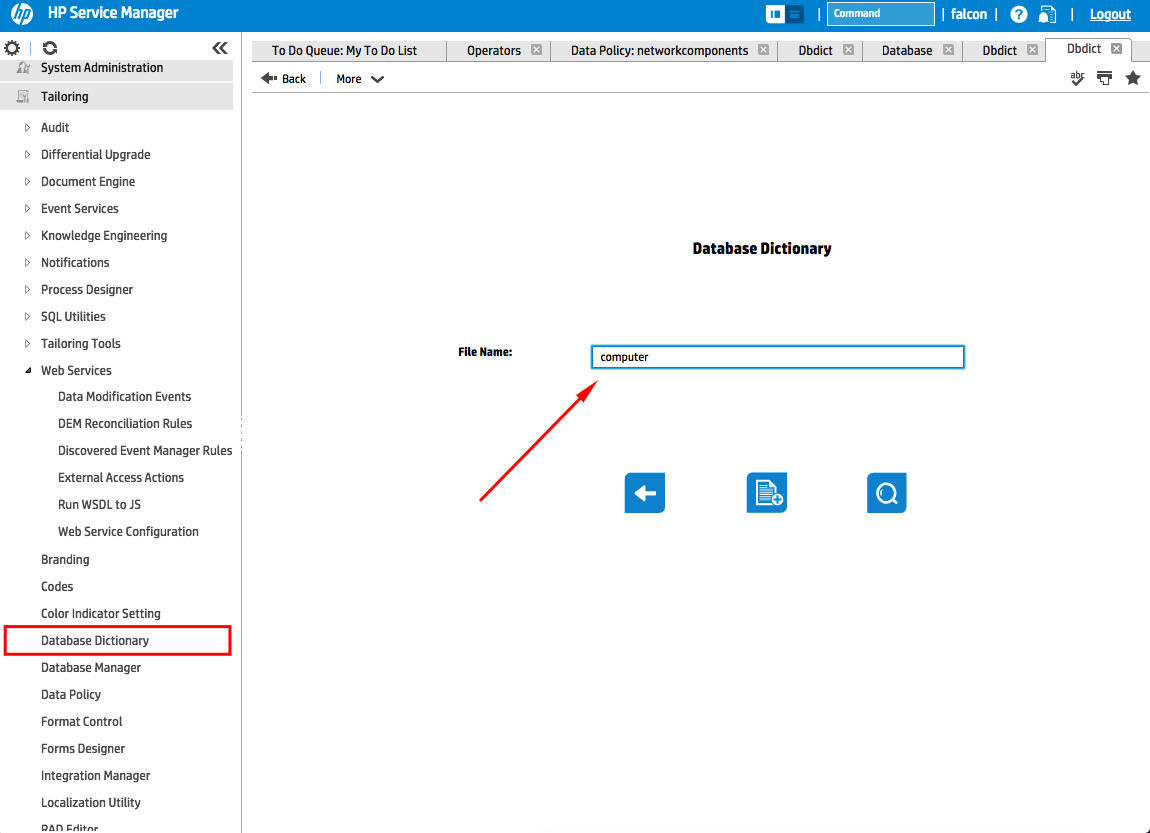
Configure HPSM: Open the Database Dictionary and add a field (type
number, namedevice42.id) to both thecomputerandnetworkcomponentsmodels. -
Configure HPSM. Open the Database Dictionary and add a field of type
number, nameddevice42.id, to both thecomputerandnetworkcomponentsmodels:
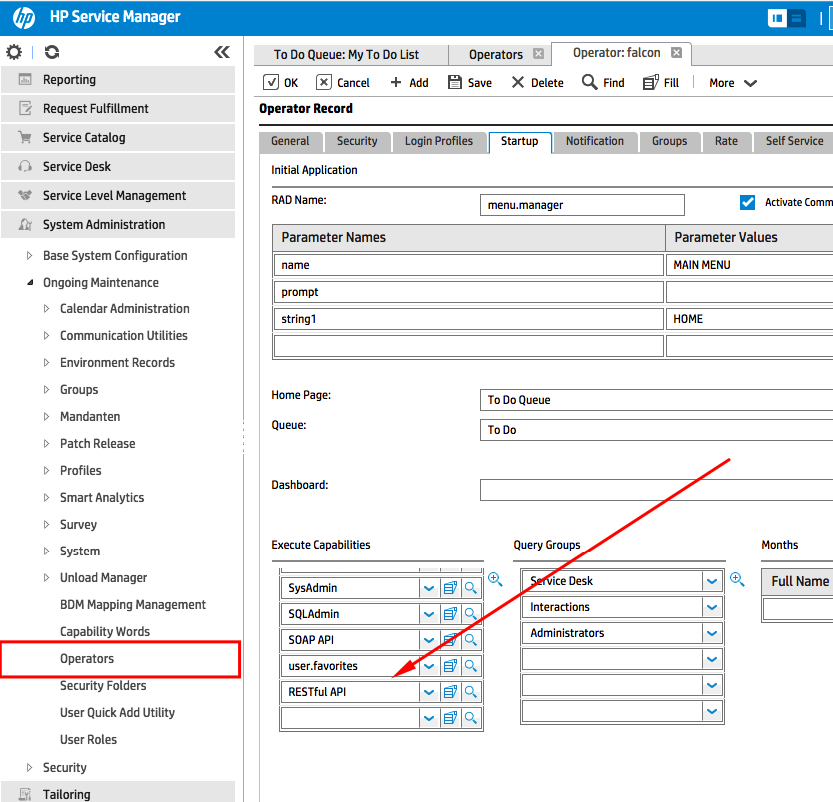
- Give the operator access to the REST API:
- Allow the API to access Computer and NetworkDevice, permitting both add and save actions:
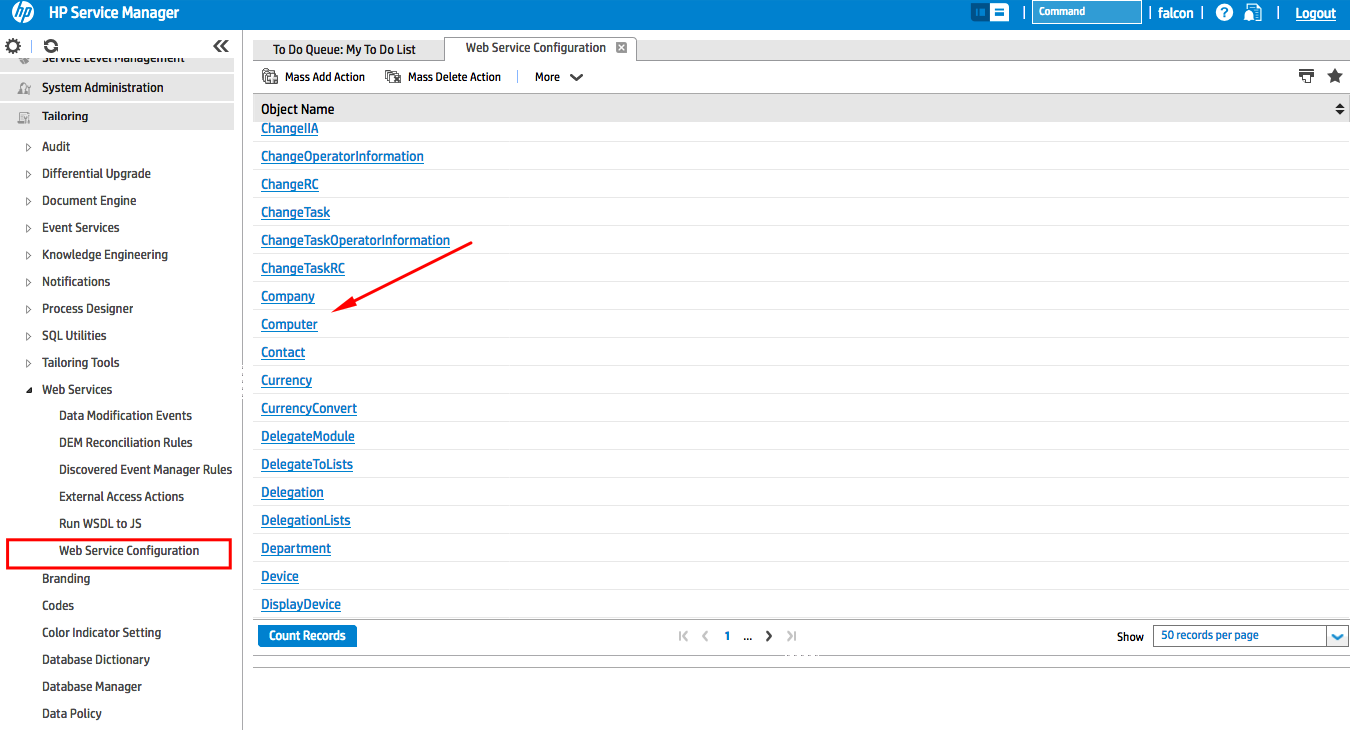
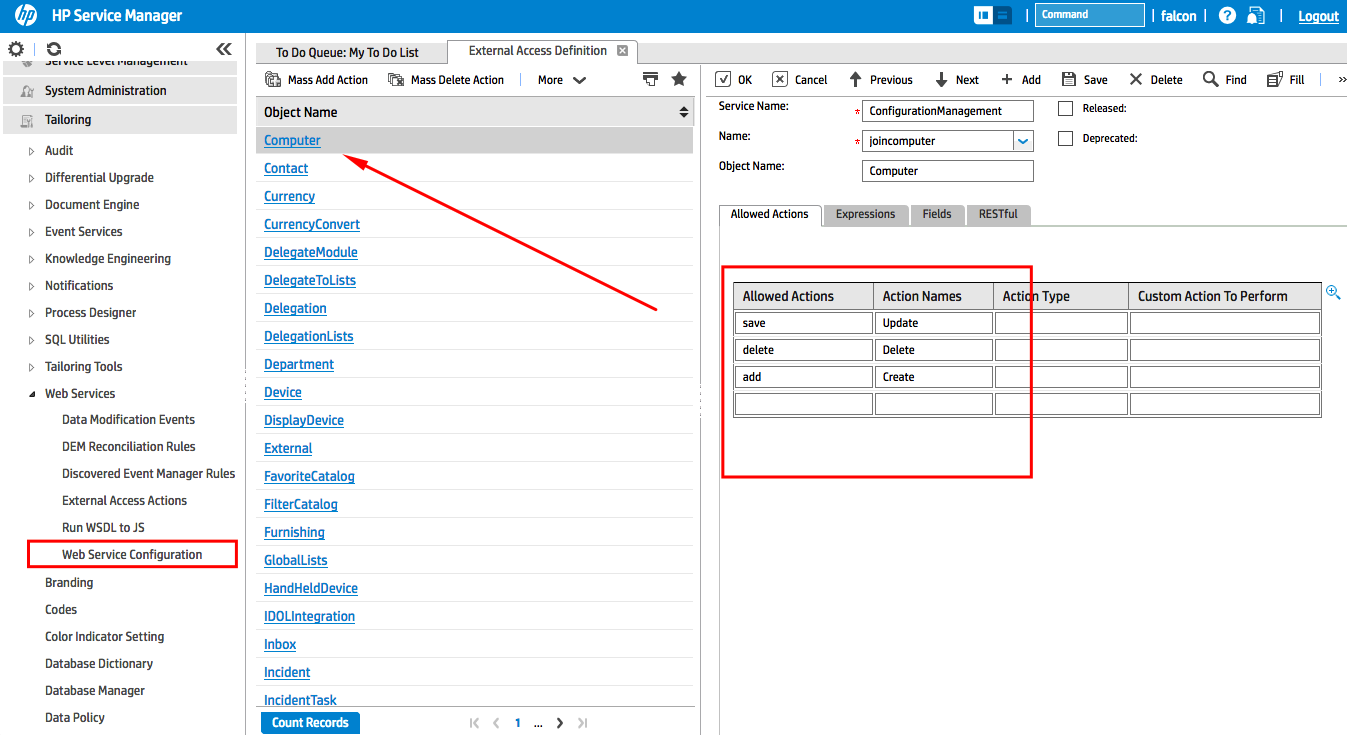
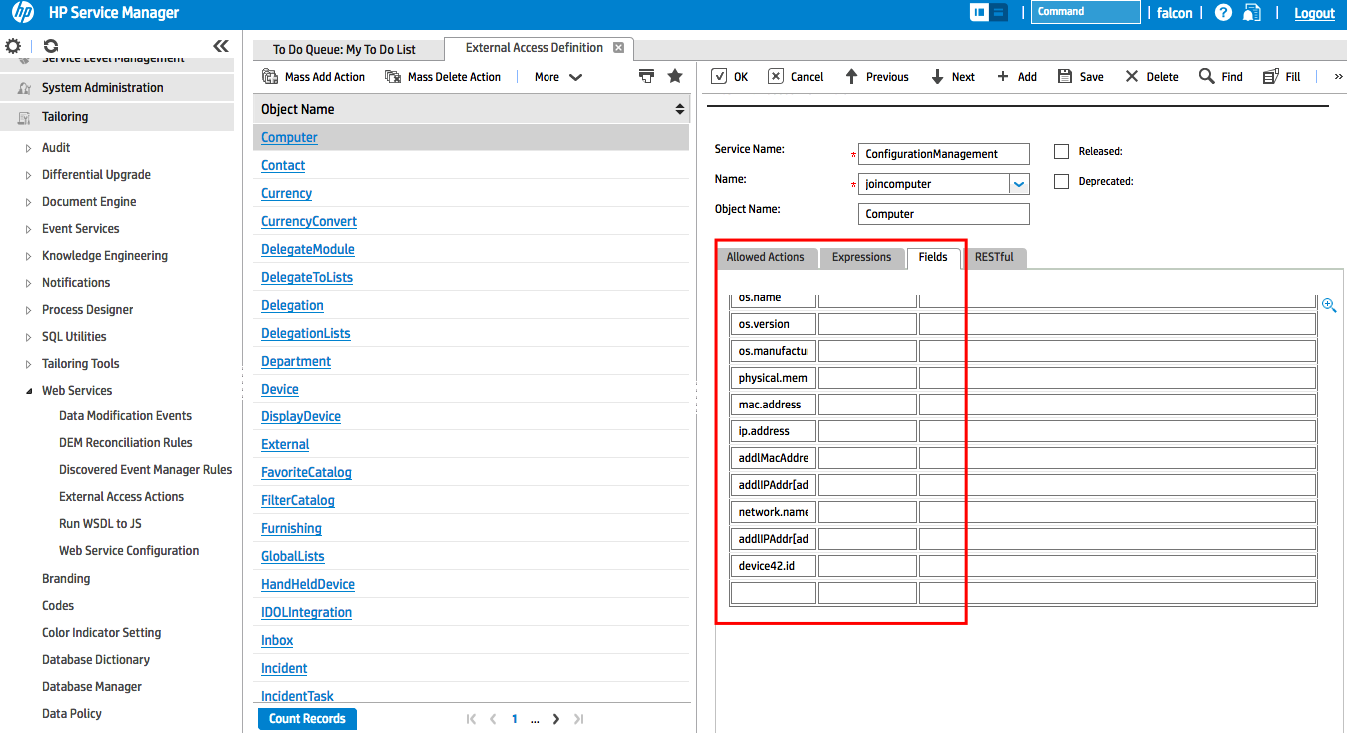
- Both endpoints must allow access to add and update all of the fields pictured. You can also find the exact field names in
README.MD:
-
Set the unique key for both endpoints to
logical.name: -
Run
python starter.py.
Access the HPSM Integration Connector
Device42 and HP Service Manager users can access the free integration connector script on the Device42 HPSM integration page.