Jenkins Integration
This page is for administrators who want their Jenkins automation jobs to pull credentials from Device42's built-in secret store instead of storing them in Jenkins or in scripts. By the end, Jenkins jobs can reference Device42-stored secrets as variables, retrieved through the Device42 API at run time.
The Device42-Jenkins integration allows Jenkins automation jobs to securely retrieve credentials stored in Device42 via the Device42 API. Instead of storing credentials in automation scripts or in multiple locations, you can leverage the centralized secret store in Device42.
When you add or update a secret in Device42, your Jenkins automations instantly have access to the updated credentials. This page covers how to install, configure, and use the Device42-Jenkins credentials plugin.
Prerequisites
Before installing the integration, make sure you have:
- A Jenkins instance with administrator access to upload and manage plugins
- A running Device42 Main Appliance with its API accessible from Jenkins
- The Device42 Jenkins plugin (
Device42.hpi), either downloaded or built from source (building from source requires Maven)
Install the Device42-Jenkins Integration

Build the Jenkins Plugin From Source (Optional)
Maven is required to build the plugin.
-
Clone the Device42 Jenkins Plugin repo from GitHub:
git clone https://github.com/device42/device42-jenkins-credentials-plugin -
Change your working directory to the plugin directory:
cd device42-jenkins-credentials-plugin -
Call Maven install to build the plugin:
mvn install -DskipTests -
Follow the Configure Jenkins section below to install the plugin you just built.
Configure Jenkins
-
Log in to your Jenkins instance.
-
Select the Manage Jenkins gear icon from the menu on the left, then choose Manage Plugins > Advanced tab.
-
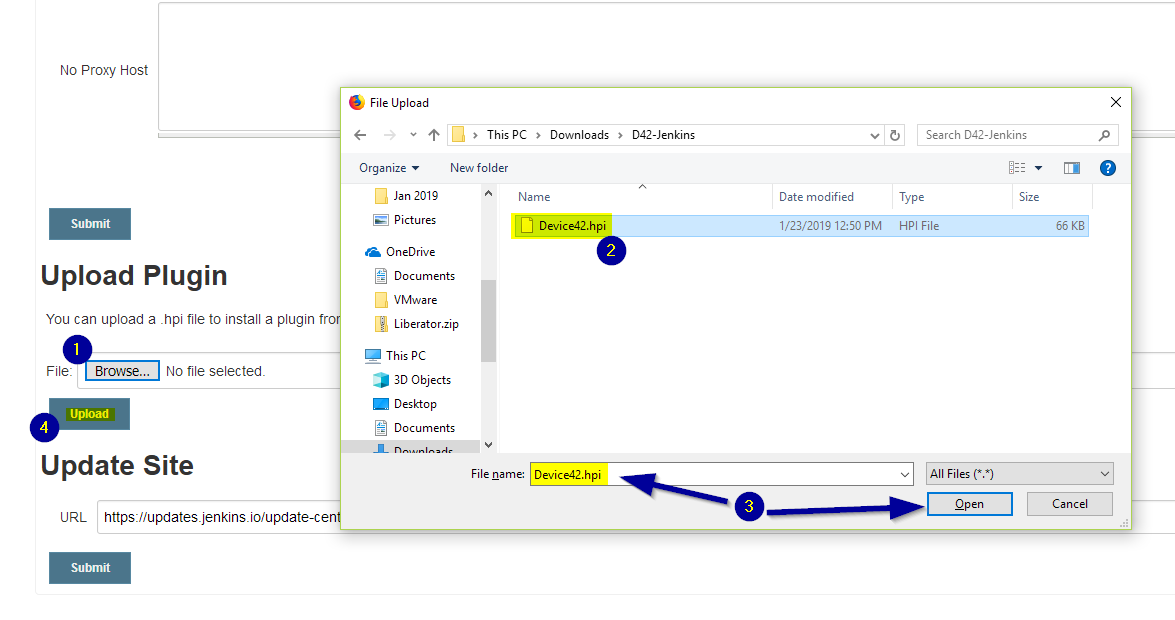
Click Browse under the Upload Plugin heading and select the
Device42.hpiplugin you downloaded or built from source. -
Click Open on the dialog, then click Upload to upload the plugin to Jenkins.
Configure Device42
Device42 does not require any specific configuration for the integration other than having your main appliance running and its API accessible.
Passwords and secrets are created and managed within Device42 as usual. The integration reads those secrets via the Device42 API each time a Jenkins automation runs.
Use the Device42-Jenkins Credentials Integration
The integration allows you to use passwords and secrets stored in Device42 within Jenkins automations by pulling them via the Device42 API when Jenkins automations run. Credentials stored in Device42 are made available in Jenkins as variables, the names of which are user-customizable. Each credential variable can be referenced as many times as needed within a Jenkins automation.
The following example walks through embedding a new credential into a Jenkins automation, pulling it and a second credential from Device42, and storing attributes from both into a text file on the host instance.
-
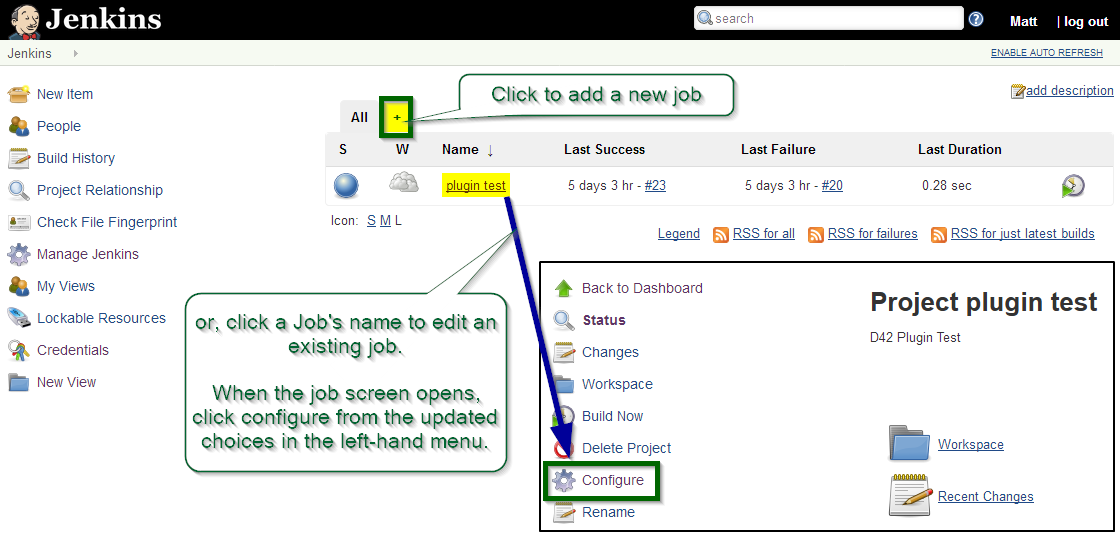
Create a new Jenkins automation job (via the + button tab) or open an existing job for editing (by clicking its name).
-
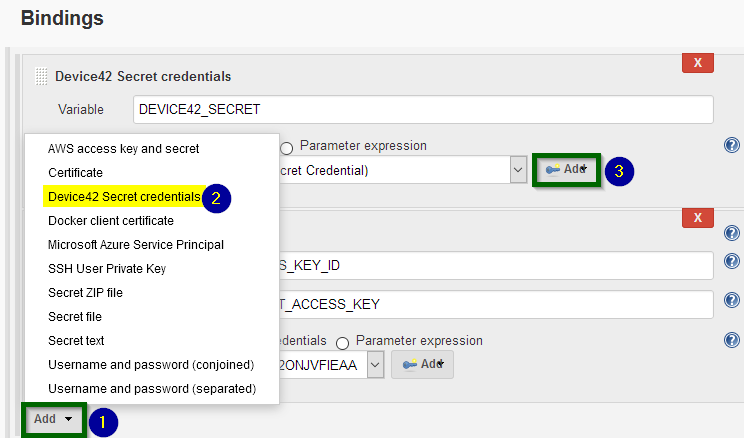
Within the job configuration, scroll down to Bindings (or click the Build Triggers tab to jump). Click Add and choose Device42 Secret Credentials from the popup to insert a credential variable. Click the Add button with the key icon to select the Device42 credential you want to add.
-
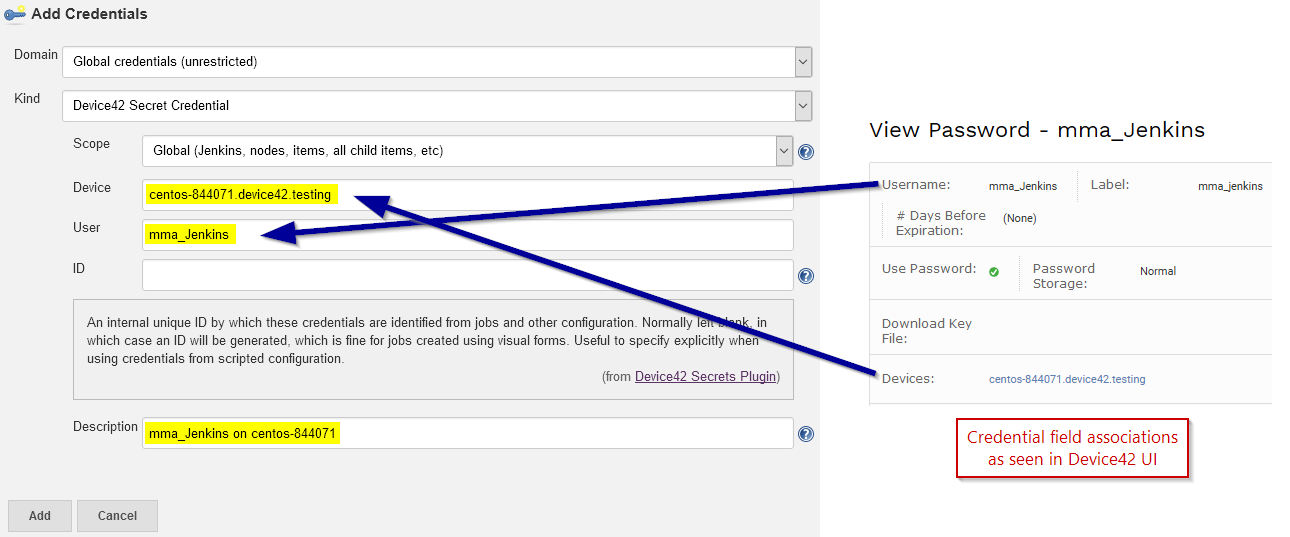
Specify the details of the Device42 credential you want to associate:
- Kind: The credential type — in this case, Device42 Secret Credential.
- Scope: (Required) The availability of your credential variable to other Jenkins jobs.
- Device: (Required) The name of the device the credential is associated with in Device42.
- User: (Required) The username associated with the credential in Device42.
- ID: (Normally left blank and auto-generated) An internal unique ID assigned to the credential, useful for scripted configurations.
- Description: (Optional) A description to help you recognize this credential in Jenkins.
-
Reference your new Device42 credential variable using
$Variable_Namein the Execute Shell. Repeat the above steps to add more credentials from Device42 as needed.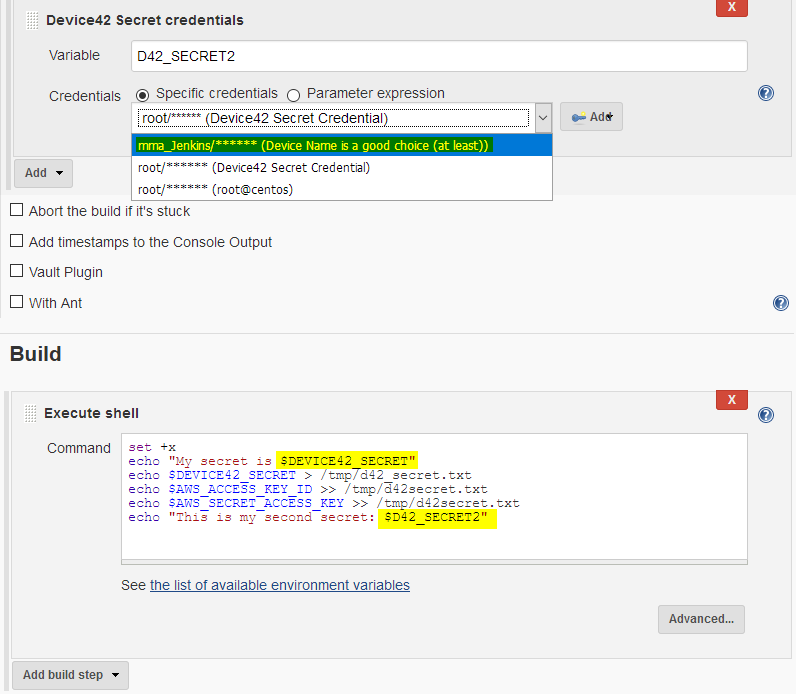
Contact support@device42.com if you have questions about the Device42-Jenkins plugin or encounter issues.
Download the Device42 Jenkins integration plugin from GitHub.