Opsgenie Integration
This page is for administrators who want Device42 alerts to reach their on-call responders in Opsgenie. By the end, a triggered Device42 alert is automatically routed to Opsgenie as an incident.
Device42 integrates with Opsgenie to automatically route alerts to your incident management platform. This page explains how to configure the integration, set up alert forwarding, and test it with a prohibited software alert.
Prerequisites
Before setting up the integration, make sure you have:
- Access to Opsgenie Settings to add an API integration
- An Opsgenie API key with the Create and Update Access option enabled
- Administrator access to Device42 to add an external integration and configure alerts
Set Up an API Key in Opsgenie
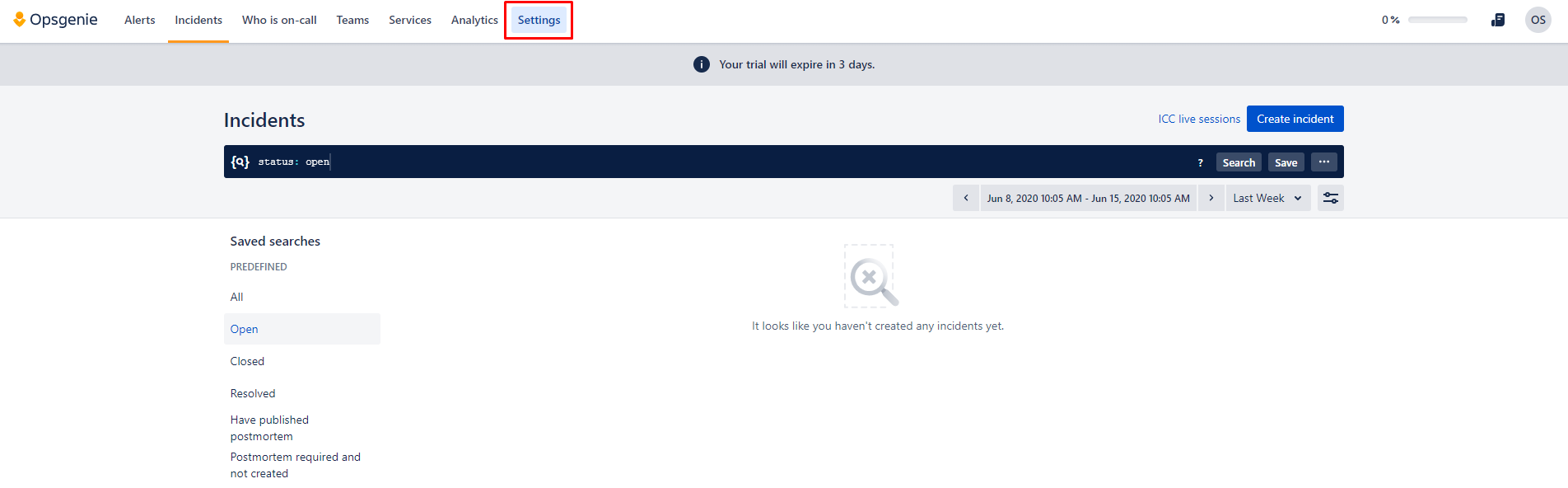
Click Settings in the Opsgenie top navigation bar.
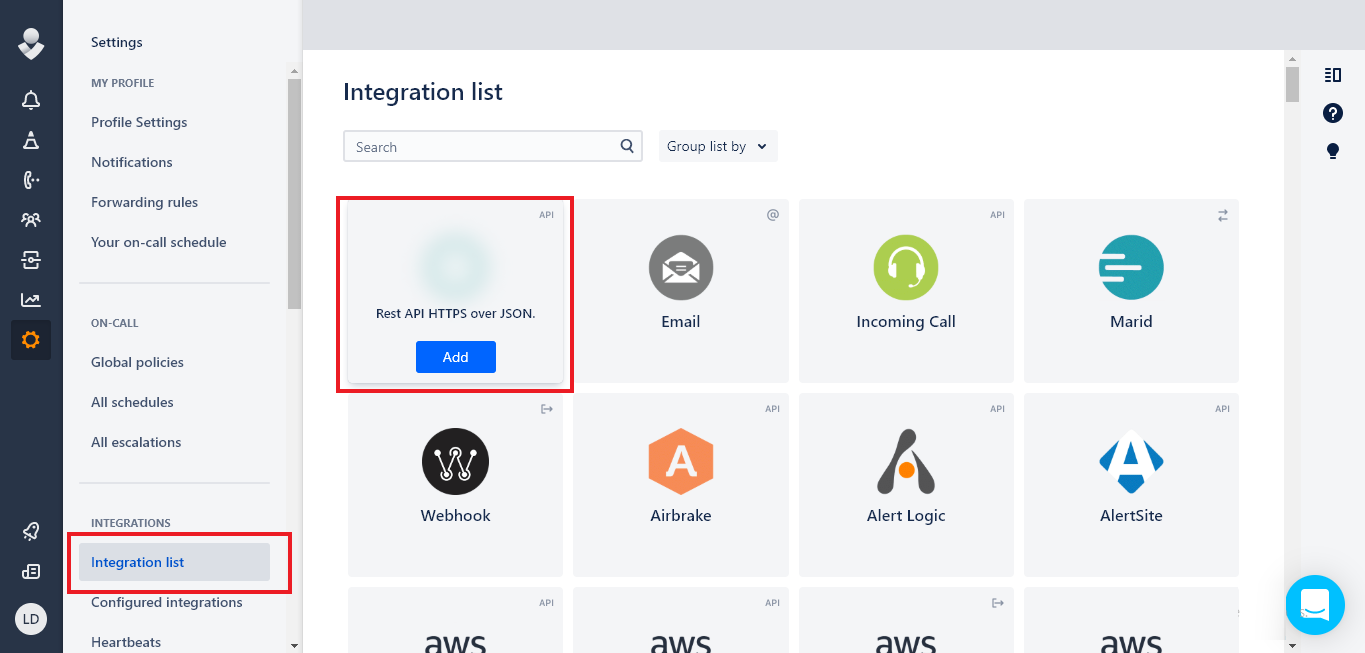
In the Integrations section on the left panel, click Integrations list. Hover over the API tile and click Add.
Configure the API
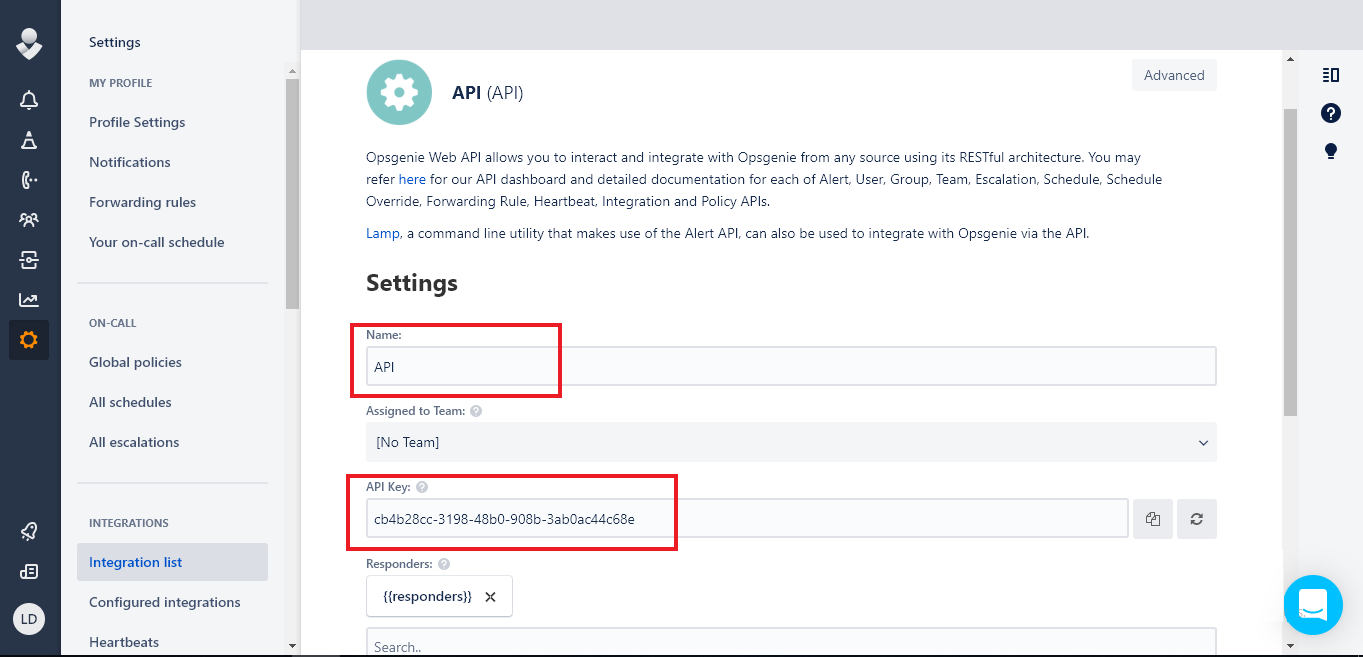
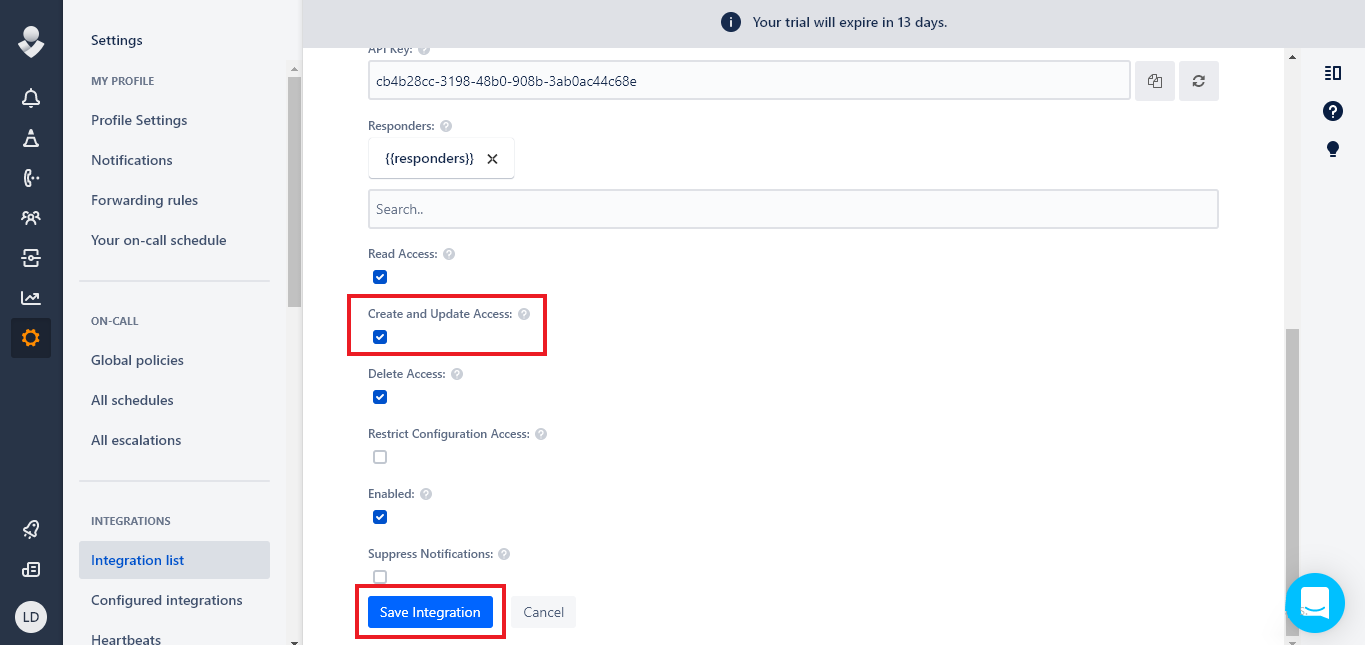
- Enter a Name for the API.
- Copy the API Key — you will need to enter it into Device42.
- Scroll down and ensure that Create and Update Access is enabled.
- Click Save Integration.
Set Up the Opsgenie External Integration in Device42
From the Device42 menu bar, select Tools > Integrations > External Integrations, then click Add External Integration in the top right.
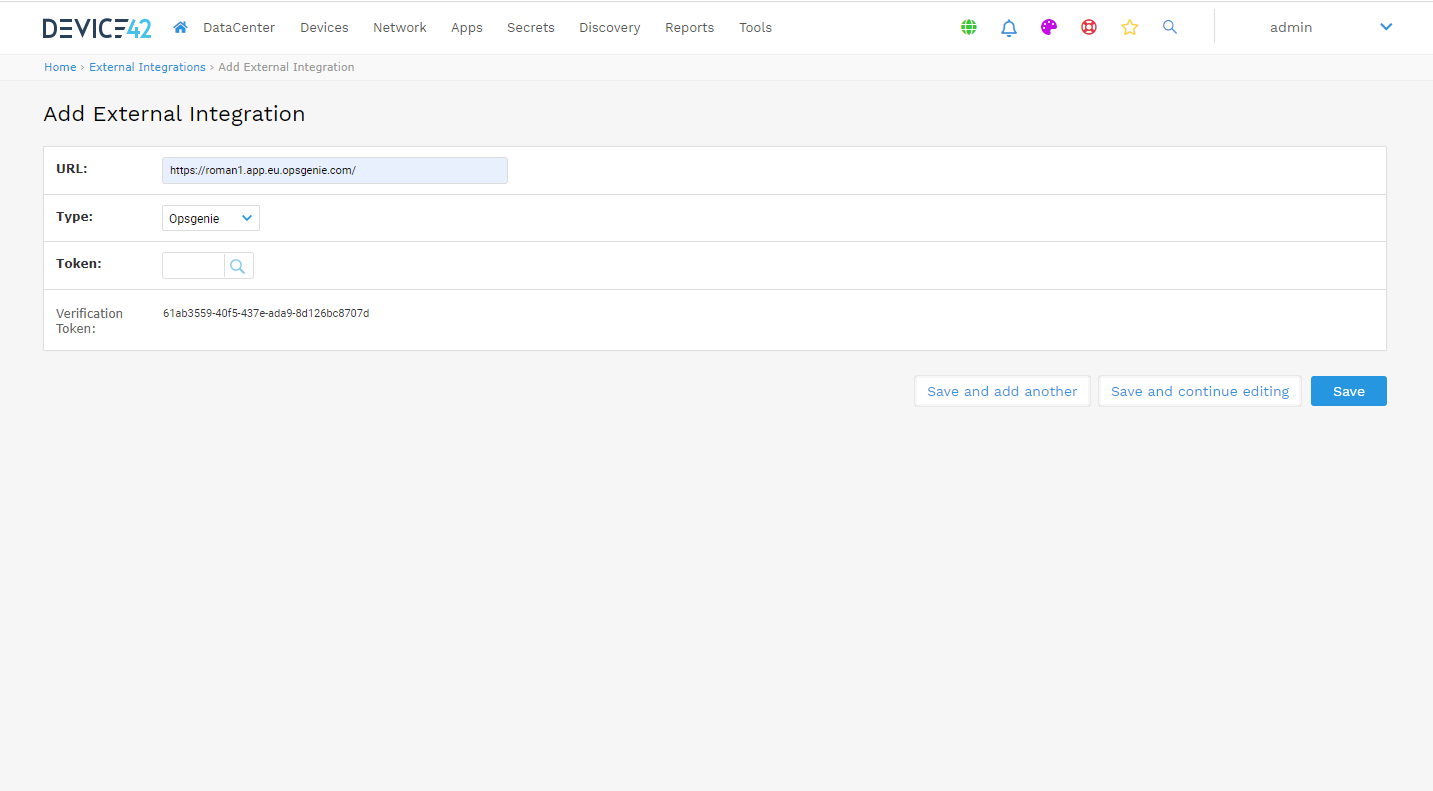
- Set the URL to your Opsgenie URL.
- Select Opsgenie from the Type drop-down menu.
- Click the Token magnifying glass icon to open the Select Password page.
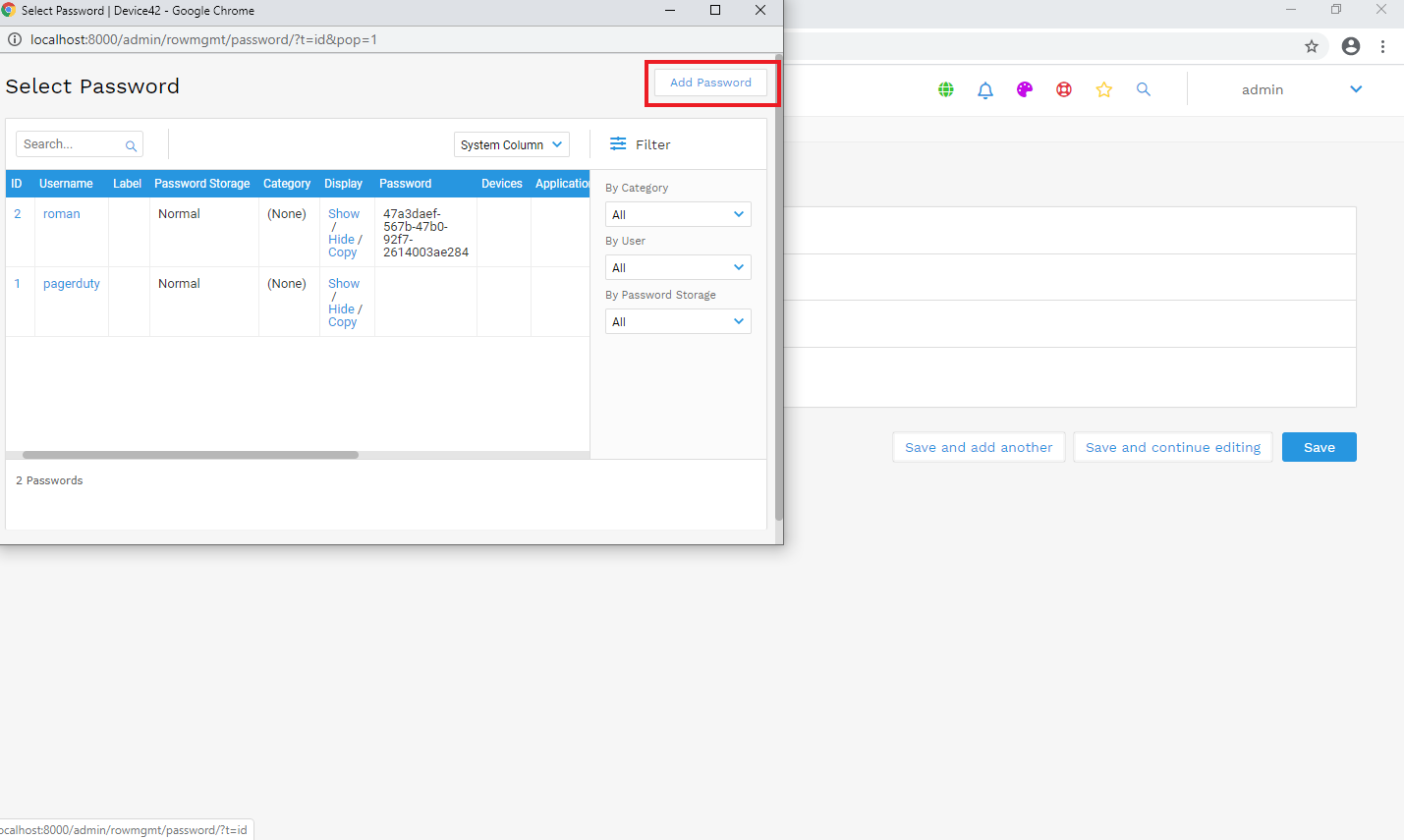
- Click Add Password and use the Opsgenie API key to create a new token.
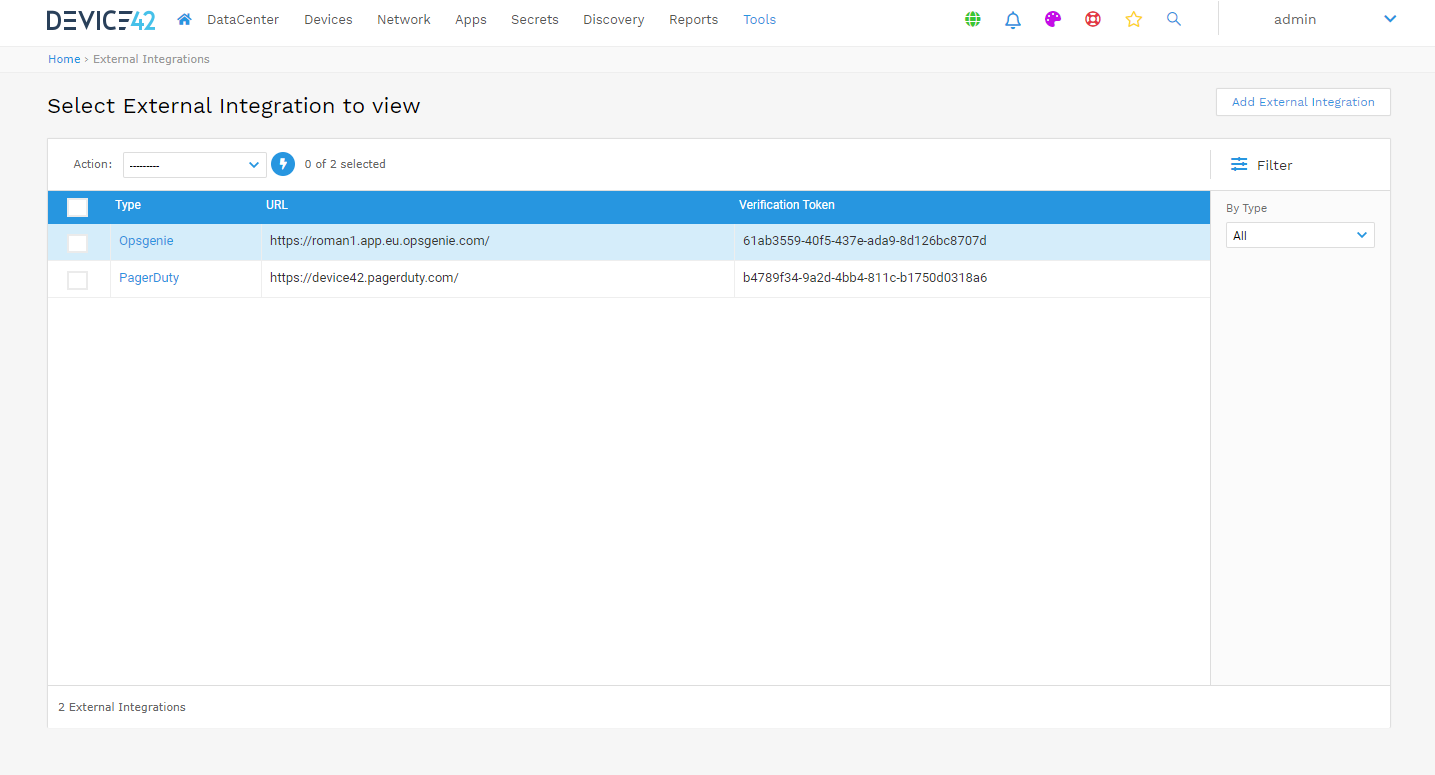
- Click Save.
Set Up an Alert To Use Opsgenie
To route a Device42 alert to Opsgenie, you need to configure an alert that uses the Opsgenie external integration. The following steps configure a prohibited software alert as an example, but any alert type can use the Opsgenie integration with similar steps.
From the Device42 menu bar, select Reports > Setup Alerts.
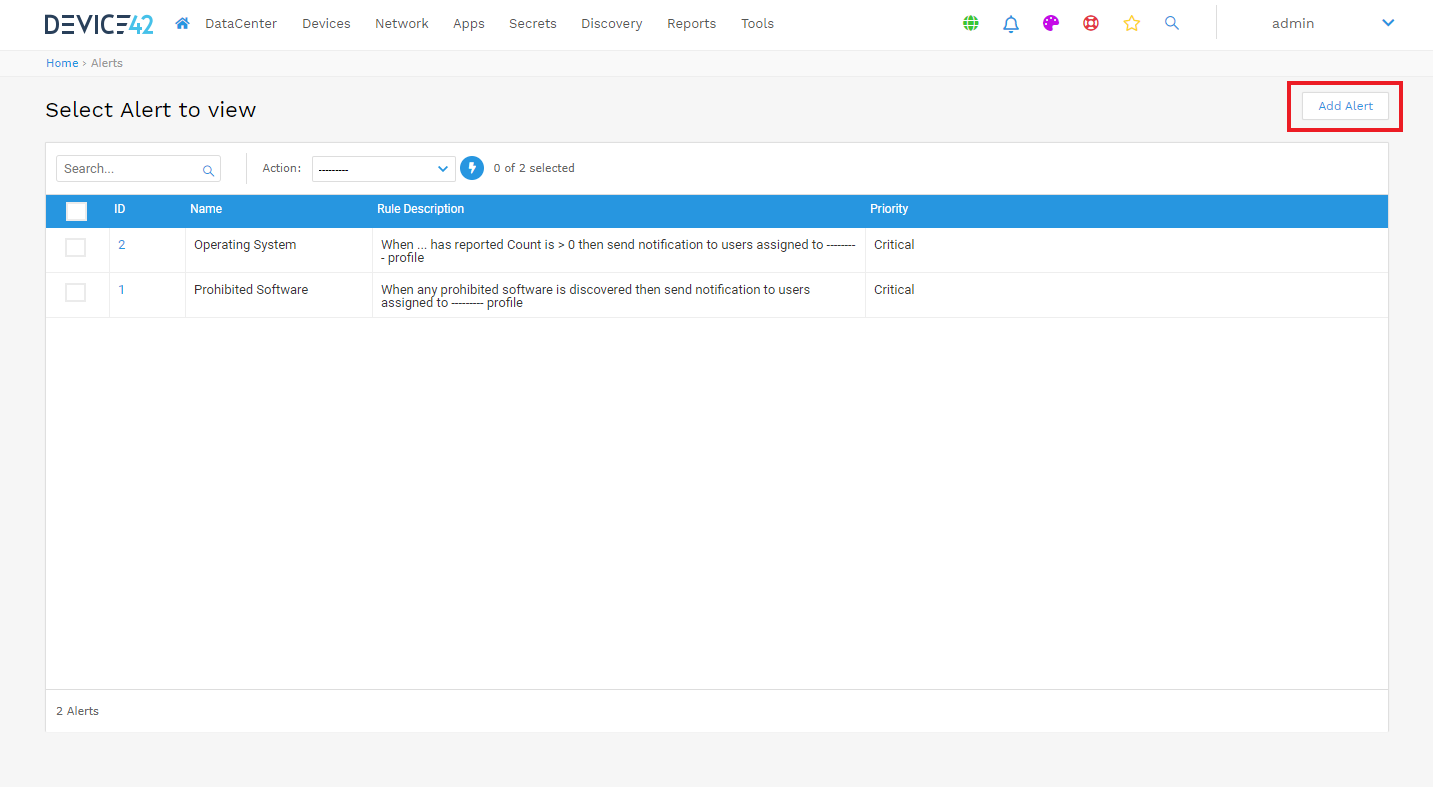
Click Add Alert.
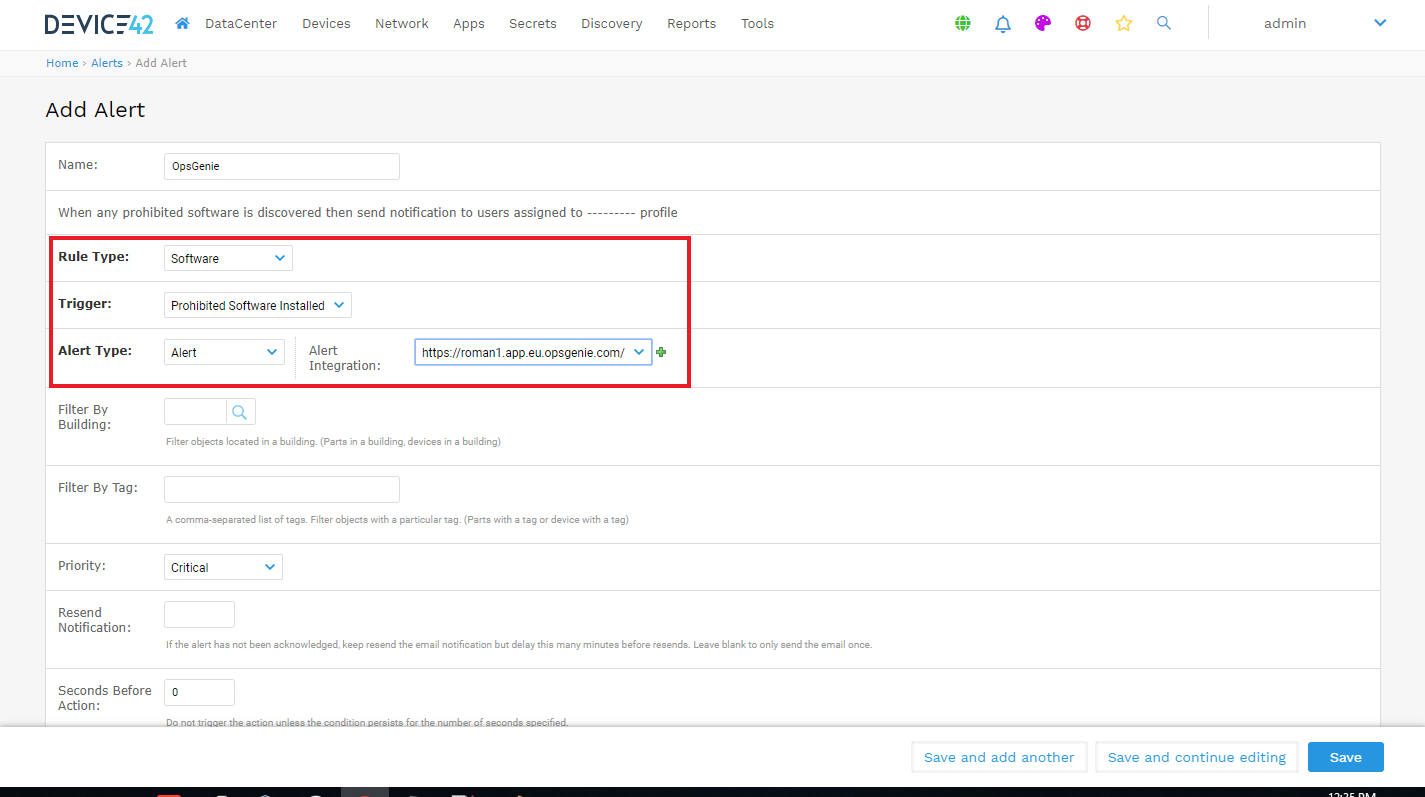
- Select Rule Type: Software.
- Select Trigger: Prohibited Software Installed.
- Select Alert Type: Alert.
- Select the Opsgenie URL from the Alert Integration drop-down list.
- Click Save.
Configure Software as Prohibited
From the Device42 menu bar, select Apps > Software > Software Components. Select the software component you want to mark as prohibited (this example uses 7 Zip), then click Edit in the top right.
- Select Software Type: Prohibited.
- Click Save.
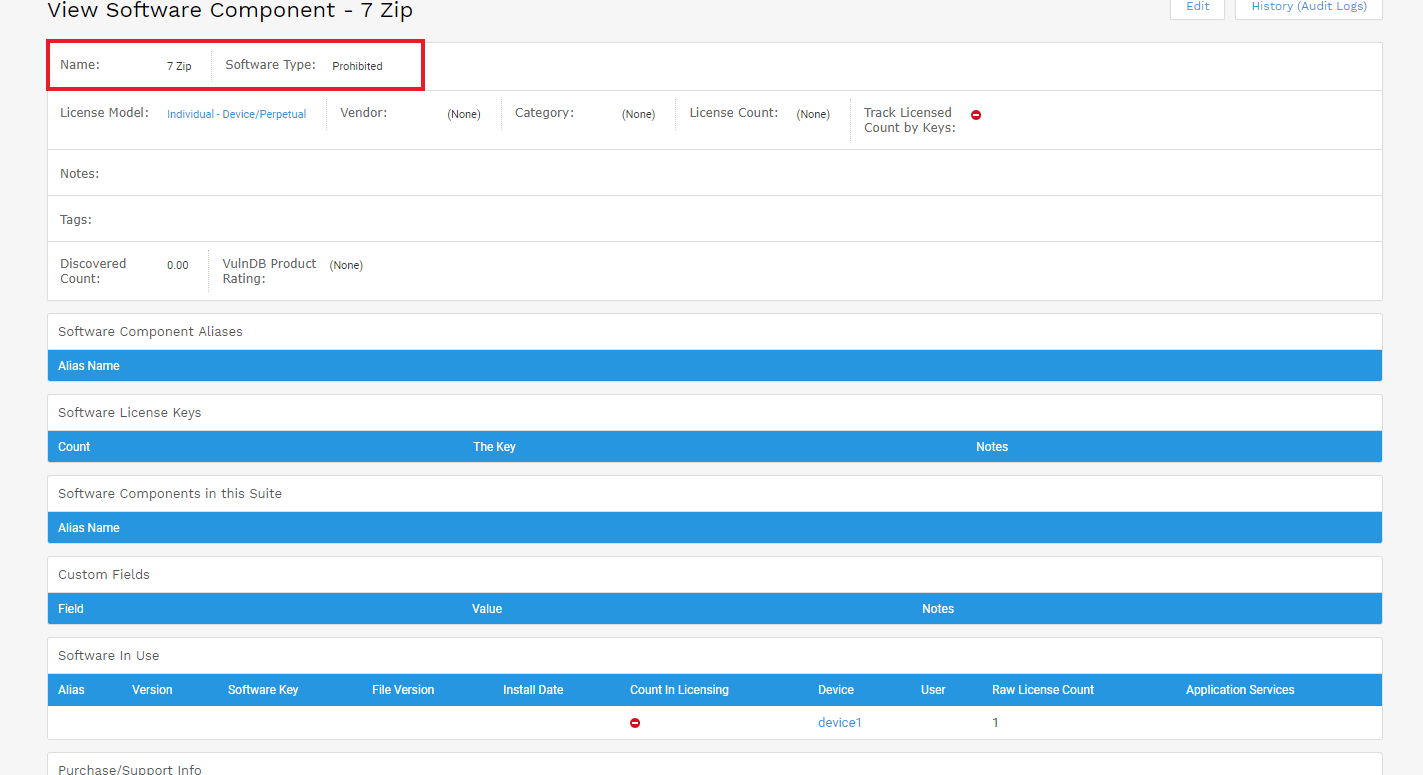
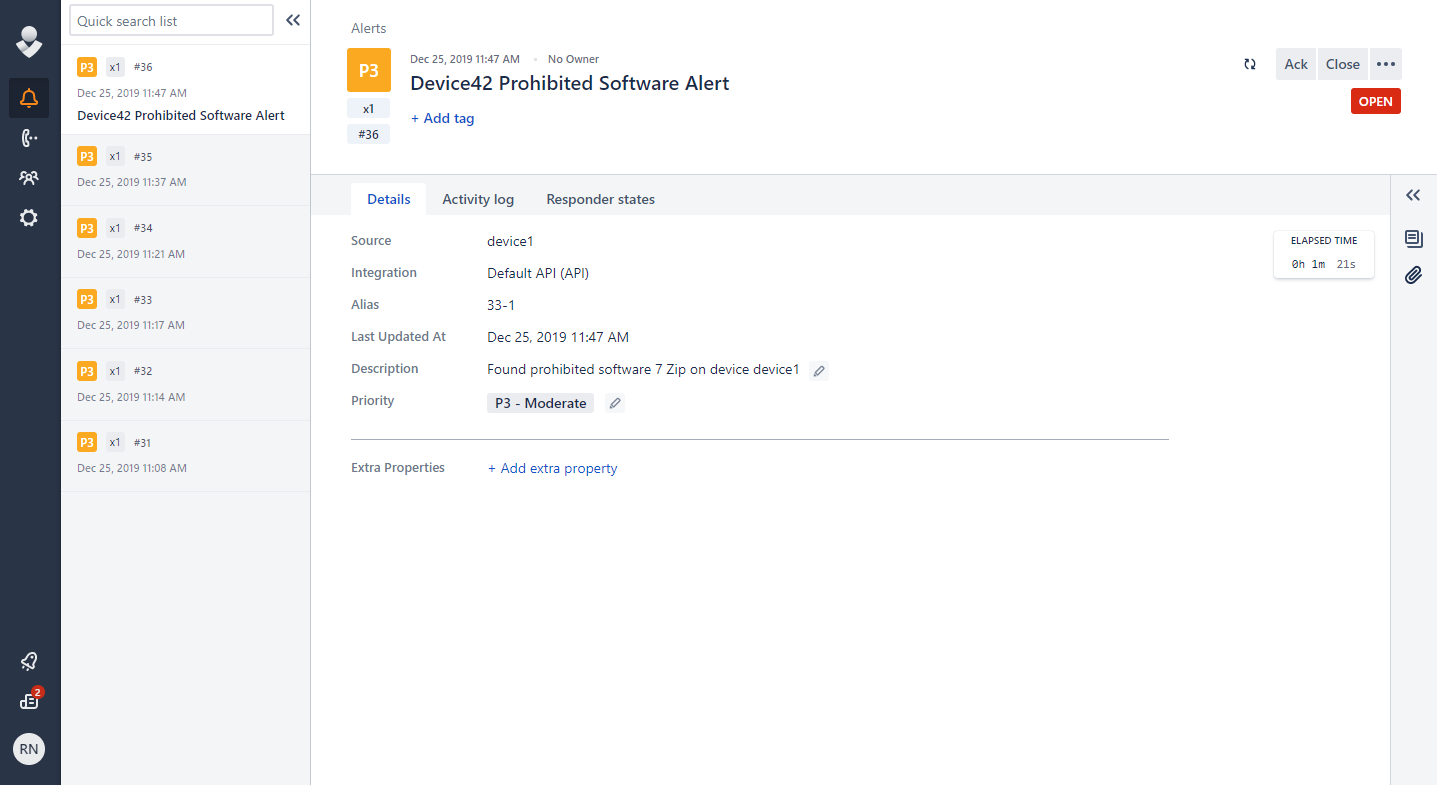
This marks the software as prohibited and triggers the alert created in the previous section. If 7 Zip is detected during discovery, an alert is generated in Opsgenie similar to the one shown below.