CyberArk Integration
This page is for Device42 administrators who use CyberArk as their secret manager and want Device42 to retrieve discovery credentials from CyberArk instead of storing them locally. By the end, Device42 will securely look up and use CyberArk-managed credentials for your discovery jobs.
Each Device42 discovery job is configured to use one or more sets of system credentials. If you already use CyberArk to manage passwords and other secrets, the Device42 CyberArk integration allows Device42 to securely retrieve these credentials from CyberArk as your primary secret management solution.
CyberArk offers useful features such as automatic password rotation, which can be configured to rotate secrets per your specific corporate policies and industry guidelines.
Passwords retrieved from CyberArk are not viewable in Device42.
Prerequisites
Before configuring the integration, make sure you have:
- Administrator access to both CyberArk and Device42
- The CyberArk AIMWebService API available, which requires the Central Credential Provider (CCP) plugin purchased and installed on CyberArk
- Your CyberArk URL and App Id
- Network connectivity between the Device42 appliance and CyberArk
Configure CyberArk
- Log in to CyberArk as an administrator.
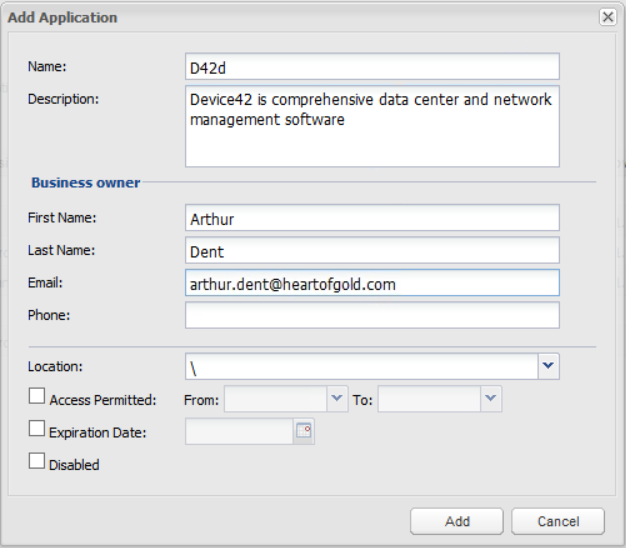
- Select the Applications tab, then click Add Application.
- Create an account for Device42 and click Add.
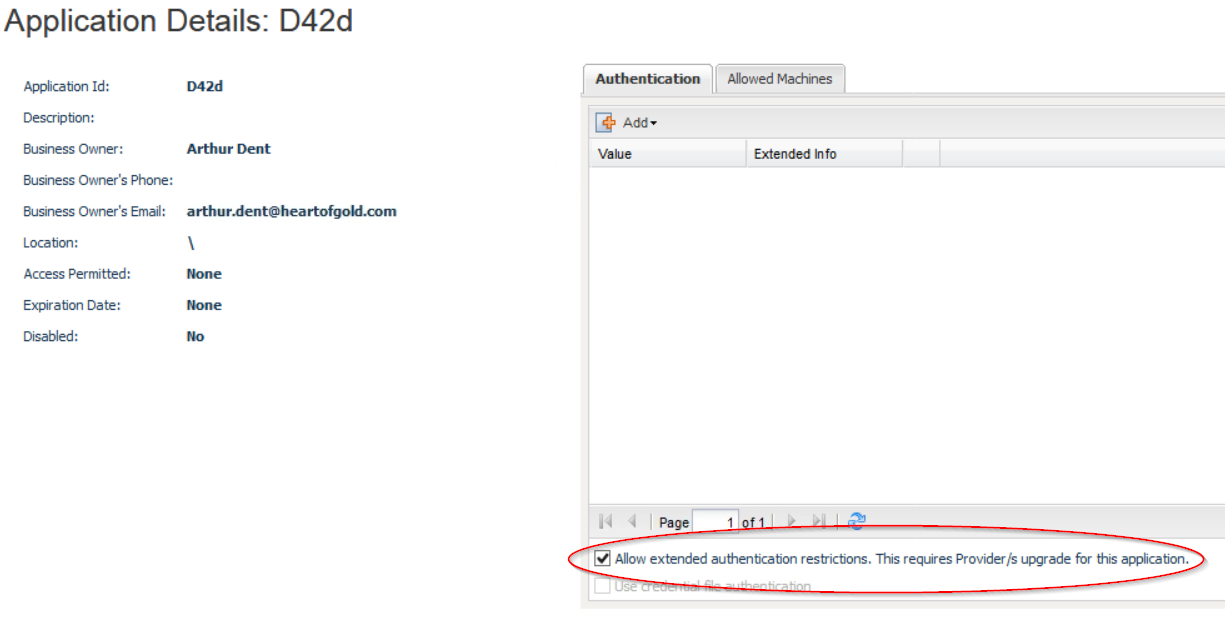
- Check the box to Allow Extended Authentication Restrictions.
Configure the Device42 CyberArk Integration
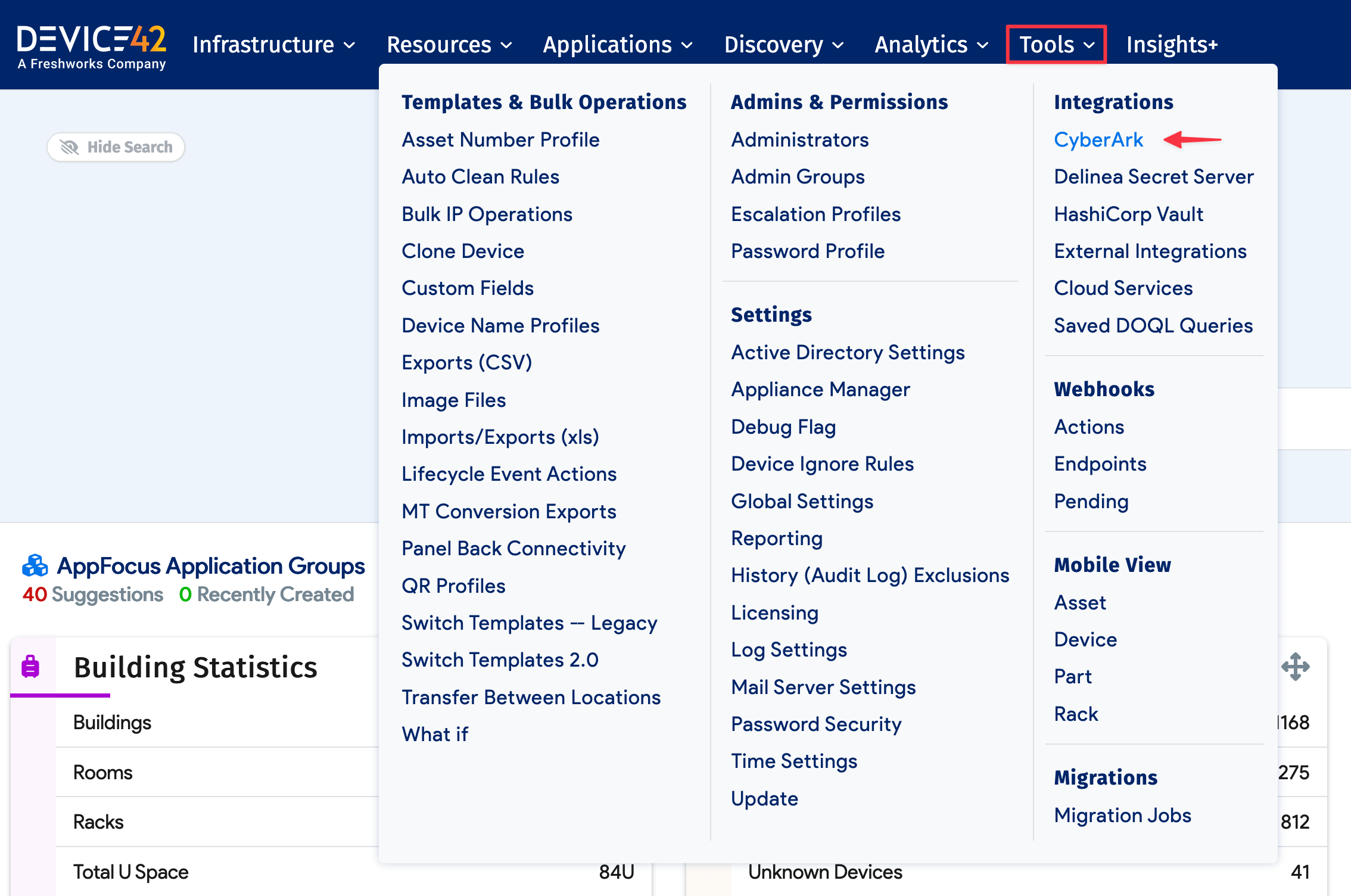
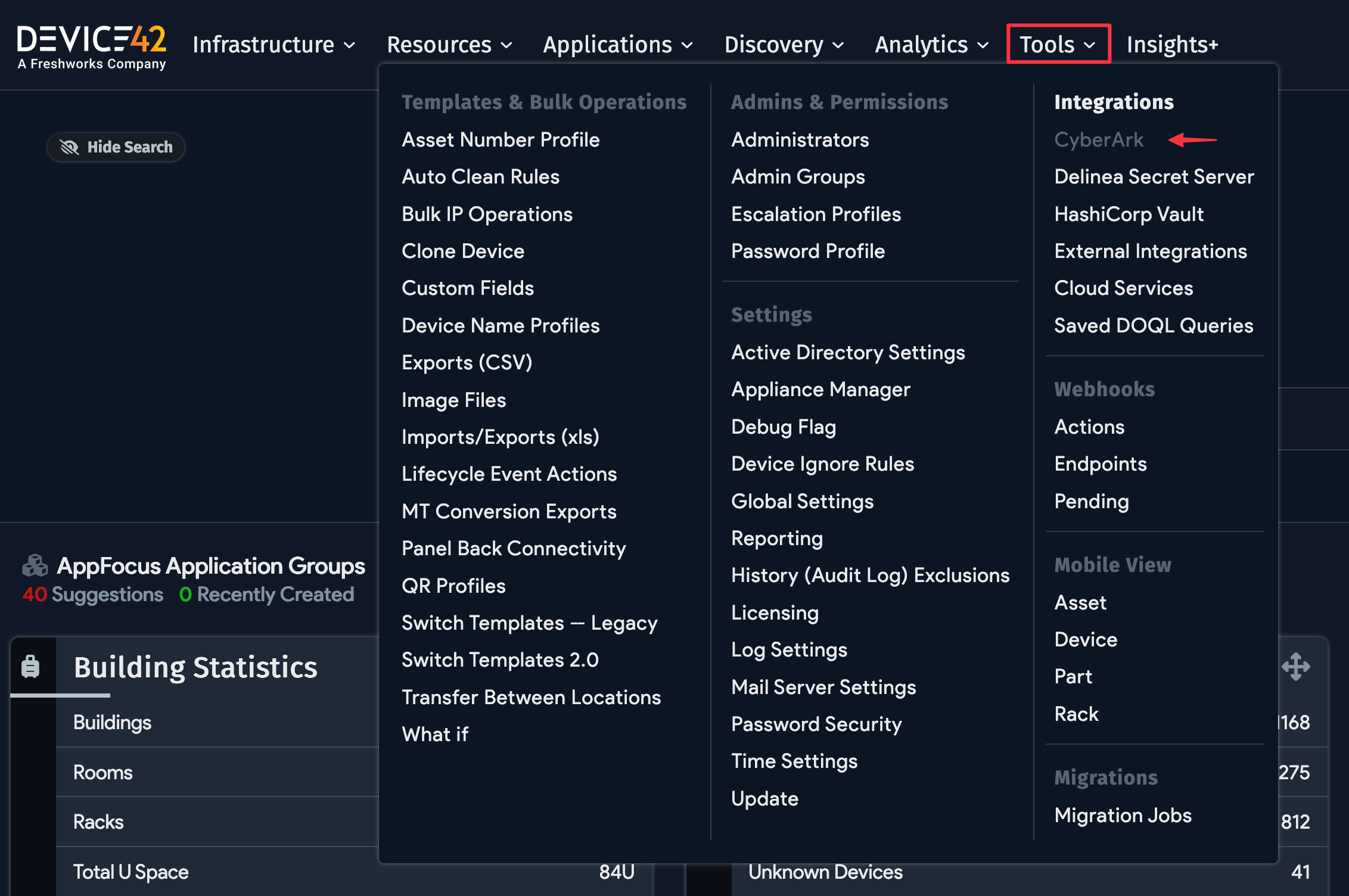
Navigate to Tools > Integrations > CyberArk from the Device42 main menu.
-
Select the Enable CyberArk checkbox and enter your CyberArk URL and App Id information.
-
You can use the default endpoint or specify a custom endpoint as needed in the CyberArk Endpoint field.
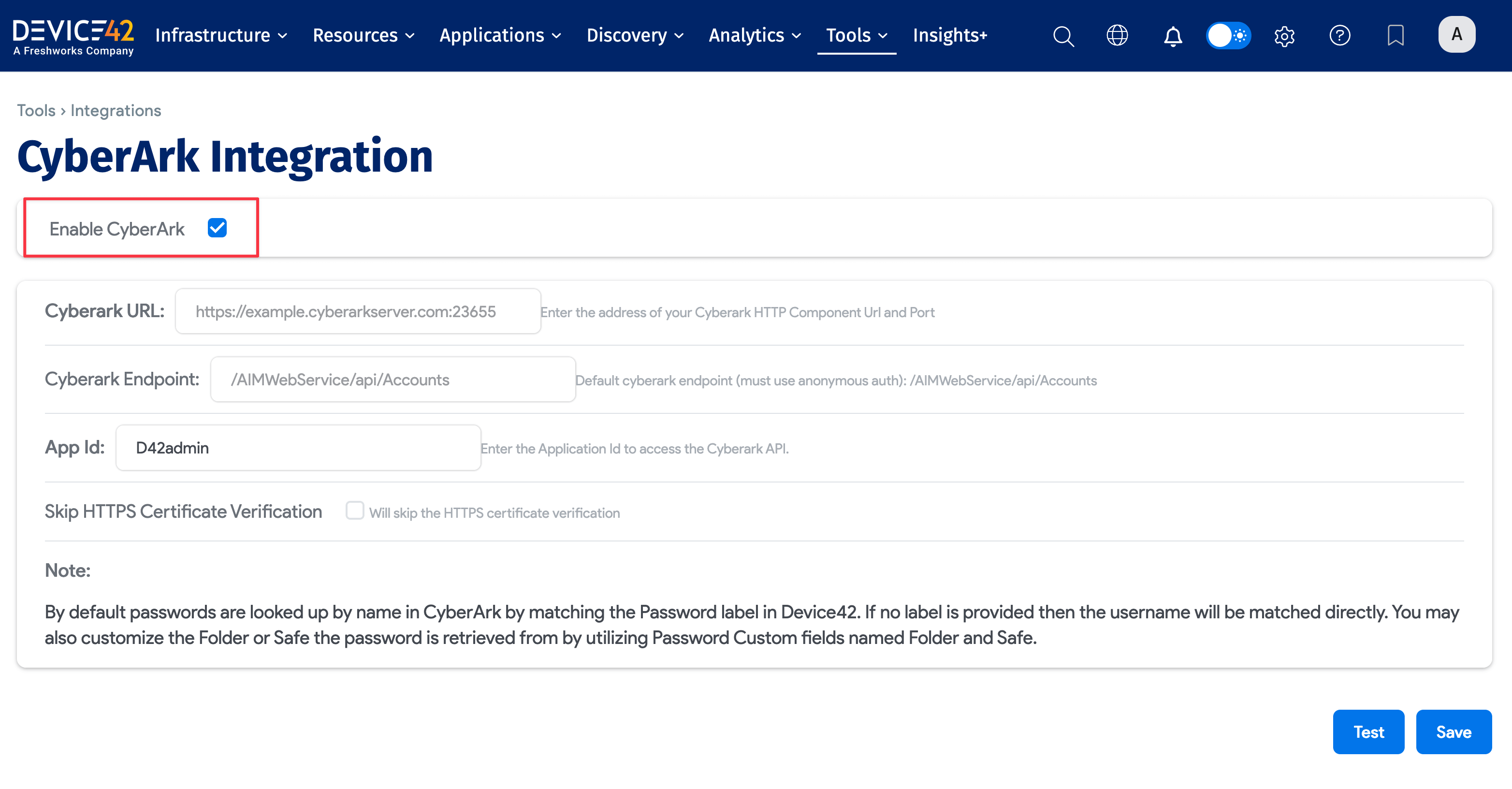
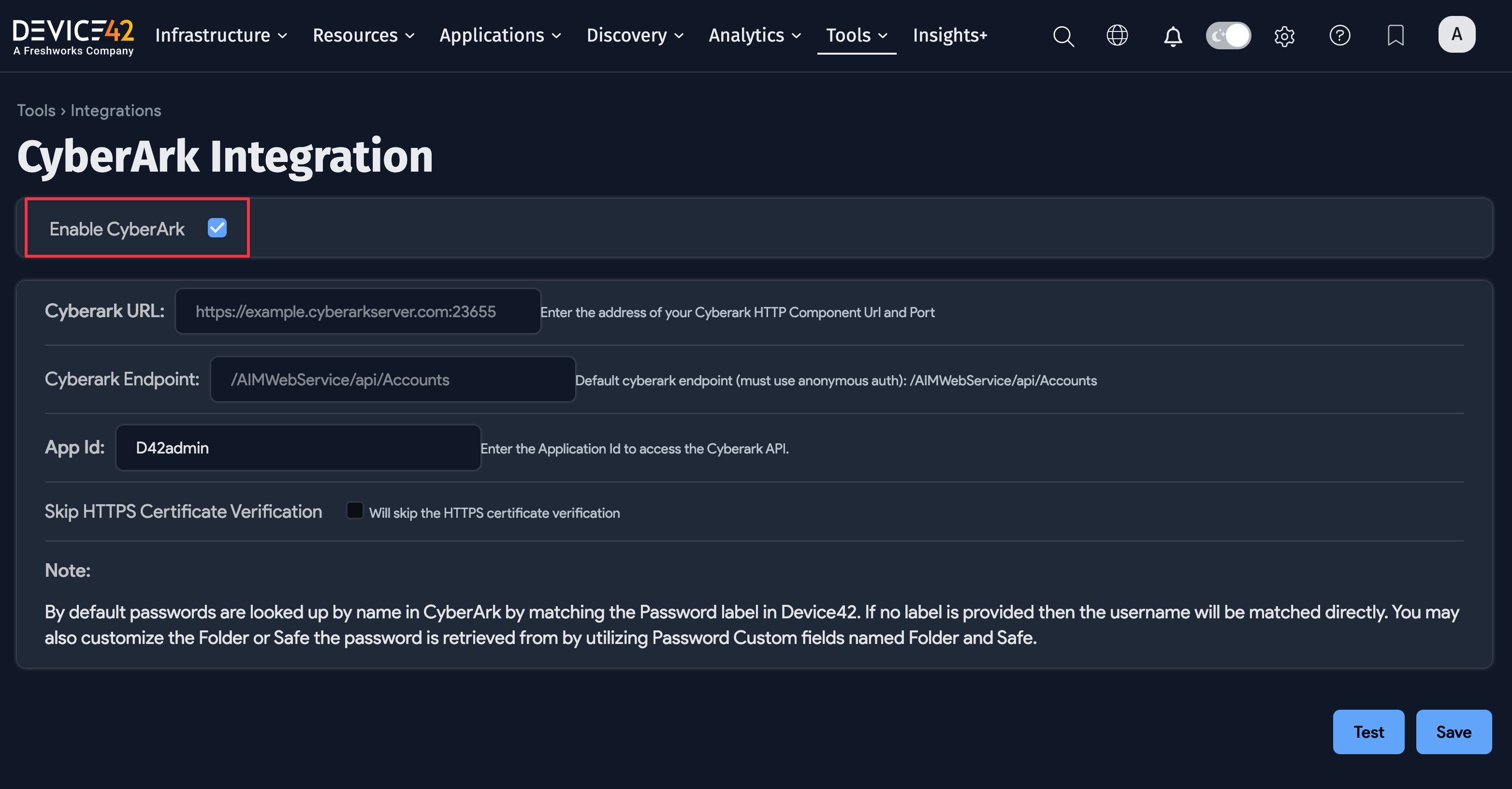
-
Click Test and enter the managed account name to verify connectivity.
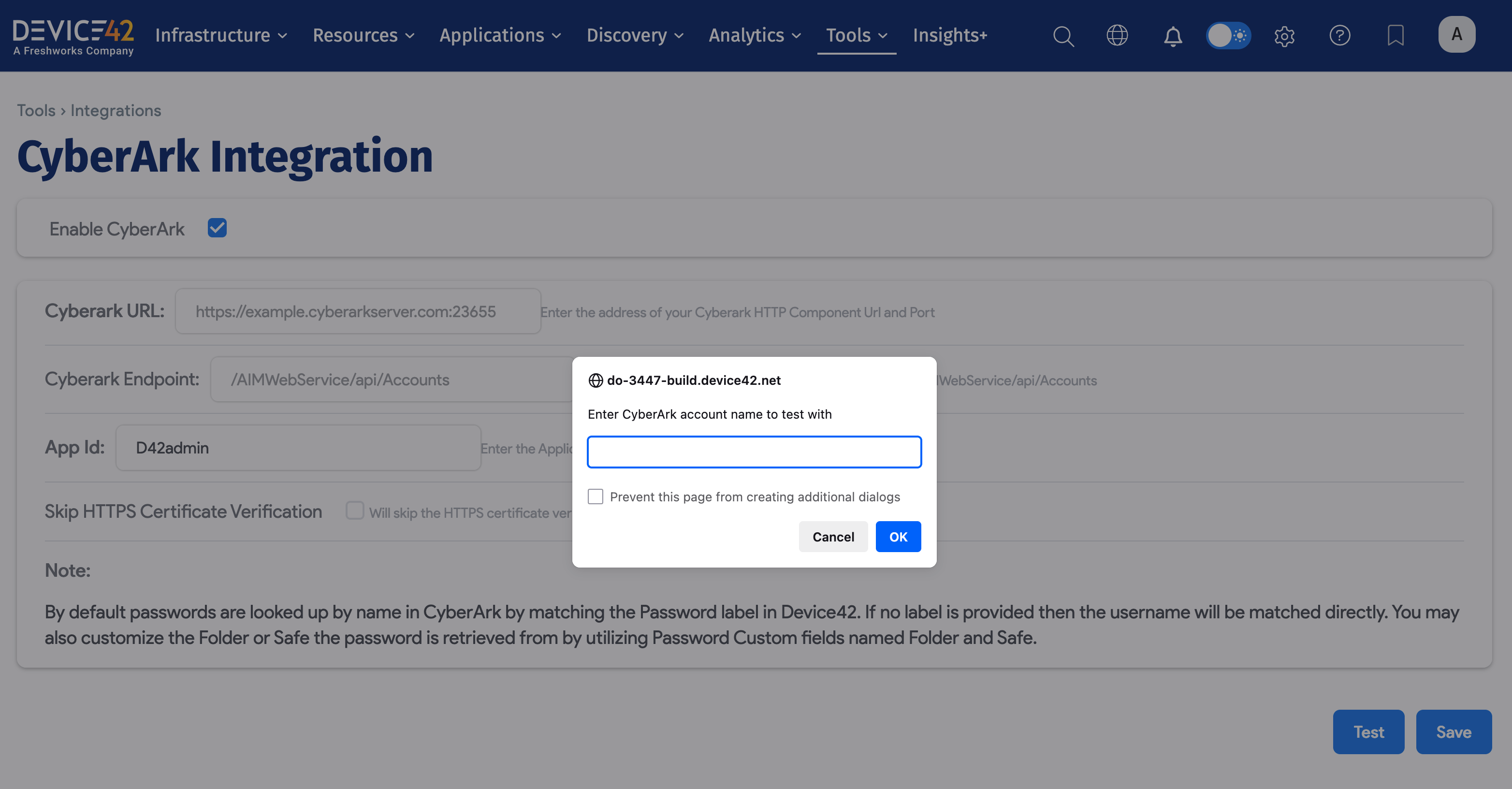
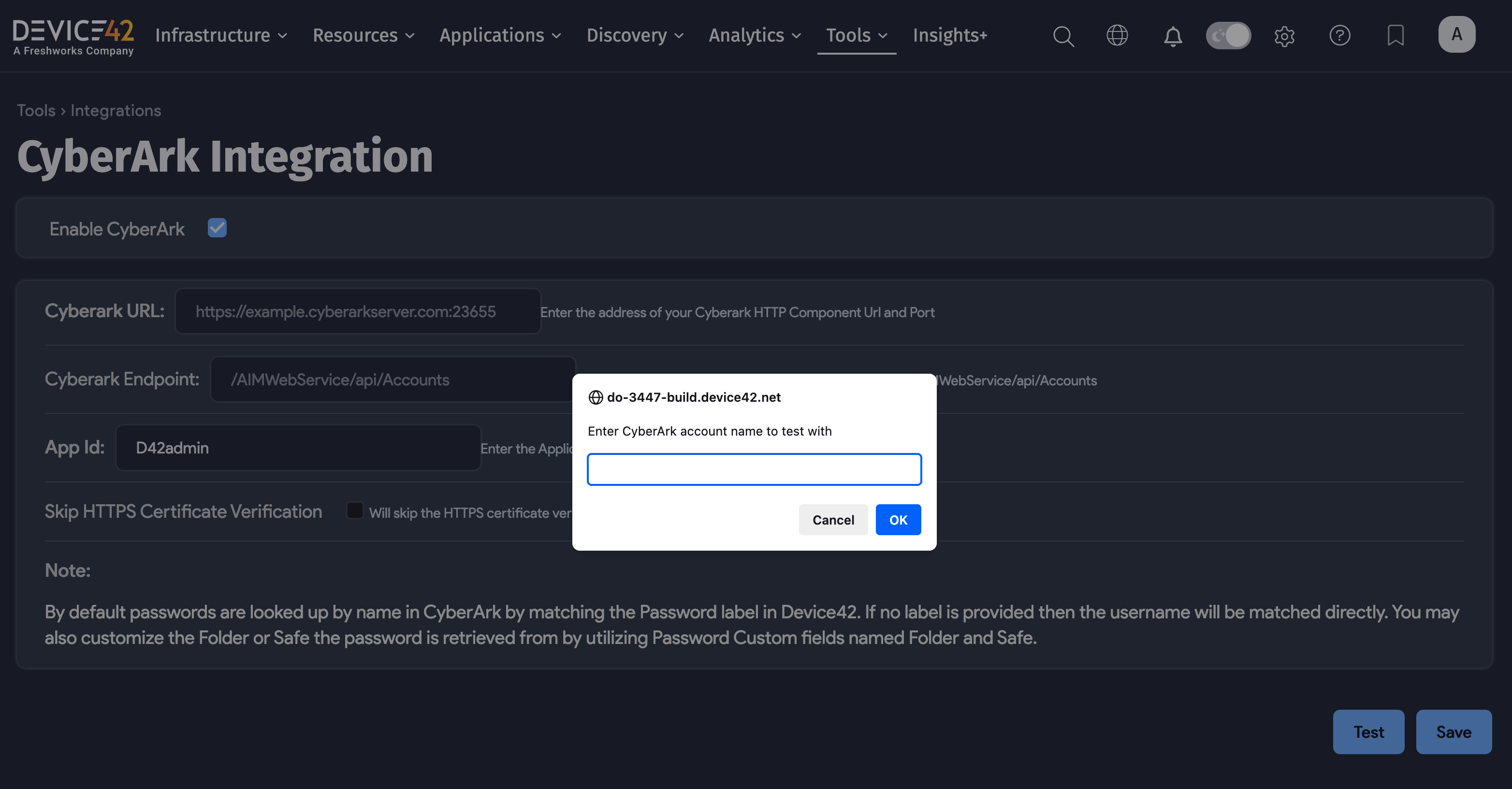
On confirmation of success, click Save.


If you run into configuration errors related to SSL errors, you may need to select the Skip HTTPS Certificate Verification option on the CyberArk configuration page before trying again.


Password Matching
By default, passwords are looked up by name in CyberArk by matching the Password label in Device42. If no label is provided, the username is matched directly.
You can also customize the Folder or Safe from which the password is retrieved using the Password Custom fields named Folder and Safe.
Long and Short Account Names
If your CyberArk account uses a long account name, enter it in the Secret Label field for matching purposes.
If your CyberArk account uses a short username, enter it in the Secret Username field for the discovery job.