HashiCorp Vault Integration
This page is for Device42 administrators who use HashiCorp Vault as their secret manager and want Device42 to retrieve discovery credentials from Vault instead of storing them locally. By the end, Device42 will securely look up and use Vault-managed credentials for your discovery jobs.
Each Device42 discovery job is configured to use one or more sets of system credentials. If you already use HashiCorp Vault to manage passwords and other secrets, the Device42 HashiCorp Vault integration allows Device42 to securely retrieve these credentials from HashiCorp Vault as your primary secret management solution.
HashiCorp Vault offers useful features such as automatic password rotation, which can be configured to rotate secrets per your specific corporate policies and industry guidelines.
This page covers how to configure HashiCorp Vault, connect it to Device42, and use it as the credential source for discovery jobs.
Passwords retrieved from HashiCorp Vault are not viewable in Device42.
Prerequisites
Before configuring the integration, make sure you have:
- Administrator access to both HashiCorp Vault and Device42
- Network connectivity between the Device42 appliance and HashiCorp Vault
- The Vault details listed under Configure HashiCorp Vault: an AppRole (Role ID and Secret ID) with read access to the required secret paths, the secret engine path, and the namespace if you use multi-tenancy
Configure HashiCorp Vault
Configure the following settings in HashiCorp Vault before connecting to Device42:
- (Required) Role ID and Secret ID: Create an AppRole in HashiCorp Vault with a policy that grants "read" access to the desired secret paths. AppRole authentication uses both
RoleIDandSecretIDas credentials. See the HashiCorp AppRole documentation for details on creating an AppRole and retrieving these values. - (Required) Secret Engine Path: Specify the path to a valid KV Version 1 or Version 2 secret engine to retrieve secrets from. For example:
secret,kv,foo,bar. - (Optional) Namespace: If you are using multi-tenancy with namespaces, include the namespace as well. Note that this is limited to Vault Enterprise Standard or HCP Vault clusters.
Configure Device42
-
Select Tools > Integrations > HashiCorp Vault from the Device42 menu.
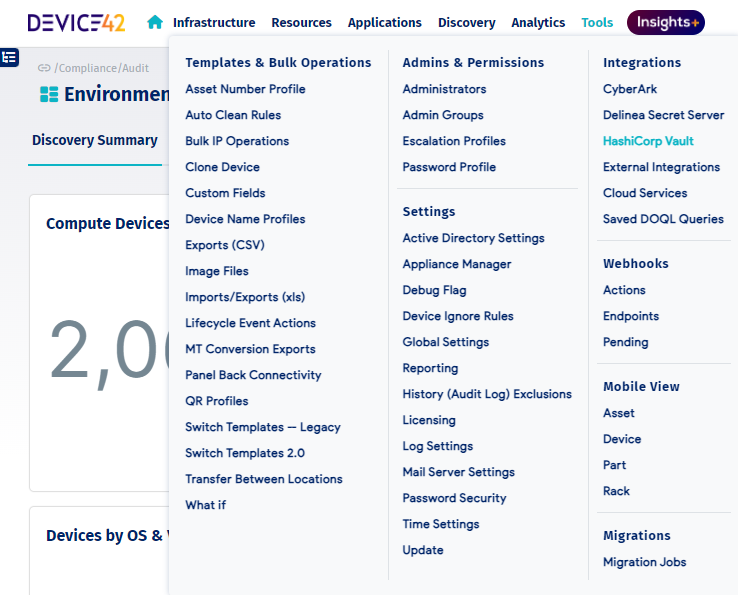
-
Click the Edit button in the bottom right corner and enter your HashiCorp Vault RESTful API information.
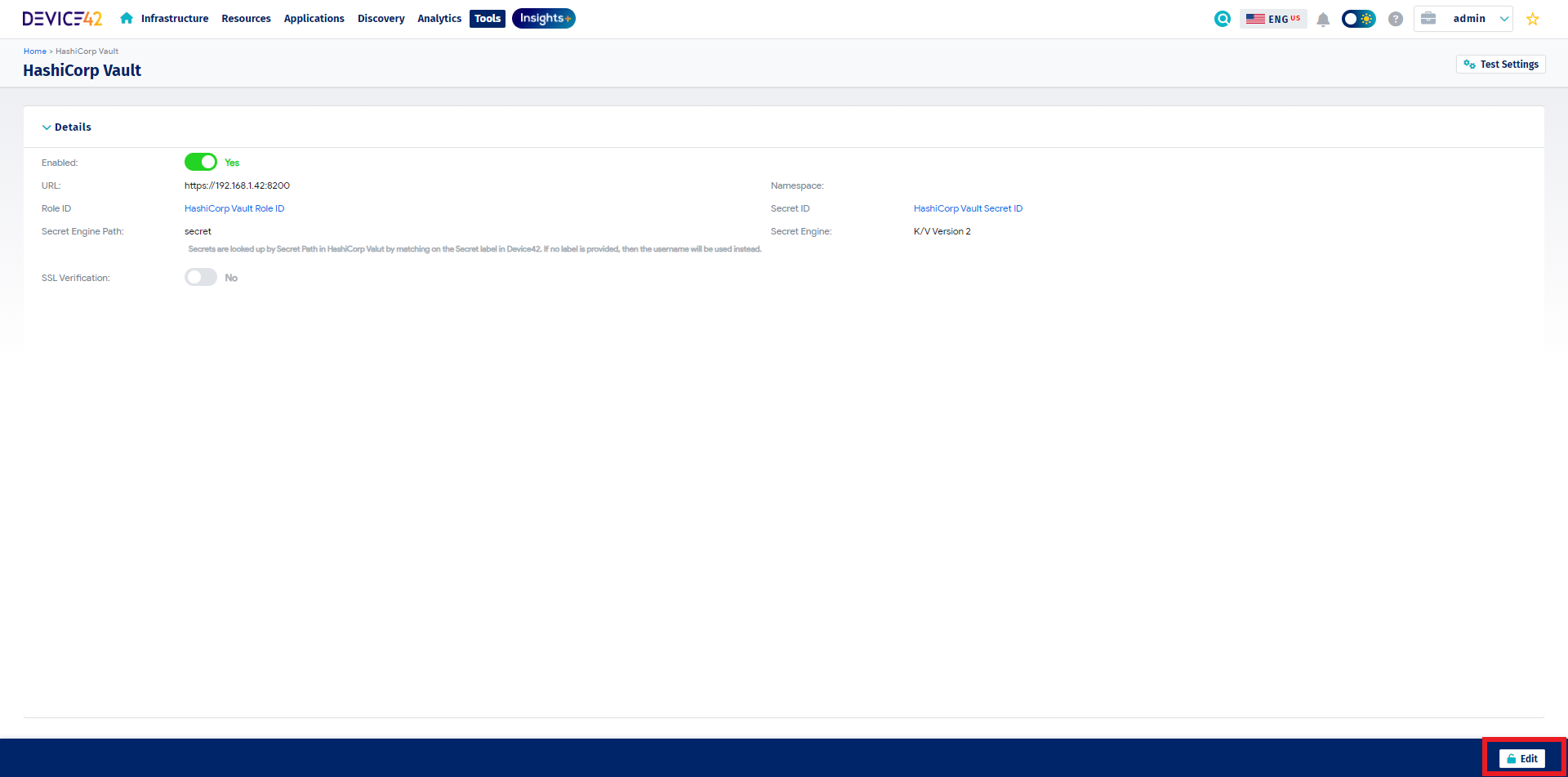
-
Verify connectivity by clicking the Test Settings button in the top right corner.

The Test Settings button validates the supplied configuration settings by retrieving a token from HashiCorp Vault. If successful, a "HashiCorp Vault Settings Valid" message appears in the top right corner.

-
If you encounter SSL errors, disable SSL Verification on the HashiCorp Vault configuration page before trying again.

Use the Integration for Discovery
To create a new password object using HashiCorp Vault, select HashiCorp Vault from the Password Storage dropdown menu.

Note: By default, both usernames and passwords are retrieved from HashiCorp Vault by looking up the secret using its path within the vault. The value used for the lookup is assumed to be stored in the Label field of the related secret in Device42. If there is no value for Label, the value is taken from the Username field instead.
Usernames and passwords are parsed from the secret returned by HashiCorp Vault using the slugs username and password respectively. You can override the default slugs using Password Custom Fields named username_slug and password_slug.