Rundeck Node Data Integration
This page is for automation engineers who want Rundeck to use the Device42 CMDB as a dynamic node source. By the end, Rundeck pulls its node list from Device42 and shows Device42 details such as location, operating system, and device type for each node.
Device42 offers a Rundeck integration plugin that can dynamically pull node data from Device42's CMDB.
Device42 received a report that this plugin stops working after an upgrade to Rundeck 6.1. Device42 has not verified compatibility with Rundeck 6.1.
Contact Device42 Support before you install this plugin on Rundeck 6.1 or upgrade an existing Rundeck installation.
Prerequisites
Before you install the plugin, make sure you have:
- Write access to the Rundeck plugin directory
- The Java version required by your Rundeck version
- Your Device42 URL and credentials
- Confirmation from Device42 Support that your Rundeck version is compatible
Installation
Device42 provides a legacy precompiled JAR on the Device42 Rundeck Integration page.
You can also build the plugin from its source repository. The repository was last updated in 2016 and uses Rundeck 2.x libraries. Building the source does not add compatibility with current Rundeck releases.
The included wrapper pins Gradle 2.7. Use Java 8 to build the plugin from source.
After you download or build the plugin, copy it to the Rundeck plugin directory. On Ubuntu, the default directory is /etc/rundeck/libext.
Note: Java 1.8 or later is required.
To set up filters, add a new Rundeck resource to the project you are on through Configuration and select Devices from D42. Enter your Device42 URL and credentials, and then you can enter filter values.
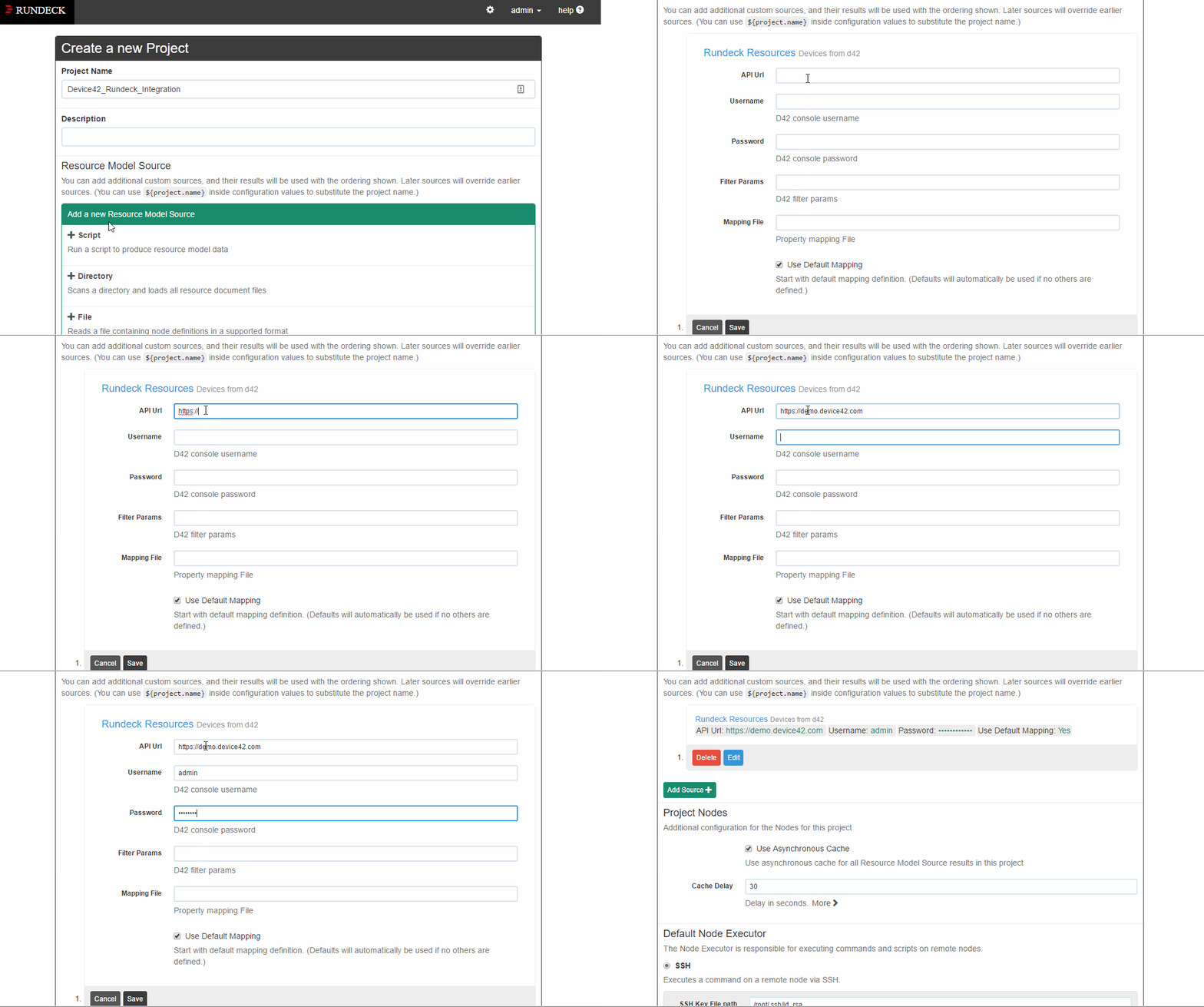
Use Filters
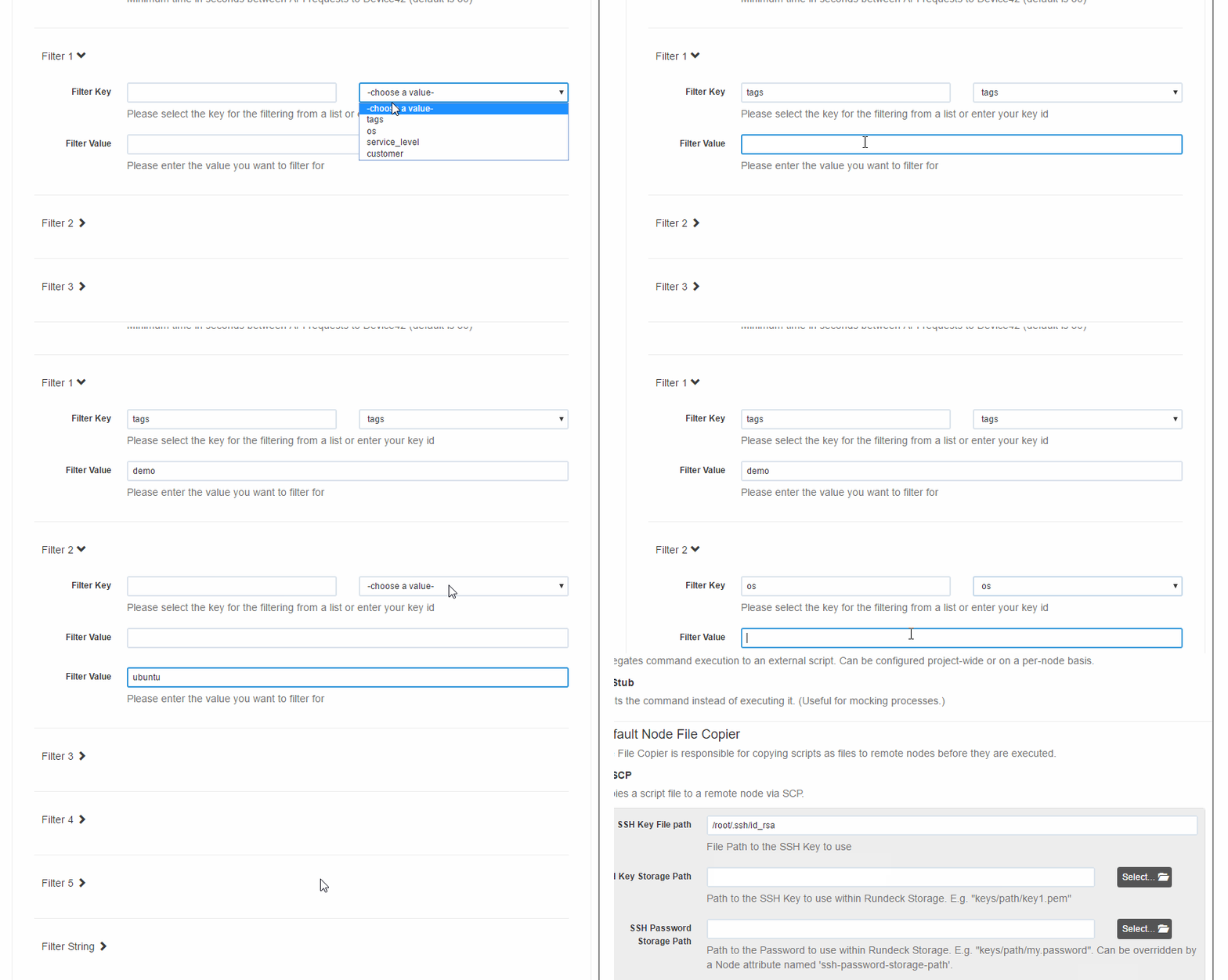
Device42 includes some common filters: tags, os, service_level, and customer. You can also enter any Device42 API endpoint as a filter, including custom fields. For a full list please visit Device42 API Page.
The following example shows how to use predefined filters in Rundeck:
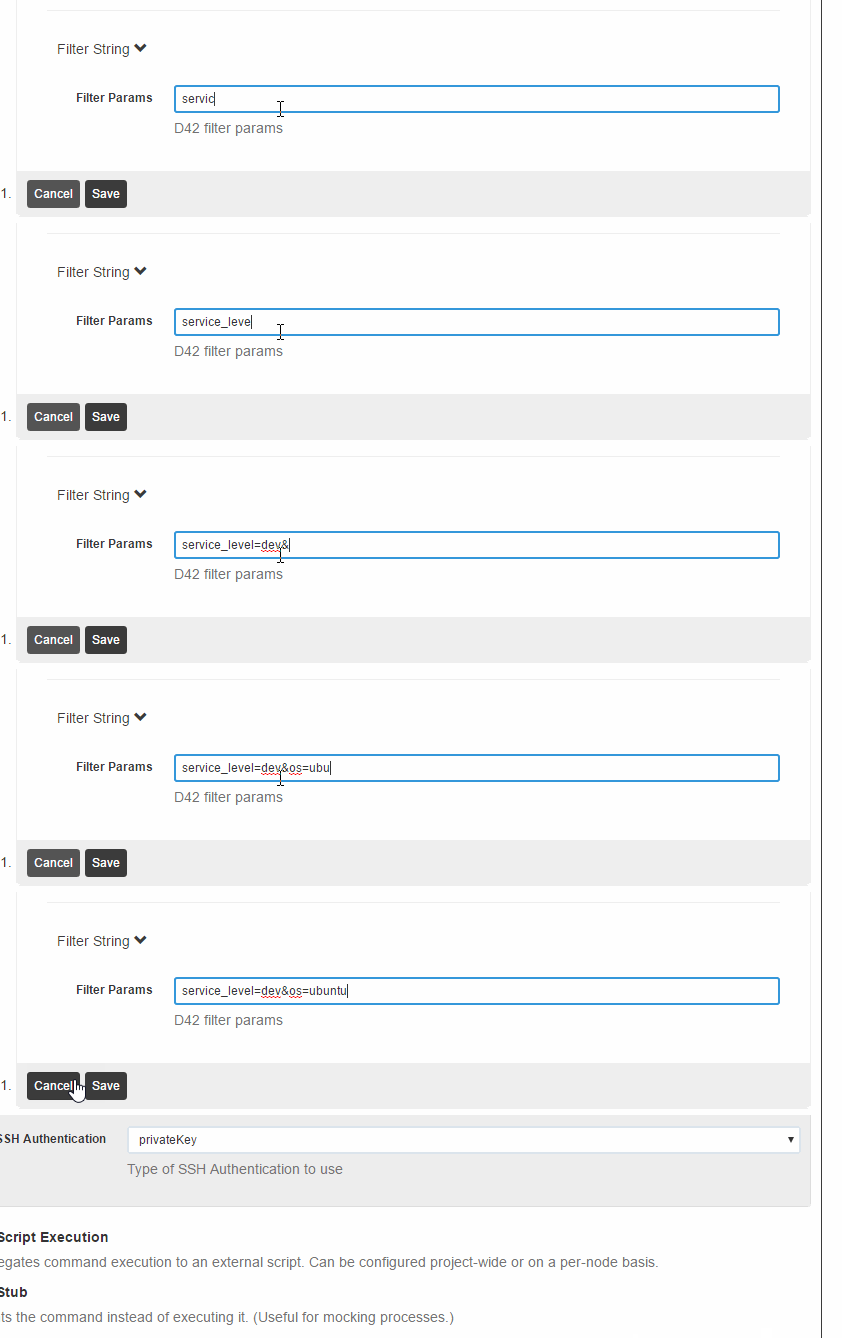
To query nodes from Device42 based on any other information available from the Device42 API, including custom fields, use the Filter Params section to enter those fields. The following example configures custom filter parameters based on Device42 API endpoints:
Work with Device42 Nodes in Rundeck
After adding the filters, you will now be able to see which nodes Rundeck is pulling into Device42 by selecting the Nodes option in Rundeck.
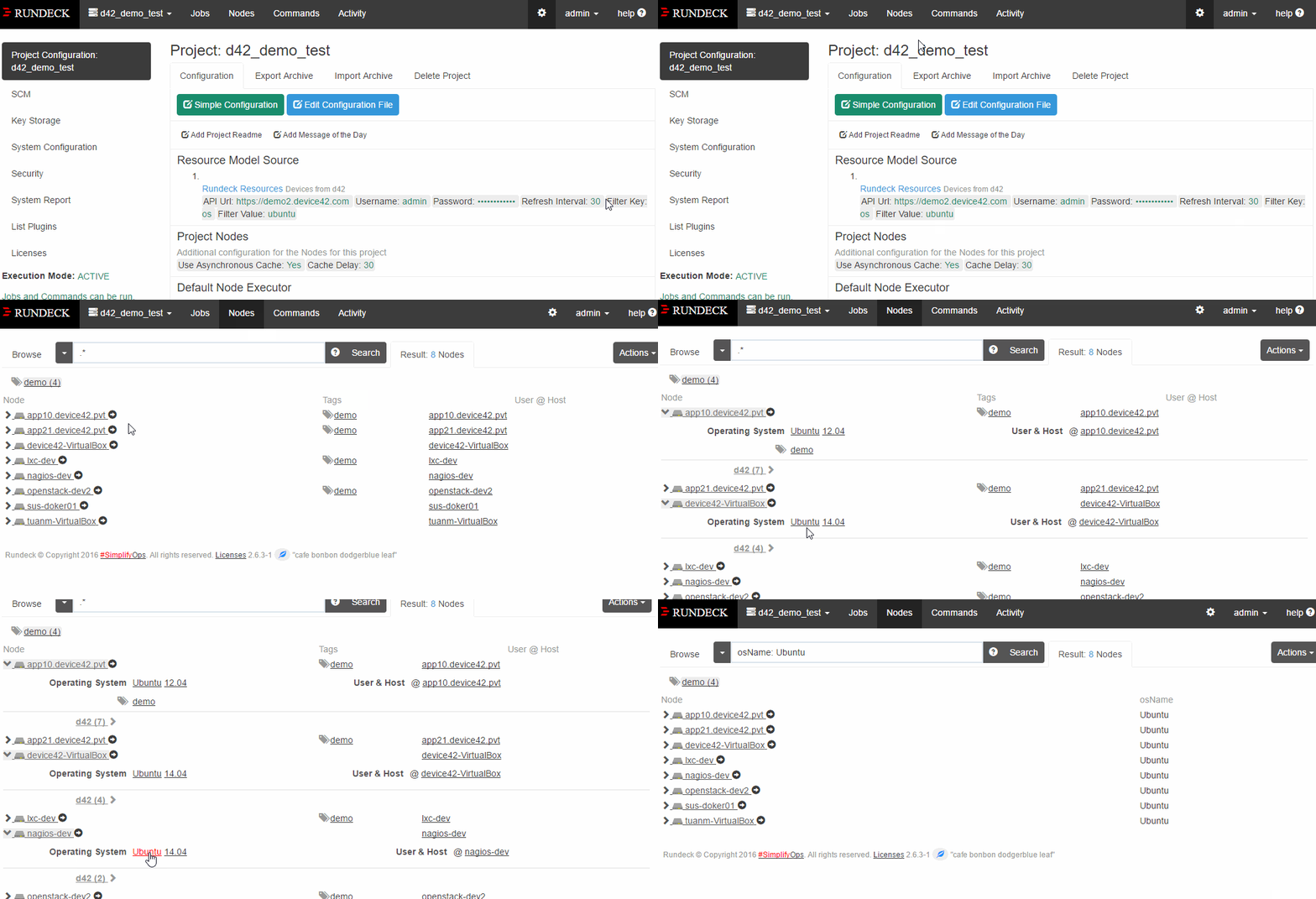
Drill down to one of the nodes to see the synchronized node data. This includes building, room, and rack information for a device, operating system information, device type, and other information when applicable, such as a virtual machine's host.
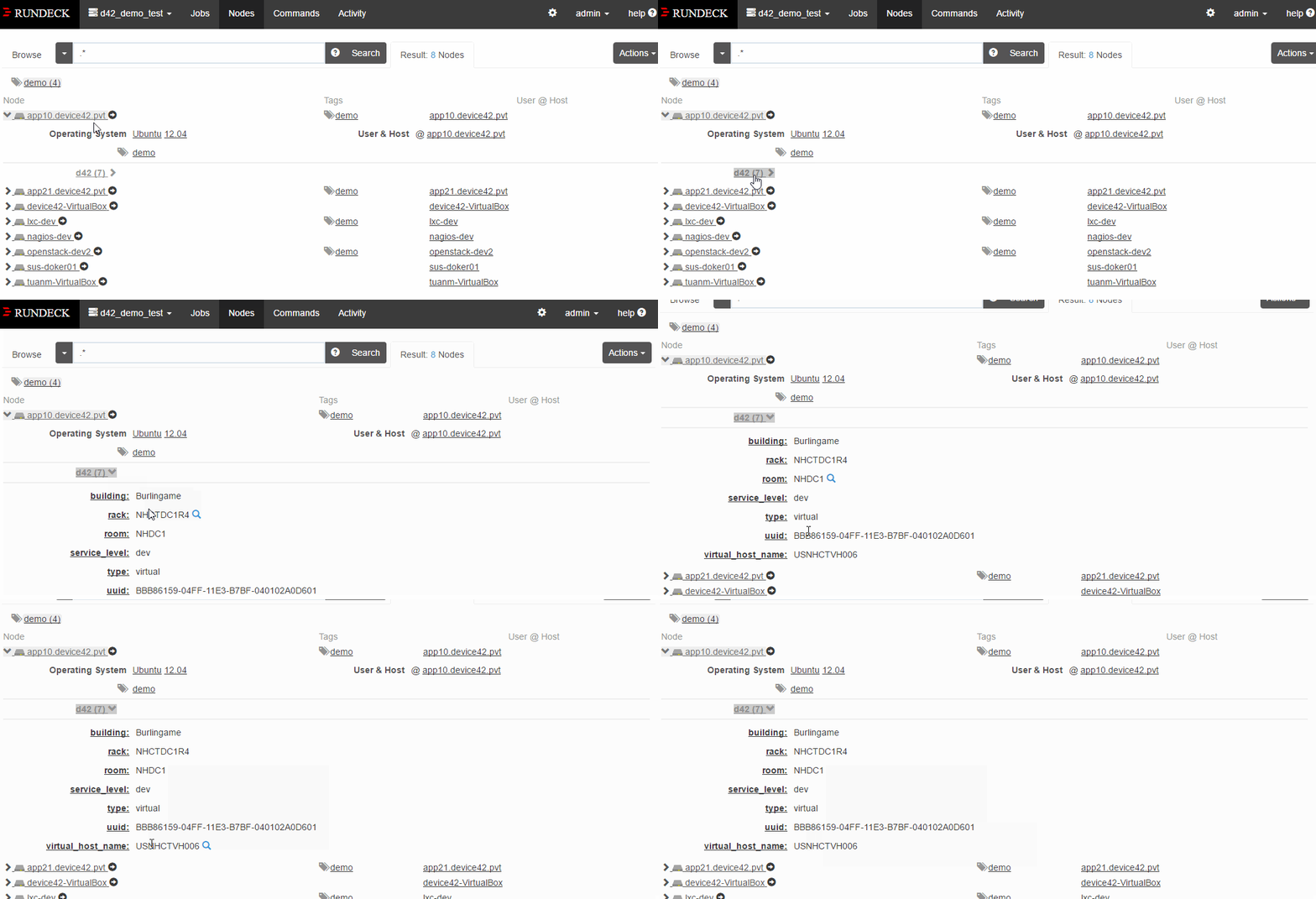
When you create Rundeck jobs, you no longer have to track down your node data to make sure the jobs run on the correct systems. Device42 keeps your data up to date, which removes one more hurdle from your DevOps workflow.
If you do not set a cache value, scheduled jobs refresh the list of nodes at the time they run, so you always have the most up-to-date list. To use smart filters for specific jobs, use the default filtering mechanism in Rundeck. All collected Device42 attributes are stored as node properties, tags, or attributes.