Using the Re-Importable Export Feature
Use the re-importable export feature to make bulk changes to devices by exporting selected records, editing them in a spreadsheet, and importing the updated data back into Device42.
This page walks through a bulk device renaming example and points to the related API documentation for additional update options.
Example: Renaming Multiple Devices
This example shows how to rename multiple devices with a re-importable export.
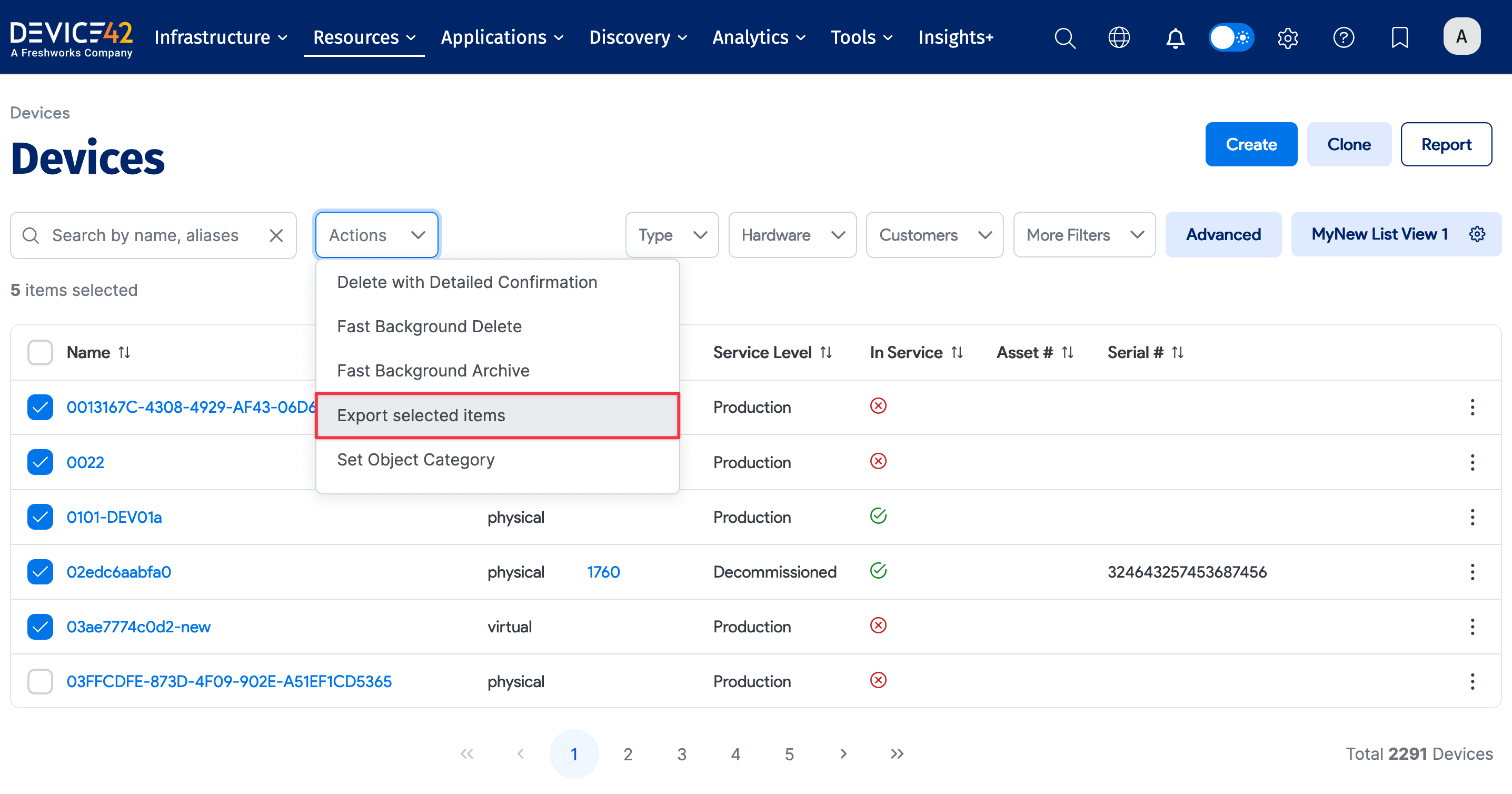
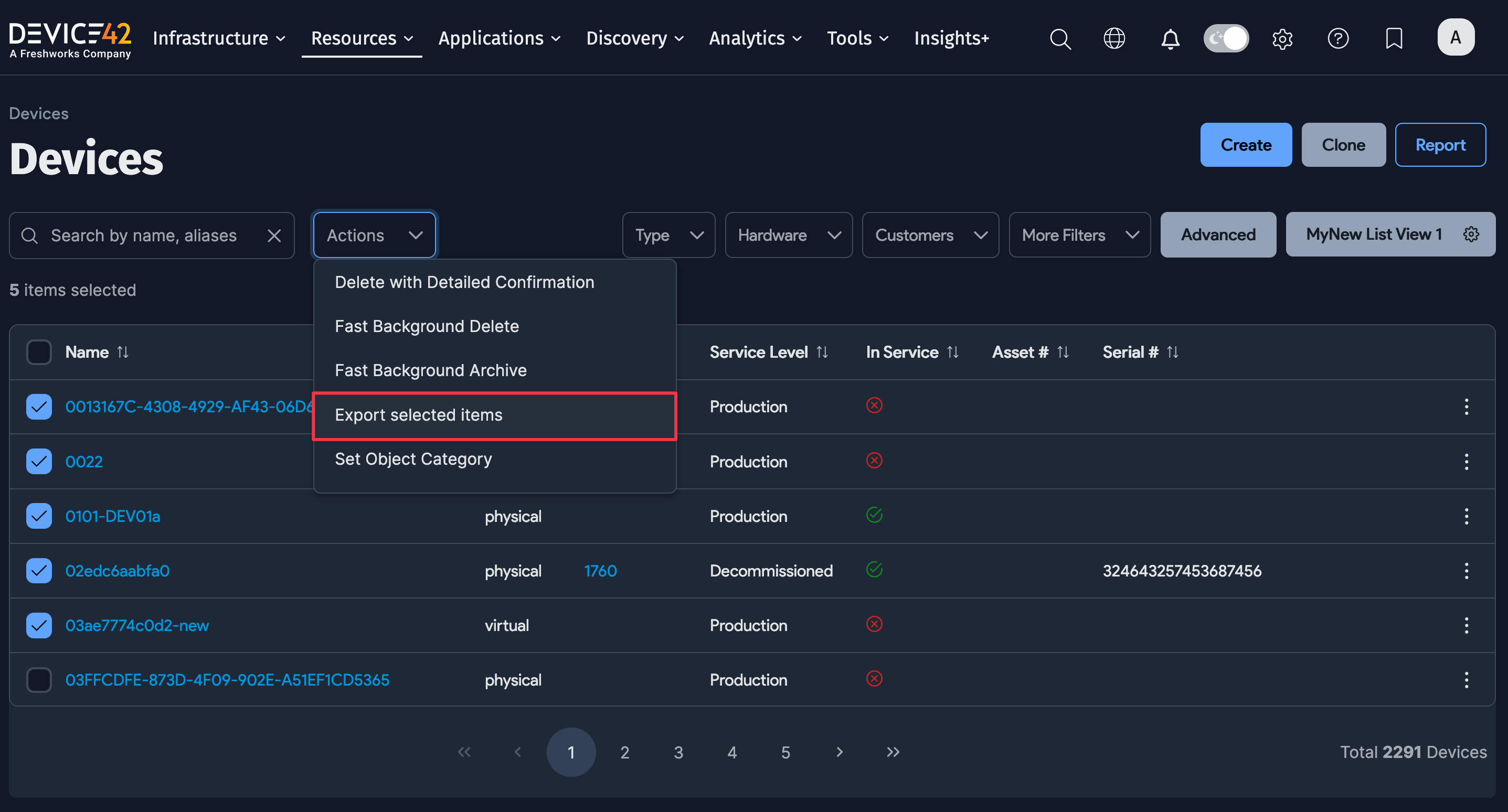
Select the devices you want to rename from any device list view, like the one located under Resources > Compute > All Devices.
From the Actions dropdown menu, choose the Export selected items option.
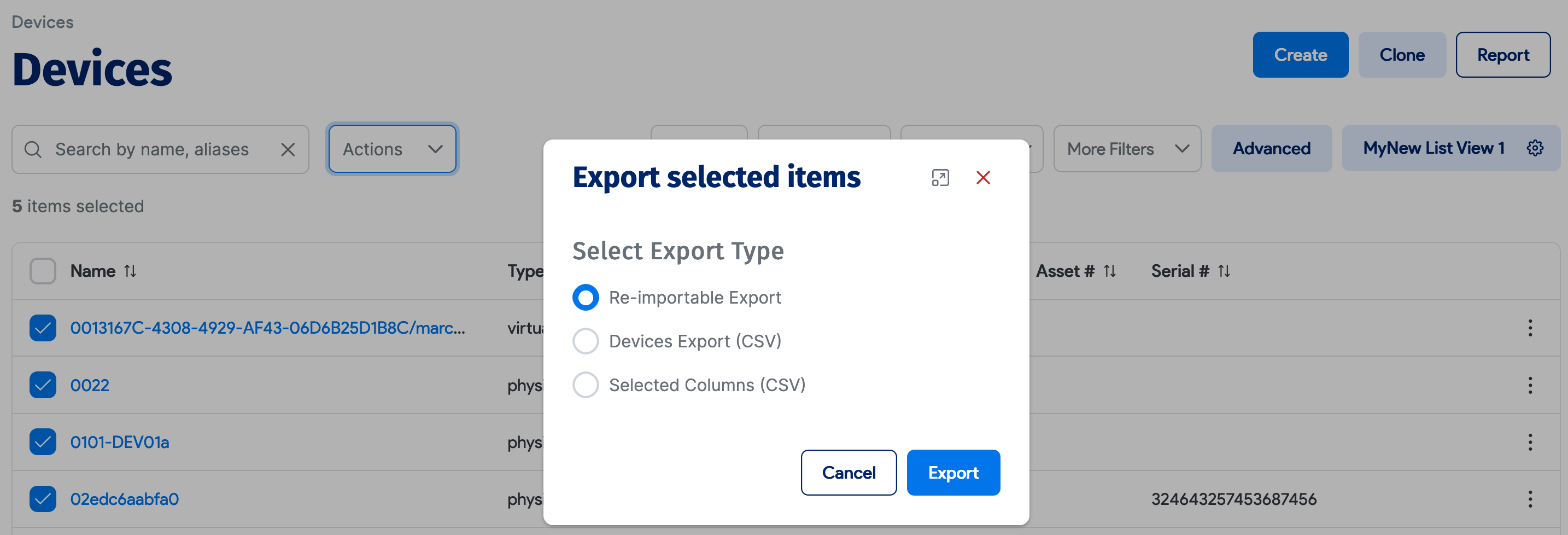
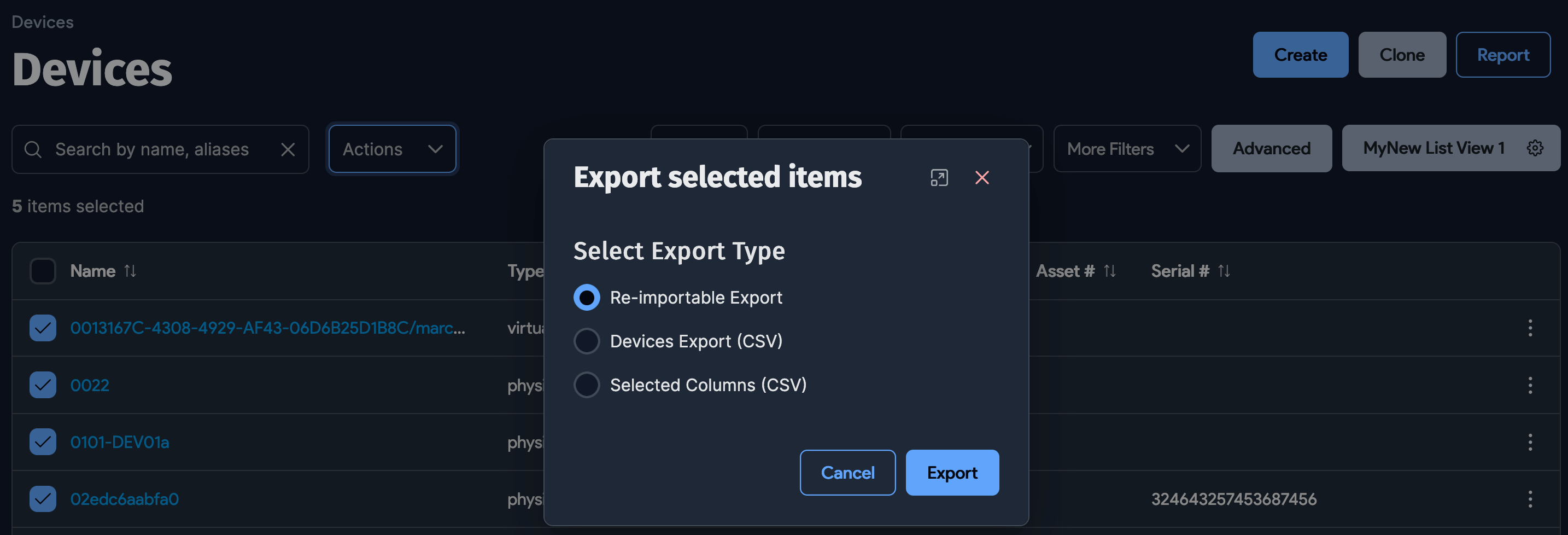
Choose Re-importable Export, and then click Export. The export opens in a new browser tab for each 1,000,000 generated records.
Download the spreadsheet and update the device names. If your naming convention includes numbers, Excel can auto-fill the names after you enter the first two values, select both cells, and drag the selection down the column.
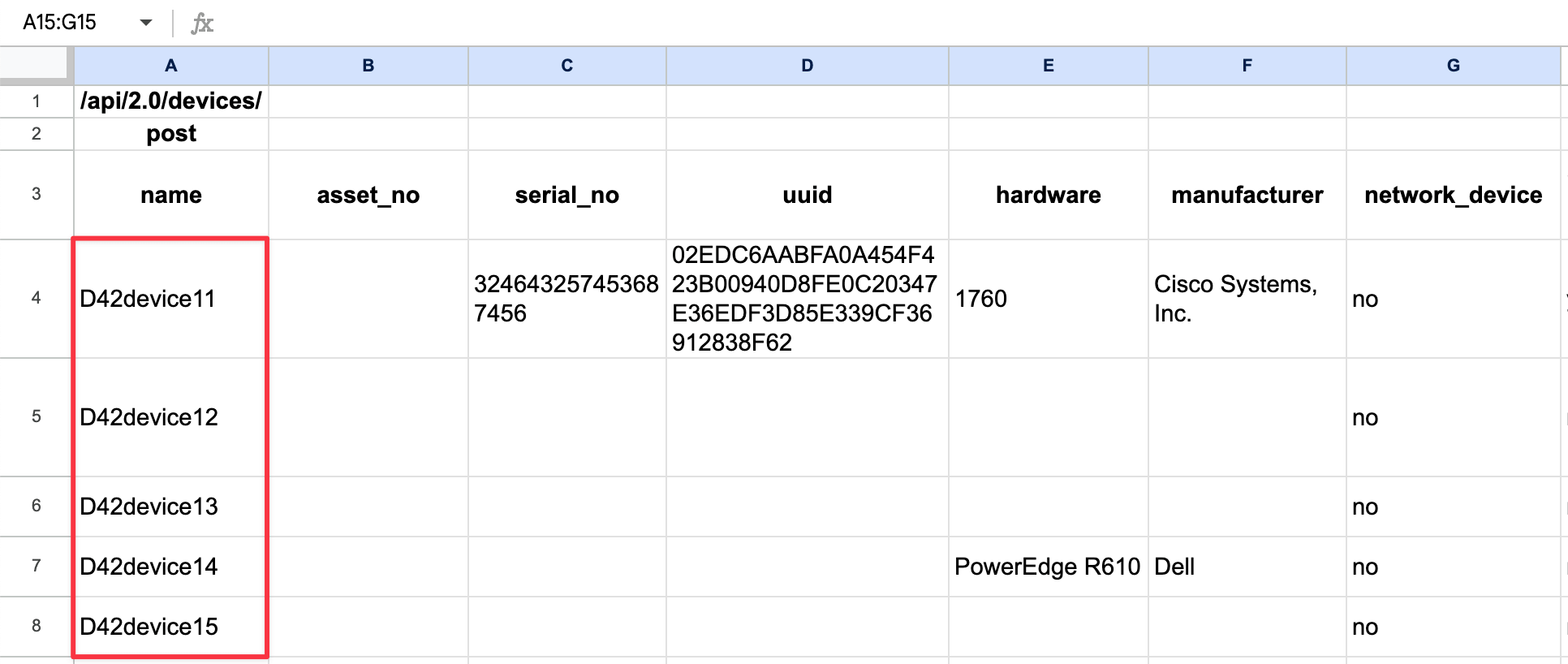
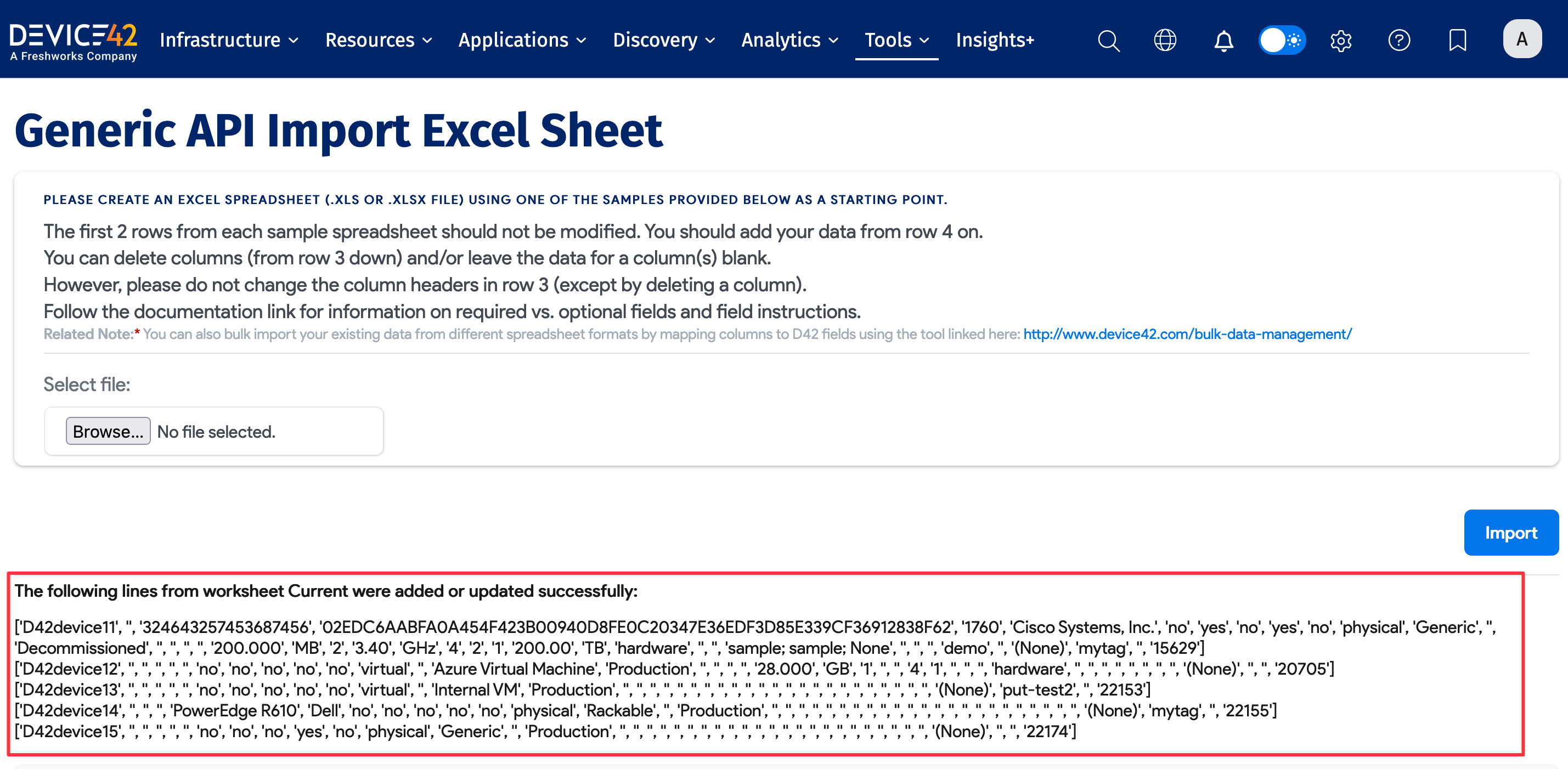
After you update the spreadsheet, go to Tools > Imports/Exports (xls) in Device42, upload the file, and click Import.
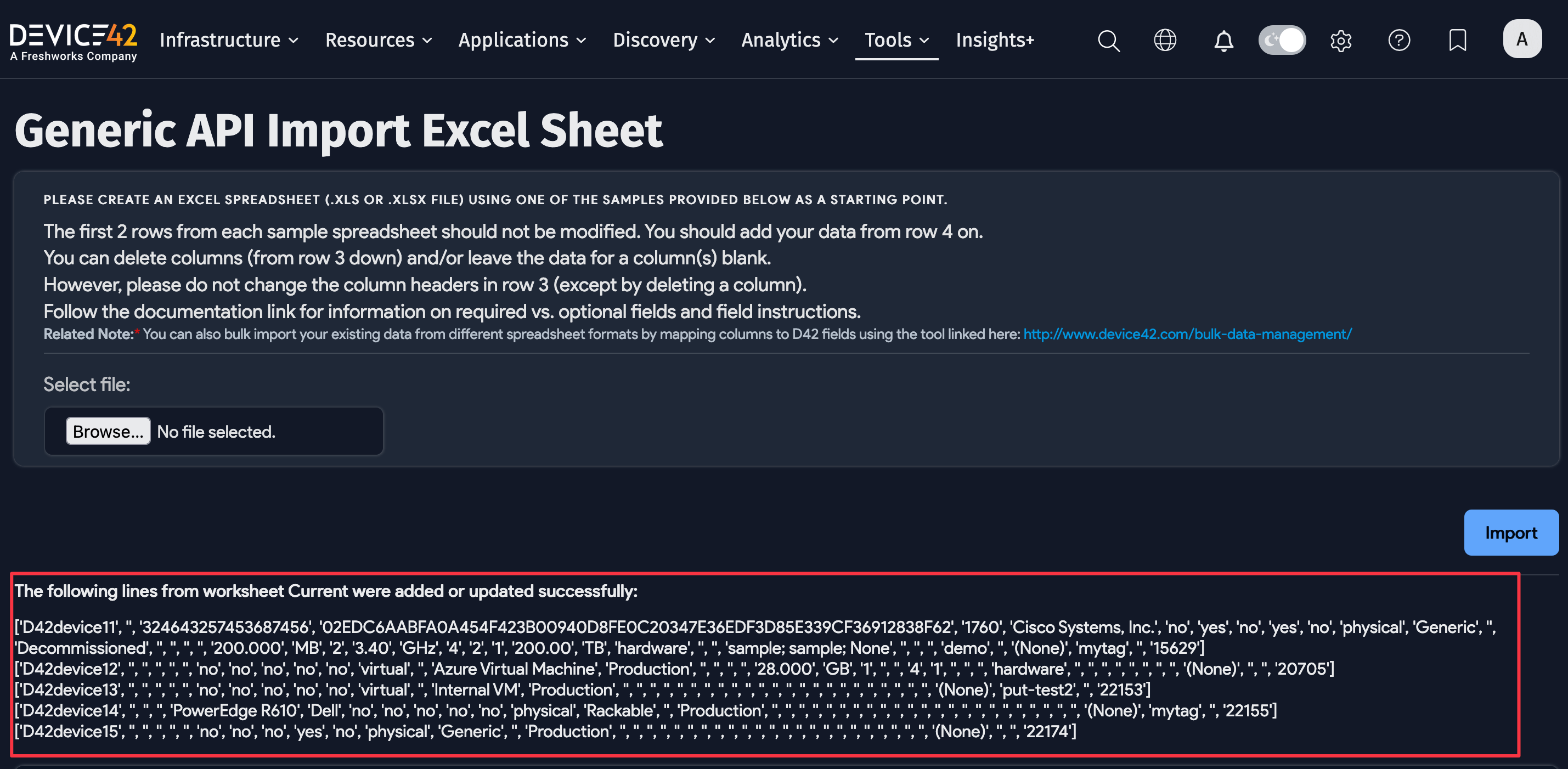
When the import is complete, you will see the confirmation message stating that the lines from worksheet Current were added or updated successfully.
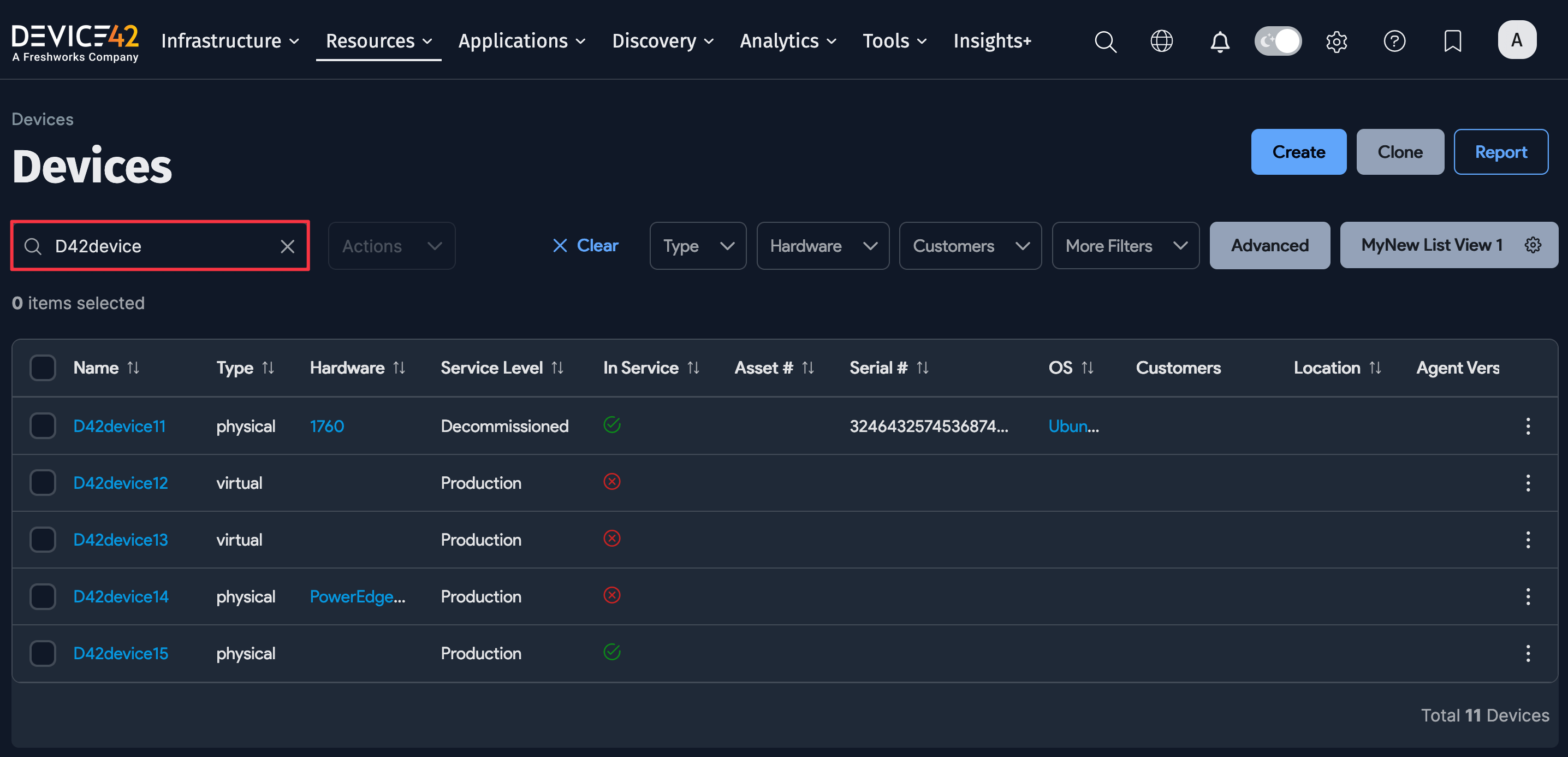
To confirm the bulk device rename, search for the new device names from the search bar on the device list page.
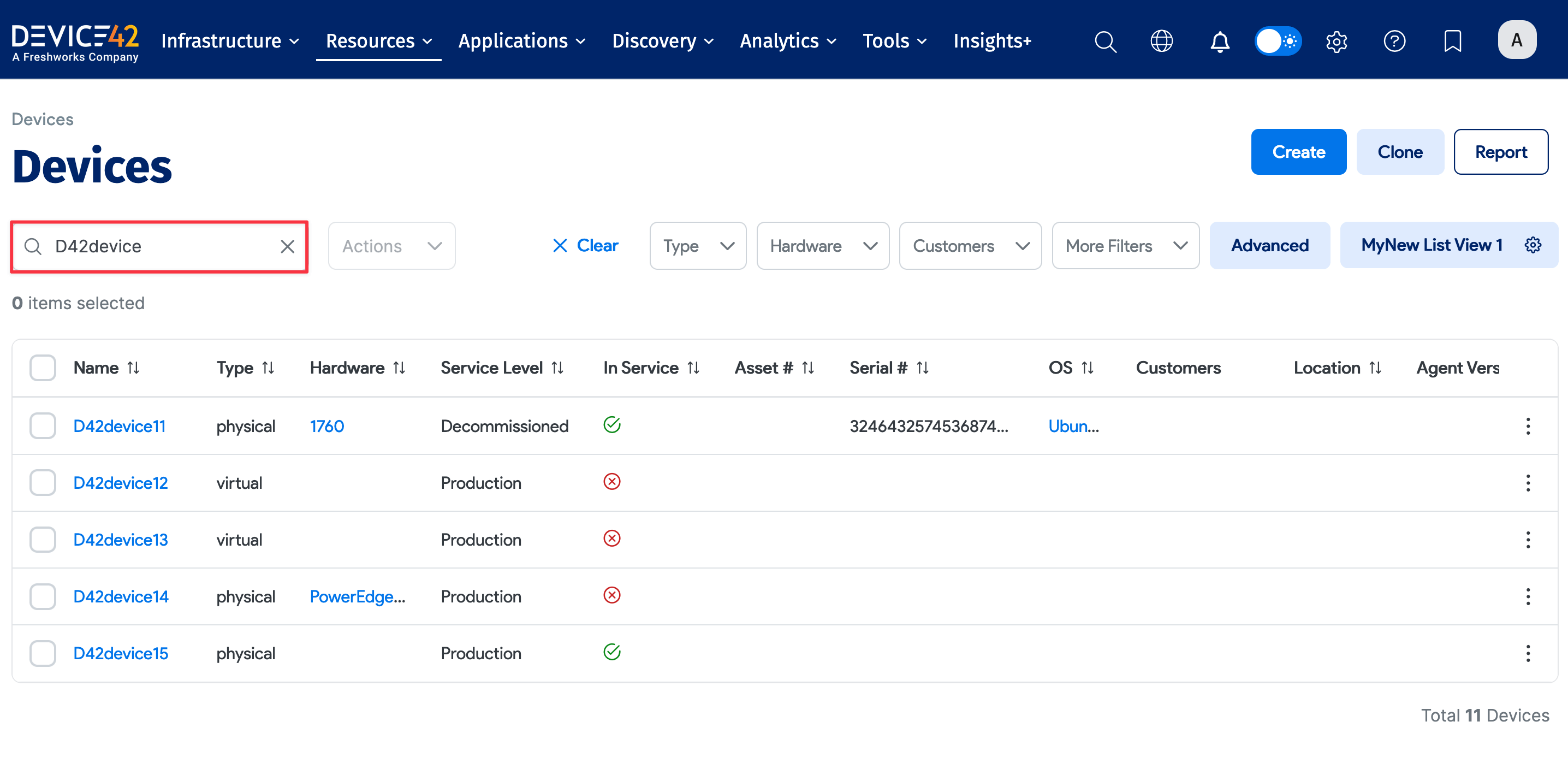
Renaming devices is just one example of how you can use Re-importable Export. The re-importable export sheet includes nearly 30 device parameters that you can edit and import back into Device42.
More Information
For more information about the available API import options, see the following references: