Generic Spreadsheet Import Tool
Use the Device42 Generic Spreadsheet Import Tool to load data from spreadsheet and CSV files into Device42. The tool supports XLS, XLSX, and CSV files and lets you map spreadsheet columns to the correct fields in Device42.
This page covers how to download the tool, open and map a spreadsheet, save mapping templates, and create custom device fields.
For a video walkthrough, see Generic (.CSV) Import Tool How to.
Use the Generic Spreadsheet Import Tool
The spreadsheet converter is a standalone executable. You can download it from https://www.device42.com/bulk-data-management/.
Open an Existing Spreadsheet
Start by opening the tool and selecting the source file you want to import.
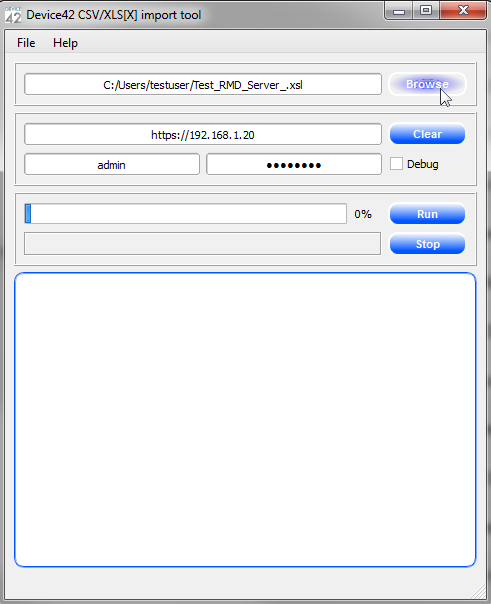
Browse to your existing XLS, XLSX, or CSV file, and then select it.
Run the File Prep Wizard
Use the File Prep Wizard to review the spreadsheet before you map any fields.
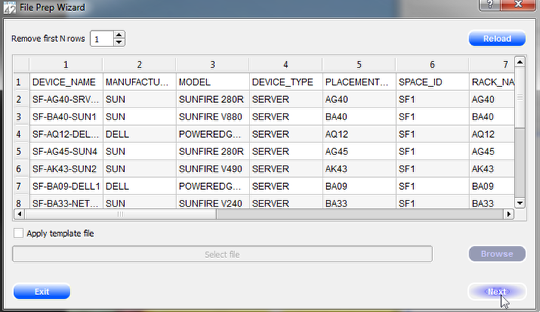
You can preview the first several rows of the spreadsheet. If the file includes extra header rows, click Remove first N rows to delete them before continuing.
When the preview looks correct, click Next.
Map Columns to Device42 Fields
Map each source column to the corresponding field in Device42.
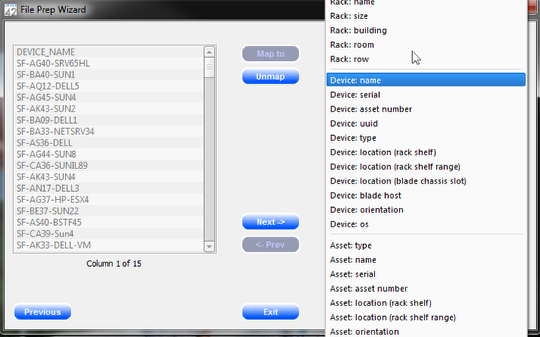
Select a column from your spreadsheet, and then select the Device42 field you want to map it to.
In the example above, the Device Name spreadsheet column is mapped to the Device: name field in Device42. After you select the correct Device42 field, click Map to.
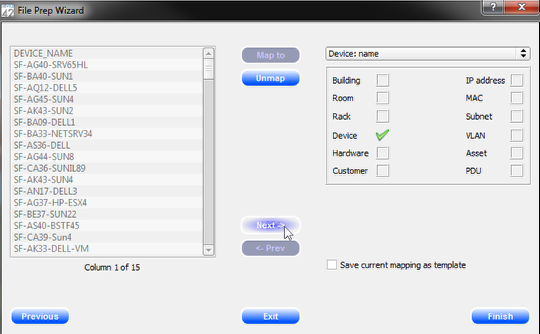
Each mapped field displays a green check mark to show that the mapping is complete. After you finish mapping the fields you need, click Next.
Create Custom Device Fields
If a spreadsheet column does not match an existing Device42 field, you can create a custom field during the import process.
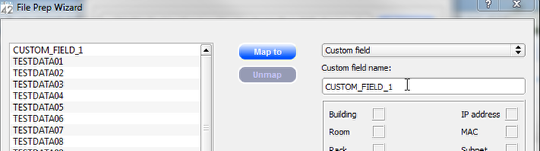
When you create a custom field, the spreadsheet converter automatically creates it in Device42 and associates it with the imported device.
Custom fields are only available for Devices.
Save a Mapping Template
Save the mapping if you expect to import similar spreadsheets again.
Click Save current mapping as template to reuse the same mapping later. This reduces repeated setup for spreadsheets with the same structure.
After you finish mapping the fields and optionally save the template, click Finish.
Import the Spreadsheet Data
Enter the connection details and run the import to send the spreadsheet data to Device42.
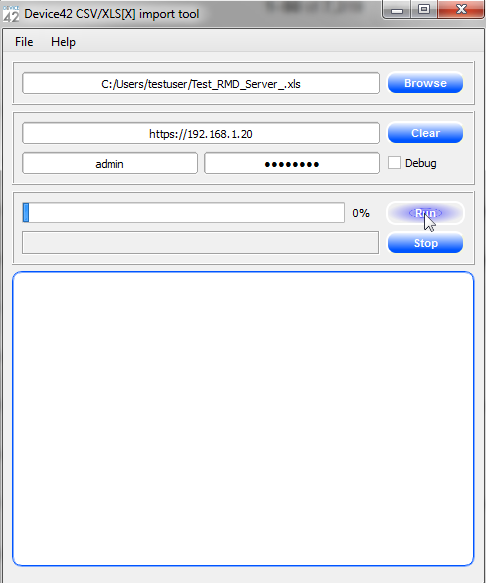
Select the file name, enter the Device42 IP address, and provide the authentication details. Then click Run to import the spreadsheet data into Device42.