Spreadsheet Imports and Exports
Use the spreadsheet import and export tools to add data to Device42, update existing records, and export current data. These tools use the Device42 API in the background, so you do not need to build API calls manually. They also show whether each record was imported successfully and, if not, why it failed.
This page explains where to find the feature, how to prepare sample files, how to upload changes, and how exports behave for large datasets and passwords.
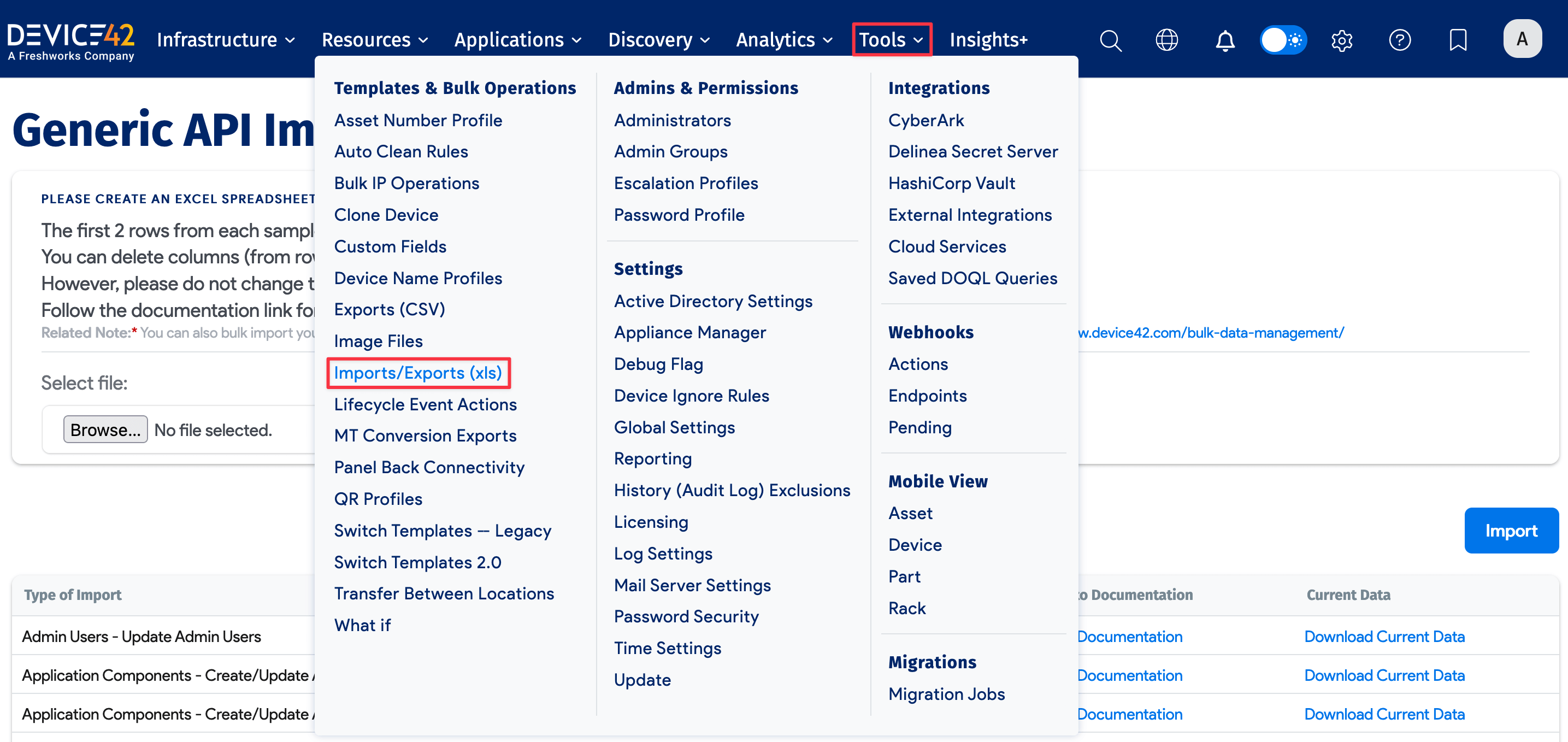
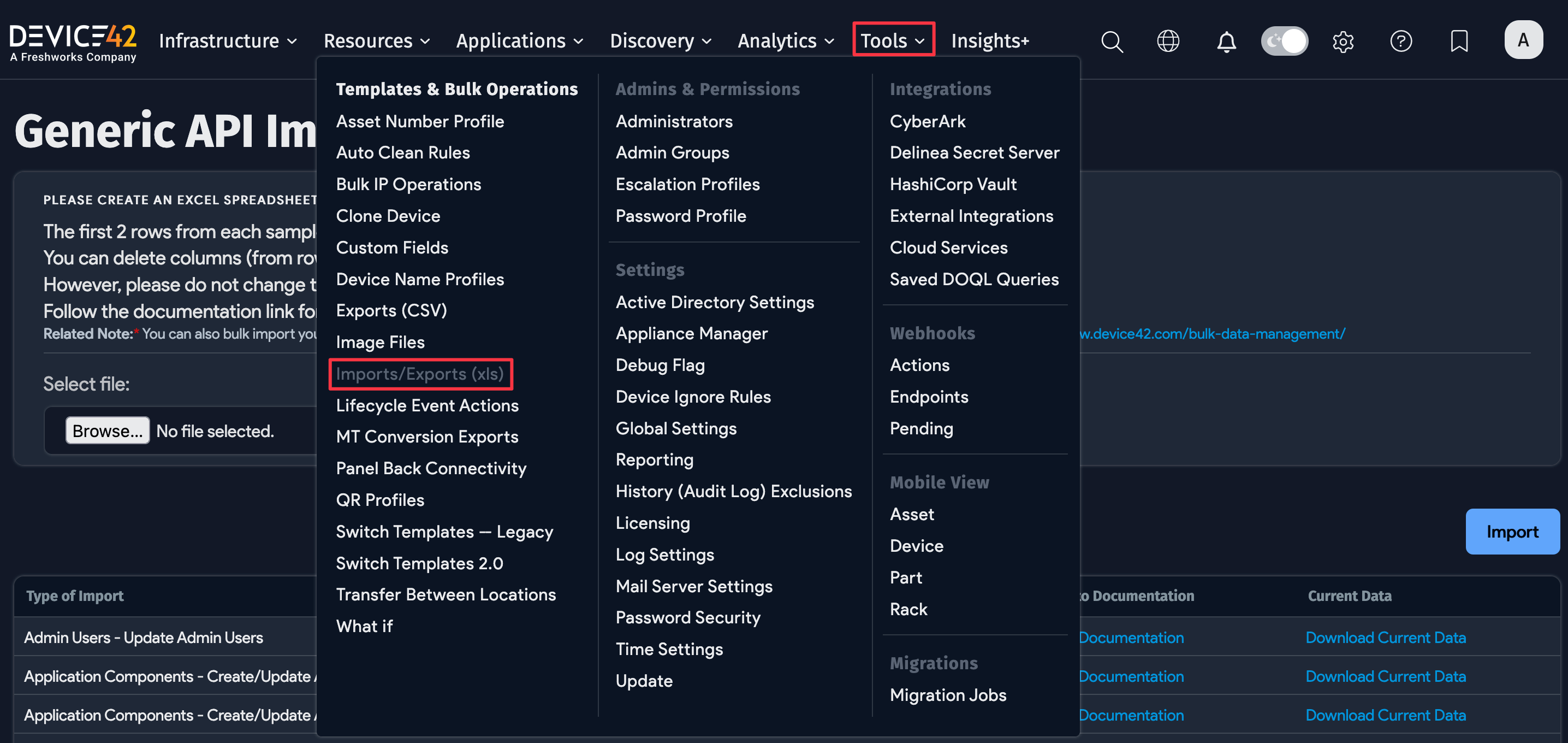
The spreadsheet import and export functionality is located under Tools > Imports/Exports (xls).
Import Data
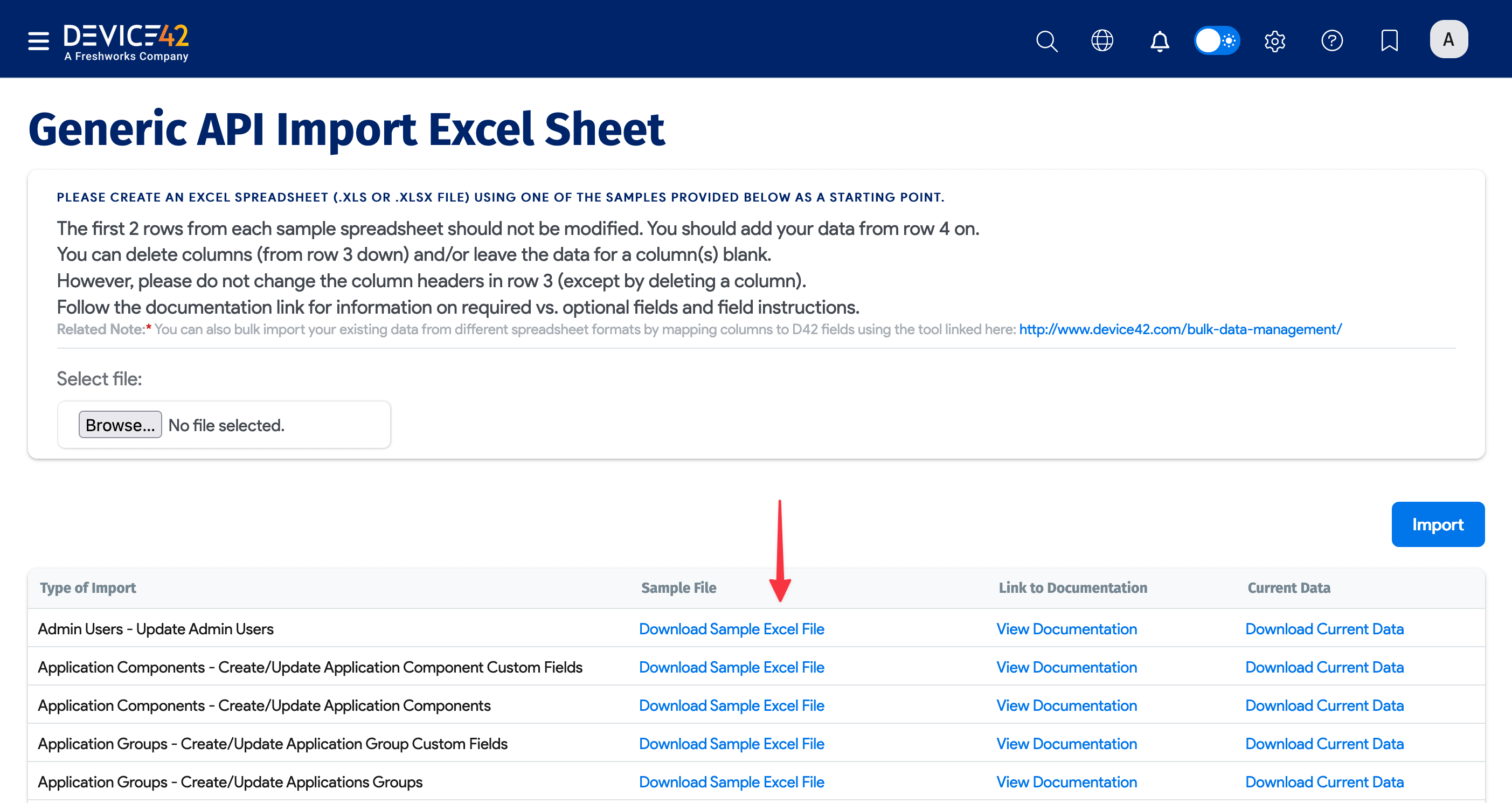
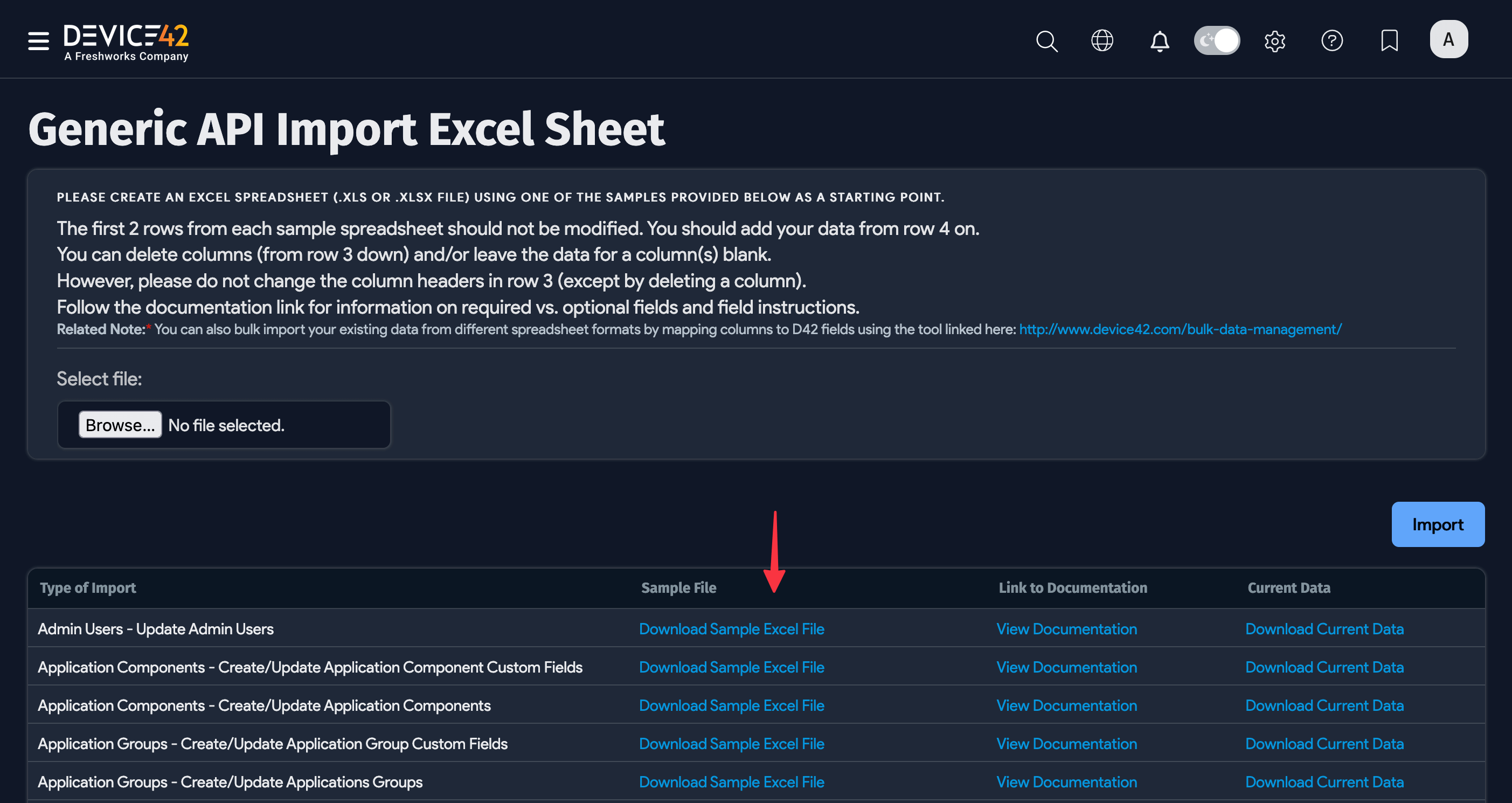
To import data, choose a category on the left and click Download Sample Excel File. Add your data to the sample spreadsheet, and then import it.
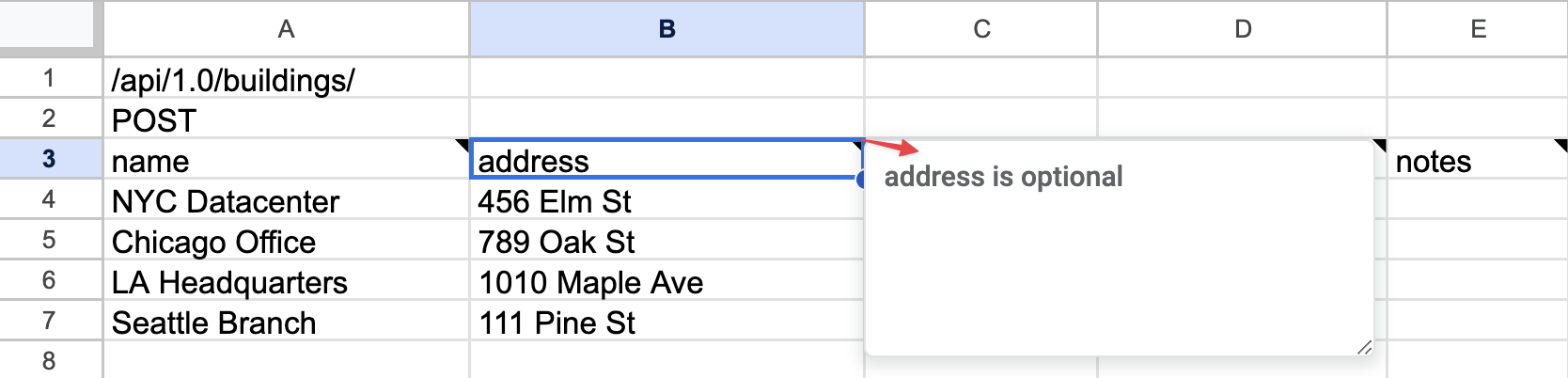
Below is a sample spreadsheet for the Buildings - Create/Update Buildings category.
- Do not modify the first three rows. They contain the API endpoint, request method, and column headings.
- The fourth row, and sometimes the fifth row, contains sample data. Delete the sample data, and then add the records you want to import starting on row four.
- Save the file as
.xlsor.xlsx.

After you prepare the file, upload it from the Imports/Exports (xls) page.
Browse to the modified sample spreadsheet, and then click Import.
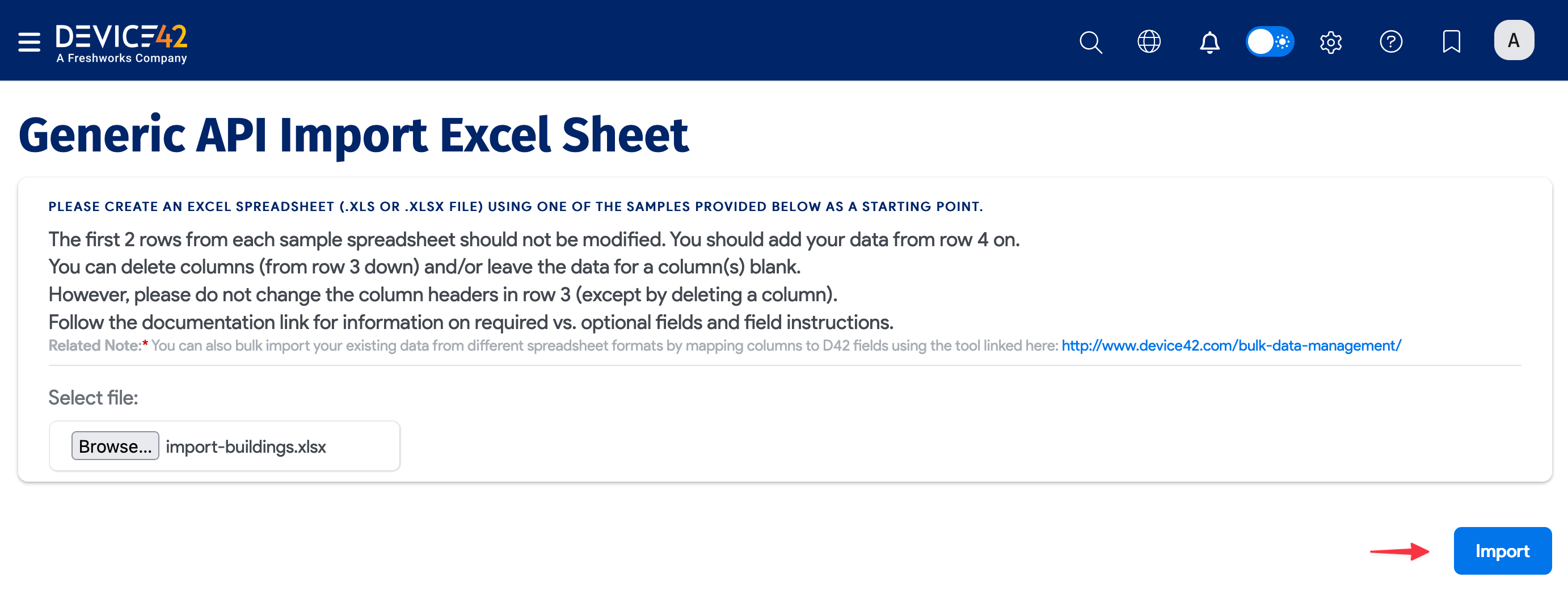
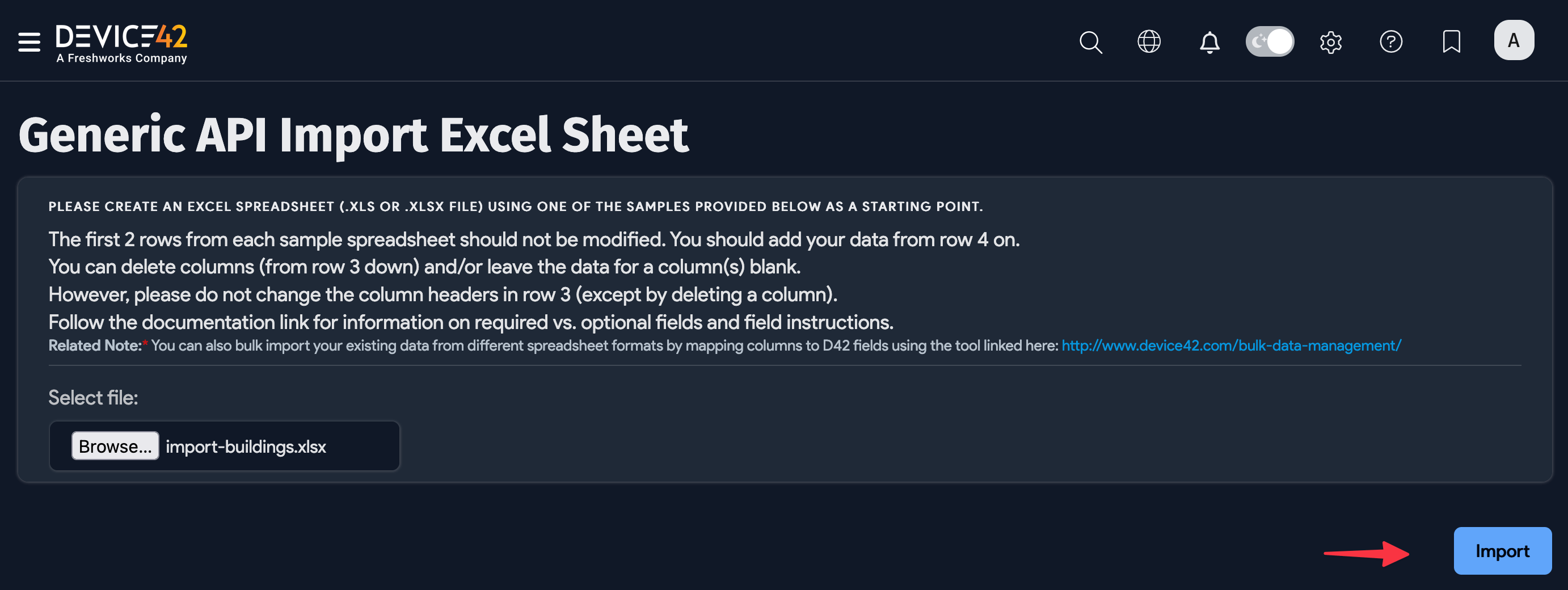
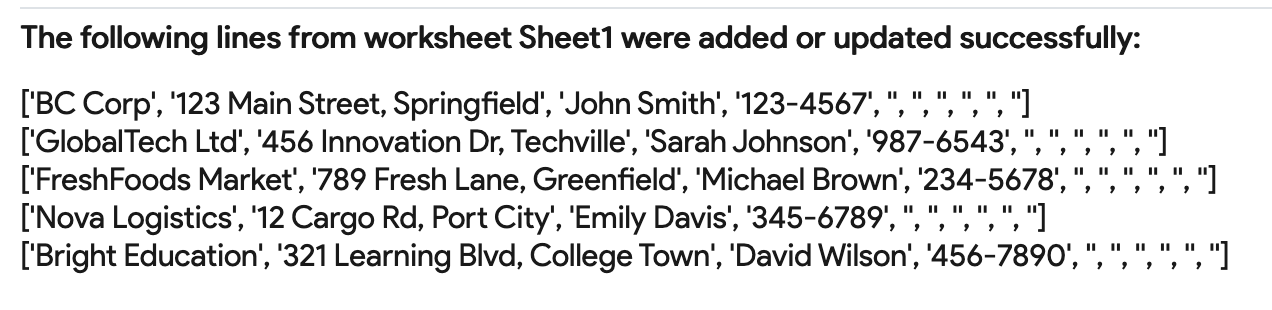
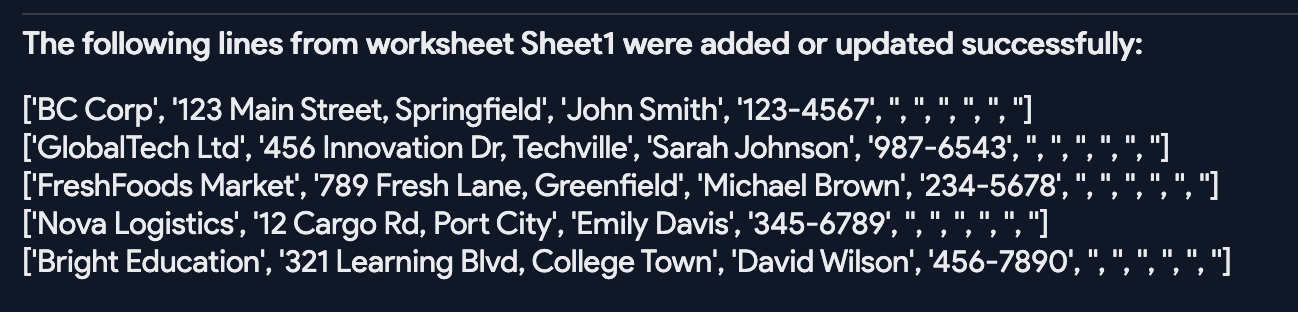
Below Browse, Device42 displays a message listing the records that were added or updated successfully. If any records are rejected, the message includes a reason for each rejection.
Data Field Descriptions
If you want to learn more about a data field, hover over the small triangle in the upper-right corner of the field name cell. You can also click View Documentation on the Imports/Exports (xls) page to open the online documentation.
Export Data
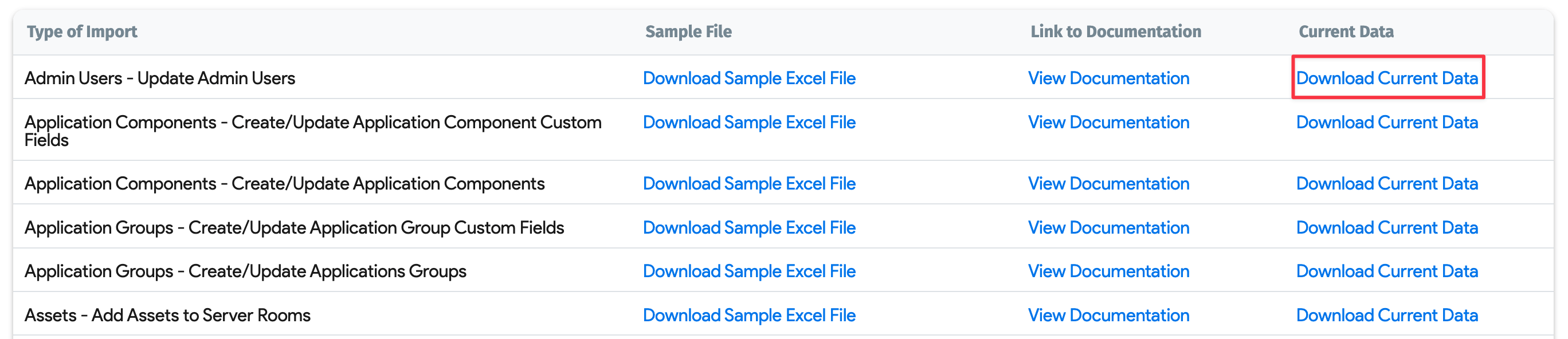
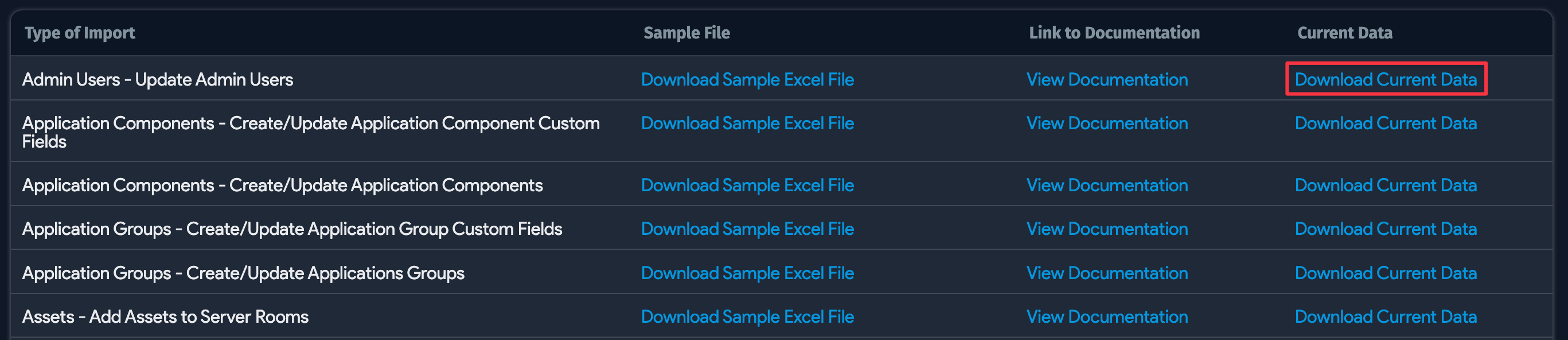
To export data, click Download Current Data for the selected category. This downloads a spreadsheet that contains the current records for that category.
The export feature opens a new browser tab for each 1,000,000 exported records.
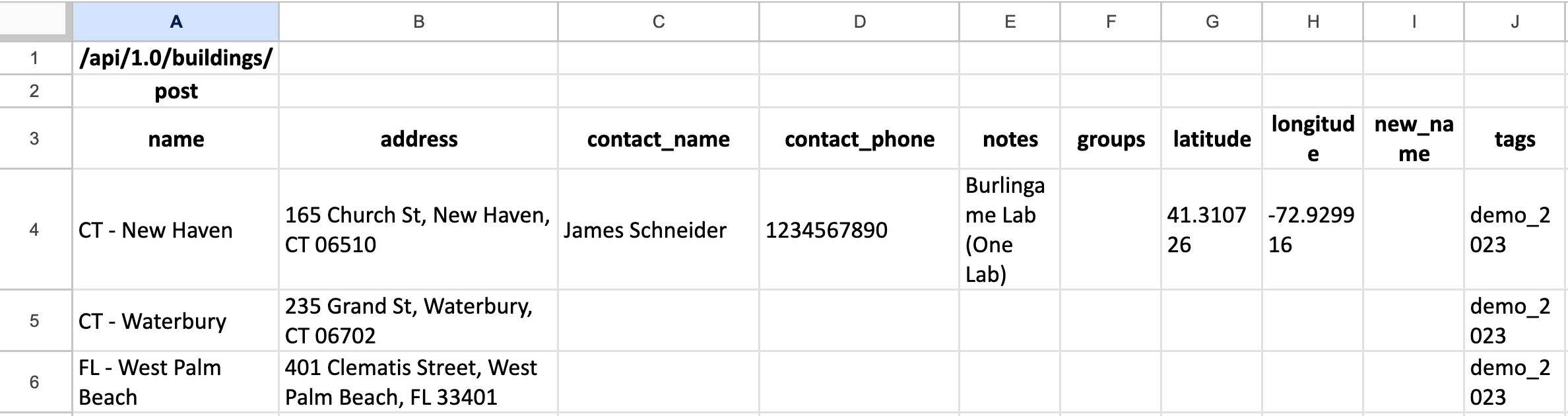
For example, the spreadsheet below shows exported data for the Buildings - Create/Update Buildings category.
Modify Data
You can use the same workflow to modify existing data.
Download the current data, update the spreadsheet, and then re-import it with Browse and Import as described above.
If a category shows Create or Add, but does not show Modify or Update, importing the spreadsheet adds new records instead of updating existing ones. If you export current data and re-import it for one of these categories, you will create duplicates.
To avoid duplicate records, modify the spreadsheet and then delete the existing records before you re-import it. Go to the list view for the primary object in the category to bulk-delete the existing records. For example, use the racks list view for the Create Racks category.
Export Passwords
By default, password exports do not include the actual password values, even for users who have permission to view passwords.
To change this behavior, go to Tools > Settings > Password Security. Password exports then include the literal password strings for users with the appropriate permissions.