Windows Discovery Agent Service Wrapper
The Device42 Windows Service Wrapper is an executable (available separately for i386 32-bit and 64-bit architectures) that can be installed as a service. Download the Windows Service Wrapper from the Device42 Autodiscovery page. The service wrapper calls the Device42 Windows agent, which you can download from your Device42 Main Appliance (MA).
Installation Overview
You will need three separate files to install the service.
- The service executable itself: This is named
d42_winservice_x64_v1_0_0.exe. Its default path isC:\Program Files\Device42. - The d42config.json file: This dictates the various settings needed to run the service. Its default path is
C:\ProgramData\Device42. - The agent executable: This is called
d42_winagent_x(bit).exe. It can be downloaded from the Device42 MA under Discovery > Agent Based Scans (Win7+).
There are multiple ways to install and start the service. For your convenience, we have added a PowerShell script (option 1). Below that we include detailed steps for installing with sc if needed (option 2).
Option 1: Using the PowerShell Script
-
Download the combined zip file and extract it to your local file system.
-
Ensure that PowerShell remote execution is enabled (
Set-ExecutionPolicy RemoteSigned). -
Drop the agent executable, downloaded from the Device42 MA, into the same folder.
-
Optional: Modify the example
d42config.jsonfile. For example, you could change the interval or add arguments (as documented below). -
Run the PowerShell script:
.\D42Installer.ps1This script drops different files based on the machine architecture.
-
Optional: Revert the execution policy.
Option 2: Using sc Commands
-
By default, the service wrapper looks for an agent named
d42winagent.exeunderC:\Program Files\Device42on the end machine. Check that you've saved the agent using the correct name and location. -
The service calls the agent on service start and then again every
8hours. You can override these values in thed42config.jsonfile.For example:
Click to expand the code block
{
  "executablePath": "c:\\Program Files\\Device42\\d42_winagent.exe",
  "WorkingDir": "c:\\ProgramData\\Device42",
  "arguments": ["-host=https://10.92.11.63","-skip-software=true"],
  "interval": 2
}
Each of the "arguments" is enclosed in double quotes.
The "interval" can be anything from 1 to 24 hours.
-
Use
sc createto create the service.sc create d42AgentService binPath= "C:\Program Files\\Device42\d42_winservice_386.exe" start= auto (or d42_winservice_x64.exe)
Notice the space after the = sign in the above command. It is critical.
-
You can use
sc startto start the service, or start it from the UI.sc start d42AgentService -
You can use the
sc descriptioncommand to provide a friendly description of the service.sc description d42AgentService "D42 service that calls the agent to run every N hours to send inventory details to Device42" -
To query or stop the service, use the following (optional) commands:
sc query d42AgentServicesc stop d42AgentService
On Windows, sc create and sc start read from %windir%/system32 by default.
If you don't have C: or don't want to use C:\ProgramData\Device42, you can place d42config.json in the system32 directory.
Arguments for the Config Files
As shown in the example above, each argument should be enclosed in double quotes and separated by a comma.
Log Output
The agent_local.log file will be created under the current working directory.
Handling Errors
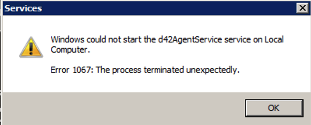
If the service doesn’t start, it's usually because it can’t read the d42config.json file.
The file should be located under $ProgramData\Device42 or %windir%\system32 (sc reads from the system folder by default, so for any non-standard location, this is where the file needs to be).
Another issue might be that the format or the values are incorrect.